Save the .htaccess file. We hope the above changes to the htaccess file can help you to remove the index.php from your URL. You can use the above method for any CMS like Joomla, Magento or WordPress.
If you need any help on this then feel free to contact us. Our experienced developers will help you fix the issue.
Updated 15 October 2026 · By Abhilash Sahoo, Founder, Infyways
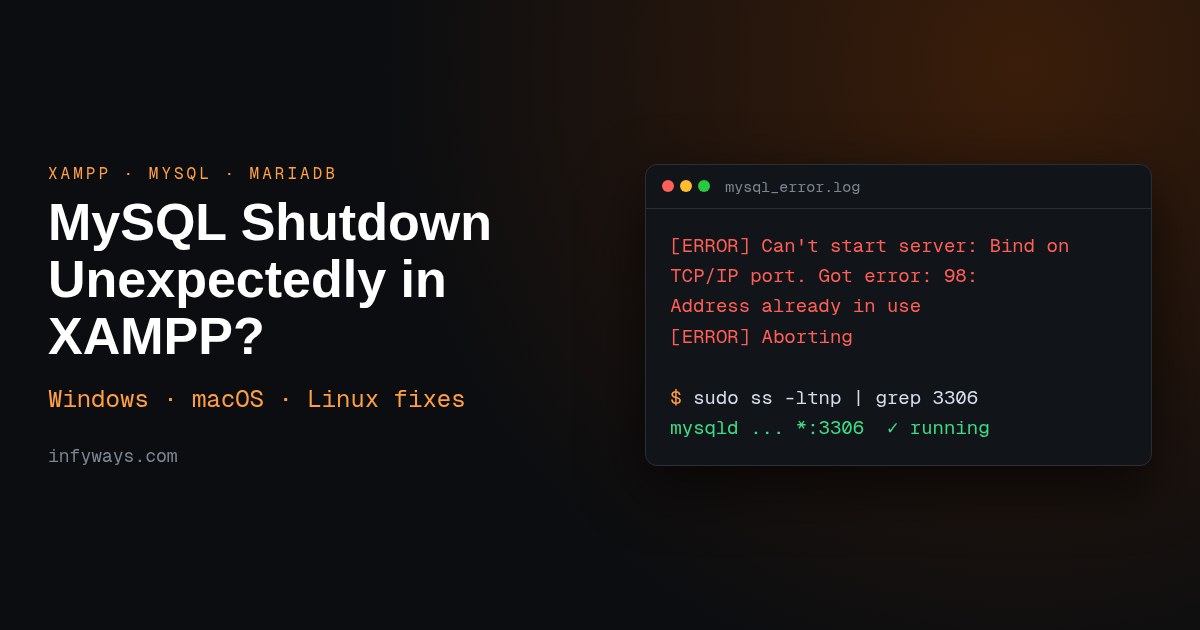
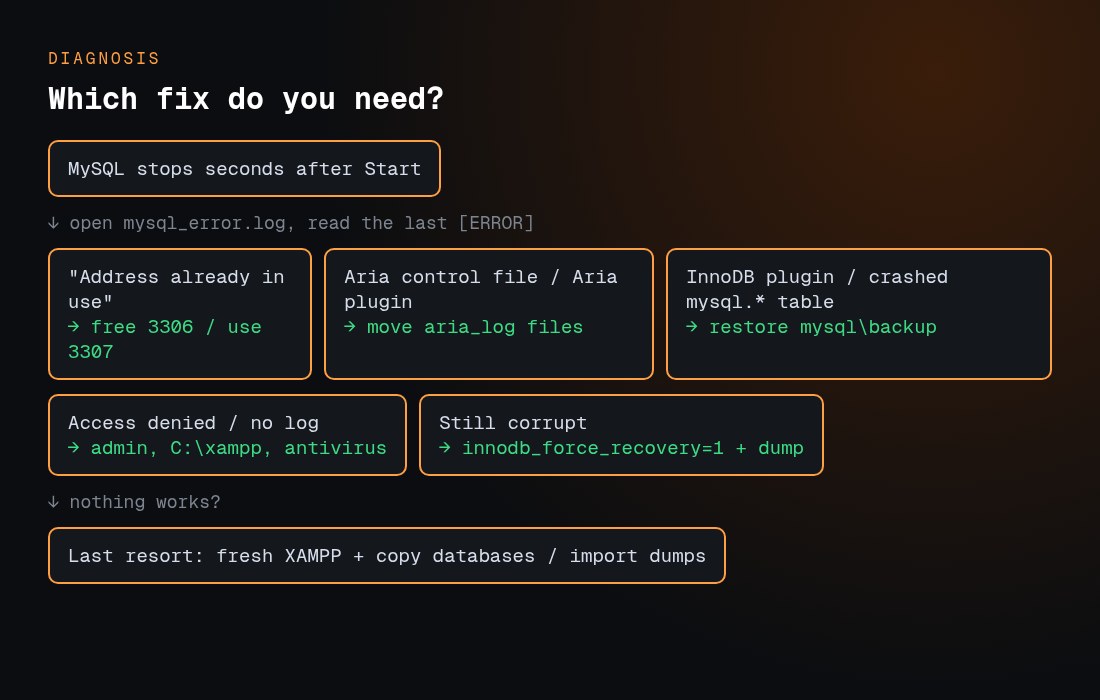
Quick answer: “Error: MySQL shutdown unexpectedly” means XAMPP’s MariaDB server started and then crashed. Open mysql_error.log (Control Panel → MySQL → Logs) and read the last [ERROR] line:
“Address already in use” means another program has port 3306. Stop it, or change XAMPP to port 3307.
“aria control file” errors mean the Aria log is damaged. Back up first, then move aria_log_control and the aria_log.* files out.
InnoDB or “marked as crashed” errors mean data or system tables are damaged. Restore the system files from mysql\backup and keep your own databases and ibdata1.
No log, or permission errors point to Windows permissions. Run XAMPP as administrator, install it in C:\xampp, and exclude the folder from your antivirus.
Always copy the mysql\data folder somewhere safe before you change anything.
I installed XAMPP 8.2.12 for Linux (MariaDB 10.4.32) and reproduced the two most common failures, a port conflict and a damaged Aria control file. The terminal images marked “real output” are what the server actually printed. Every command and path below is checked against the official XAMPP FAQ or the MariaDB documentation.
What does “Error: MySQL shutdown unexpectedly” mean?
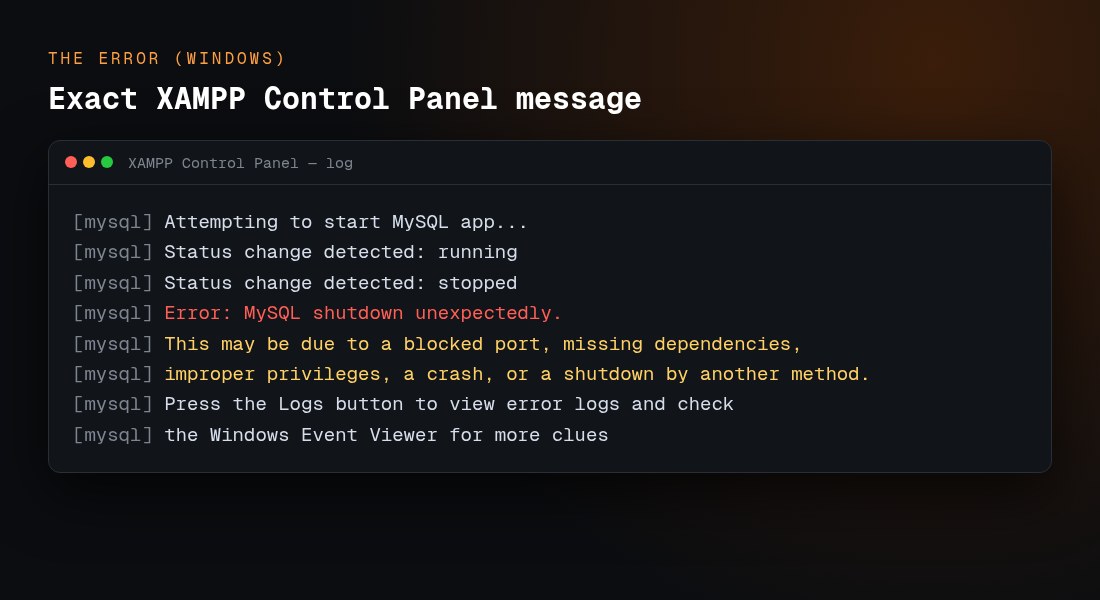
On Windows, the XAMPP Control Panel prints this exact text when MySQL dies seconds after you click Start:
The message lists every possible cause because the Control Panel can’t see the real one. The real reason is in the server’s own error log. XAMPP has shipped MariaDB instead of MySQL since versions 5.5.30 and 5.6.14, according to the XAMPP FAQ, so the MariaDB documentation applies. The panel still calls it “MySQL”.
Read the last 20–30 lines. On Linux and macOS, run sudo tail -30 /opt/lampp/var/mysql/*.err (use the matching path on macOS). Lines tagged [Note] are normal. The line that matters is the [ERROR] just before Aborting.
How do I fix a port 3306 conflict?
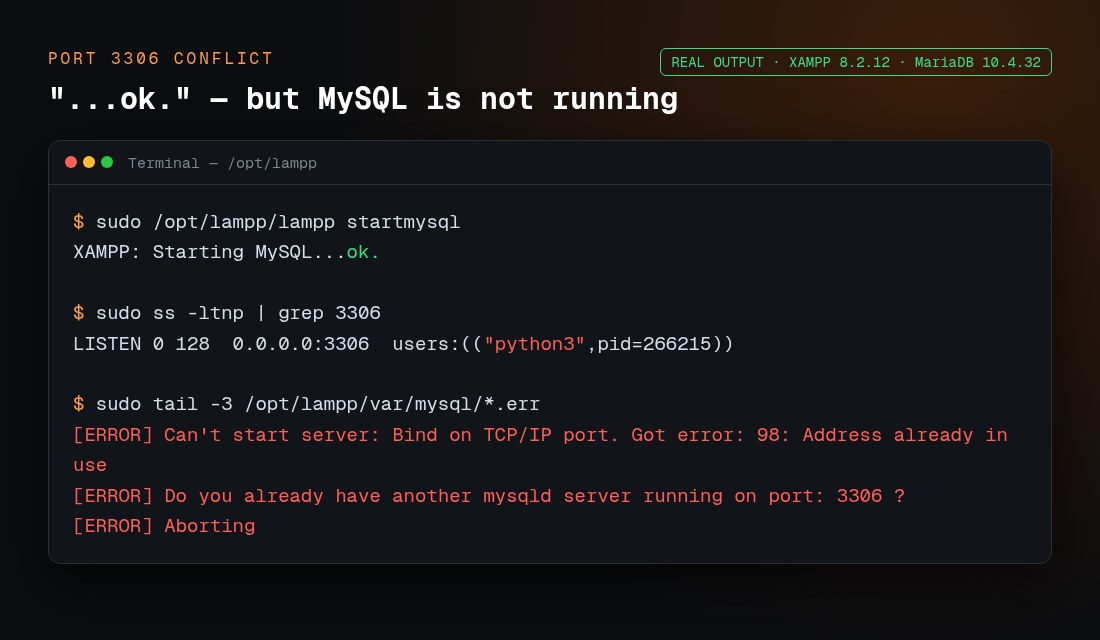
MariaDB listens on TCP port 3306. If anything else already listens there, the log shows this. It’s real output from my test, where another process was holding the port:
Watch for one trap: on Linux and macOS, lampp startmysql still printed “XAMPP: Starting MySQL…ok.” even though the server aborted a second later. Don’t trust “ok”. Check the port and the log.
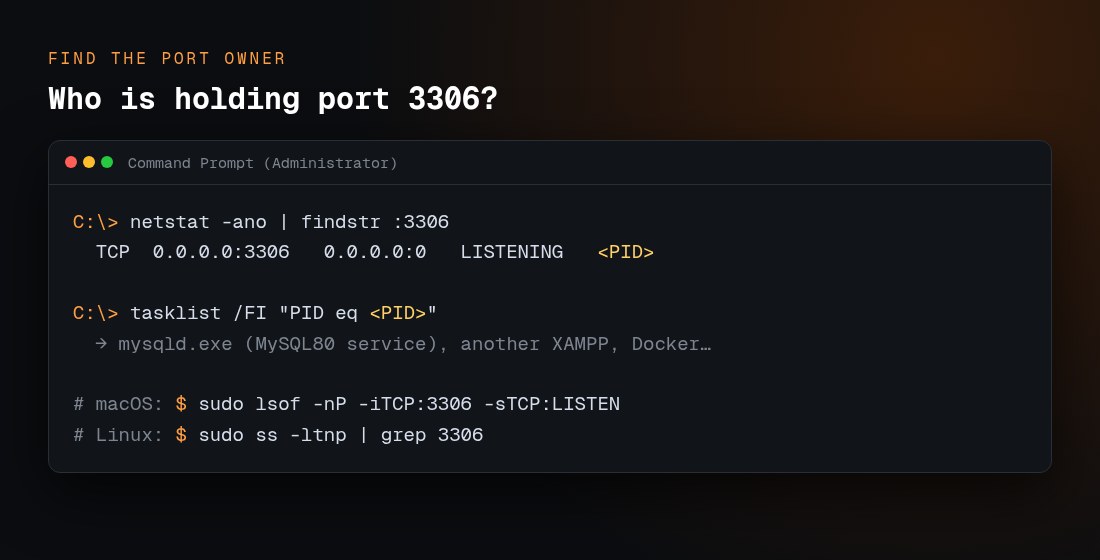
Find out what owns the port:
:: Windows (Command Prompt as administrator)
netstat -ano | findstr :3306
tasklist /FI "PID eq 1234"

# macOS
sudo lsof -nP -iTCP:3306 -sTCP:LISTEN

# Linux
sudo ss -ltnp | grep 3306
Replace 1234 with the PID from netstat. The usual owners are:
A standalone MySQL or MariaDB Windows service (often named MySQL80, MySQL57 or MariaDB), installed with MySQL Installer, Workbench, WampServer or Laragon.
A second XAMPP copy, or an old mysqld.exe left running.
Docker containers that publish port 3306.
On Linux or macOS, a system MySQL. XAMPP’s FAQ documents this message for that case: “LAMPP-MySQL is already running. A MySQL daemon is already running.”
Skype is often blamed in older guides, but it competed with Apache for ports 80 and 443, not MySQL’s 3306.
How do I stop another MySQL service on Windows?
Press Win + R, type services.msc and press Enter.
Find MySQL80, MySQL57, MySQL or MariaDB. Right-click it and choose Stop.
Open Properties and set Startup type to Manual so the service doesn’t take the port again at boot.
Or, from an administrator prompt, run net stop MySQL80 (use the exact service name).
On Linux, stop the system server with sudo systemctl stop mysql or sudo systemctl stop mariadb. On macOS with Homebrew, use brew services stop mysql.
How do I change the MySQL port in XAMPP?
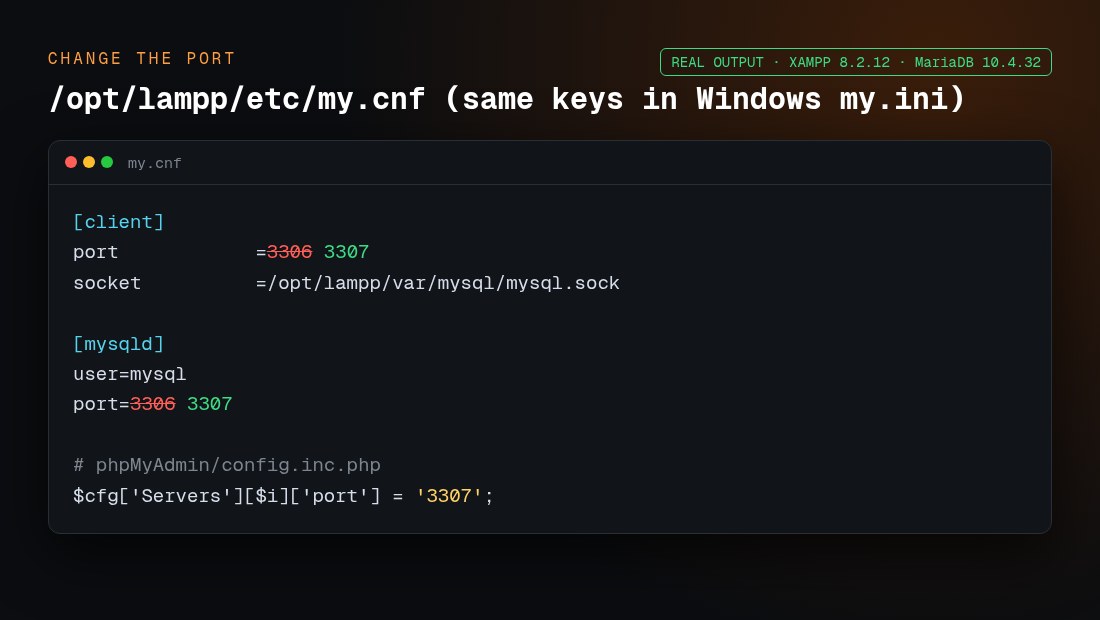
If you need both servers, move XAMPP to 3307. Change port in both the [client] and [mysqld] sections. These are the real lines from XAMPP’s Linux my.cnf, and Windows my.ini uses the same keys:
Then reconnect everything else:
phpMyAdmin: in phpMyAdmin/config.inc.php, add $cfg['Servers'][$i]['port'] = '3307'; next to the existing host line. Without it, phpMyAdmin shows “mysqli::real_connect(): (HY000/2002)” connection errors.
Your apps: use 127.0.0.1:3307 as the database host. That’s DB_HOST in WordPress’s wp-config.php, and $host plus the port in Joomla’s configuration.php.
The command line:mysql -u root -P 3307 -h 127.0.0.1.
How do I fix “aria control file” errors?
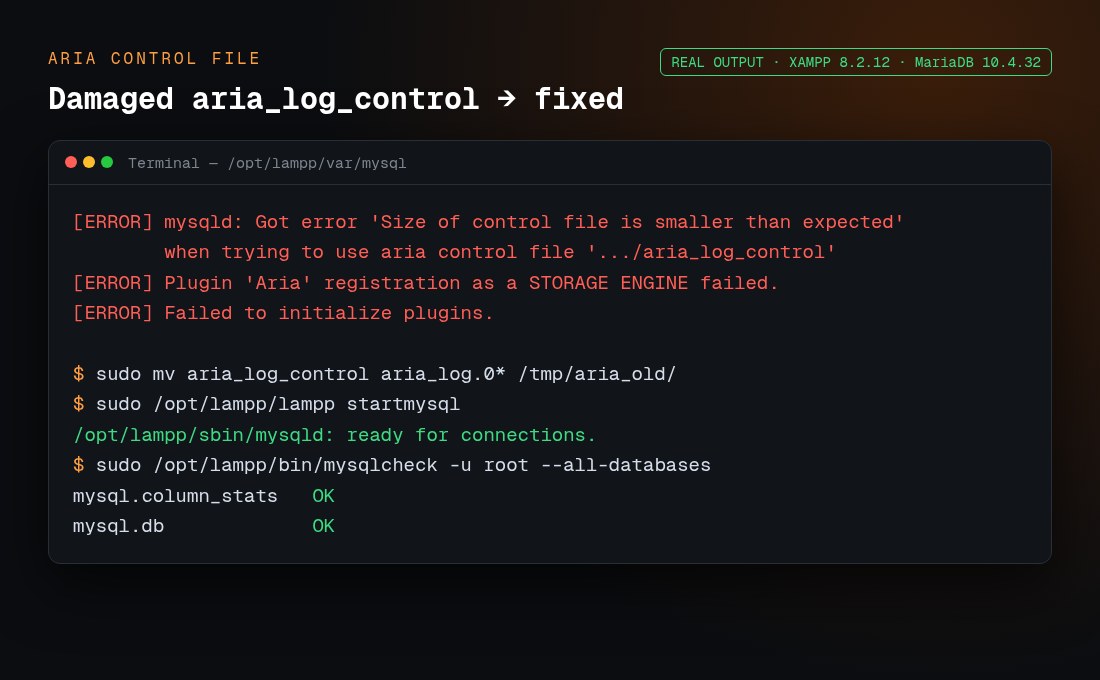
Aria is MariaDB’s crash-safe engine for its system tables. If aria_log_control is damaged, for example after a power cut, the whole server refuses to start. I reproduced this by damaging the file on purpose. The fix took one command:
Stop MySQL and back up the whole data folder.
Move (don’t delete) aria_log_control and the aria_log.0000000N files out of the data folder.
Start MySQL. MariaDB creates new Aria log files.
Check your tables with mysqlcheck -u root --all-databases. On Windows, run C:\xampp\mysql\bin\mysqlcheck.exe.
If individual Aria tables are still damaged, MariaDB’s offline tool aria_chk can repair them. MariaDB’s docs warn that “aria_chk should not be used when MariaDB is running”, so stop the server first. Then, inside the data folder, run aria_chk --check */*.MAI, and aria_chk -r on the tables it flags.
How do I fix corrupted InnoDB or system tables with the backup folder?
On Windows, XAMPP ships a clean copy of the system databases in C:\xampp\mysql\backup. If the log shows “Plugin ‘InnoDB’ registration as a STORAGE ENGINE failed” or “Table ‘.\mysql\user’ is marked as crashed and last (automatic?) repair failed”, rebuild the data folder from it:
Stop MySQL and close the Control Panel.
Rename C:\xampp\mysql\data to data_old. Keep it: it’s your safety net.
Copy C:\xampp\mysql\backup and name the copy data.
From data_old, copy your own database folders into data. Skip mysql, performance_schema, phpmyadmin and test.
Copy data_old\ibdata1 into data and replace the existing file. Your InnoDB tables depend on it.
Start MySQL. Then run mysqlcheck -u root --auto-repair --all-databases.
After this, any MySQL user accounts and passwords you created are reset, because they live in the mysql system database. Recreate them in phpMyAdmin.
Is it safe to delete ibdata1 or ib_logfile0?
Don’t delete them unless you have a backup. ibdata1 is the InnoDB system tablespace, which holds the data dictionary and undo logs. ib_logfile0 and ib_logfile1 are the redo logs. Deleting them can make every InnoDB table unreadable. If you must experiment, do it on a copy of data_old.
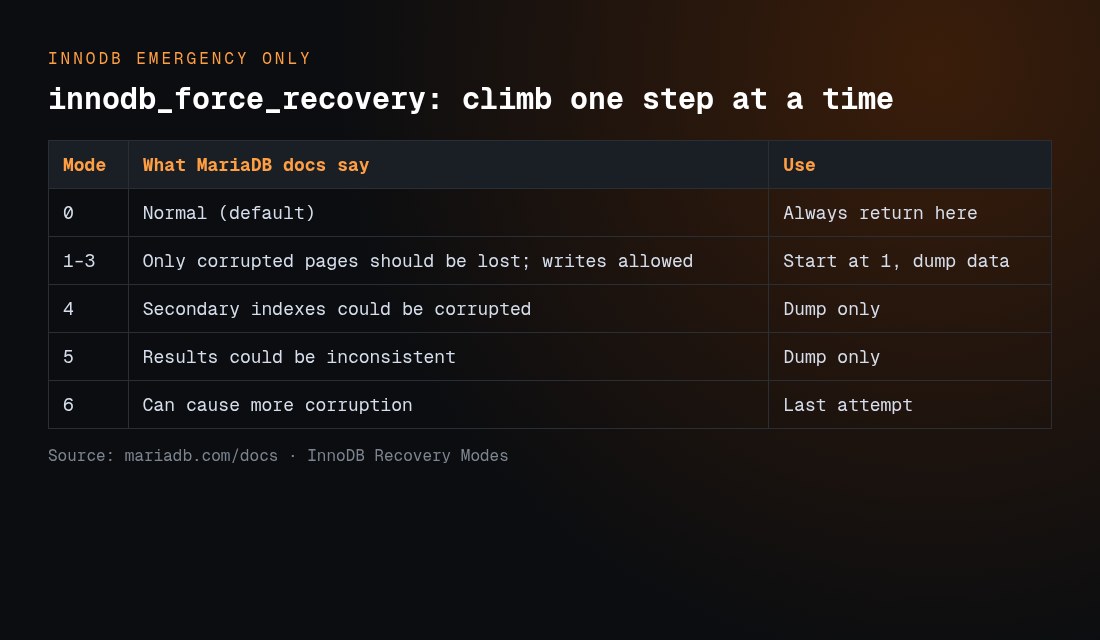
When should I use innodb_force_recovery?
Use it only when the backup-folder method doesn’t work and InnoDB still refuses to start. Add one line under [mysqld] in my.ini or my.cnf:
[mysqld]
innodb_force_recovery = 1
MariaDB’s documentation says to start at 1 and go up one step at a time. In its words: “With a recovery mode < 4, only corrupted pages should be lost”, and “A value of 6 leaves pages in an obsolete state, which might cause more corruption.” Once the server starts, export everything straight away with mysqldump -u root --all-databases > all.sql (or use phpMyAdmin Export). Then set the value back to 0 and rebuild from that dump. Don’t keep working with recovery mode on.
If a crashed mysql.* table blocks startup, you can repair it the same way. Start the server in a console with mysqld --console --skip-grant-tables, then run mysqlcheck -u root --repair --databases mysql in a second window.
Why does MySQL fail with permission or antivirus problems?
Install location: the XAMPP installer warns against C:\Program Files, because User Account Control limits writes there. Use C:\xampp.
Run as administrator: right-click xampp-control.exe and choose Run as administrator. This is also required to tick the Service box and install MySQL as a Windows service.
Windows Defender or other antivirus: real-time scanning can lock or quarantine mysqld.exe and data files. Go to Windows Security → Virus & threat protection → Manage settings → Exclusions, and add C:\xampp\mysql.
Linux: XAMPP’s FAQ notes that SELinux can block startup with “Cannot restore segment prot after reloc: Permission denied”. The data folder must belong to the user set in my.cnf (user=mysql).
Event Viewer: the Control Panel message itself suggests checking the Windows Event Viewer (Windows Logs → Application) when mysql_error.log is empty.
How do I fix XAMPP MySQL on macOS and Linux?
macOS native installer. The control app is manager-osx, in /Applications/XAMPP. A leftover mysqld or a Homebrew MySQL is the usual cause:
You can also change the port in manager-osx under Manage Servers → MySQL Database → Configure.
macOS XAMPP-VM. The XAMPP FAQ describes XAMPP-VM as a Linux virtual machine running on your Mac. So the Linux commands below apply inside the VM, not to /Applications/XAMPP.
Linux (/opt/lampp). These are the official commands from the XAMPP Linux FAQ:
Last resort: move your databases to a fresh XAMPP install
If nothing above works, keep your data and replace the server around it:
Back upC:\xampp\mysql\data (or /opt/lampp/var/mysql) and htdocs to another drive.
Dump if you can. If any recovery mode got the server running, export SQL dumps. A dump is the most portable, version-safe backup.
Uninstall XAMPP, or rename the folder, then install the same XAMPP version fresh. Copying raw data files between different MariaDB versions is risky.
Start the fresh MySQL once and stop it.
Import your SQL dumps through phpMyAdmin or mysql -u root < all.sql. If you have no dumps, copy your database folders plus ibdata1, ib_logfile0 and ib_logfile1 from the backup into the new data folder while MySQL is stopped, then start it.
Recreate MySQL users and copy your htdocs projects back.
On Linux and macOS, sudo /opt/lampp/lampp backup is documented in the FAQ, but XAMPP labels it a beta feature that “may not work correctly”, so don’t rely on it alone. Moving a Joomla site this way? Our Joomla transfer guide and Joomla backup guide cover the site side.
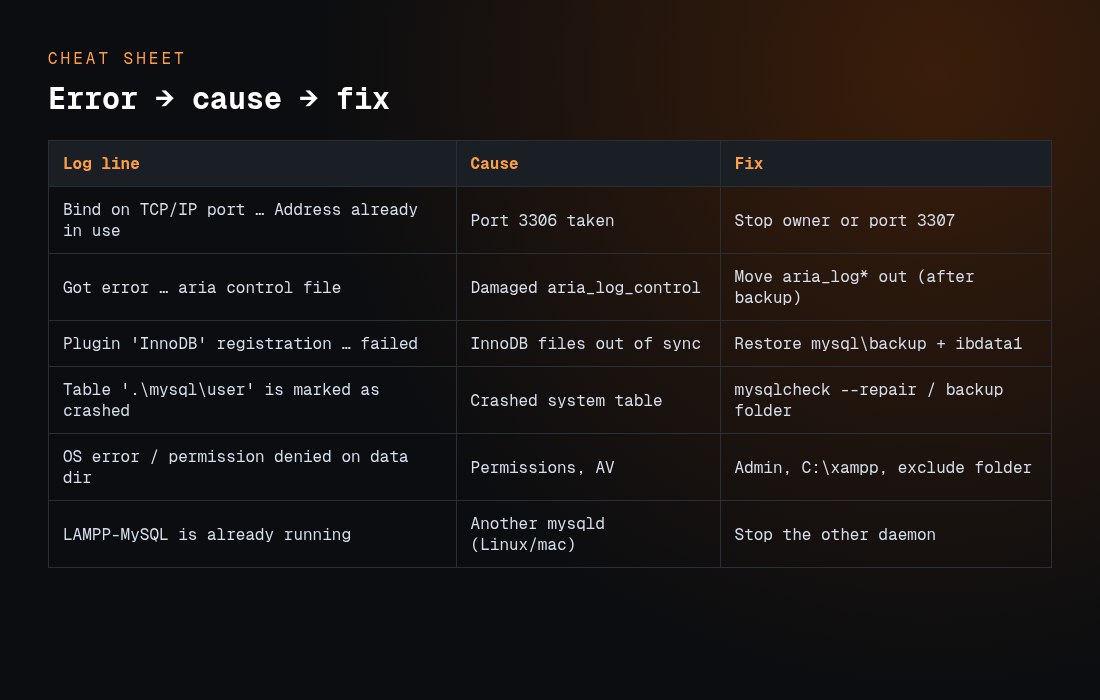
XAMPP MySQL errors, causes and fixes
Log line or symptom
Cause
Fix
Data risk
Can’t start server: Bind on TCP/IP port … Address already in use
Port 3306 already taken
Stop the owner, or use port 3307
None
Do you already have another mysqld server running on port: 3306 ?
Second MySQL or MariaDB running
services.msc → stop and set to Manual
None
Got error … when trying to use aria control file
Damaged Aria log
Move the aria_log files out
Low
Plugin ‘InnoDB’ registration as a STORAGE ENGINE failed
InnoDB files out of sync
Restore from the backup folder and keep ibdata1
Medium
Table ‘.\mysql\user’ is marked as crashed
Crashed system table
mysqlcheck –repair, or the backup folder
Low (users reset)
InnoDB still won’t start
Corrupted pages
innodb_force_recovery=1, then dump and rebuild
High
Empty log, stops instantly
Permissions, antivirus, Program Files
Run as admin, install in C:\xampp, add an exclusion
None
phpMyAdmin HY000/2002 after a port change
phpMyAdmin still uses 3306
Set the port in config.inc.php
None
LAMPP-MySQL is already running
Another mysqld (Linux or macOS)
Stop the other daemon
None
Which fix should I try first?
Fix
Time
Touches data?
Try it when
Free port 3306 or change the port
2 min
No
The log says “Address already in use”
Run as admin, add an antivirus exclusion
2 min
No
The log is empty or shows permission errors
Move the aria_log files
3 min
Logs only
The log shows Aria control file errors
Restore from mysql\backup
10 min
Yes (system DBs)
The log shows InnoDB or crashed-table errors
innodb_force_recovery
15+ min
Read-only rescue
The backup folder method failed
Fresh install and re-import
30+ min
Rebuild
Everything else failed
How do I prevent MySQL from crashing in XAMPP again?
Always click Stop on MySQL before you shut down or restart your computer, or before you close the Control Panel. An unclean shutdown while MariaDB is writing is the classic trigger for Aria and InnoDB damage.
Export your databases regularly. A weekly mysqldump or phpMyAdmin export turns any crash into a five-minute restore.
Keep only one MySQL server per port, and set other database services to Manual.
Install XAMPP in C:\xampp, not Program Files, and exclude it from antivirus scanning.
Never delete the mysql\backup folder. It’s your rescue kit.
Remember that XAMPP is for development. The FAQ says it is “not meant for production use”. New to local development? See our WordPress development for beginners guide.
Frequently asked questions
Why does MySQL start and then stop immediately in XAMPP?
The server starts, hits a fatal error and aborts within seconds. The most common causes are port 3306 already being in use and damaged Aria or InnoDB files after an unclean shutdown. The exact reason is the last [ERROR] line in mysql_error.log.
Where is mysql_error.log in XAMPP?
On Windows, it’s at C:\xampp\mysql\data\mysql_error.log, or open it from the Logs button. On Linux, it’s /opt/lampp/var/mysql/<hostname>.err. On macOS, it’s the same file under /Applications/XAMPP/xamppfiles/var/mysql/.
Will restoring the mysql\backup folder delete my databases?
Not if you rename data to data_old first and copy your database folders and ibdata1 back. Only the system databases are replaced, so MySQL user accounts you created are reset.
Can I run XAMPP MySQL alongside MySQL80 or another XAMPP?
Yes, on different ports. Set XAMPP to 3307 in both [client] and [mysqld], then update phpMyAdmin’s config.inc.php and your apps’ database host.
Is it safe to delete ibdata1, ib_logfile0 or ib_logfile1?
No, not without a full backup. They are InnoDB’s system tablespace and redo logs, and deleting them can make every InnoDB table unreadable.
What is innodb_force_recovery and is it safe?
It’s an emergency MariaDB setting from 0 to 6 that lets a damaged InnoDB start so you can dump your data. Start at 1, export everything, then set it back to 0. MariaDB warns that higher values can cause more corruption.
Does XAMPP use MySQL or MariaDB?
MariaDB, since XAMPP 5.5.30 and 5.6.14. The Control Panel still says MySQL, and the commands and tools are the same.
XAMPP says “Starting MySQL…ok” but MySQL isn’t running. Why?
On Linux and macOS, the lampp script prints “ok” when it launches the server, before the server can fail. Check with sudo ss -ltnp | grep 3306, or lsof on macOS, and read the .err log.
How do I start XAMPP MySQL from the command line?
On Windows, run C:\xampp\mysql_start.bat. On Linux, run sudo /opt/lampp/lampp startmysql. On macOS, run sudo /Applications/XAMPP/xamppfiles/xampp startmysql.
Should I reinstall XAMPP?
Only as the last resort, after you back up mysql\data and htdocs. Install the same version and re-import SQL dumps, or copy your database folders back while MySQL is stopped.
Basically, in 2019, you can’t develop any business or startup without making it online. All in all, can you name at least one famous company that does not have a professional website? Just take a closer look at the modern market! Even such well-known corporations as Starbucks launch their sites. This step automatically increases the audience and helps you to enter the global market.
What’s more, managing a classy website, you make the business customer-friendly. People all over the globe prefer looking for products and services online. Obviously, it saves time. Plus, it’s always easier to find the needed info on the site or view out the reviews from other customers. And people can do it without leaving their beds!
So what is the easiest way to set up an outstanding website for your business in 2019? Well, here is what I’m going to talk about! To make a long story short, in this post, I’ll show you a cool Ready-to-Use Website offer. In case you are a beginner who dreams of their site, has no website building experience, and in case you don’t want to run out of the budget… Here is exactly what the doctor offered!
What Does It Mean?
Before everything else, let me clarify what this Ready-to-Use Website offer means. In a word, this is how you get your website done without a hitch. You won’t need to have any extra skills, coding experience, or any other special experience. Thanks to this offer, a user can get their online project for a flat price. You have the whole pack which also includes hosting and it costs less than $150.
Keep in mind that the offer lasts only 4 days. It starts on February, 4 and ends on February, 8. You will have just a few days to make a choice, so don’t hesitate! In order to save your time, I’ll give you all the needed info about Ready-to-Use Website offer in this post.
By the way, all the illustrations I’m using for this post are the websites made with the mentioned bestsellers.
Who May Need This Offer?
Before everything else, the Ready-to-Use Website offer will be interesting for anyone who dreams of managing their top-notch website. Needless to say, it’s a nice thing to look for if you are a beginner. A bit later I’ll name you a few business niches you can build a business for and I’ll also show you several examples. However, with the help of this comfy offer, you can build literally any kind of website. Whatever your business is about, there will be lots of hip templates to choose from. What’s more, when it comes to the platform, your choice won’t be limited as well! You can choose any CMS you want to work with.
What Will You Get Inside The Pack?
Finally, let’s move to the most interesting point! As it has already been mentioned, there are many things you get thanks to the Ready-to-Use Website offer. To put it briefly, here is what you get in one pack:
any best-selling website template made in 2018 or earlier,
any CMS you prefer,
a free domain name for the whole year,
professional high-quality hosting,
SSL certificate made for non-eCommerce online projects,
5 pages full customization,
10 posts full customization,
the possibility to add social media links,
full eCommerce setup which includes such points as currencies, shipping, and taxes,
quick and professional template installation,
your logo unique customization,
customization of your website’s color schemes,
payment modules setup for eCommerce purposes,
product import that will include up to 100 items,
screen reader support,
multiple modules, plugins, UI components, and trendy options the best-seller you choose includes.
As you can see, everything will be made for your comfort. Paying only $149 you get everything done for you. Obviously, some of these points need a more detailed explanation but, before we are into it, let me explain how everything works.
How Does It Work?
To make things easier, here is what you’ll need to do in order to use Ready-to-Use website offer.
First things first, you should buy the Ready-to-Use website offer online. During the process, you’ll be asked to provide your contact info.
Next, the manager will contact you within 3 hours after the purchase is made.
Thirdly, you’ll need to choose which best-selling (or any other) theme you are going to use. You can do it by yourself directly on the website. And, obviously, you can do it with the help of the manager. Ask them any questions you have, highlight which design you’d prefer and name the features you are looking for before everything else. The manager will help you to choose the very product and will confirm all the project’s details.
The manager will ask you to choose additional details and provide the company’s info. I’ll list these details below.
After everything is chosen, you’ll need to wait for 7 business days for your unique business or personal website to be ready.
And here is the information you will need to provide to the manager to complete your online project:
the logo of your company;
high-quality images related to your business, your projects, your team, etc.;
the texts, posts, promo, and other textual content you want to place on the site;
hosting credentials (this point is only for those users who prefer to use third-party hosting because the pack already contains a free 1-year hosting for you)
in case you are running an online shop, you’ll need to provide CSV with your products.
Which Platforms You Can Choose From?
As I already said above, you can choose any responsive HTML templates you want. And here are the products you can find in the gallery:
Which Hosting You Will Get With This Ready-To-Use Website Offer?
So, the Ready-to-Use Website offer comes with 1-year hosting from Inmotion Hosting. It’s a widely known hosting provides which helps people from different countries to manage ace websites. Only in 2018, Inmotion Hosting collected over 12.500 happy customers. Their 100% satisfaction guarantee leaves no doubt and that’s why the creators of Ready-to-Use Website offer choose this company.
Here are the main facts you should know about the company.
To start with, Inmotion Hosting is a commitment to open source. They have ongoing scholarships to today’s most popular open source programs. Among them, there are such leaders as WordPress, Joomla, b2evolution, and PrestaShop. To make a long story short, IH supports great software as well as developer communities.
Secondly, they have fast and friendly customer service. Honestly speaking, this is your #1 must-have to look for when choosing a hosting provider. And, needless to say, this point is extra important for the beginners.
Thirdly, IH is capable of handling all the web hosting needs the modern web audience has. It was made especially for different growing business niches and startups. The list includes everything and anything from shared hosting for small businesses, to VPS hosting and Dedicated Servers for scaling and enterprise businesses.
In addition, the company’s data centers are Category A, PCI compliant. It means that, with advanced Smart Routing technology, advanced DDoS protection & premium bandwidth providers, we maintain 99.999% network uptime.
Besides, IT team use top security measures like auto-updates on web apps, FREE SSL, hack protection, custom firewall, and DDoS protection to keep your websites safe.
And it’s so easy to set up their hosting! There are many hassle-free setups.
Plus, you will have with free website migration service, 1-click app installer, and free drag & drop website builder for new websites.
The IH’s A+ service rating is the highest given by the Better Business Bureau, a consumer protection agency that reviews the integrity and performance of businesses in the US and Canada.
In case you will decide to continue working with IH, here are the web hosting types the company provides:
Shared Business Hosting
VPS Hosting
Cloud VPS
Dedicated Server Hosting
Enterprise Hosting Solutions
Reseller Hosting
WordPress Hosting
Launch Assist™
Managed Hosting
Domain Names
Web Design Services
Recent Statistics
Before we will move to the examples of bestsellers you can get with the Ready-to-Use Website offer, let’s view out some statistics. Have you ever wanted to know how people prefer to manage their online projects? Here is recent statistics made by WebsiteSetUp.
According to the stats, in 2019, the most popular website builders and content management systems are:
WordPress (free) 52%
Wix (paid) 7%
Joomla (free) 4%
Progress Sitefinity (free) 4%
Squarespace (paid) 4%
Weebly (paid) 2%
However, it doesn’t mean that you should be limited by this list only. Your final choice should also depend on your needs. So, in case you are sure that there’s another CMS to provide you with quality services and all these things that you exactly need, well, you know what to do!
Finally, here is the most interesting part! You already know a lot about the components you will get with the Ready-to-Use offer. Still, you can never know your future. What are you going to do with your website next year? Are you sure that you won’t have the need to change its design? Obviously, you have no idea! That’s why it’s important to check which best-selling theme you are going to use. All in all, you’ll need to work with it in the future. For these simple reasons, I decided to review a 1 best-selling theme to show you all the details.
Monstroid 2
The first release of Monstroid was in 2015. It was the first WYSIWYG theme and provided lots of options and design solutions. Needless to say, the web audience liked it, so, soon the product became best-selling. Now let’s see which features, options, and web design trends you will find in the pack of this theme in 2019.
Firstly, the editing process is a real must-have for the beginners. Monstroid 2 comes with the most popular drag and drop page builder named Elementor. It was called the most comprehensive builder for WP projects. In a word, Elementor contains:
live/ real-time preview;
immersive and creator-friendly interface;
thoroughly designed element categories, etc.;
100% intuitive design;
numerous ready-made UI components;
the built-in library of presets and the possibility to create your own templates that will be saved to the gallery;
lightning-fast speed,
and lots juicy Elementor-oriented plugins.
On average, by default, Montsroid 2 comes with more than 500 Elementor-based UI elements. And all of them are for various purposes. There will be new templates, blocks, and skins just inside the admin panel of the theme. But these are not all the news! The theme owner will also receive regular updates every week. They will be installed automatically, so you won’t even need to work on it.
What else will you get with Monstroid 2? There are over 20 ready-made skins to choose from. With their help, you can set up a personal project, a business site, a corporate website, or any other kind of online project. To make a long story short, Monstroid 2 is suitable for many business niches. Also, all the skins contain the full-fledged sets of pages. They are hand-crafted and provide you with such ready-made basic sections as:
Contacts
Maps
FAQ
Gallery
Our Team
Blog
Shop, etc.
Needless to say, there are many pre-designed CTA buttons like:
Chat
Contact Us
Shop
Cart
Wishlist, and more.
As expected, this flagship comes with many premium plugins. Here are the top ones that were recently added to Monstroid 2 package.
JetBlog a popular WP plugin that was made to improve your blog. This is a cool and handy blogging pack which contains all trendy modules. All of them are meant to provide your blog with maximum content power. JetBlog is so easy to work with! It will help you to create new content for their blog by simply dragging and dropping the needed modules into the page’s canvas. Moreover, JetBlog is a fully responsive WP asset. Using the plugin, the site owner can introduce their ideas in numerous forms. For example, you can choose one or several items from smart modules set. And this set includes:
Smart List,
Tiles,
Video,
and Ticker.
Secondly, you’ll get JetWooBuilder. This plugin was made for various eCommerce purposes. It has everything and anything you may want to use during the creation of a beautiful online shop. For example, working with the asset, you have such features as:
the possibility to build your unique single product page template;
easy customization;
lots of special easy-to-use WooCommerce widgets;
and rich content customization settings.
Monstroid 2 provides its owner with JetElements. It’s a trendy and easy in use plugin that provides the website with even more functions and features. Among them, there will be such things as Sale Products, Best Sellers, Animated Boxes, Top Rated Products, Instagram Feed, Scroll Navigation, and Testimonials. The pack contains:
tones of first-class addons for Elementor page builder;
includes new widgets: Dropbar, Video Player, and Audio Player;
WooCommerce elements integration;
Contact form 7 to communicate with your prospects;
Countdowns, and more!
The next thing is JetTricks. This is a groundbreaking Elementor addon that was created to empower your site with multiple visual effects. Needless to say, adding such trendy features to your web design is a nice way to catch shopper’s attention and attract them to the items you promote. Here are some features you will get:
beautiful Parallax effect for your content;
the possibility to make any element stick and improve site navigation;
stylish unfolding columns;
animated ‘show more’ break;
groundbreaking hotspots at hand, etc.
And don’t miss JetReviews! Here is the asset which comes with a trendy widget to showcase ratings. JetReviews plugin is as easy as ABC. It allows you creating reviews and rating progress bars just in a few clicks. Here are some features you get:
flexible settings for web fonts,
vivid colors you can easily change,
beautiful shadow boxes,
alignment options, and many other styles.
There’s no secret menu is one of the most important parts of the site. That’s why JetMenu plugin was designed. This asset lets users to create attractive menus of any complicity that will organize the content of the site and boost SEO at the same time. Here are some main features:
vertical MegaMenu;
simple and intuitive interface that requires no special skills;
many unique modules for your menu;
fully responsive design that looks awesome no matter which device you choose;
diverse colors, exquisite badges, customizable backgrounds, etc.
JetBlocks plugin is a must-have for those users who take care of the way their headers and footers look. With it, you will get:
Website logo;
Login form, auth links, and registration form;
Hamburger panel;
Nav Menu;
Shopping Cart, etc.
Actually, these plugins are just to name a few! To sum everything up, here are the features Montsroid 2 provides its user with:
100% responsive design
mobile-friendly design with scrollable sections, which supports swipe effect
SEO-friendly code
Full eCommerce pack
Lightning-fast speed
Premium plugins included
Comfy navigation
Creator-friendly interface
WYSIWYG editing included
Free and regular updates
Free and lifetime technical support that’s available 24/7