When Joomla images do not load, the file is usually missing at that URL, blocked (403), or mixed content (HTTP image on an HTTPS page). Joomla serves typical article photos from the images/ tree via the web server, not from the media/ folder (that folder is JS/CSS and extension assets). Check the Network status first: 404, 403, or blocked mixed content. Then fix the path, HTTPS, permissions, or an .htaccess deny. This is not a migration article. If images broke after a host move or Akeeba restore, that is a different checklist.
Official Media component behaviour: Managing Media. Media are delivered directly by the web server without Joomla PHP in the middle. Subfolder names become part of the URL. If you move a file in Media later, article HTML still points at the old path until you update it.
HTTPS: System → Global Configuration → Server → Force HTTPS can be None, Administrator Only, or Entire Site (Help screens document this as forcing https:// and secure cookies). Mixed content is a browser rule: the page is HTTPS, the <img src="http://..."> is not. Force HTTPS does not rewrite every historic absolute URL in articles.
.htaccess tests: backup, then staging. Do not delete production .htaccess to “see if pictures return.” Stock rewrite file: SEF URLs on Apache.
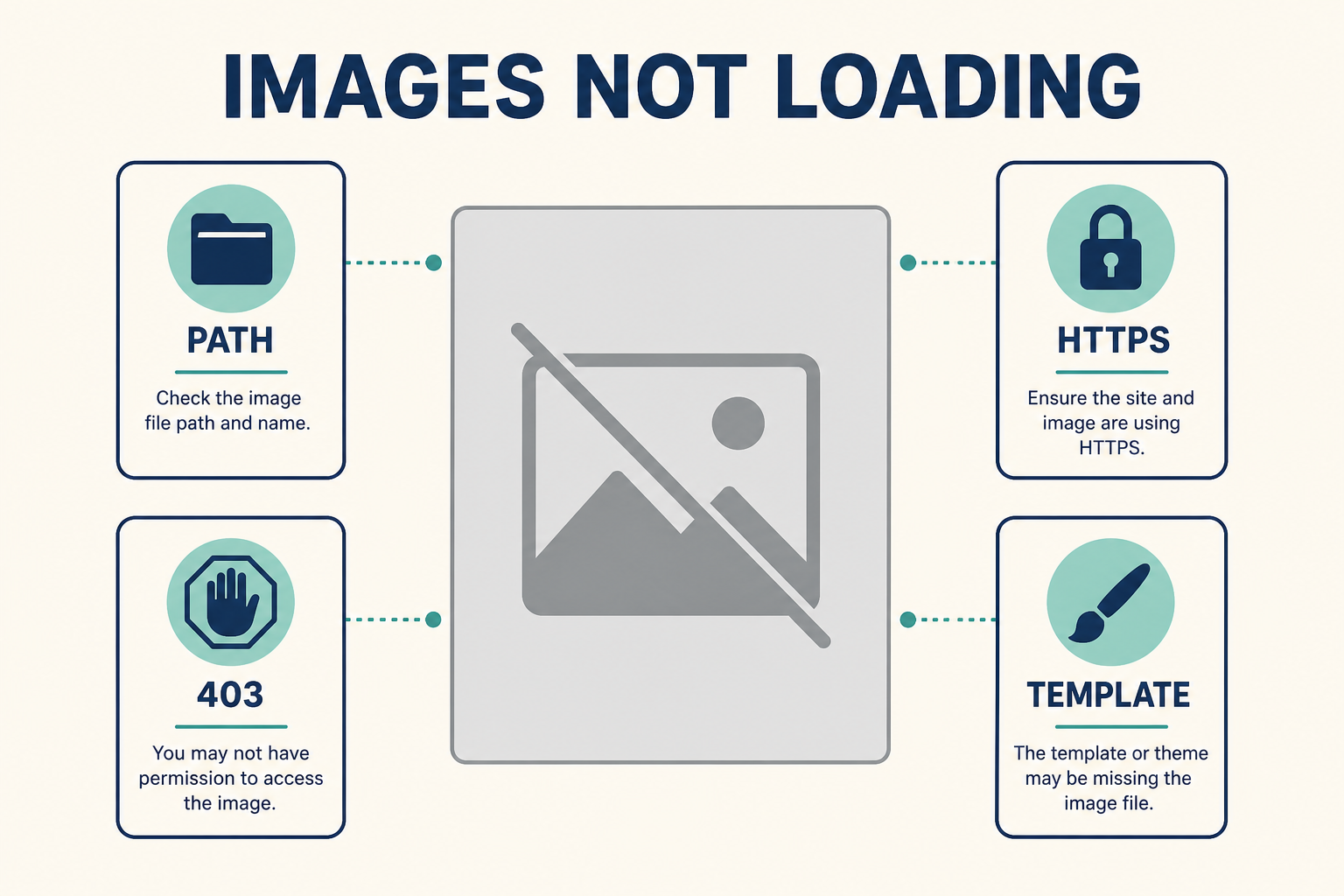
Network status first. 404 is a path. 403 is deny or permissions. Mixed content is HTTP on HTTPS. Template switch is a leftover folder in the src.
What you will learn
- Why
images/andmedia/are not interchangeable - How to read 404 vs 403 vs mixed content in the browser
- What Force HTTPS does and does not rewrite
- How file permissions and
Deny from allstop the web server - Why a new template still requests the old template’s image path
- What to skip (site migration, K2, full-site moves)
Status codes tell you which fix to use
| Network status | Meaning | Typical Joomla cause |
|---|---|---|
| 200 | File loaded | Not this article. If it “looks” broken, it may be CSS size/colour, or a covering element |
| 404 | No file at that URL | Wrong folder, renamed file, $live_site prefix, template path after a switch |
| 403 | Server refused | .htaccess deny, directory block, extra security generator rules |
| Blocked mixed content | Browser refused HTTP asset on HTTPS page | Absolute http:// in the article, module, or CSS |
| 500 on the image URL | Server error on that request | .htaccess rewrite applying to static files; test on staging |
Open DevTools → Network → Img. Click the failing URL. Read status and the final URL (redirects included).
Step 1: Confirm the URL and the images/ vs media/ folder
Joomla Media (Content → Media) organises files under the site images/ directory by default. Do not confuse it with media/, which holds JavaScript, stylesheets, and extension assets. The Managing Media doc states that split plainly.
In the article HTML you want a path the web server can map:
- Works:
/images/headers/hero.jpgorimages/headers/hero.jpg(relative to the site) - Fragile:
http://example.com/images/headers/hero.jpgafter you moved to HTTPS - Wrong tree:
/media/headers/hero.jpgwhen the file only exists underimages/ - Template-bound:
/templates/oldname/images/logo.pngafter you switched templates
Open the image URL in a new tab, bypassing the article. If the tab 404s, Joomla’s article editor is not “broken.” The path is.
$live_site in configuration.php is empty on most working sites. Official SEF troubleshooting: set it only when you must, to the real scheme and host, and a wrong value breaks asset URLs. Do not invent a live_site to “fix SSL” if Force HTTPS already works. Docs context: common SEF problems (includes $live_site).
If Media shows the file but the URL 404s, you are not looking at the same folder the web server uses (wrong docroot, addon domain, or a rewritten path). That is hosting layout, not a Joomla Media bug.
Step 2: Fix HTTPS mixed content
If the console says mixed content, the image URL is http:// on an https:// page. Browsers block it.
- System → Global Configuration → Server → Force HTTPS → Entire Site (only if the certificate already works). Save. This forces Joomla-generated URLs toward HTTPS. It does not search-and-replace every article.
- In the article (or Custom HTML module), change hardcoded
http://image URLs tohttps://or to root-relative/images/.... - Check template CSS (
user.cssin a child template) forurl(http://...). - Clear Joomla cache and CDN after edits so guests are not served old HTML (cache showing old content).
Do not turn Force HTTPS on before the certificate is valid. That can take the site down (different article: stopped working).
Step 3: Check permissions, then .htaccess deny (on staging)
The web server user must read image files. PHP must write when you upload via Media. Those can be different users. Typical starting point many hosts use: directories 755, files 644. Follow the host. Do not 777 the images/ tree on production.
If Network says 403:
- Look for
.htaccessinsideimages/or a subdirectory withDeny from all/Require all denied. - Look at the site root
.htaccessfor extra security rules that allow only certain extensions. Case matters:JPGvsjpg(security tools have documented this for generated htaccess). - Backup. Copy the site to staging. On staging, rename a suspicious
.htaccessto.htaccess.bakand retest only those image URLs. If 403 becomes 200, the rules were the cause. Put stock Joomla rules back from this version’shtaccess.txt. Do not leave rewrite off on production as the “fix.”
Hotlink-protection and Admin Tools-style generators are frequent 403 sources. Add the directory or extension to their allow list using their docs, on staging first.
nginx ignores Apache .htaccess. If you are on nginx, 403 is in the vhost or location block.
Step 4: Wrong folder after a template change
Switching templates does not rewrite article <img> tags. If the old template stored banners in templates/oldtemplate/images/ (or media/templates/site/oldtemplate/), those URLs 404 when the files were never copied.
Fix options (pick one, on a backup):
- Copy the still-needed files into
images/and update article paths in Media/editor (durable). - Copy files into the new child template asset tree if they are truly theme chrome (logo), not article illustrations.
- Do not edit core template packages in place. Put lasting CSS/path fixes in the child. See customize without editing core.
Cassiopeia sample images live under images/ sample folders as Media documents. Club templates often teach you to upload into templates/{name}/. After a redesign, that habit is the 404.
This is not “images vanished after migrating servers.” No database search-replace of old domains, no Akeeba, no configuration.php host swap. If that is your incident, stop here and use a migration checklist instead.
Step 5: SEF, cache, and a final pass in Media
Rare but real: a rewrite rule sends /images/foo.jpg into index.php. Then Joomla returns an HTML error page as the “image.” Network might show 200 with type text/html. On staging, compare with rewrite off (.htaccess renamed after backup). Restore htaccess.txt for this Joomla version. Fix RewriteBase if the site is in a subdirectory (SEF on Apache).
Cached HTML can keep old http:// or old paths after you fixed the article. Clear Joomla cache. Purge Cloudflare. Hard refresh. If clear does not apply to Redis, see cache not clearing.
In Media, confirm the file opens from the administrator preview. If Media 404s too, the file is not on disk in that tree (upload failed, quota, or you are on a different environment than you think).
Oversized images that do load but stall the page are a speed issue: Why is my Joomla website slow and speed up Joomla.
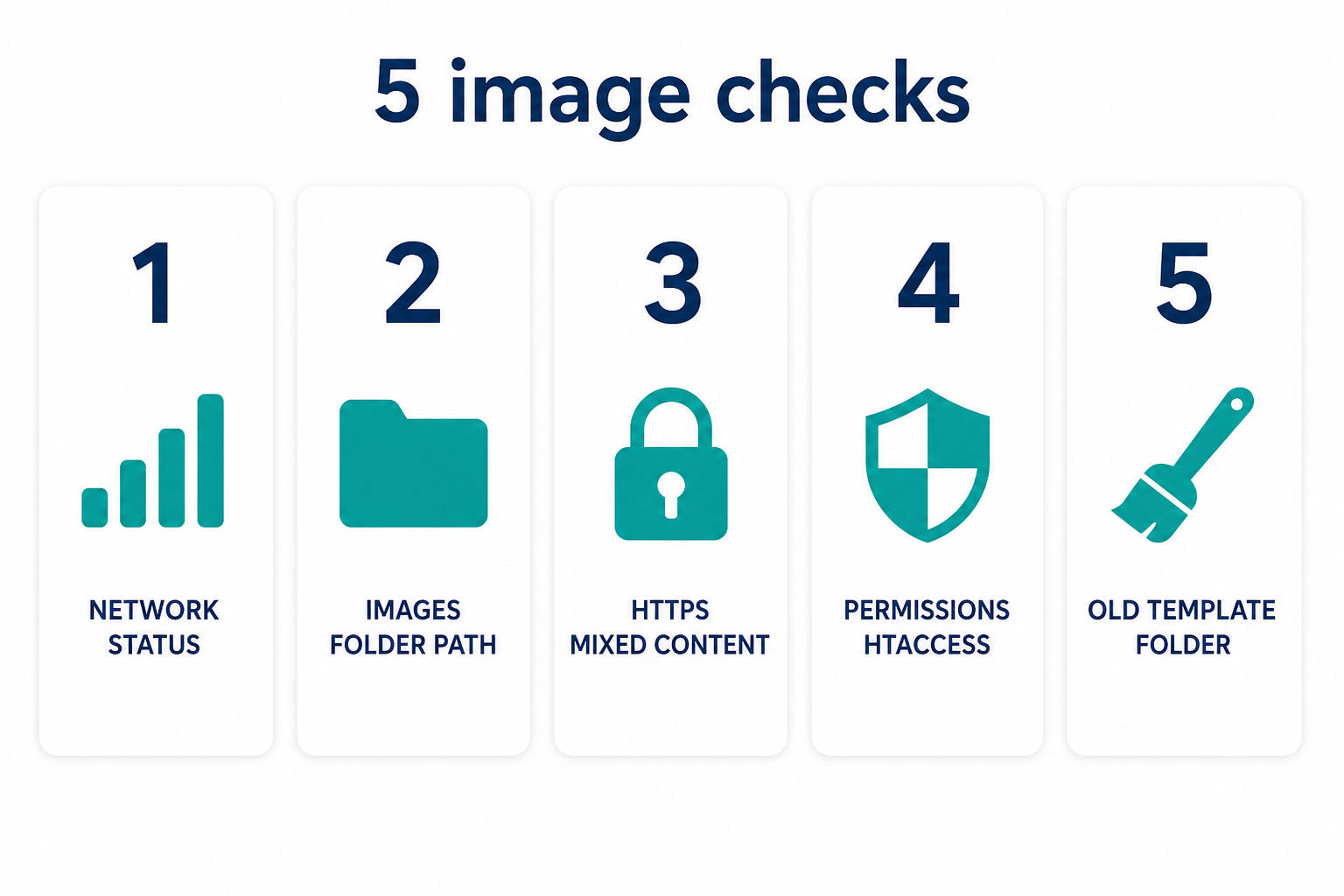
Status code first. Then images/ vs media/. Then mixed content. Then 403 rules on staging. Then leftover template paths.
Key takeaways
- Article photos live under
images/.media/is not the Media component’s photo library. - 404 is a path. 403 is permission or deny rules. Mixed content is
http://on HTTPS. - Force HTTPS does not rewrite every old absolute URL in content.
- Test
.htaccesson staging after a backup. Do not delete production rewrite rules as a guess. - A template switch does not update
srcin articles. Move files toimages/or the new child and edit the HTML. - This article is not post-migration repair.
- When the file 200s but the page is slow, that is weight, not a missing file.
Frequently asked questions
Why are Joomla images not loading on the site?
The browser never got the bytes: wrong path (404), forbidden (403), or mixed HTTP on HTTPS. Open the image URL from Network. Fix that status. Joomla Media is not in the pipeline for a normal /images/... request.
What is the difference between the images folder and the media folder?
images/ is where the Media component stores photos and files you insert into articles. media/ holds JS, CSS, and extension assets. Linking an article photo into media/ is the wrong tree unless you put the file there on purpose.
How do I fix mixed content for Joomla images?
Serve the page and the image on HTTPS. Set Force HTTPS to Entire Site when the certificate works. Replace hardcoded http:// in articles, modules, and CSS with https:// or root-relative paths.
Can .htaccess stop Joomla images from showing?
Yes. A deny rule in images/ or a strict root .htaccess returns 403. Backup, test a rename on staging, restore from this Joomla version’s htaccess.txt, and allow the image extensions you actually use.
Images broke after I changed the Joomla template. Why?
Article HTML still points at templates/oldname/... (or that template’s media path). Copy files into images/ or the new child template and update src. Joomla will not rewrite those tags for you.
Should I set live_site to fix images?
Only if you already know $live_site is wrong (scheme or host). An empty $live_site is normal. A wrong one breaks URLs. Prefer Force HTTPS and relative /images/ paths.
Did my images fail because of a migration?
If you just moved host or domain, that is a migration problem (paths, configuration.php, leftover old domain). This guide assumes the same site and same domain, with files that should already be there.
Conclusion
Broken Joomla images are a web-server problem that looks like a CMS problem. Read the status code, keep photos in images/, finish HTTPS properly, fix 403 rules on staging, and stop pointing articles at a template you uninstalled. Leave migration repairs to a migration post. When files load but weigh too much, go back to the speed guides.