A Joomla module position is not showing when the position name on the module does not match a real slot in the active template. Joomla only prints a module where index.php has a jdoc:include for that name, and where templateDetails.xml lists the same name. Chrome (the HTML wrapper) and CSS can also hide a slot that did render. This is a template wiring problem. It is not “the module is unpublished,” and it is not “it appears on the wrong pages.”
If the module is published, assigned to the page you are viewing, set to Public, and still missing from that layout region, stop toggling Status. Open the template files. The usual miss is a leftover Joomla 3 name (position-7, left) on a Cassiopeia or club template that never declared it.
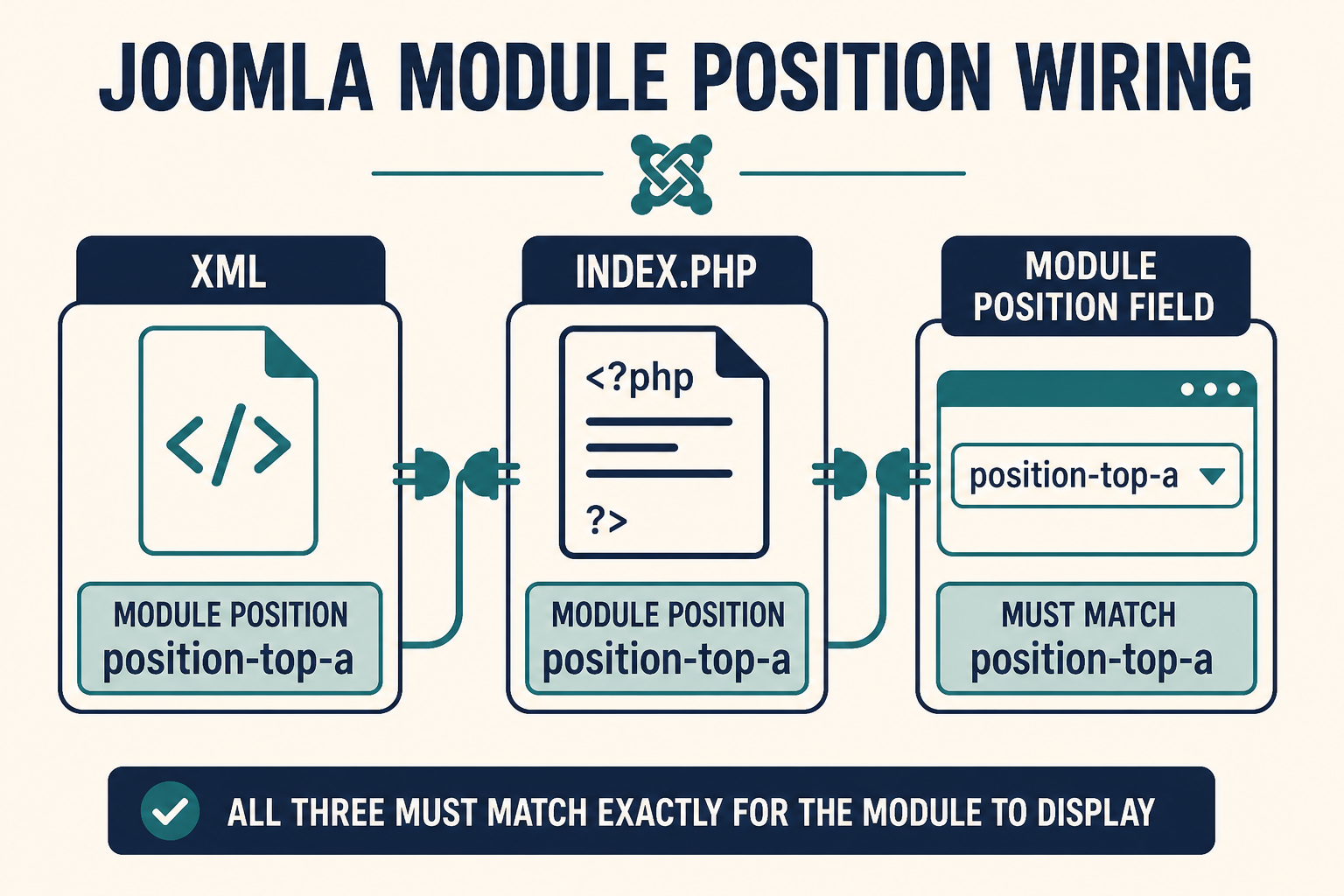
Three places must use the same string: the module Position field, templateDetails.xml, and the jdoc name in index.php.
What you will learn
- How to tell a missing position from a module that is unpublished or assigned to other pages
- Where Cassiopeia and most Joomla 4, 5, and 6 templates declare positions
- How to preview positions with
?tp=1without guessing - Why a child template can list a position in XML and still not print it
- How module chrome and CSS make a rendered slot look empty
- What to change so the fix survives the next template update
This article does not walk unpublished modules, Access, Language, or Menu Assignment. Those belong to “module not showing” and to Joomla module showing on the wrong pages. Keep this page for chrome, index.php, and name mismatch.
What “position not showing” means
Joomla does not paint a magic box named “sidebar.” It does this:
- The module row stores a position string (
sidebar-left,bottom-a,debug). - The active site template (the style assigned to that menu item) reads
templateDetails.xmlso the Position dropdown has labels. - That template’s
index.php(or a layout it includes) outputs<jdoc:include type="modules" name="sidebar-left" style="…" />. - Chrome wraps each module in that position. CSS then shows or hides the wrapper.
Break any of the first three and the slot is empty. Break the fourth and View Source still has the HTML, but you cannot see it.
Official references: Declaring module positions, jdoc statements, Module chrome, Cassiopeia templateDetails.xml.
| What you see | Likely cause | Wrong rabbit hole |
|---|---|---|
| Empty region on every page that uses this template | Name mismatch or missing jdoc |
Menu Assignment |
| Empty region only on some menu items | Those items use a different template style | “The module is unpublished” |
Preview (?tp=1) shows the position, live page does not |
Chrome or CSS, or you assigned a name preview invented | Cache only |
| Preview does not show the name you typed | XML and index.php never declared it |
Access level |
| HTML in View Source, nothing on screen | Chrome class or user.css (display: none, zero height) |
Reinstalling the module |
Cassiopeia names vs leftover names
Cassiopeia (Joomla 4, 5, and 6) uses names like topbar, below-top, menu, search, banner, top-a, top-b, main-top, main-bottom, breadcrumbs, sidebar-left, sidebar-right, bottom-a, bottom-b, footer, debug.
Joomla 3 Protostar used position-0 through position-14, plus a few aliases. After a migration, Site Modules still holds those old strings. The dropdown may even let you type them. Cassiopeia will not print position-7. There is no jdoc for it.
Club templates (Helix, T4, Gantry, YOOtheme) have their own lists. Never assume left exists. Read that template’s XML.
Step 1: Prove it is a position problem
Open System → Site Modules. Open the module.
Confirm only this much, then leave:
- Status is Published.
- Access is a level the visitor has (Public for a guest test).
- Language is All, or the language of the page you are testing.
- Menu Assignment is On all pages, or includes the page you have open.
If any of those fail, this is not a position article. Fix Status or assignment first.
Then note the Position value exactly. Copy it. Spaces, underscores, and hyphens all count. sidebar-left is not sidebar_left. sidebar-left is not left.
Check Advanced → Module Style (chrome). If it is not “Inherited” or the template default, write that down. A missing custom chrome file can swallow output.
Step 2: See which template style is actually active
Positions live on a template, not on the site as a whole.
- System → Site Template Styles.
- Note which style is default (star).
- Open the menu item for the page you are testing. Template Style may override the default.
If Home uses Cassiopeia and a landing page uses a club template, a module in sidebar-right can show on Home and vanish on the landing page because that club file never includes sidebar-right.
Child templates (Joomla 4.1+) add another layer. The public site must use the child style, not the parent, if you put jdoc lines only in the child. Setup: How to set up a Joomla child template. Safe file placement: Customize Joomla without editing core.
Do not edit Cassiopeia’s index.php in place. Put extra positions on a child, or they vanish on the next Joomla update.
Step 3: Preview the positions Joomla knows
Do not guess from a blog screenshot of Protostar.
- System → Site Templates.
- Toolbar Options.
- Set Preview Module Positions to Enabled. Save.
On the frontend, append ?tp=1 to a URL with no query string, or &tp=1 if the URL already has ?.
You should see outlined boxes with names. Official walkthrough: Module positions (Joomla User Manual).
Compare:
- If your module’s position appears in the outline, the template declared it. The problem is assignment to a different name, chrome, CSS, or a different style on that menu item.
- If your module’s position does not appear, XML or
index.php(or both) never defined it for this template.
Turn Preview back to Disabled on production when you finish. The outlines are a diagnostic, not a feature for visitors.
Step 4: Match the name in templateDetails.xml
On the active template (child if you use one), open templateDetails.xml. Find the <positions> block.
Every <position>sidebar-left</position> is only a label for the Module Manager dropdown. It does not print HTML by itself. The docs are explicit: adding a tag in XML is not enough. You still need a jdoc in the layout. See the Cassiopeia XML notes on docs.joomla.org.
Typical failures:
- You typed
Sidebar-Leftin the module. XML hassidebar-left. Use lowercase, no spaces. - You added
<position>promo</position>to the child XML so it appears in the dropdown, then assigned the module topromo, but never added ajdoc(next step). - You are reading the parent XML while the site runs the child, or the reverse.
If the name is missing from XML, the Position list will not offer it unless you type a custom value. Custom values still need a matching jdoc.
Step 5: Match the jdoc in index.php
Open index.php for the same template that is assigned to the page. Search for jdoc:include and type="modules".
You need a line equivalent to:
<jdoc:include type="modules" name="sidebar-left" style="card" />
The name attribute must equal the module Position field. The style attribute is chrome (none, html5, card, noCard, or a custom chrome name). If style is omitted, Joomla uses none.
Cassiopeia often wraps positions in countModules() so empty columns collapse:
<?php if ($this->countModules('sidebar-left', true)) : ?>
That is correct. If no module uses that exact name, the column does not render. It looks like “the sidebar never existed,” which is the template working as designed.
Failures at this step:
- XML lists
promo.index.phpstill has onlybottom-a. The dropdown lied. The page never includedpromo. index.phpincludessidebar-left. The module is onleft.- You copied a Joomla 3
index.phpfragment into a Joomla 5 child. The oldjdocnames do not match Cassiopeia CSS or grid. - The
jdocsits inside a condition that is false (for example a width check, an error-page only branch, or a homepage-onlyif).
Add missing positions in a child index.php if you must fork the layout. Prefer using an existing Cassiopeia slot when one already sits where you need the module.
Step 6: Check chrome before you rewrite CSS
Chrome is the wrapper around the module, not the module’s own tmpl. Core names include none, html5, outline, and table. Cassiopeia adds card and noCard. Custom chrome lives in html/layouts/chromes/{name}.php. Docs: Module chrome and Applying custom module chrome.
A position can “not show” when:
- Module Style on the module is set to a chrome file that does not exist on this template. PHP can fail inside the chrome include. On a staging copy, set Error Reporting to Maximum once and reload.
- Chrome is
noneand your CSS only targets.card. The content is in the HTML. It has no box, no title, no padding. You thought the position was empty. - A custom chrome prints nothing when the title is hidden, or it wraps output in a class your CSS sets to
display: none. - You overrode chrome in the parent and the child does not inherit that file until you copy it. Child templates do not magically copy every parent
html/file.
If you need different markup around a module, add a chrome file in the child. Do not edit modules/mod_*/tmpl in core. Same rule as other overrides: Joomla plugin override for plugin tmpl, child html/ for module chrome.
Step 7: Confirm the HTML, then the CSS
View Source or Inspector on the published page.
- No module HTML at all: name mismatch, missing
jdoc, wrong template style, or (if you skipped Step 1) the module never loaded for that request. - Module HTML present: the position works. Chrome or CSS is hiding it. Check
user.css, template CSS, and browser width (some templates dropsidebar-rightunder a breakpoint by usingd-none/ Bootstrap utilities).
Cassiopeia custom CSS belongs in media/templates/site/{template}/css/user.css on the active template. A child does not load the parent’s user.css. If you hid .sidebar-right while testing and then created a child, the hide may still live on the parent, or the reverse.
If a script is emptying the node after paint, that is a JavaScript issue, not a missing position. Separate guide: Add custom JavaScript to Joomla.
Clear Joomla cache (System → Maintenance → Clear Cache) and the browser cache after CSS or chrome changes. Conservative caching can keep an old layout where the column was empty.
Step 8: Fix the mismatch (order that survives updates)
- Pick a position that already exists in both XML and
index.phpon the active template. Reassign the module to that name. This is the usual migration fix (position-7→sidebar-right). - If you truly need a new slot, add the
<position>in the childtemplateDetails.xml, add the matchingjdocin the childindex.php, assign the child style, then set the module Position to that name. - Set Module Style to Inherited or to a chrome that exists (
card/noCardon Cassiopeia). - Remove any
display: noneon that region inuser.css. - Preview with
?tp=1, then disable preview.
Do not “create” a position by only typing a new string in the module. Joomla will store it. Nothing will print it.
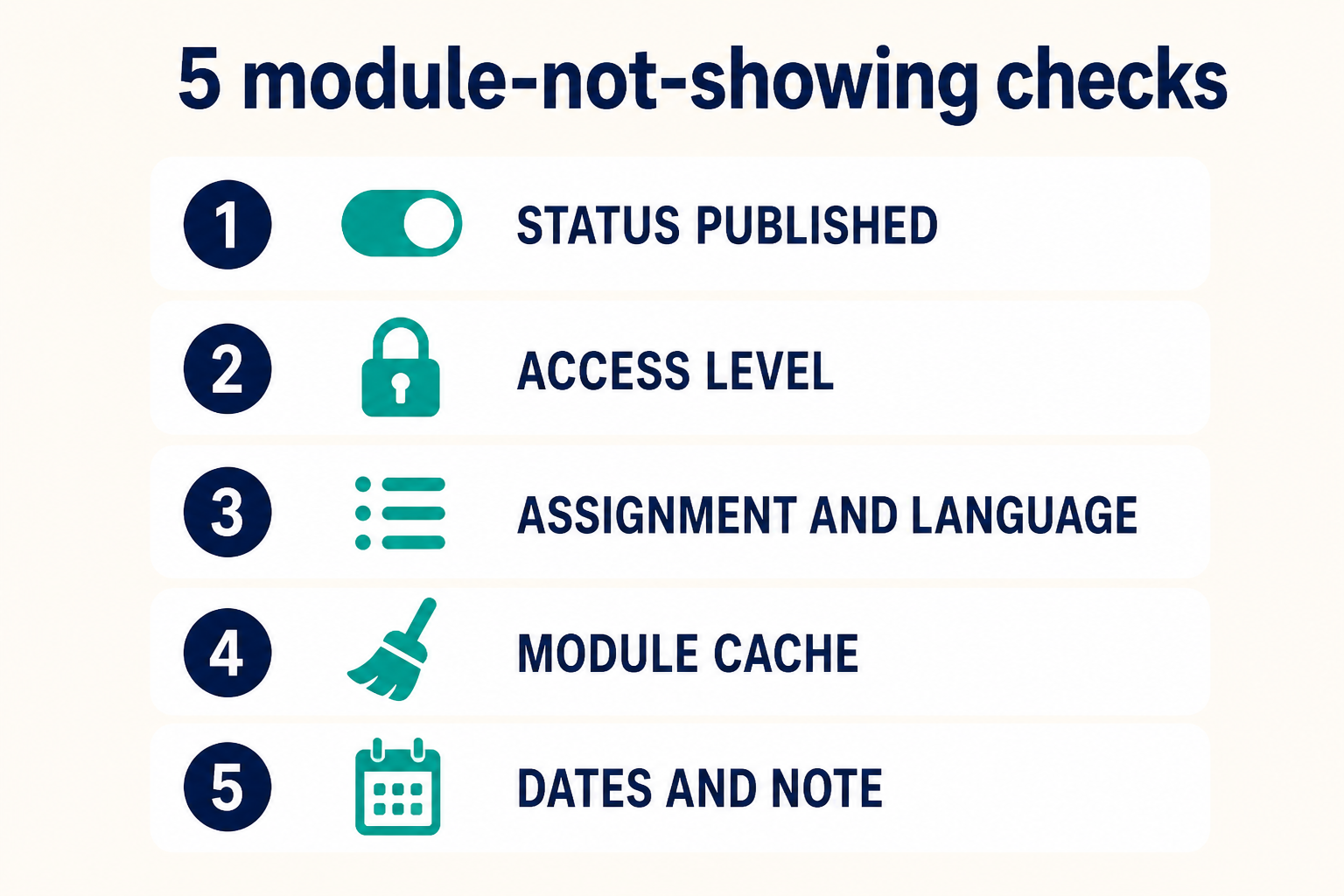
Work top to bottom. Reassigning to an existing Cassiopeia slot is faster than inventing promo.
Child templates and extra positions
On Joomla 4.1+, 5, and 6, extra positions belong on a child:
- The child can inherit the parent
index.phpuntil you copy one. Inheritedindex.phpwill not contain your newjdoc. XML-only positions still will not show. - After you copy
index.phpinto the child, you own that file. Diff it after Cassiopeia updates. Markup in coreindex.phpcan change. - Positions you add must stay lowercase and unique.
Joomla 6 ships Cassiopeia Extended as a child of Cassiopeia. Treat Extended as a child: do not hack the parent, and do not assume Extended’s XML matches a custom child you made last year.
When the position shows in preview only
?tp=1 injects outline chrome so empty slots are visible. A live page without tp=1 will not show a box if countModules() is zero. If preview shows promo because you added XML, but live still has no module HTML, you still lack a jdoc or the module is not using that name.
If preview and live both lack the name, you are on the wrong template style.
Key takeaways
- A missing module position is a name mismatch between the module,
templateDetails.xml, andindex.php, or it is chrome and CSS hiding a slot that did render. - Cassiopeia does not print Joomla 3 names such as
position-7orleft. Reassign tosidebar-left,sidebar-right,bottom-a, and the rest of the Cassiopeia list. - XML only feeds the Position dropdown. A
jdoc:include type="modules" name="…"is what prints the slot. - Preview Module Positions (
?tp=1) after enabling it under Site Templates → Options. Disable it again on production. - Menu-item Template Style can switch layouts. The same module position can exist on Cassiopeia and not on the landing template.
- Put new positions and chrome on a child template. Do not edit the parent
index.php. - If View Source has the module, fix chrome or CSS. If it does not, fix the name or the
jdoc. - Unpublished, Access, Language, and Menu Assignment are a different diagnosis. Do not debug those here.
Need this traced on a live site after a template swap? Joomla support and maintenance.
Related Joomla troubleshooting
Frequently asked questions
Why is my Joomla module position not showing?
The position string on the module does not match a jdoc in the active template’s index.php, or it is not listed in templateDetails.xml. Reassign to a name the template already prints, or add both the XML tag and the jdoc on a child template.
Does declaring a position in templateDetails.xml make it appear?
No. That file only lists names for the Module Manager. The layout file must include <jdoc:include type="modules" name="the-same-name" />.
Where did position-7 go in Joomla 5?
Cassiopeia never used position-7. After a Joomla 3 migration, reassign those modules to sidebar-right or another Cassiopeia position you confirm with ?tp=1.
Can a child template hide parent positions?
The child uses the parent layout until you copy index.php. Parent positions still show in that case. If you copy index.php and drop a jdoc, that slot disappears. XML on the child cannot restore it without the include.
Why do I see the module in View Source but not on the page?
The position rendered. Chrome or CSS is hiding it. Check Module Style, custom chrome files, Bootstrap d-none classes, and user.css.
Is this the same as the module showing on the wrong pages?
No. Wrong pages is Menu Assignment, Home, language filter, and duplicate modules. Empty slot on the pages where it should already load is this article.
Should I edit Cassiopeia index.php to add a position?
No. Create a child, copy index.php into the child if you must change the layout, and add the position there. Core updates replace the parent.