A Joomla module shows on the wrong pages when its Menu Assignment does not match the menu item Joomla used for that request (the Itemid). “On all pages except those selected,” a Home menu item that is not the URL you think, the Language Filter, and duplicate module copies are the usual causes. The module is published and the position works. The page map is wrong.
This is not an empty position. If the slot never renders on any page, read Joomla module position not showing first. Here you already see the module. You see it on Home when it should only be on Contact, or on every article when you ticked one menu item, or in two languages at once.
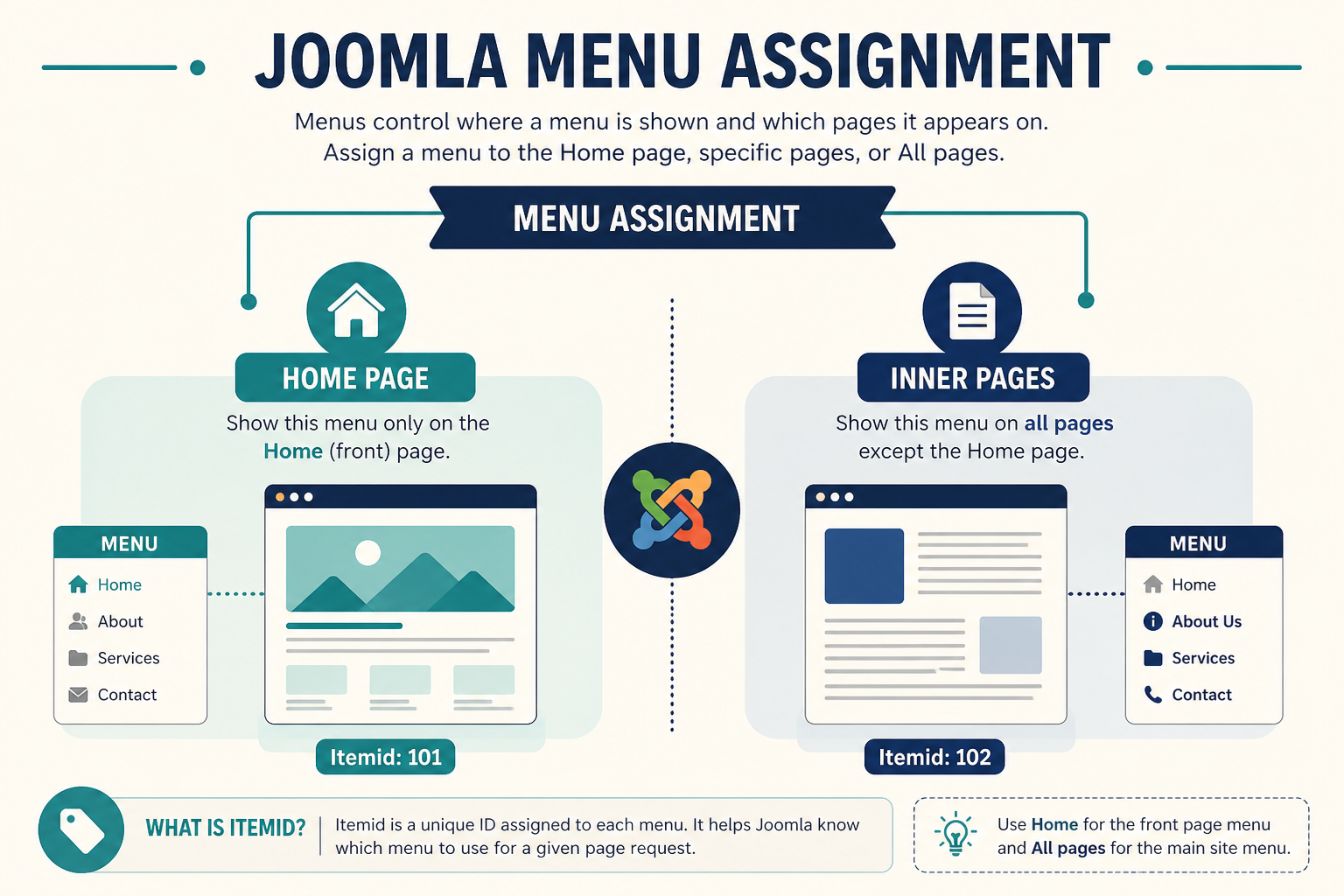
Joomla does not assign modules to URLs. It assigns them to menu items. Get the Itemid wrong and the module follows the wrong page.
What you will learn
- The four Menu Assignment values and what each actually does
- Why Home is a menu item, not “the slash URL”
- What happens on articles that have no menu item of their own
- How Language Filter hides or doubles modules
- How duplicate copies (Save as Copy) produce “it is everywhere”
- A click order that fixes the map without guessing
Official assignment help: How do you assign a module to specific pages? and the Joomla 4/5 user manual Module display by menu item.
How Joomla decides “this page”
Every frontend request Joomla can map has an Itemid: the id of a menu item. Modules in System → Site Modules look at that Itemid, plus Access and Language.
They do not look at the article id first. They do not look at the SEF path as a string. If you open an article from a blog, a tag list, a search result, or a module link, Joomla may reuse Home’s Itemid or another nearby item. The module then follows that Itemid, not the article you have in your head.
That is why “I assigned it only to News / Article / My Story” still shows the login module on that story: the request never used that article’s menu item.
| Assignment | What Joomla does | Typical mistake |
|---|---|---|
| On all pages | Every Itemid | You meant “all except Home” |
| No pages | Never | Left over from a test. Looks like unpublished. |
| Only on the pages selected | Only ticked menu items | You ticked a hidden duplicate, not the item in the main menu |
| On all pages except those selected | Every Itemid except the ticks | You ticked nothing, so except-nothing means everywhere |
Default for a new module is On all pages. Save as Copy keeps that unless you change the tab.
Step 1: Read the Menu Assignment tab on the live module
- System → Site Modules.
- Filter by Position so you are not editing a draft copy.
- Open the module that actually appears on the wrong page (title in the frontend chrome if titles are on).
- Open Menu Assignment.
Write down:
- The Module Assignment dropdown value.
- Which menus are expanded. A collapsed tree hides ticks.
- Whether Home is ticked. Home is often not the first row. It can sit in a second menu named “Hidden” or “System.”
If Assignment is On all pages, Joomla is doing what you asked. Change the dropdown before you blame Language or the template.
Use Expand: All so you see every item, including unpublished and hidden-menu items. Hidden menus still have Itemids. Pages that use them still count.
Step 2: Fix “On all pages except” the way the manual describes
The user manual’s breadcrumbs example is the pattern: On all pages except those selected, then tick only the pages that must not have the module.
For “everywhere except Home”:
- Set Assignment to On all pages except those selected.
- Click None on Assign to Menu Items so the tree is clear.
- Tick Home (the default menu item, star in Menus).
- Save. Check the site.
If you tick Home and leave other items ticked from an earlier “Only on selected” pass, “except” now excludes those too. Clear the tree first.
If you wanted “only Contact” and you used “except” by accident, the module appears on Home, blog, and everything else. Switch to Only on the pages selected and tick Contact only.
Official breadcrumbs walkthrough: Module display by menu item.
Step 3: Treat Home as a menu item, not as “the homepage URL”
Home is whichever menu item has Default (the star). It can be:
- Featured Articles
- a single article
- a blog category
- a component view (search, a directory, a shop front)
The public URL can be / and still be that Itemid. Assigning a module to a different item titled “Home” in another menu does nothing for /. Assigning to the article that is also the default Featured layout does nothing unless that article has its own menu item and the visitor used it.
Checks:
- Menus → All Menu Items. Filter Default or look for the star. That row is Home.
- Confirm you ticked that row, not a similarly named item in a second menu.
- If you have two languages, you have one default per language. Tick the Home for the language you are testing, or both, depending on the goal.
A module set to “only Home” will also appear on many orphan pages (next step) because those requests keep Home’s Itemid. That looks like “wrong pages.” It is Itemid inheritance.
Step 4: Pages with no matching menu item inherit an Itemid
This is the bug operators hit after they “assigned it to the article menu item.”
You created Menus → Hidden → My Article (single article). You assigned the banner Only on the pages selected → My Article. It shows when you click that hidden item. It does not show when you click the same article from a category blog, from Featured, or from a related-articles module. Those requests never used My Article’s Itemid.
The reverse: a module assigned only to Home appears on that same blog article because the blog used Home’s Itemid (or the category blog item, if that is what you clicked).
Fix, pick one:
- Put a real menu item on every page that must have unique modules, including a hidden menu used only for Itemid. Assign modules to those items.
- Assign the module to the blog or category item visitors actually click, not to a hidden single-article item they never use.
- For “this article only,” a hidden single-article item works only if every link to that article includes that Itemid (menu, or a URL that still carries it). Do not expect
/index.php/my-articlewithout Itemid to stay unique.
Aliases: an Alias menu item is a pointer. Assignment to the alias and assignment to the target are different Itemids. Tick the item whose URL the visitor actually opens.
Step 5: Language Filter and the module Language field
On a multilingual site, System → Plugins → System – Language Filter is usually enabled. Each module has a Language field (right side of the Module tab): All, or one content language.
Rules that produce “wrong pages”:
- Module Language is English. You are viewing the French Home. The module is absent there (correct) and you think assignment is broken.
- Module Language is All. You duplicated the module for French but left the original on All. Both copies can show on French pages if assignment also matches.
- You assigned the English module to French menu items. Menu items are per language. Ticking a French item while the module is English still fails the language check.
Also check Menus for the same item in each language. “Only on Home” must tick English Home and French Home if the module is All and you want both homepages. If the module is English-only, tick English Home only.
Language strings in the module chrome (titles) are a different tool: Joomla language overrides. Overrides do not change which pages load the module.
Step 6: Find duplicate modules before you rewrite assignment
Save as Copy is how “I fixed assignment and it is still on every page” happens.
- System → Site Modules.
- Search the title. Sort by Position.
- Look for the same module type in the same position:
mod_customtwice insidebar-right, or Login twice.
One copy is On all pages. One copy is Only on Contact. You edited the Contact copy. The All copy is what you still see on Home.
Unpublish or delete the extra copy after you confirm which id is in the URL of the module edit screen (id=).
Duplicates also come from:
- A template sample-data module you forgot (Cassiopeia “Site” custom modules).
- A language pack workflow that copied modules per language, then someone set Language back to All.
- Two login modules, one Guest and one Registered, both assigned to all pages. That is access, not assignment, but it looks like “the module is on the wrong page” after login.
Step 7: Do not confuse Access, Status, and cache with assignment
Quick exclusions so you stay on this job:
- Unpublished never appears. Wrong-pages means it does appear, just not where you wanted.
- Access (Public, Guest, Registered, Special) changes who sees it, not which Itemid. Guest modules vanish after login. That can look like “it disappeared on this page” when you actually changed user state.
- Cache: System – Page Cache or conservative cache can keep a Home HTML payload on another URL for a short time. Clear cache after assignment changes (System → Maintenance → Clear Cache). If a CDN sits in front, purge that too.
- Template style per menu item can change positions. The module still “shows on the wrong page” as in “the sidebar exists on Shop but not on Home” because Shop uses a different style. That is still a layout map. Confirm styles under the menu item, then read the position article if the slot is missing entirely.
Custom HTML in the module is not assignment. If you need different markup per section, use assignment plus two modules, or a child template override, not one module and a PHP hack in core.
A worked map (so the options stick)
Goal: promo banner on all pages except Home, and a different banner only on the Shop menu item.
| Module | Position | Assignment | Ticks |
|---|---|---|---|
| Promo default | top-a |
On all pages except those selected | Home only (the real default item) |
| Promo shop | top-a |
Only on the pages selected | Shop (and Shop’s language twins if multilingual) |
If Shop is a blog and products are opened without a Shop Itemid, the shop banner will not follow into the product. Add a hidden menu structure for product Itemids, or assign the shop banner to every item in the shop menu tree (Expand, then tick the parent and children).
Print, feeds, and “component only” pages
Some URLs are still Joomla menu items (or inherit Itemid) but you do not think of them as pages:
- Print and email article views often keep the article’s Itemid. A module assigned only to Home should stay off those views if the article has its own item. If print uses Home’s Itemid, the Home modules appear on print. That is the same inheritance as Step 4.
- Smart Search or search results may use the Search menu item. Assign modules to that item if the search layout should have them, or exclude it with On all pages except.
- A component with no site template modules in its own
indexis rare. More often the component uses the site template and still runsjdocpositions. If a shop checkout must be module-free, assign those modules with On all pages except and tick the checkout items.
Do not fight this with CSS display: none on every extra module. Assignment is the control. CSS hide still downloads the HTML and still runs the module PHP.
Read the dropdown first. Then Home. Then Language. Then search for a second module in the same position.
Key takeaways
- Modules follow menu Itemid, not the article title in the browser tab.
- New modules default to On all pages. Change Menu Assignment or they will be global.
- On all pages except requires a clean tree, then ticks only on the pages to exclude. Empty ticks mean everywhere.
- Home is the default menu item (star). Tick that row. A second item named Home does not control
/. - Articles opened from blogs, tags, or modules often keep Home or blog Itemid. Hidden single-article items do not apply unless the visitor used them.
- Language Filter plus module Language All plus a copied module is the usual double-display on multilingual sites.
- Search Site Modules for duplicate titles and positions before you rebuild the assignment tree.
- Clear cache after you save. Stale page cache looks like assignment did nothing.
If the layout is right on some menu items and the slot is empty on others because those items use another template, go to module position not showing. For ongoing assignment and multilingual cleanup on a production site, Joomla support and maintenance.
Related Joomla troubleshooting
Frequently asked questions
Why is my Joomla module showing on the wrong pages?
Menu Assignment does not match the Itemid of the request. The dropdown is still On all pages, you ticked the wrong Home, Language Filter disagrees, or a duplicate module is still global.
How do I show a module on all pages except the home page?
Set Module Assignment to On all pages except those selected, clear the tree, tick only the default Home menu item, save, then clear cache. Confirm you ticked the starred Home, not a namesake.
Why does a module assigned to one article still show on other articles?
Those other URLs are not using that article’s menu Itemid. They are using Home or the category blog item. Create a menu item for each page that needs unique modules, or assign to the blog item visitors actually click.
Can Language Filter make a module appear in the wrong language?
Yes. A module set to All can show beside a language-specific copy. A module set to English will not show on French Itemids. Align Language on the module with the menu items you tick.
Does Access change which pages a module appears on?
No. Access changes which users see it on the pages where assignment already allows it. Guest vs Registered is not a substitute for Menu Assignment.
What does No pages do?
The module never displays, even if it is published. Use that only as a parking state. It is easy to confuse with unpublished.
Should I assign modules to alias menu items?
Assign to the item whose URL the visitor opens. An alias has its own Itemid. If people click the alias, tick the alias. If they click the target, tick the target.