Blog

  • The Ultimate Guide to Migrating a Magento Store from Local to Live

    The Ultimate Guide to Migrating a Magento Store from Local to Live

    Migrating a Magento store from a local environment to a live server can be a complex process, but it’s necessary to ensure that your website is accessible to your customers. In this guide, we’ll go through the steps involved in migrating a Magento store from a local environment to a live server.

    Step 1: Backup Your Local Store

    Before you begin the migration process, it’s important to backup your local store files and database. This ensures that you can easily restore your store if anything goes wrong during the migration process. You can backup your files and database manually.

    Step 2: Move Your Files to the Live Server

    To move your Magento files to the live server, you can use an FTP client like FileZilla. Connect to your live server and navigate to the root directory where you want to install Magento. Upload all of the files from your local store to the live server using the FTP client.

    Step 3: Export Your Local Database

    Export your local database in the form of an SQL file. You can do this using phpMyAdmin, a database management tool that’s included with most web hosting plans. Open phpMyAdmin, select your local database, and click on the “Export” tab. Choose the “Quick” export method and click the “Go” button to create an SQL file of your local database.

    Step 4: Import Your Local Database to the Live Server

    Log in to the cPanel of your live server, open phpMyAdmin, and select the database where you want to import your local database. Click on the “Import” tab, select your SQL file, and click the “Go” button. Wait for the import process to finish.

    Step 5: Update Configuration Settings

    After you have moved your files and imported your database to the live server, you need to update your Magento configuration settings to reflect the new server. Open the app/etc/env.php file on your live server and update the following settings:

    Set the database name, username, and password to match your live server database credentials.
    Update the base URL of your Magento store to match the URL of your live server.

    Save the changes to the env.php file.

    Step 6: Clear Cache and Reindex

    After you have updated the configuration settings, you need to clear the cache and reindex your Magento store to ensure that all changes are reflected on the live server. You can do this by logging in to your Magento admin panel and navigating to the “System” menu. Click on “Cache Management” and select “Flush Magento Cache.” Then, click on “Index Management” and reindex all indexes.

    Step 7: Test Your Live Store

    After you have completed the migration process, you should test your live store to ensure that everything is working properly. Browse your store, place a test order, and check that all features and functionality are working as expected.

    By following these steps, you can migrate your Magento store from a local environment to a live server with minimal downtime and disruption to your customers.

  • Magento Alternatives for eCommerce Websites

    Magento Alternatives for eCommerce Websites

    Magento is a popular eCommerce platform that is widely used by businesses of all sizes to sell their products and services online. However, with the rise of new eCommerce platforms and the changing needs of businesses, there are now several Magento alternatives available. In this blog post, we’ll take a look at some of the top alternatives to Magento for eCommerce websites.

    Shopify

    One of the main benefits of Shopify is that it is a fully hosted platform, meaning that you don’t need to worry about setting up and managing your own hosting environment. Shopify also offers a range of plans to suit businesses of all sizes, making it a great option for startups as well as established businesses.

    Shopify is one of the most popular eCommerce platforms and is a great alternative to Magento for businesses of all sizes. With Shopify, you can quickly set up an online store, customize your website design, and start selling products online. Shopify also offers a wide range of integrations with third-party apps and tools, making it easy to add new features to your store.

    WooCommerce

    WooCommerce is a popular eCommerce plugin for WordPress that allows you to turn your WordPress website into a fully functional online store. With WooCommerce, you can easily add products, set up payment gateways, and customize your store’s design.

    One of the main benefits of WooCommerce is that it is open source and highly customizable. This means that you have complete control over your online store and can modify it as needed to meet the specific needs of your business. WooCommerce also offers a range of extensions and plugins to add new features to your store.

    BigCommerce

    BigCommerce is a powerful eCommerce platform that is a great alternative to Magento. With BigCommerce, you can quickly set up an online store, customize your website design, and start selling products online. BigCommerce also offers a range of built-in marketing tools, making it easy to promote your store and drive traffic to your website.

    One of the main benefits of BigCommerce is that it is a fully hosted platform, meaning that you don’t need to worry about setting up and managing your own hosting environment. BigCommerce also offers a range of plans to suit businesses of all sizes, making it a great option for startups as well as established businesses.

    PrestaShop

    PrestaShop is a popular open-source eCommerce platform that is a great alternative to Magento. With PrestaShop, you can quickly set up an online store, customize your website design, and start selling products online. PrestaShop also offers a range of built-in marketing tools, making it easy to promote your store and drive traffic to your website.

    One of the main benefits of PrestaShop is that it is open source and highly customizable. This means that you have complete control over your online store and can modify it as needed to meet the specific needs of your business. PrestaShop also offers a range of modules and plugins to add new features to your store.

    OpenCart

    OpenCart is a lightweight and easy-to-use eCommerce platform that is a great alternative to Magento. With OpenCart, you can quickly set up an online store, customize your website design, and start selling products online. OpenCart also offers a range of built-in marketing tools, making it easy to promote your store and drive traffic to your website.

    One of the main benefits of OpenCart is that it is lightweight and fast, meaning that it can handle large amounts of traffic without slowing down your website. OpenCart also offers a range of extensions and plugins to add new features to your store.

    Conclusion

    Choosing the right eCommerce platform is crucial for the success of your online store. While Magento is a powerful platform, there are now several alternatives available that offer similar or better features and functionalities. Shopify, WooCommerce, BigCommerce, PrestaShop, and Open

  • Disable Deprecated Joomla Messages Using Codes

    Joomla is a powerful content management system that provides website administrators with a variety of tools and features to manage their website. However, as Joomla evolves, some features become deprecated and may cause messages to be displayed to the site administrator. These messages can be distracting and may not provide useful information. In this blog post, we will discuss how to disable deprecated Joomla messages using codes.

    Step 1: Access the Joomla Administration Panel

    To disable deprecated Joomla messages, you must first access the Joomla administration panel. Navigate to your website’s backend and enter your credentials to access the dashboard.

    Step 2: Edit the Configuration.php File

    Once you are in the administration panel, navigate to the root directory of your Joomla installation and locate the “configuration.php” file. Open this file in a text editor.

    Step 3: Add Code to Disable Deprecated Messages

    To disable deprecated Joomla messages, add the following code to the bottom of the “configuration.php” file:

    error_reporting(E_ALL & ~E_NOTICE & ~E_DEPRECATED);

    This code will suppress all deprecated messages in Joomla, but still display other types of error messages.

    Step 4: Save Changes

    Once you have added the code to disable deprecated messages, save the changes to the “configuration.php” file and upload it back to the server.

    Congratulations! You have successfully disabled deprecated Joomla messages using codes. By suppressing these messages, you can reduce clutter in the administration panel and focus on more important tasks. However, it’s important to note that some deprecated messages may be important and should not be disabled. Therefore, make sure to test your website thoroughly after making this change to ensure that everything is functioning as expected.

  • Rewrite Joomla URL Using SEF for Optimization

    Rewrite Joomla URL Using SEF for Optimization

    In today’s world, ranking high on search engines and offering a great user experience is key. If you’re using Joomla, SEF (Search Engine Friendly) URLs can help you achieve both. By generating clean, descriptive URLs, Joomla makes it easier for search engines and users to understand your site. Let’s explore what SEF URLs are, how to enable them, and why they’re crucial for your SEO.

    What Are SEF URLs?

    SEF URLs simplify web addresses by replacing long, complex strings with clear, descriptive phrases. This not only helps users by making URLs easier to read and remember, but it also signals to search engines what the page is about, improving SEO.

    Instead of seeing a messy URL like:

    http://www.example.com/index.php?option=com_content&view=article&id=1

    You’ll get a clean, user-friendly version like:

    http://www.example.com/my-article-title

    These clean URLs are more appealing to users and search engines alike, boosting your chances of ranking higher by naturally including keywords.

    How to Enable SEF URLs in Joomla

    Setting up SEF URLs in Joomla is straightforward:

    1. Go to Global Configuration: Log in to your Joomla admin panel and head to Global Configuration.
    2. Enable SEF URLs: Under the “Site” tab, in the “SEO Settings” section, set “Search Engine Friendly URLs” to “Yes.”
    3. Optional: Enable “Use URL Rewriting” to remove “index.php” from your URLs. You’ll need to rename the htaccess.txt file to .htaccess on your server for this feature.

    Once enabled, Joomla automatically generates SEF URLs for your articles, categories, and other content types.

    Customizing SEF URLs

    Want to tweak your URLs? Joomla lets you customize them. In the article editor, simply modify the “Alias” field. Instead of a generic URL like:

    http://www.example.com/article-1

    You can change it to something more keyword-rich and relevant:

    http://www.example.com/how-to-boost-seo

    This makes your URLs more meaningful for both users and search engines, helping your SEO further.

    Additional SEO Tools in Joomla

    SEF URLs are just one part of Joomla’s SEO toolkit. Here are a few more features that can enhance your site’s visibility:

    • Meta Descriptions: These give users a preview of your page in search results. Make them informative and compelling.
    • Title Tags: These tags define your page title and appear in search results. Including keywords can help improve rankings.
    • Structured Data: Add structured data to make your site stand out in search results with rich snippets like review stars or product information.

    Performance Considerations

    While SEF URLs are beneficial, they can add a bit of server load. But don’t worry—Joomla’s built-in caching system minimizes this impact, ensuring your site loads quickly even with SEF URLs enabled.

    Conclusion

    If you’re looking to improve both SEO and user experience, enabling SEF URLs in Joomla is a smart move. These clean, descriptive URLs are a win-win, making it easier for users to navigate your site and for search engines to index your content. Combine this with Joomla’s other SEO features, and you’ll have a solid foundation for higher search rankings and a better user experience.

  • Joomla Login Redirect for Different Users

    Joomla Login Redirect for Different Users

    Joomla is a popular content management system that offers a wide range of features for website owners. One of the essential features is the ability to redirect users to specific pages after they have logged in. This functionality is particularly useful when you have different types of users who need to be redirected to different pages after logging in. In this guide, we will show you how to set up Joomla login redirects for different users.

    Step 1: Create User Groups

    The first step is to create user groups for each type of user who will have a different login redirect. To create user groups, navigate to the “Users” menu and select “Groups.” From there, click on “New” to create a new group. Give the group a name that describes its purpose, such as “Members” or “Administrators.”

    Step 2: Assign Users to Groups

    Next, assign each user to the appropriate user group. To do this, go to the “Users” menu and select “User Manager.” From there, select the user you want to assign to a group and click on “Edit.” In the user profile, select the appropriate user group from the “User Groups” drop-down menu.

    Step 3: Create Menu Items

    The next step is to create menu items that will be used as login redirects for each user group. To create a menu item, go to the “Menus” menu and select “Main Menu.” From there, click on “New” to create a new menu item. In the “Menu Item Type” section, select “Login Form.”

    Step 4: Set Login Redirects

    Now, you need to set the login redirect for each user group. To do this, go to the “Users” menu and select “Login Form.” From there, select the user group you want to set a redirect for and click on “Options.” In the “Login Redirection Page” field, select the menu item you created in Step 3.

    Step 5: Test the Login Redirects

    Finally, you should test the login redirects to ensure that they are working correctly. Log out of the Joomla backend and then log in as a user in each user group to verify that the correct redirect page is displayed after login.

    In conclusion, setting up Joomla login redirects for different users is a straightforward process that can help you provide a better user experience on your website. By following the steps outlined in this guide, you can create user groups, assign users to those groups, and set up login redirects that are tailored to the needs of each group.

  • Joomla Hosting Problems And How to Overcome Them

    Joomla Hosting Problems And How to Overcome Them

    Joomla is a popular open-source content management system used for creating and managing websites. However, like any other CMS, Joomla has its hosting-related problems. In this blog post, we will discuss some of the common Joomla hosting problems and how to overcome them.

    Slow website speed

    A slow website can have a negative impact on user experience and SEO. Slow website speed can be caused by various factors, including poor server performance, large image sizes, and too many extensions installed on the website.

    To overcome this problem, you can optimize your website’s images, reduce the number of extensions installed, and choose a hosting provider with fast server performance. You can also use Joomla caching extensions like JotCache or JCH Optimize to improve your website’s speed.

    Security issues

    Security is a crucial aspect of website hosting. Joomla websites can be vulnerable to attacks such as hacking, malware, and spam. This can result in data loss, website downtime, and a damaged reputation.

    To overcome security issues, you can use security extensions like Akeeba Admin Tools or RSFirewall to secure your website. You should also keep your Joomla version and extensions updated to avoid vulnerabilities.

    Website downtime

    Website downtime can occur due to server maintenance, hacking attacks, or hardware failures. Downtime can result in loss of traffic, revenue, and customer trust.

    To overcome website downtime, you can choose a reliable hosting provider with good uptime guarantees. You can also use monitoring services like Pingdom or UptimeRobot to track your website’s uptime and get alerts when downtime occurs.

    Backup and restore issues

    Regular backups are essential for website security and data recovery. However, backup and restore issues can occur due to server limitations, incorrect configurations, or data corruption.

    To overcome backup and restore issues, you can use backup extensions like Akeeba Backup or XCloner to create regular backups of your website. You should also test your backups regularly to ensure that they can be restored successfully.

    Compatibility issues

    Joomla websites can face compatibility issues with different server environments, PHP versions, and extensions. These issues can cause website errors, broken functionality, and security vulnerabilities.

    To overcome compatibility issues, you should keep your Joomla version and extensions updated to the latest versions. You can also test your website’s compatibility with different server environments and PHP versions using tools like PHP Compatibility Checker.

    In conclusion, Joomla hosting problems can be challenging to overcome, but with the right tools and strategies, you can ensure that your Joomla website runs smoothly and securely. By following the tips mentioned in this blog post, you can overcome some of the common Joomla hosting problems and improve your website’s performance and security.

  • Add Image Map in Joomla in 3 Quick Steps

    Add Image Map in Joomla in 3 Quick Steps

    Image maps are a great way to make your website more interactive by allowing visitors to click on specific areas of an image to access different pages or information. Joomla allows you to easily add image maps to your website by using HTML code. In this blog post, we’ll show you how to add an image map in Joomla step-by-step.

    Step 1: Choose the Image

    The first step is to choose the image that you want to use for your image map. Make sure that the image is saved in a format that Joomla can recognize, such as PNG, JPG, or GIF.

    Step 2: Upload the Image

    Next, you need to upload the image to your Joomla website. To do this, log in to your Joomla Administrator Panel and navigate to the “Media” tab. Click on the “Upload” button and select the image file from your computer.

    Step 3: Create the Image Map

    Once you have uploaded the image, you need to create the image map. To do this, you will need to use HTML code. You can use any text editor to create the code, such as Notepad or TextEdit.

    The basic syntax for an image map is:

    <map name="mapname">
    <area shape="shape" coords="coordinates" href="link">
    </map>
    

    Replace “mapname” with the name of your image map, “shape” with the shape of the clickable area (such as “rect” for a rectangle or “circle” for a circle), “coordinates” with the coordinates of the clickable area, and “link” with the URL of the page you want the clickable area to link to.

    Step 4: Insert the Image Map

    Once you have created the HTML code for your image map, you need to insert it into your Joomla website. To do this, go to the page where you want to insert the image map and add the following code where you want the image map to appear:

     <img src="imageurl" usemap="#mapname">

    Replace “imageurl” with the URL of the image you uploaded in Step 2 and “mapname” with the name of your image map.

    Step 5: Save Changes

    After you have inserted the image map code, save the changes to your Joomla website.

    Step 6: Check the Results

    Once you’ve saved the changes, you should check your Joomla website to ensure that the image map has been added and is functioning properly. You can test the clickable areas by clicking on them and verifying that they take you to the correct pages.

    Conclusion

    In conclusion, adding an image map to your Joomla website is easy with the use of HTML code. By following these simple steps, you can create an image map that allows visitors to click on specific areas of an image to access different pages or information. So, give it a try and see how you can make your website more interactive with an image map.

  • Common Joomla Upgrade Issues and How to Resolve Them

    Common Joomla Upgrade Issues and How to Resolve Them

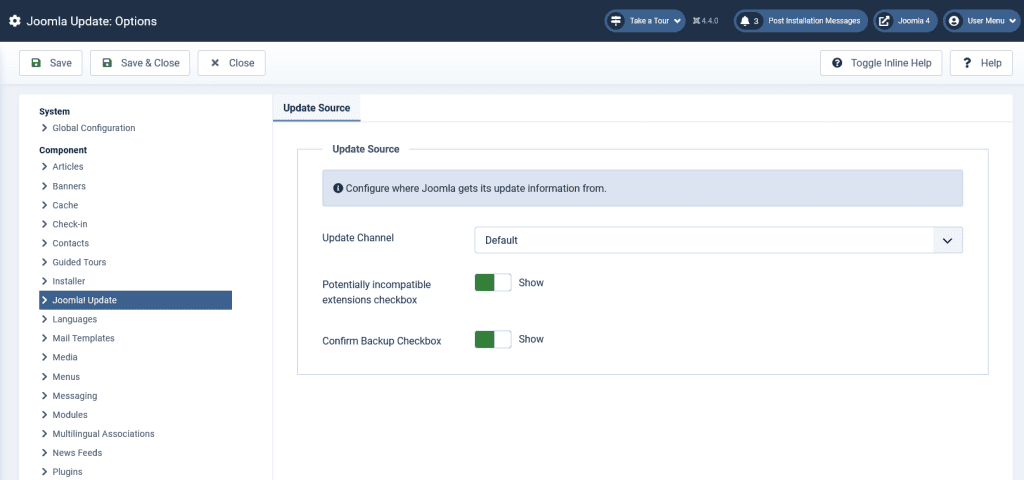
    Joomla is a free and popular content management system (CMS) that powers millions of websites worldwide. Just like any software, Joomla releases updates to improve functionality, fix bugs, and enhance security. However, upgrading Joomla can sometimes lead to issues. This article will guide you through common Joomla upgrade issues and how to resolve them.

    Understanding Joomla Upgrade Issues

    Joomla upgrade issues are problems that occur when you try to update your Joomla version. These issues can range from minor glitches to major problems that can break your website. They occur due to various reasons such as incompatibility of extensions or templates with the new Joomla version, deprecated functions, database errors, and PHP version compatibility issues.

    Common Joomla Upgrade Issues

    Extension Compatibility Issues

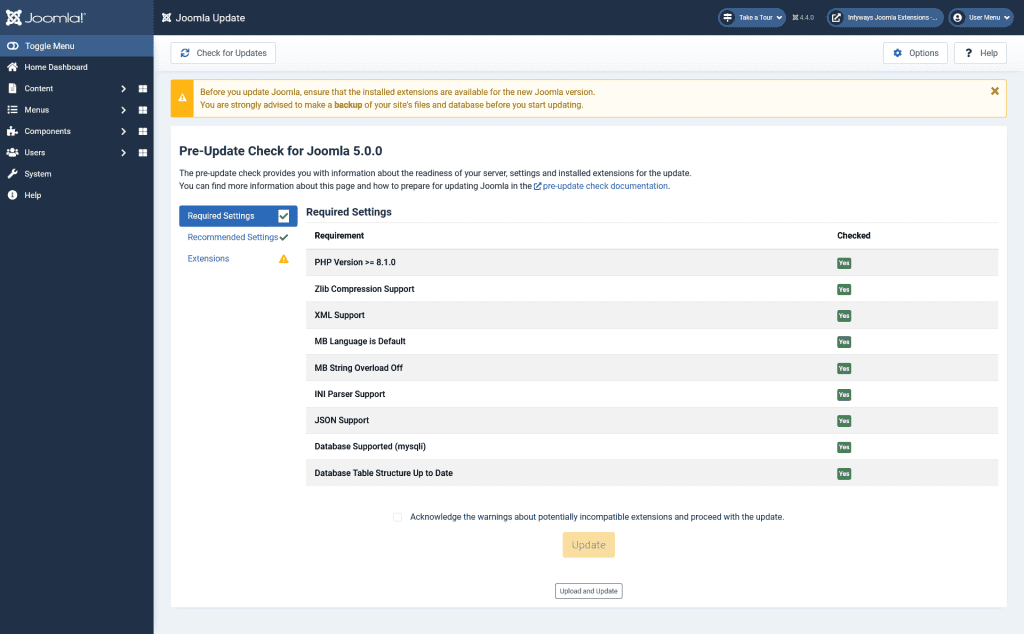
    Extensions add extra features to your Joomla site. However, not all extensions are compatible with every Joomla version. When you upgrade Joomla, some extensions may not work properly, leading to errors on your site.

    Template Compatibility Issues

    Templates define the look and feel of your Joomla site. Similar to extensions, not all templates are compatible with every Joomla version. If a template is not compatible with the Joomla version you’re upgrading to, it can cause your site to display incorrectly or even break.

    Deprecated Function Errors

    Over time, Joomla phases out certain functions in favor of newer, more efficient ones. If your site uses these deprecated functions, you might encounter errors when you upgrade Joomla.

    Database Errors

    Sometimes, the Joomla upgrade process can lead to database errors. These can occur if the upgrade process doesn’t complete correctly, or if there are issues with your database server.

    PHP Version Compatibility Issues

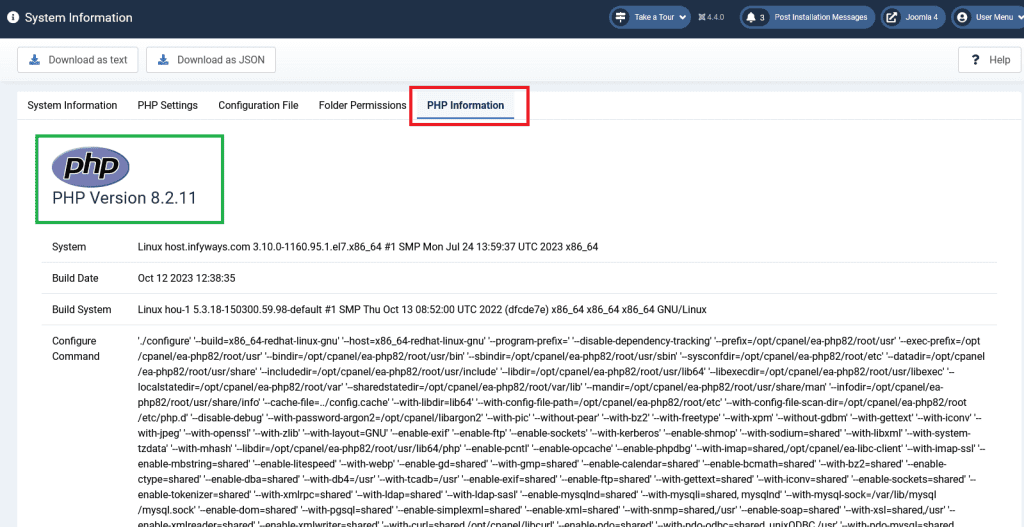
    Joomla is built on PHP, a popular scripting language. Different Joomla versions require different PHP versions. If your server’s PHP version is not compatible with the Joomla version you’re upgrading to, it can cause issues.

    Requirements for Joomla! 4.x

    Software Recommended Minimum[7] More Information
    PHP 8.0 7.2.5 https://www.php.net
    Supported Databases
    MySQL 5.6 + 5.6 https://www.mysql.com
    PostgreSQL 11.0 + 11.0

    (ext/pgsql support in PHP has been removed. Now uses the PostgreSQL PDO Driver)

    Supported Web Servers
    Apache[3] 2.4 + 2.4

    (with mod_mysql, mod_xml, and mod_zlib)

    Nginx 1.18 + 1.10 https://docs.nginx.com/
    Microsoft IIS[6] 10 + 8 https://www.iis.net

    SEO and URL Rewriting Issues

    Upgrading Joomla can sometimes lead to SEO and URL rewriting issues. This can affect how your site’s URLs are displayed and how search engines index your site.

    Deep Dive into Specific Issues

    Now that we’ve identified the common Joomla upgrade issues, let’s delve deeper into each one, understand why they occur, and explore possible solutions.

    Extension Compatibility Issues

    When you upgrade Joomla, some extensions may not work as expected because they are not compatible with the new Joomla version.
    For example, an extension might use functions that are deprecated in the new Joomla version, leading to errors. To fix this, you can check if the extension developer has released an update that is compatible with the new Joomla version. If not, you might need to find an alternative extension that offers similar functionality.

    Template Compatibility Issues

    Just like extensions, templates can also cause issues when you upgrade Joomla. If a template is not compatible with the new Joomla version, it can cause your site to display incorrectly. To resolve this, you can check if the template developer has released an update that is compatible with the new Joomla version. If not, you might need to switch to a different template.

    Deprecated Function Errors

    Deprecated function errors occur when your site uses functions that Joomla has phased out. To fix these errors, you need to update your site’s code to use the newer functions that Joomla recommends. This might require some knowledge of PHP and Joomla’s API.

    Database Errors

    Database errors during a Joomla upgrade can be tricky to resolve because they can be caused by various issues. For example, the upgrade process might not complete correctly due to a server timeout, or there might be issues with your database server. To fix these errors, you might need to consult with your hosting provider or a Joomla expert.

    PHP Version Compatibility Issues

    If your server’s PHP version is not compatible with the Joomla version you’re upgrading to, it can cause issues. To resolve this, you can ask your hosting provider to update the PHP version on your server. However, before doing this, make sure that all your site’s extensions and templates are compatible with the new PHP version.

    SEO and URL Rewriting Issues

    SEO and URL rewriting issues can affect how your site’s URLs are displayed and how search engines index your site. To fix these issues, you might need to adjust your site’s SEO settings or update your .htaccess file. This might require some knowledge of SEO and web server configuration.

    Preventing Joomla Upgrade Issues

    Preventing Joomla upgrade issues is better than fixing them. Before you upgrade Joomla, make sure to back up your site. This way, if anything goes wrong, you can restore your site to its previous state. Also, test the upgrade in a development environment before applying it to your live site. Finally, check the compatibility of your extensions and templates with the new Joomla version before upgrading.

    How to Troubleshoot Joomla Upgrade Issues

    If you encounter issues when upgrading Joomla, don’t panic. Start by identifying the issue. Check your site’s error logs and Joomla’s debug mode for clues. Then, search for the issue on Joomla’s official forums and other online resources. If you can’t resolve the issue yourself, consider hiring a Joomla developer.

    Conclusion

    Understanding Joomla upgrade issues is crucial for maintaining a healthy and functional Joomla site. By staying informed and prepared, you can ensure a smooth upgrade process and keep your site running smoothly.

  • Master Joomla Within Days – Best Joomla Books to Help You Learn Quickly

    Master Joomla Within Days – Best Joomla Books to Help You Learn Quickly

    Are you looking to learn Joomla quickly and efficiently? Then you’ve come to the right place. Joomla is a popular content management system (CMS) that allows users to create and manage websites easily. With its user-friendly interface and powerful features, Joomla is a great choice for anyone looking to build a website. In this blog post, we’ll introduce you to some of the best Joomla books that will help you master this powerful CMS in just a few days.

    Joomla 3 Explained: Your Step-by-Step Guide – by Stephen Burge

    Joomla 3 Explained is a comprehensive guide to the latest version of Joomla. Written by Joomla expert Stephen Burge, this book provides a step-by-step guide to building a website with Joomla. It covers everything from installation to configuration, and from basic site building to advanced customizations. With clear explanations and practical examples, this book is perfect for beginners and experienced Joomla users alike.
    Joomla! 3 Beginner’s Guide – by Eric Tiggeler

    Joomla! 3 Beginner’s Guide is a practical guide to building a website with Joomla. Written by Joomla expert Eric Tiggeler, this book provides a step-by-step guide to building a website from scratch. It covers everything from installing Joomla to creating a template and adding content. With clear explanations and practical examples, this book is perfect for beginners who want to learn Joomla quickly and efficiently.

    Joomla! 3 SEO and Performance – by Simon Kloostra

    Joomla! 3 SEO and Performance is a comprehensive guide to optimizing Joomla websites for search engines and speed. Written by Joomla expert Simon Kloostra, this book provides a step-by-step guide to optimizing Joomla websites for SEO and performance. It covers everything from configuring Joomla for SEO to optimizing images and caching. With clear explanations and practical examples, this book is perfect for anyone who wants to get the most out of their Joomla website.

    Joomla! 3 Boot Camp: 30-minute lessons to Joomla! 3 Mastery – by Robin Turner

    Joomla! 3 Boot Camp is a concise guide to mastering Joomla in just 30 minutes a day. Written by Joomla expert Robin Turner, this book provides 30 short lessons that cover everything from installing Joomla to creating a template and adding modules. With clear explanations and practical examples, this book is perfect for busy professionals who want to learn Joomla quickly and efficiently.
    Conclusion

    In conclusion, mastering Joomla doesn’t have to be a daunting task. With the right resources, you can learn Joomla quickly and efficiently. These four Joomla books are some of the best resources available to help you master Joomla in just a few days. Whether you’re a beginner or an experienced user, these books will provide you with the knowledge and skills you need to build and manage Joomla websites with ease.