The benefits of Joomla migration are concrete: you leave an unsupported major (especially Joomla 3 after August 2023), land on a release that still receives security fixes, run on PHP 8.x hosting hosts still sell, and unlock core features that used to need third-party extensions. In project language, a migration is a major structural hop (typically 3.10 to 4.4). A upgrade is the smoother path the project documents for 4.4 to 5 and 5.4 to 6. Both are what buyers mean when they search for Joomla migration benefits.
Most articles on this topic stop at “security and speed,” or they stop at Joomla 5. Official docs explain why to migrate. Agency posts list three to ten reasons. Almost none combine official terminology, the full 3 through 6 hop map, Joomla 6 auto-updates, support end dates, when you should wait, the Behaviour – Backward Compatibility 6 rules, cleanup ROI, and a staging plan in one place. That is what this guide does, plus how Infyways runs the work from $149 with a free audit within 12 hours.
What you will learn
- Migration versus upgrade versus patch update (with the hop order that actually works)
- Every major benefit: security, PHP and hosting, performance, admin UX, SEO, accessibility, multilingual, core features, Joomla 6 auto-updates
- Official support windows so you know when urgency is real versus marketing panic
- Why migration is also a cleanup project (the angle official docs emphasize)
- What you lose by waiting on Joomla 3 or early 4, and when Joomla 5 owners can wait
- How to start with Infyways without treating “click Update” as a plan
Migration, upgrade, or patch: use the right word
Confusion here is why thin competitor posts mislead people into a one-click 3 to 6 fantasy.
| Change | Official framing | Example | What you should expect |
|---|---|---|---|
| Patch | Update | 5.4.2 to 5.4.3 | Same major. Use System → Update → Joomla. See update errors |
| 4.4 to 5.x | Upgrade (not a full migration) | 4.4.x to 5.4.x | Many extensions work; Behaviour – Backward Compatibility helps. Plan on staging |
| 5.4 to 6.x | Upgrade | 5.4 to 6.0+ | Disable Behaviour – Backward Compatibility (no number). Keep Behaviour – Backward Compatibility 6 enabled. See compat plugin guide |
| 3.10 to 4.4 | Mini-migration / migration | 3.10 to 4.4 | Template and extension triage. Protostar does not survive |
| 3.x toward 5 or 6 | Multi-hop migration | 3.10 → 4.4 → 5.4 → 6 | Never a single updater click. Path: 3 to 4, 5, and 6 |
Primary sources: Why Migrate, 4.4 to 5 planning, 5 to 6 planning, and the Joomla 6.0 / 5.4 announcement.
Support windows that decide urgency
Scare posts skip dates. The Joomla roadmap and project announcements make urgency measurable:
| Line | Bugfix / regular support | Security-only support | What that means for migration |
|---|---|---|---|
| Joomla 3.10 | Ended August 2023 | Ended August 2023 | Migrate now. There is no official patch line left |
| Joomla 4.x | Ended (security ended 14 October 2025) | Ended | Treat as EOL. Move to 5.4 then plan 6 |
| Joomla 5.4.x | Through 13 October 2026 | Through 12 October 2027 | Safe to stay while extensions catch up for J6, if you are already on 5.4 |
| Joomla 6.x | Through 17 October 2028 | Through 16 October 2029 | Active feature line. Finish here when staging is green |
So: Joomla 3 and 4 owners have a real security deadline. Joomla 5.4 owners have a planning window, not a midnight panic, unless the host or an abandoned extension forces the move sooner.
Benefit 1: Security support that still exists
Joomla 3.10 reached end of life in August 2023. The site does not magically shut off. Official security patches stop. That is the first benefit of migrating: you are on a maintained line again.
- Core CVEs ship on current 5.x and 6.x.
- Abandoned Joomla 3 extensions stop being a permanent attack surface once you replace or rebuild them.
- Hosts and insurers increasingly treat EOL CMS stacks as unacceptable risk.
Thin “3 reasons” posts mention security once. The operational point is this: every month on EOL core is a month where your risk grows and your vendor options shrink.
Benefit 2: PHP and database versions you can still buy
Hosts retire PHP 7 and old MySQL. Joomla 5 needs PHP 8.1 or newer. Joomla 6 needs PHP 8.3 or newer (8.4 recommended), with MySQL 8.0.13+ / MariaDB in the supported range or PostgreSQL 14+ class. Requirements: Joomla technical requirements.
| Target | PHP | Why migration unlocks hosting |
|---|---|---|
| Joomla 5 | 8.1+ | Matches mainstream shared hosting in 2026 |
| Joomla 6 | 8.3+ (8.4 recommended) | Keeps the next renewal cycle viable |
Official docs also warn that hosts will not keep ancient stacks forever. Migration is often forced by the server long before the marketing team asks for new features.
Benefit 3: Performance without the legacy JS tax
Current Joomla uses modern PHP, a cleaned codebase, and the Web Asset Manager so templates load scripts only when needed. Core no longer ships MooTools. Default templates are built for current Core Web Vitals expectations.
The caveat competitors skip: speed appears when the template and bloated extensions move with the core. Migrating the CMS and keeping a Joomla 3 club template untouched does not deliver the performance benefit. Related: remove MooTools from Joomla.
Benefit 4: An administrator people will actually use
From Joomla 4 onward the back end is a different product: clearer navigation, Guided Tours, a usable media manager (including AVIF on modern releases), and Dark Mode that editors notice. Magazine writers call out the adjustment period from Joomla 3, then the productivity gain. That matches what we see on client handovers.
Benefit 5: Core features that replace paid extensions
This is the benefit Why Migrate stresses and most agency blogs underwrite. Current Joomla can cover work that used to need a stack of third-party tools:
- Custom fields for structured content
- Workflows for editorial approval
- Tags and Smart Search instead of legacy Search
- Media manager improvements instead of a separate DAM for small sites
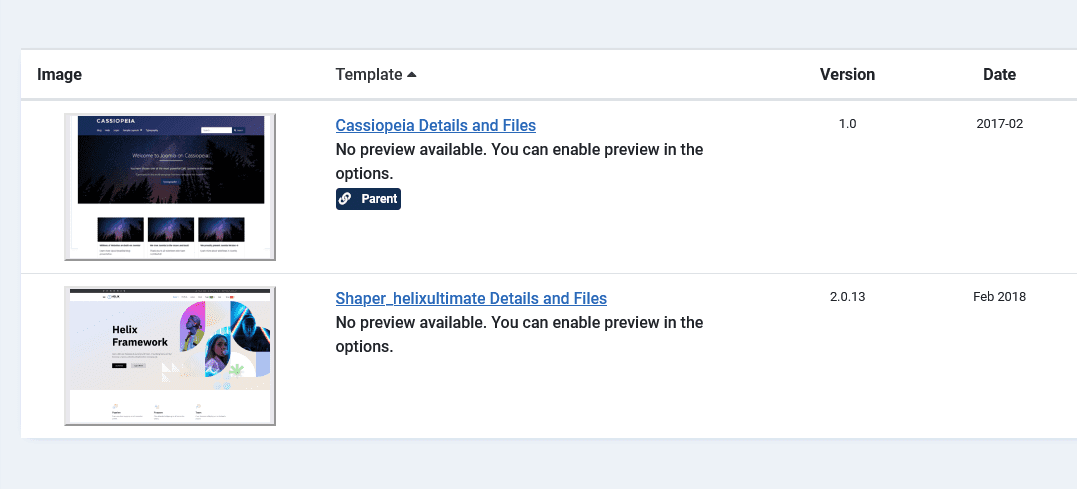
- Cassiopeia child-style customization on recent releases without forking the whole template
Migration is the moment to uninstall unused modules, kill “great ideas” that never launched, and reduce license sprawl. That lowers cost after go-live, not only risk.
Benefit 6: SEO you can defend
Joomla does not rank higher because the version number changed. You benefit because:
- Modern routing and SEF stay maintainable
- You can keep aliases and ship a 301 map when something must change
- Schema and accessibility improvements support how Google evaluates pages
- The site stays fast enough and online during crawl windows
Rankings die on broken SEF, 500s after a botched live update, or months of downtime. Staging protects that. Troubleshooting: Joomla upgrade issues and Joomla SEO.
Benefit 7: Accessibility, multilingual, and compliance
- Accessibility: current admin and Cassiopeia-oriented front ends take WCAG-oriented patterns seriously. Public sector and education RFPs increasingly require that.
- Multilingual: language handling and related tooling are stronger than on Joomla 3-era stacks, which matters for EU and multi-region sites.
- Support window: majors follow a planned lifecycle (on the order of multi-year support per major). You get time to plan the next hop instead of living in permanent panic.
Benefit 8: Joomla 6 features worth finishing the path for
Posts that stop at “move to Joomla 5” are already dated. From 5.4 into 6 you also gain reasons to complete the journey:
- Automatic core updates with the secure update framework introduced across 5.4 and 6.0
- Behaviour – Backward Compatibility 6 so more extensions survive the hop while vendors catch up
- Extended versioning that reaches further into custom fields and related content structures
- Language file caching and media manager improvements
- Editor updates (TinyMCE on the current 6.x line) for day-to-day publishing
- Child templates and richer content tools that reduce forking Cassiopeia for small design changes
Before the hop: prove every third-party extension runs on Joomla 5.4 with the older Behaviour – Backward Compatibility plugin disabled. Then upgrade with Behaviour – Backward Compatibility 6 enabled. After vendors ship native J6 builds, disable BC6 to drop the compatibility overhead. Full rules: 5 to 6 planning.
Product overview: Joomla 6. Community write-up: What is new in Joomla 6.0.
Benefit 9: The cost of not migrating
| If you stay on | What usually happens next |
|---|---|
| Joomla 3 | No official security line, vendors gone, PHP upgrades break the site |
| Early Joomla 4 on PHP 8.0 hosts | Host forces PHP up; site fatals; emergency weekend work |
| Joomla 5 without a 6 plan | You miss auto-update and lifecycle planning; the next hop becomes a fire drill |
| Heavy abandoned extensions | Every delay makes rebuild cost higher, not lower |
Waiting rarely saves money. It concentrates risk into a single emergency project.
Who benefits most (urgency map)
| Situation | Main benefit | Urgency |
|---|---|---|
| Still on Joomla 3 | Security + PHP + vendors | High |
| Joomla 4, host retiring PHP | Stay online | High |
| VirtueMart / custom components | Commerce on supported builds | High if vendors dropped your major |
| Government / education | Supported CMS for audits | High |
| Joomla 5.4, PHP 8.3+, extensions J6-ready | Joomla 6 features + lifecycle | Upgrade on staging now |
| Joomla 5.4, critical extensions not J6-ready | Stay secure on 5.4 while vendors catch up | Medium: schedule, do not freeze forever |
| Agencies with many client sites | One standard stack, fewer snowflake servers | High for white-label ops |
What thinner articles leave out
| Topic | Typical competitor post | This guide |
|---|---|---|
| Versions covered | Joomla 3 to 5, or 5 to 6 only | 3 through 6 with hop order |
| Migration vs upgrade | Mixed or wrong | Official project language in a table |
| Support end dates | Vague “EOL soon” | Roadmap dates for 3, 4, 5.4, and 6 |
| Joomla 6 auto-updates | Often missing | Called out as a finish-line benefit |
| BC6 plugin rules | Skipped or one line | Disable old BC, keep BC6, retire later |
| When waiting is OK | Rarely said | J5.4 security window through October 2027 |
| Cleanup / core replacements | Mentioned lightly | Tied to Why Migrate and cost reduction |
| Staging + SEO cutover | Generic “take a backup” | Steps, Pre-Update Check, 301 map, Search Console |
| Commercial next step | Vague contact form | Audit in 12 hours, packages from $149 |
Step 1: Inventory version, PHP, and extensions
- System → System Information: Joomla, PHP, database.
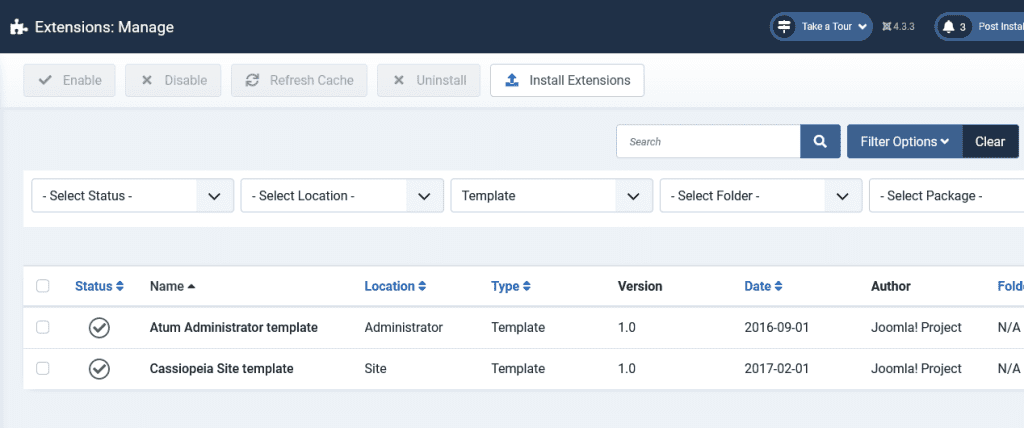
- Export or screenshot Manage → Extensions.
- Mark each extension: has a current build, needs rebuild, or can be replaced by core.
- Pick only the next hop from the table above.
Step 2: Back up with a restore test
A migration benefit is worthless without rollback. Take files + database, store a copy off-server, and confirm restore once. Method: how to backup a Joomla website.
Step 3: Prove it on staging
- Clone production to staging.
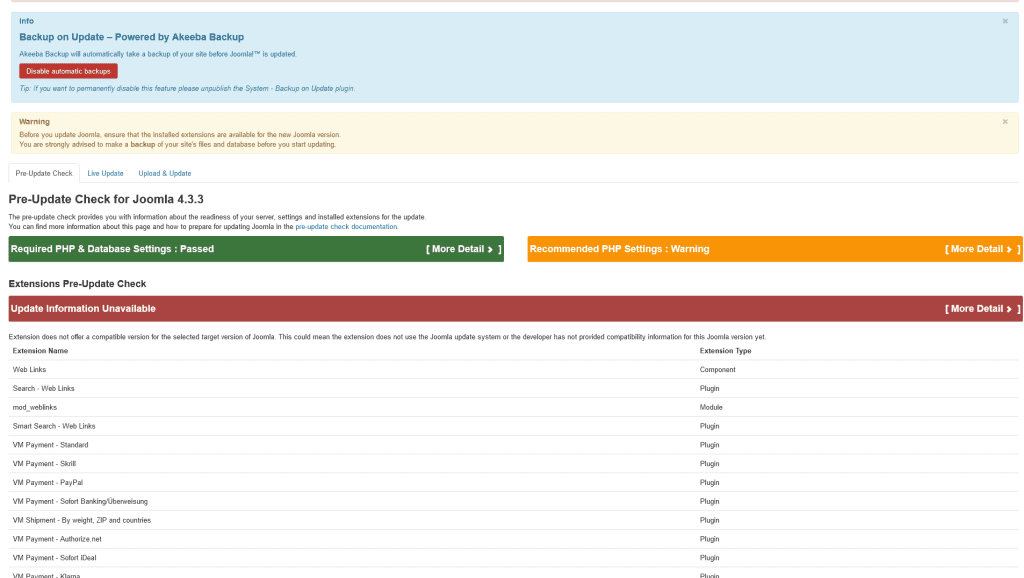
- Run Pre-Update Check. Fix or replace blockers.
- Complete the hop. Run Database Fix. Clear caches.
- Click through login, forms, multilingual switchers, and checkout if you have a store.
- Only then book the production window.
When something breaks, use the issue map: common Joomla upgrade issues.
Step 4: Cut over with SEO and support intact
- 301 map ready for any alias that must change
- Search Console checked in week one
- CDN and page cache purged
- 30 days of watch for extension edge cases
How Infyways delivers those benefits
We are not a generic “we love Joomla 5” essay. We migrate production sites:
- Free compatibility audit within 12 hours (credentials optional for the first pass)
- Fixed packages from $149 small / $299 medium / custom enterprise and stores
- 100+ JED extensions in-house, so rebuilds are normal work, not a surprise
- Staging-first cutover and 30 days of post-launch support on migration defects
Start: Joomla Upgrade Services.
Key takeaways
- Migration benefits are security, hosting, performance, admin UX, fewer extensions, SEO resilience, accessibility, and Joomla 6 lifecycle features.
- Use official words: 3 to 4 is a migration; 4.4 to 5 and 5.4 to 6 are upgrades.
- Hop order is 3.10 → 4.4 → 5.4 → 6. No shortcuts.
- Urgency follows support windows: EOL on 3/4 is immediate; 5.4 still has a security lane into late 2027.
- Cleanup is part of the ROI: drop unused extensions and replace them with core where you can.
- Speed and SEO appear only when template and extensions move with the CMS.
- Waiting on EOL core increases cost. Fixed-price staging work is cheaper than an emergency rebuild.
Frequently asked questions
What are the benefits of Joomla migration?
You regain security updates, PHP 8 hosting, a modern administrator, vendor-supported extensions, better performance potential, stronger accessibility and multilingual options, and a path into Joomla 5 and 6 features such as automatic core updates.
Is Joomla 4 to 5 a migration or an upgrade?
The Joomla project treats 4.4.x to 5.x as an upgrade, not a full migration. Extension checks and staging are still required.
Is Joomla 5 to 6 a migration?
No. From 5.4.x it is an upgrade, with Behaviour – Backward Compatibility 6 involved. From Joomla 3 it is still a multi-hop migration.
Do I need to upgrade from Joomla 5 to Joomla 6 immediately?
No. Joomla 5.4 remains on a security path through 12 October 2027. Upgrade when templates and extensions are J6-ready and staging is green, not because a headline says “now or never.”
What is the Behaviour – Backward Compatibility 6 rule before upgrading?
On Joomla 5.4, disable the older Behaviour – Backward Compatibility plugin (no number in the name) only after extensions run without it. Keep Behaviour – Backward Compatibility 6 enabled for the move into Joomla 6. Disable BC6 later when every extension is native.
Does my Joomla 3 site stop working after end of life?
No. It keeps running without official security fixes while hosts and vendors move on.
Will migration improve Google rankings by itself?
No. It protects the technical baseline (uptime, SEF, modern HTML performance). Content and links still decide rankings.
Can core Joomla replace some of my extensions after migration?
Often yes. Custom fields, workflows, tags, and Smart Search cover many older third-party use cases. That is a deliberate benefit of migrating now.
How much does Joomla migration cost with Infyways?
Packages start at $149 for small sites and $299 for medium sites. Enterprise and stores are custom after the free audit.
How long does it take?
Small brochure sites can finish in days after staging is ready. Stores and custom components take longer. The audit sets the timeline.