Updated 15 October 2026 · By Abhilash Sahoo, Founder, Infyways
Quick answer: The fastest way to add custom JavaScript to Joomla 5 or 6 with Cassiopeia is to create media/templates/site/cassiopeia/js/user.js. Joomla loads it on every page with no code changes. For anything more, use the Web Asset Manager:
- For a file:
$wa->registerAndUseScript('my.site', 'media/templates/site/cassiopeia/js/site.js', [], ['defer' => true]); - For a snippet:
$wa->addInlineScript('…'); - To keep it to one page, put the code in a template override.
Avoid pasting raw <script> tags into the template or a Custom HTML module. Editors strip them, and a Content Security Policy blocks them. This all applies unchanged to Joomla 6.2, the latest version.
I tested every method below on a real Joomla 5.4.10 site (PHP 8.2, XAMPP) and checked the browser console in Chrome. I also compared the relevant Joomla 6.2.0 source files. Images marked “real output” show what the site actually printed. References: Joomla’s Adding JavaScript and Web Asset Manager documentation.
Which way should I add JavaScript to Joomla?
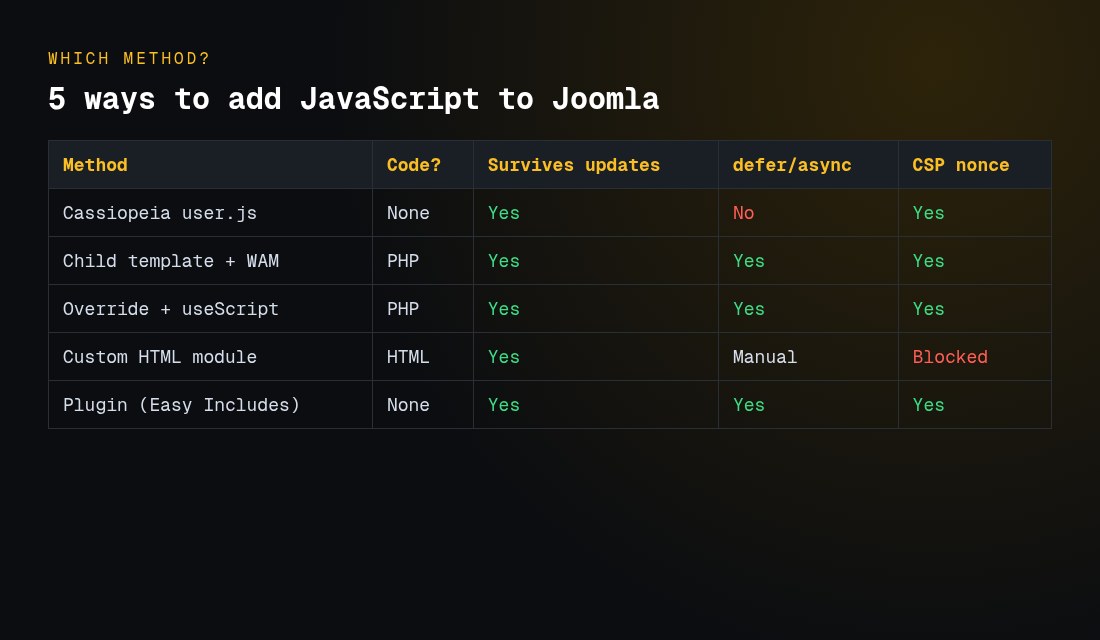
| Method | Best for | Needs code? | defer / async | Works with a CSP nonce? | Pages |
|---|---|---|---|---|---|
Cassiopeia user.js |
Small site-wide tweaks | No | No | Yes (tested) | All |
| Web Asset Manager in a child template | Files, CDNs, load order | PHP | Yes | Yes (tested) | All, or with conditions |
Template override plus useScript() |
One view (article, contact form) | PHP | Yes | Yes | That view |
| Custom HTML module | Widgets pasted by non-developers | HTML | Manual | No: blocked (tested) | Menu assignment |
| Plugin such as Easy Includes | Site-wide files, CDN URLs or snippets without template edits | No | Yes (Normal, Defer, Async) | Yes (tested) | All front-end pages, minus exclusions |
Don’t edit Cassiopeia’s own index.php. Joomla updates overwrite it. My tests changed it only to show the output; for a real site, use a child template.
How do I add JavaScript with user.js in Cassiopeia?
- Go to System → Site Templates → Cassiopeia Details and Files.
- Open
media/templates/site/cassiopeia/js(shown as the js folder). Click New File, name ituser, choose type.js, and click Create. - Add your code and save:
document.addEventListener('DOMContentLoaded', () => {
  // your code
});
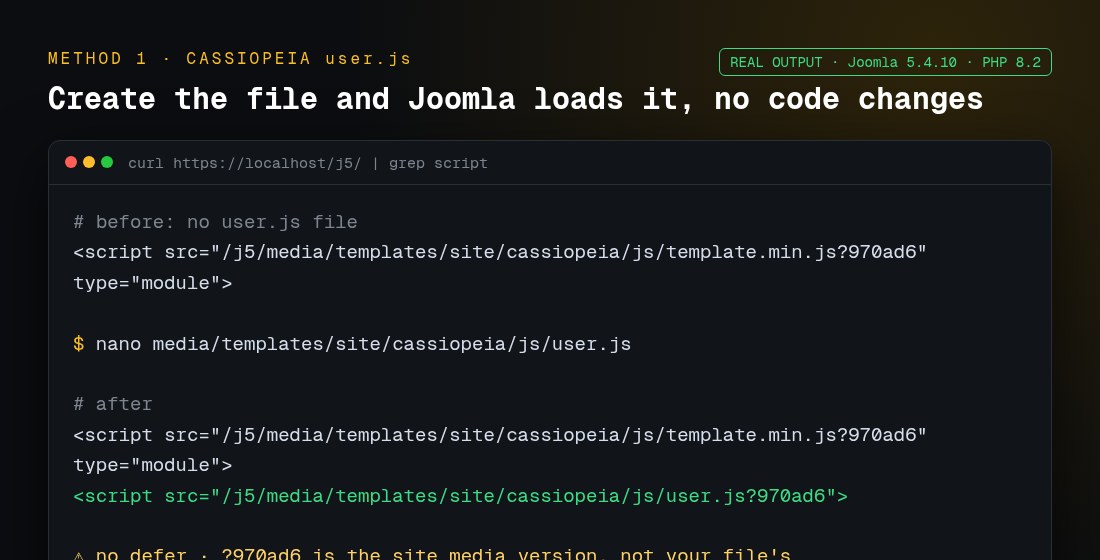
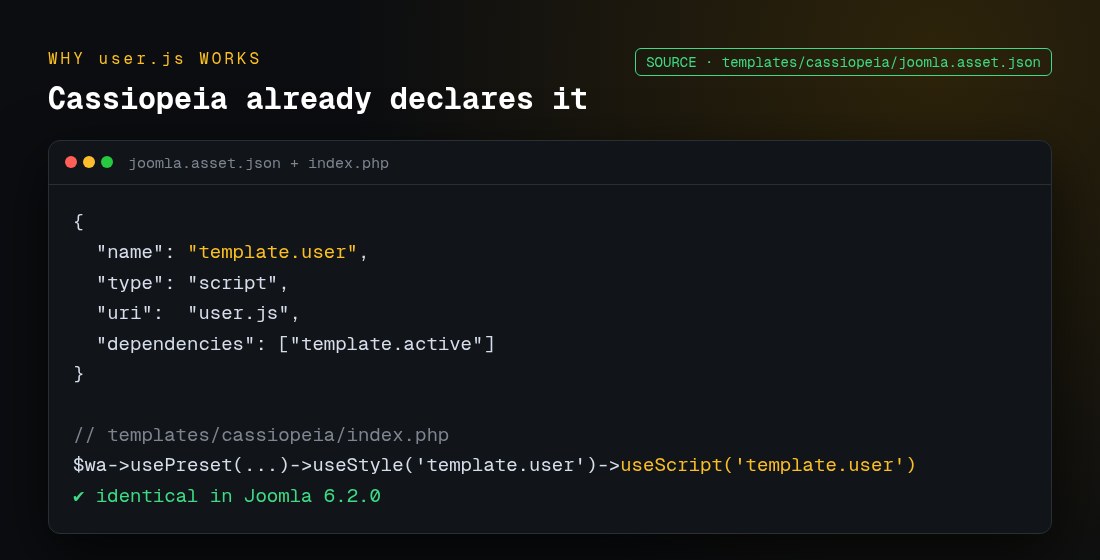
Nothing else is needed. Cassiopeia’s joomla.asset.json already declares a template.user script, and index.php already calls useScript('template.user'). The tag only appears once the file exists:
Two things I found in testing:
- No
defer.user.jsloads as a normal script, so wrap DOM code inDOMContentLoaded. - Caching. The
?970ad6on the URL is the site’s media version, not a hash of your file. After editinguser.js, visitors may still get the cached copy. Hard-reload while testing. For a change visitors must get immediately, rename the file, or load it with the Web Asset Manager and your own version number. See caching in Joomla.
How do I add a script with the Web Asset Manager?
The Web Asset Manager (WAM) is the official API in Joomla 4, 5 and 6. In a template file, $wa = $this->getWebAssetManager();. Elsewhere, use Factory::getApplication()->getDocument()->getWebAssetManager().
// local file, deferred, loads after Joomla core.js
$wa->registerAndUseScript('custom.site', 'media/templates/site/cassiopeia/js/site.js',
    ['version' => 'auto'], ['defer' => true], ['core']);

// CDN file, async, no ?version query
$wa->registerAndUseScript('custom.dayjs', 'https://cdn.jsdelivr.net/npm/dayjs@1.11.13/dayjs.min.js',
    ['version' => false], ['async' => true, 'crossorigin' => 'anonymous']);
The arguments are name, URI, options, HTML attributes and dependencies. Here’s what Joomla actually printed:
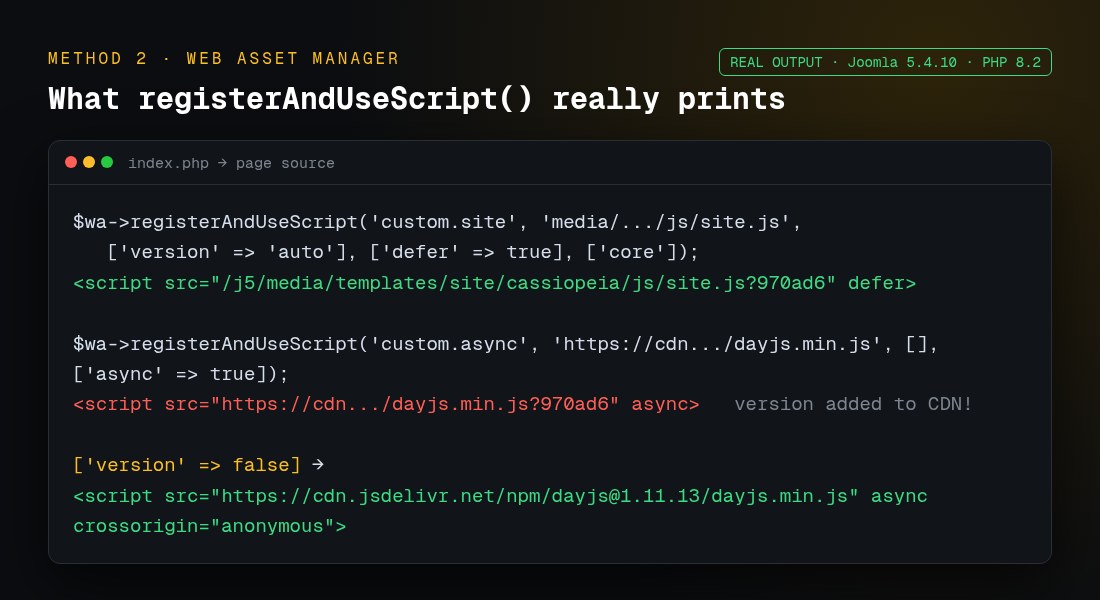
When I passed an empty options array, Joomla added the media version (?970ad6) to the CDN URL as well. Pass ['version' => false] to keep third-party URLs clean. This matters for some CDNs and for SRI hashes.
Should I use joomla.asset.json instead?
If you have several scripts, yes. Declare them once in your template’s or extension’s joomla.asset.json, then call $wa->useScript('name'):
{
  "$schema": "https://developer.joomla.org/schemas/json-schema/web_assets.json",
  "name": "mytemplate",
  "version": "1.0.0",
  "assets": [
    { "name": "mytemplate.site", "type": "script", "uri": "site.js",
      "attributes": { "defer": true }, "dependencies": ["core"], "version": "auto" }
  ]
}
Templates and components pick up their file automatically. For a module or plugin, call $wa->getRegistry()->addExtensionRegistryFile('mod_example'); first (official docs).
How do I add inline JavaScript or pass PHP values to JS?
$wa->addInlineScript("document.documentElement.dataset.ready = '1';");

// PHP → JS without building strings
$this->addScriptOptions('custom.cfg', ['siteName' => $sitename]);
// in JS: Joomla.getOptions('custom.cfg').siteName
In my test, Joomla.getOptions('custom.cfg') returned {"siteName":"Demo"}. Your script needs core as a dependency to use Joomla.getOptions.
How do I add JavaScript to one page only?
Create a template override for that view, for example System → Site Templates → Cassiopeia Details and Files → Create Overrides → Components → com_content → article. Then add near the top of templates/cassiopeia/html/com_content/article/default.php:
$wa = \Joomla\CMS\Factory::getApplication()->getDocument()->getWebAssetManager();
$wa->registerAndUseScript('custom.article', 'media/templates/site/cassiopeia/js/article.js', [], ['defer' => true]);
Overrides live in the html folder, and Joomla updates leave them alone. To target one menu item rather than one view, wrap the call in a check on $app->getMenu()->getActive()->id.
How do I add JavaScript without editing the template?
Use a system plugin that registers your scripts through the Web Asset Manager for you. One example is Easy Includes 2.0 from JoomlaX (our own extension), which supports Joomla 4, 5 and 6. Its documentation lists what it does:
- Files tab: add a site-relative path or a full
https://CDN URL for each CSS or JS file. For each script you choose Normal, Defer or Async loading, plus optionaltype="module",nomodule, crossorigin and an SRI hash. - Inline Code tab: paste short, trusted CSS or JS snippets. Inline JavaScript isn’t HTML-filtered, so only trusted admins should manage the plugin.
- Load Priority: rows with higher numbers register first.
- Exclusions: skip selected user groups, components (for example
com_users) or URL path fragments (for example/checkout). If any exclusion matches, nothing loads on that page. There is no include-only-on-this-menu-item option, so for single-page scripts use an override. - Cache busting: Off, Auto (uses the file’s modification time) or Aggressive (for testing only).
- Front end only by default. The admin area loads the assets only if you turn on Enable in Administrator.
Script loading is set per file, and there is no head-or-body choice. Version 2.0 replaced that option with Normal/Defer/Async. I installed the 2.0 package on the same test site, with the CSP nonce turned on:
- A deferred file printed as
<script src="/j5/images/ei-test.js?1792064452" defer nonce="…">. With Auto cache busting, the number is the file’s modification time. - The inline snippet also got the nonce, and Chrome ran both.
- On the login page (
com_users, excluded), neither loaded.
Updates install from the Joomla admin with a valid JoomlaX licence.
Can I put a script in a Custom HTML module?
Yes, and the script runs on a site without a CSP. In my test, the module’s <script> ran normally. There are two catches:
- Editors strip it. TinyMCE lists
scriptunder Prohibited Elements by default. Switch your user’s editor to Editor – None or CodeMirror while pasting. Make sure your group’s Text Filter (Global Configuration → Text Filters) isn’t removing it. Super Users have no filtering by default (Joomla HTML filters guide). - A CSP blocks it. The script has no nonce, as the next test shows.
Will my script work with a Content Security Policy nonce?
Only if it goes through Joomla’s API. I enabled System – HTTP Headers → Content Security Policy with Nonce on and script-src 'self' https://cdn.jsdelivr.net. Joomla prepended a fresh nonce to the header and added nonce="…" to every Web Asset Manager tag, including user.js and the addInlineScript() block. Chrome then ran those and blocked the module’s raw script:
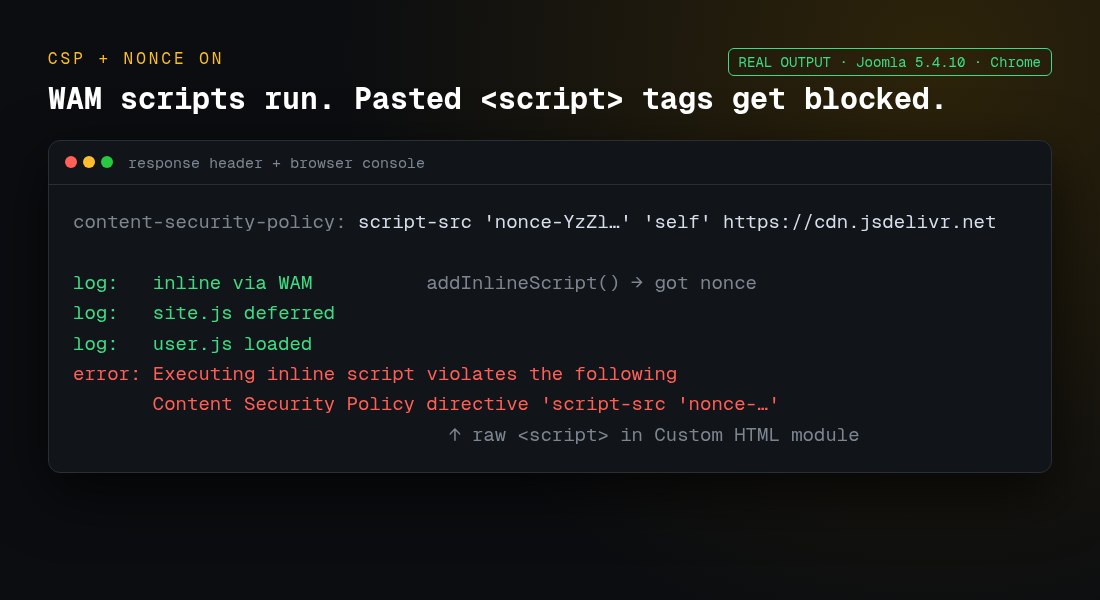
Since Joomla 4.2 you no longer need to type {nonce} in the directive. The plugin removes the old placeholder and adds the nonce itself (from the 5.4 and 6.2 source). Every external host your scripts load from must be listed in script-src. More on headers in our Joomla .htaccess guide and the official HTTP Headers guide.
Should I use defer, async or type=”module”?
| Attribute | Runs | Order kept? | Use for |
|---|---|---|---|
| none | Immediately, blocks HTML parsing | Yes | Rarely; tiny scripts that must run first |
defer |
After HTML is parsed | Yes | Most site scripts that touch the DOM |
async |
As soon as downloaded | No | Independent third-party scripts (analytics) |
type="module" |
Deferred by default | Yes | Modern ES modules (Joomla core uses this) |
With WAM, pass these as attributes, for example ['defer' => true] or ['type' => 'module']. For tracking scripts, respect consent: see disabling cookies for visitors.
What about Document::addScript()?
It still works, but it’s deprecated. In both the Joomla 5.4.10 and 6.2.0 source, addScript() and addScriptDeclaration() are marked @deprecated 4.3 will be removed in 7.0. When you touch old code, replace them with registerAndUseScript() and addInlineScript(). If an old extension also uses removed classes, see fixing Class JRequest not found.
What changed in Joomla 6.2?
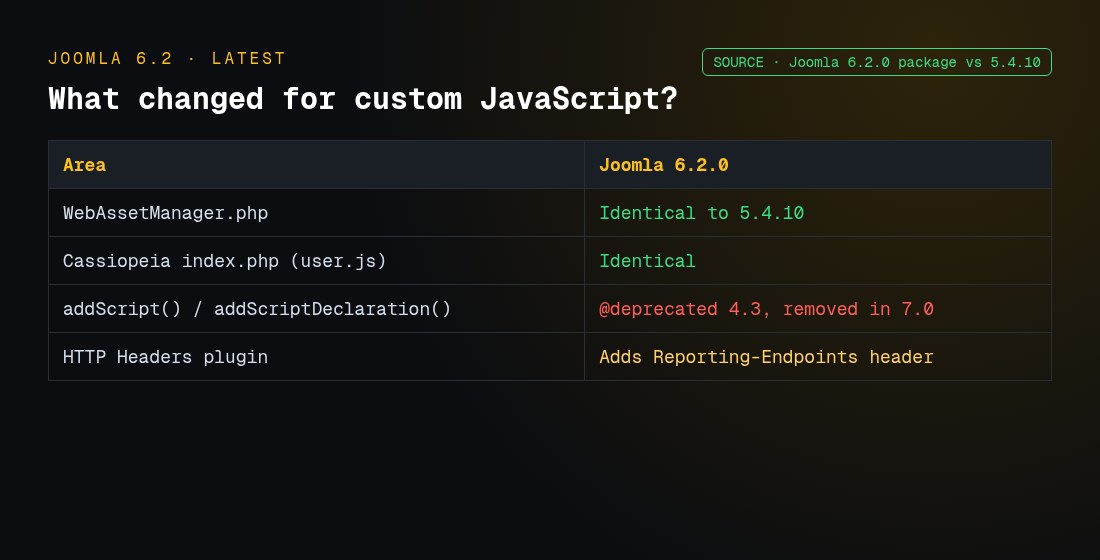
For custom JavaScript, very little. I compared the 6.2.0 package with 5.4.10:
- The
libraries/src/WebAssetclasses are identical. - Cassiopeia’s
index.phpis identical, souser.jsworks the same way. - The HTTP Headers plugin adds a Reporting-Endpoints header option.
Code you write for Joomla 5 with the Web Asset Manager carries over to Joomla 6.
Troubleshooting
| Symptom | Cause | Fix |
|---|---|---|
user.js not in page source |
Wrong folder, or a non-Cassiopeia template | Use media/templates/site/cassiopeia/js/user.js; other templates need WAM |
Edits to user.js don’t show |
Browser cache; the media version didn’t change | Hard-reload; clear Joomla and CDN cache |
<script> vanished after saving |
TinyMCE or the Text Filter | Use Editor – None or CodeMirror; check Text Filters |
| Console: “violates the following Content Security Policy directive” | Raw script without a nonce, or host not in script-src |
Load it through WAM; add the host |
Joomla is not defined |
Script runs before core.js | Add ['core'] as a dependency |
null when selecting elements |
Ran before the DOM was ready | Use defer or DOMContentLoaded |
CDN URL has ?abc123 appended |
WAM versioning | ['version' => false] |
| Script gone after a Joomla update | Edited a core template file | Move it to a child template, override or user.js |
| Script loads twice | Added by both a module and the template | Use one method; WAM de-duplicates by asset name |
FAQs
Where is user.js in Joomla 5?
It doesn’t exist until you create it at media/templates/site/cassiopeia/js/user.js. Cassiopeia then loads it automatically.
Does user.js survive Joomla updates?
Yes. Joomla doesn’t ship a user.js, so updates don’t overwrite it. The 6.2.0 package doesn’t include one either.
Is the Web Asset Manager required?
Not strictly, but it’s the supported API. It handles dependencies, load order, versioning and CSP nonces. addScript() is deprecated and due for removal in Joomla 7.
How do I add Google Analytics or Tag Manager?
Register the vendor URL with WAM, using async and 'version' => false. Put the config snippet in addInlineScript(), and add the vendor hosts to your CSP. Load it only after consent if you need consent.
Can I add JavaScript to a single article?
Use a template override of the article view with a menu-item check, or a Custom HTML module assigned to that menu item. Don’t paste scripts into the article text.
Why does my script work for Super Users but not for editors?
Different user groups have different Text Filters. A lower group’s filter can strip <script> when they save the module or article.
What is the difference between addInlineScript and addScriptDeclaration?
addInlineScript() is the Web Asset Manager method, and it gets the CSP nonce. addScriptDeclaration() is the deprecated Document method.
Can I load ES modules?
Yes. Pass ['type' => 'module'] as an attribute. Joomla’s own scripts, such as template.min.js, load this way.
Is there a no-code option with page exclusions?
Yes. A system plugin such as Easy Includes lets you add JS and CSS from plugin settings on Joomla 4, 5 and 6. It can skip pages by user group, component or URL fragment. It doesn’t target single menu items, so use an override for one-page scripts. Setup steps are in the getting-started guide.
Can you add or clean up scripts for me?
Yes. We move hard-coded scripts into the Web Asset Manager, enable CSP and fix load-order bugs. We do this on its own or as part of a Joomla upgrade. Server settings that affect scripts are covered in Joomla php.ini settings.