To add a favicon in Joomla, change what the active site template (or a system plugin) prints in the page head as rel="icon". That is not always Cassiopeia, and it is not always three Joomla-named files. Helix, T4, Gantry, YOOtheme, and most club templates have their own favicon field or their own filenames. Cassiopeia is only the core default. View source, find the current href, then use that template’s option, replace that file, or inject a pack and strip the old tags.
A favicon is the mark in the browser tab, bookmarks, and (with extra sizes) on a phone home screen. Joomla 4, 5, and 6 all work the same way at the HTTP level: whatever is in <head> wins. This guide starts with that, then covers template options, Cassiopeia’s media files as one special case, cache, and when a generator plugin is easier than fighting five different template UIs.
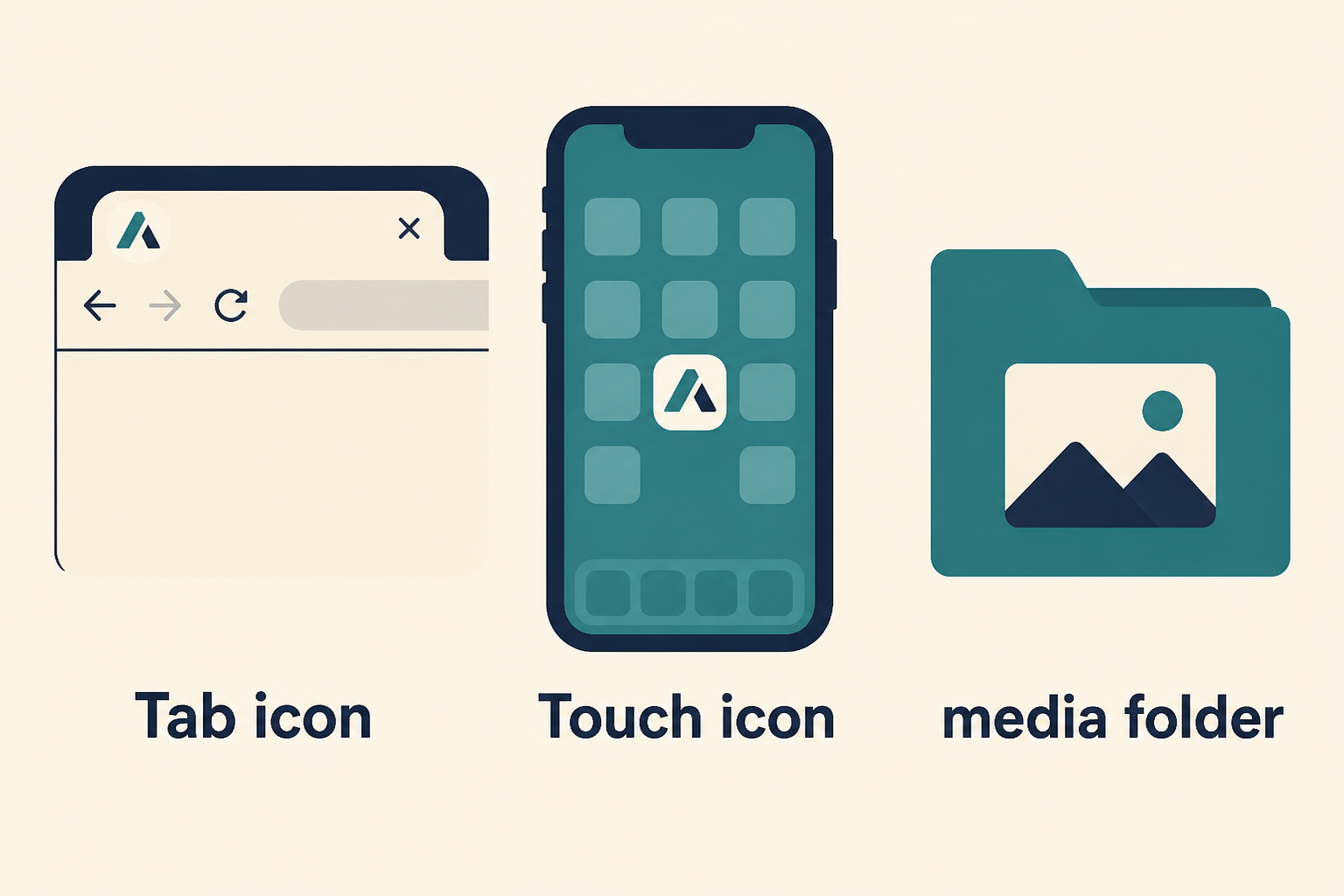
The tab shows whatever the assigned template or a plugin put in the head. Cassiopeia is one of those templates, not the only one.
What you will learn
- How to see which URL Joomla is actually using for the icon
- Where commercial templates usually store the favicon (style options)
- The Cassiopeia-only three-file names, if that is your template
- Why Atum (administrator) is a separate pack
- How cache hides a correct upload
- When Easy Favicon is the template-agnostic manager
Do not edit parent index.php to hard-code a <link>. Same rule as CSS: customize Joomla without editing core. Prefer a child template when you must change files.
Step 1: See what is in the head
Open the public site. View source. Search for rel="icon", apple-touch-icon, and shortcut icon.
Write down:
- The href (that is the file you must replace, or the tag you must override)
- Whether there is more than one icon link (SVG plus ICO plus Apple is normal)
- Whether the path is
media/templates/…,templates/…,images/…, or a CDN
If Helix (or another club template) prints a tag after Cassiopeia’s, the later tag often wins in the browser. Replacing Cassiopeia files then looks like “Joomla ignored me.” You were on the wrong template.
Also check System → Site Template Styles. The style with the star (and any menu assignment) is the one that must receive the change.
Step 2: Use the template’s own favicon control
Most paid templates never use joomla-favicon.svg. They expect an upload in Template Styles.
| Template family | Where to look first |
|---|---|
| Helix Ultimate / JoomShaper | Template Options → a logo or favicon / favicon ICO field (name varies by version) |
| T4 (Joomlart) | Template style → theme / site identity |
| Gantry 5 | Outline → Page Settings or atom for favicon |
| YOOtheme Pro | Customizer → favicon / apple-touch |
| Other club templates | Search the style for “favicon”, “icon”, or “site identity” |
| Cassiopeia (core) | No favicon field. Use the media files in the next section |
| Atum (core admin) | Separate administrator template. Frontend files do not change the backend tab |
Upload a square PNG or ICO, 512×512 or larger if the field accepts PNG. Save the style. Then skip to cache (Step 4) and prove the new href in view source.
If the field only stores one ICO, you still will not get Apple 180 or Android adaptive icons unless the template generates them. That gap is why a pack plugin exists.
Step 3: Replace files only when the head points at files
This is the right move when view source shows a path under your template’s images or media folder.
Cassiopeia (and a Cassiopeia child) is the documented core case. It loads three names:
joomla-favicon.svg(rel="icon")favicon.ico(rel="alternate icon")joomla-favicon-pinned.svg(rel="mask-icon")
Path on Joomla 4.1, 5, and 6:
media/templates/site/{template}/images/
If the assigned style is a child cassiopeia_brand, that folder is media/templates/site/cassiopeia_brand/images/. Replacing files only on parent Cassiopeia does nothing while the child is default.
If you replace only favicon.ico, Chrome can keep the SVG. Replace all three. Official map: Cassiopeia Template Folders and Files.
Any other template: do not invent those three Joomla filenames. Replace the file the href already names, or use the template option in Step 2. Joomla 4.0-era templates/{name}/images/ still appears on old forks. Match the live href, not a blog from 2017.
Root /favicon.ico: some bots still request it. It does not override a later SVG in Chrome.
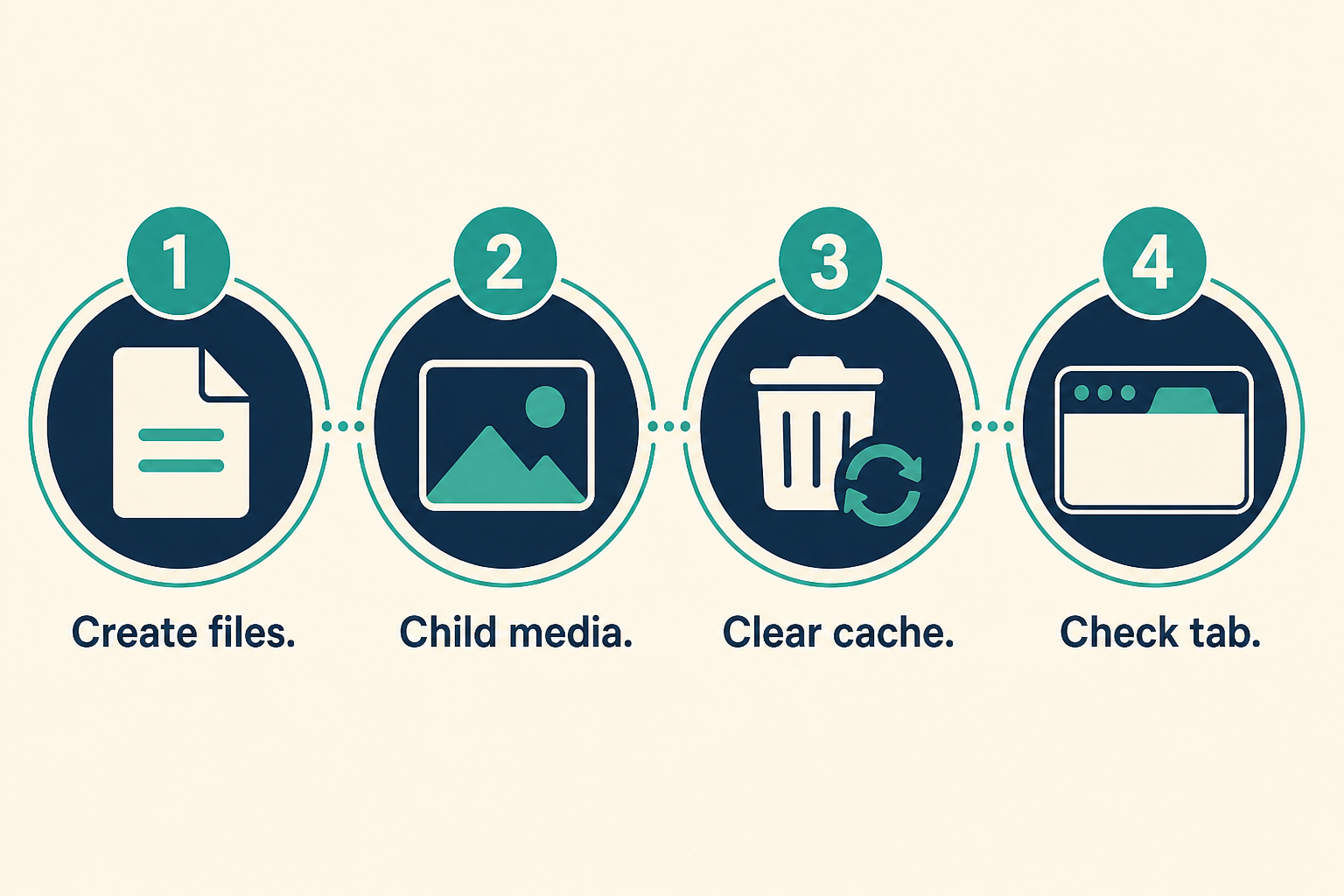
Wrong template style, or the wrong filename, is why the Joomla mark remains.
Step 4: Clear cache and test in a clean browser
- System → Maintenance → Clear Cache
- Purge CDN cache if you use one
- Private window, or a browser profile that has not seen the old icon
Chrome on phones caches favicons hard. View source again. The href must change. If it did not, you edited the wrong style or the template is still injecting the old URL.
Pick the method
| Situation | Do this |
|---|---|
| Club template with a favicon upload | Step 2. Then view source. |
| Cassiopeia or Cassiopeia child | Three named files in that template’s media images/ folder |
| Head shows a path you do not recognise | Replace that file, or the template option that wrote it |
| Several icon tags from the template plus a plugin | Strip or disable one source. Two systems fighting is the usual mess |
| Apple, Android, dark mode, different admin tab | Pack plugin (next section), or a full generator ZIP plus template fields |
| Administrator tab still Joomla | Atum media files or an admin pack. Frontend changes never touch it |
Managing icons across templates with Easy Favicon
Template options and Cassiopeia files are enough when you have one ICO and a cooperative theme. They are a poor manager when every client site uses a different template, or when Helix keeps printing the old apple-touch link.
Easy Favicon is a JoomlaX system plugin for Joomla 4, 5, and 6. It is template-agnostic: one master image, generate the pack, inject tags, optionally strip competing favicon and apple-touch tags so Helix, T4, or Cassiopeia defaults lose. That is the point of mentioning it here. It is not required to “add a favicon.”
From System → Plugins → System – Easy Favicon you can manage:
| Need | What it does |
|---|---|
| One upload, usual sizes | 16, 32, 48, Apple Touch 180, Android 192 and 512, optional ICO |
| Site vs administrator | Site pack, optional admin pack (reuse or a second master) |
| Dark OS theme | Optional dark masters |
| Android cropping | Maskable padding and background |
| Template still winning | Strip level for foreign icon tags |
| Mobile chrome | theme-color meta |
| Another PWA owns the manifest | Off, Generate, or Defer |
| Handoff | Preview, regenerate, ZIP. Files under images/easyfavicon/ |
PHP 8.1+, GD or Imagick. No jQuery. Icons stay on your server.
First run: install the inner plugin zip, enable it, choose a square master (512×512+ PNG or SVG), Generate all icons, clear cache, check the public tab, then the admin tab if the admin pack is on. If generate fails, check GD/Imagick. If the old icon remains, raise strip strength and purge CDN. If a PWA extension owns the manifest, set Defer or Off.
Docs: Easy Favicon documentation. Demo: Easy Favicon demo. JED listing. JoomlaX is Infyways’ extension store.
Key takeaways
- The favicon is whatever the assigned template or plugin puts in
<head>. Start with view source. - Most commercial templates use a style option, not Cassiopeia’s three filenames.
- Cassiopeia is the core default:
joomla-favicon.svg,favicon.ico,joomla-favicon-pinned.svgin that template’s mediaimages/folder, preferably a child. - Atum (admin) is a second template. Frontend files do not change the backend tab.
- Prove the new
href, then fight cache. - A pack plugin is for multi-size, admin, dark mode, and stripping template tags, not for every simple ICO swap.
Client branding across club templates: Joomla design services.
Frequently asked questions
How do I add a favicon in Joomla 5 or 6?
Find the assigned template style. Use its favicon option if it has one. On Cassiopeia, upload the three named files to that template’s media images/ folder. Clear cache and check view source.
Does this only work with Cassiopeia?
No. Cassiopeia is the core default and uses three specific filenames. Most live sites use Helix, T4, Gantry, YOOtheme, or another club template. Start from view source and that template’s style options.
Why does Chrome still show the old icon?
Wrong template style, a later tag from a club template, only one of several files replaced, or favicon cache. View source before you upload again.
Do I need a plugin?
No, if the template option or file replace already updates rel="icon". Yes, if you need a full size pack, a separate admin icon, or to strip Helix (or similar) tags.
Where do Easy Favicon files live?
Under images/easyfavicon/. The plugin injects head tags. You do not have to name Cassiopeia’s three files when it is managing the pack.
Will a template update delete my favicon?
A parent template media file can come back. A child, a template-style upload in the database, or plugin files under images/easyfavicon/ are safer.