Updated 15 October 2026 · By Abhilash Sahoo, Founder, Infyways
Quick answer: To put a Joomla site into maintenance mode, log in to the admin and go to System → Global Configuration → Site, set Site Offline to Yes, type an offline message, and save. Joomla then serves every visitor a themed offline page with a genuine HTTP 503 “Service Unavailable” status, while you and other Super Users keep full access to the live site after logging in. The admin area (/administrator/) stays reachable the whole time. This works the same in Joomla 4, 5 and Joomla 6.2, the latest version.
The 503 status is the right signal for temporary downtime: Google keeps the page indexed instead of treating it like a removed page. Joomla does not add a Retry-After header, which you can add yourself with a template override or .htaccess (shown below).
Every result below was tested on a real Joomla 5.4.10 site (PHP 8.2) and a Joomla 6.2.0 site (PHP 8.4) running on our own machine — the status codes, headers and screenshots are the actual output, not documentation copy. If you’d rather hand ongoing upkeep to a team, we run Joomla support and maintenance plans, but you don’t need us to flip the switch — this guide covers it.
How do I turn on maintenance mode in Joomla?
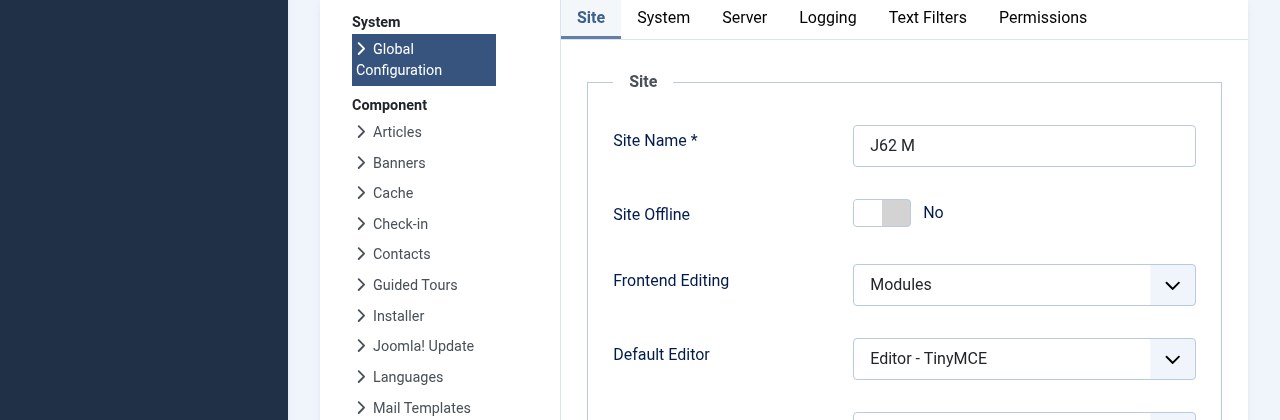
- Log in to your Joomla administrator at
yoursite.com/administrator/. - Open System → Global Configuration (the Site tab).
- Set Site Offline to Yes.
- Under Offline Message, choose Use Custom Message and type what visitors should see, or pick the site’s default.
- Optionally set an Offline Image (your logo).
- Click Save. The site is now offline for the public.
That’s the whole task. Everything else on this page is about doing it well — keeping your SEO intact, branding the page, and not locking yourself out.
What do visitors actually see?
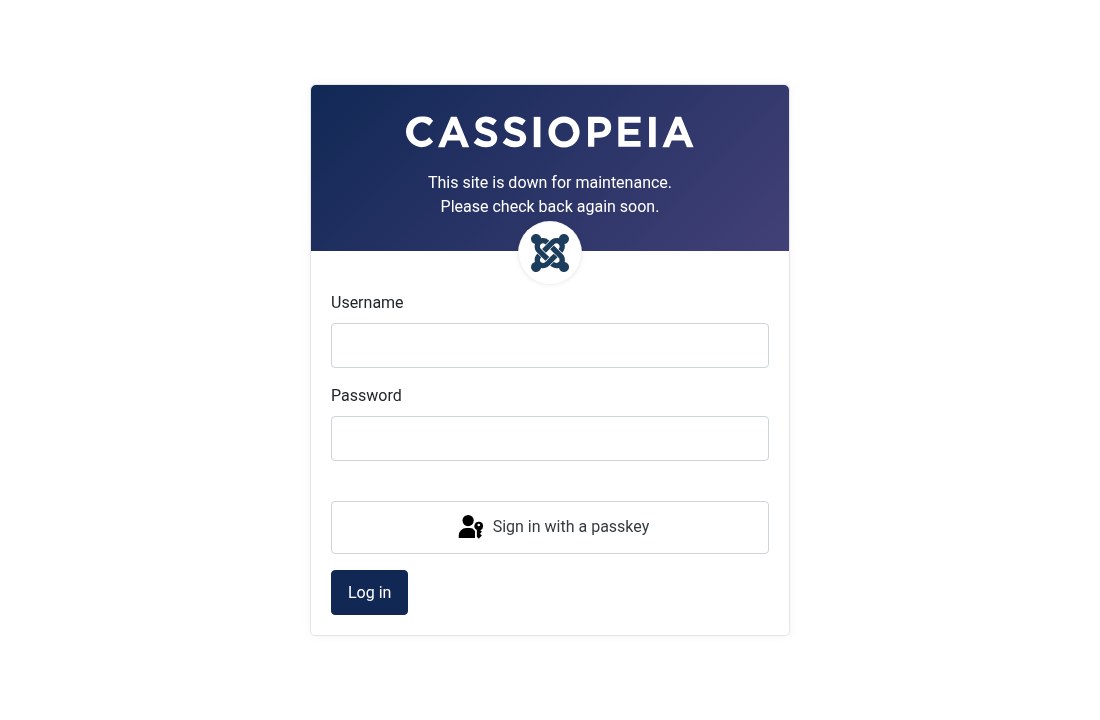
Guests get the template’s offline.php layout — in the default Cassiopeia template that’s a centred card with your message, your offline image, and a login form. The login form is there on purpose: it’s how you (a Super User) get back into the live site without touching the admin. The page is rendered by Joomla, so it still carries your template’s styling.
Does maintenance mode return the right HTTP status for SEO?
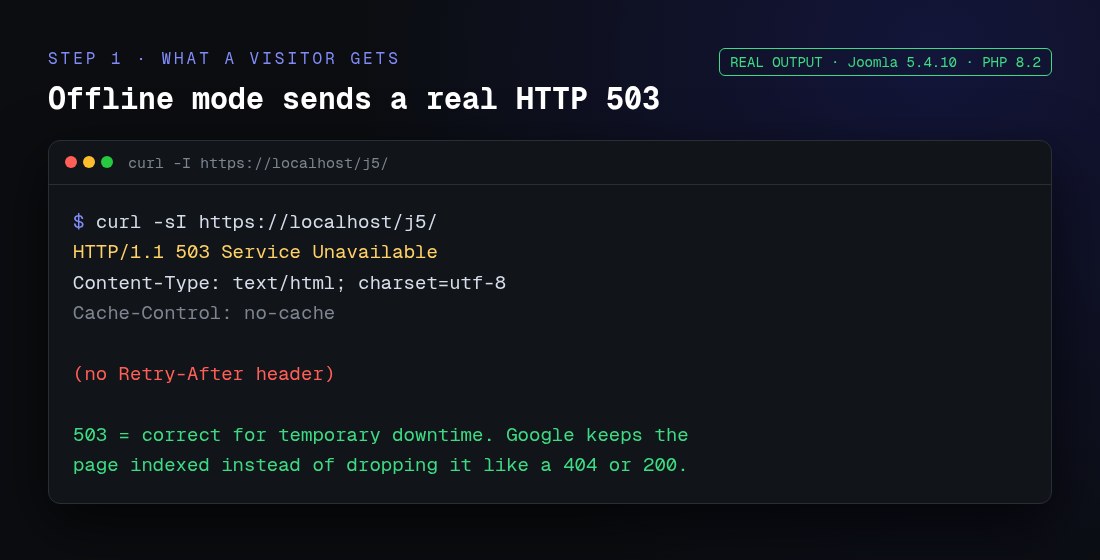
Yes. We requested the offline front page with curl -I and Joomla returned:
HTTP/1.1 503 Service Unavailable
Content-Type: text/html; charset=utf-8
503 is exactly what you want. It tells search engines “the site is temporarily down, come back later” so they keep the URL in the index rather than dropping it. A page that returned 200 (normal) with a “we’re offline” body would risk Google indexing the offline notice; a 404 or 403 would risk losing rankings. Joomla sets the status in core — in SiteApplication::render() it calls setHeader('Status', '503 Service Temporarily Unavailable') whenever the site is offline and the visitor isn’t an authorised user.
The one thing Joomla doesn’t send is a Retry-After header. That header is optional and Google treats a 503 correctly without it, but if you want to hint when you’ll be back, you can add it — see the override section below.
Who can still use the site while it’s offline?
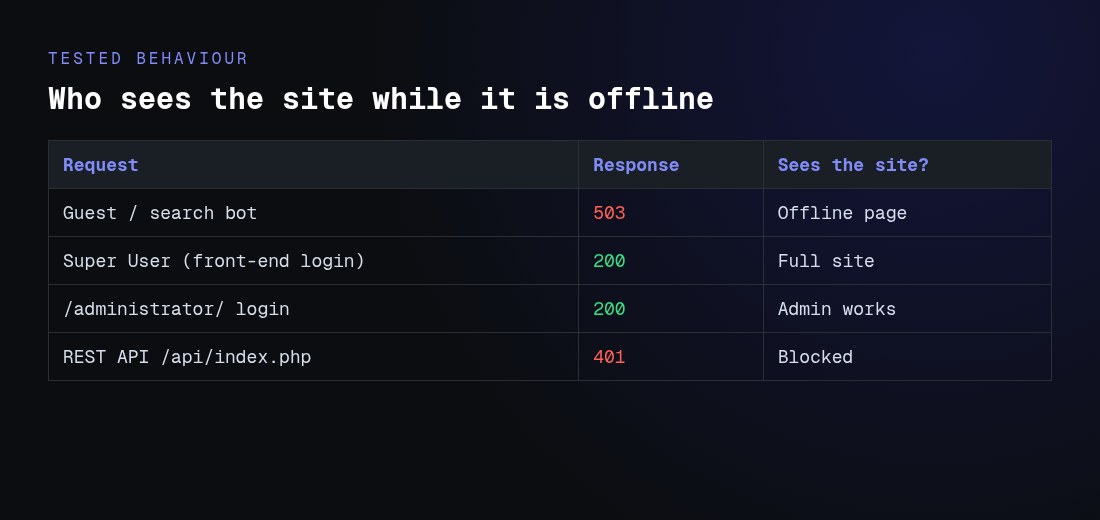
We tested each type of request against the offline Joomla 5.4 site:
| Request | Status | Result |
|---|---|---|
| Guest / search engine bot | 503 | Sees the offline page |
| Super User logged in via the offline form | 200 | Sees the full, live site |
Administrator area (/administrator/) |
200 | Works normally |
REST API (/api/index.php/...) |
401 | Blocked (not public) |
So you can keep working on the front end while the public is held out. Access is controlled by the core.login.offline permission — by default only Super Users have it, but you can grant it to a group (e.g. a client’s reviewer) in Global Configuration → Permissions so they can preview the site while it’s offline.
What does the Site Offline toggle write to configuration.php?
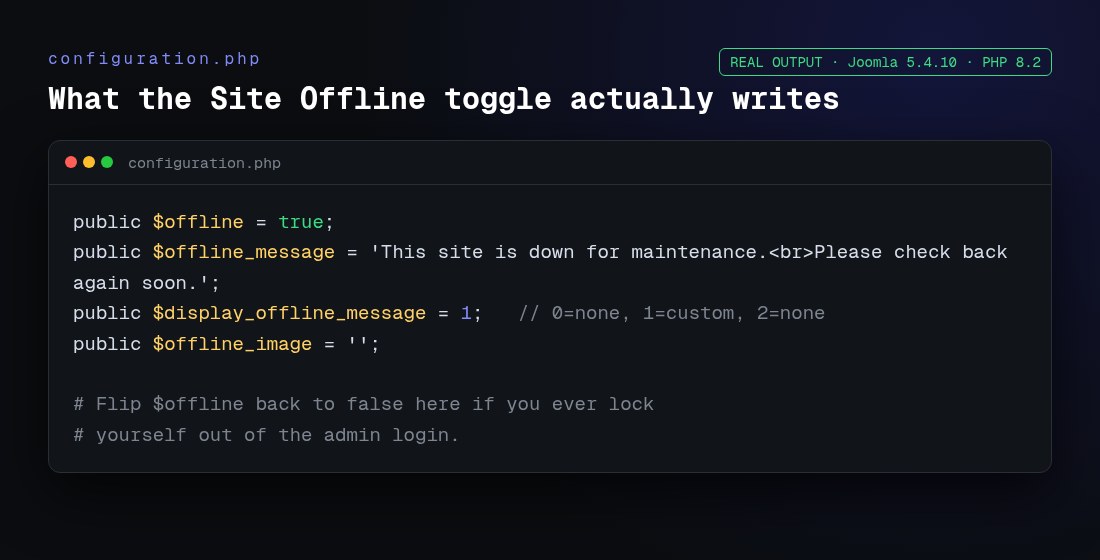
The toggle just edits plain PHP variables in your site’s configuration.php:
public $offline = true;
public $offline_message = 'This site is down for maintenance.<br>Please check back again soon.';
public $display_offline_message = 1;   // 0 = none, 1 = custom message
public $offline_image = '';
This matters for the most common emergency: if you ever can’t log in on the offline page, you don’t need the admin at all. Open configuration.php over SFTP or your host’s file manager, change $offline = true; to $offline = false;, save, and the site is back. (More on that in the lockout section.)
How do I brand the offline page or add a Retry-After header?
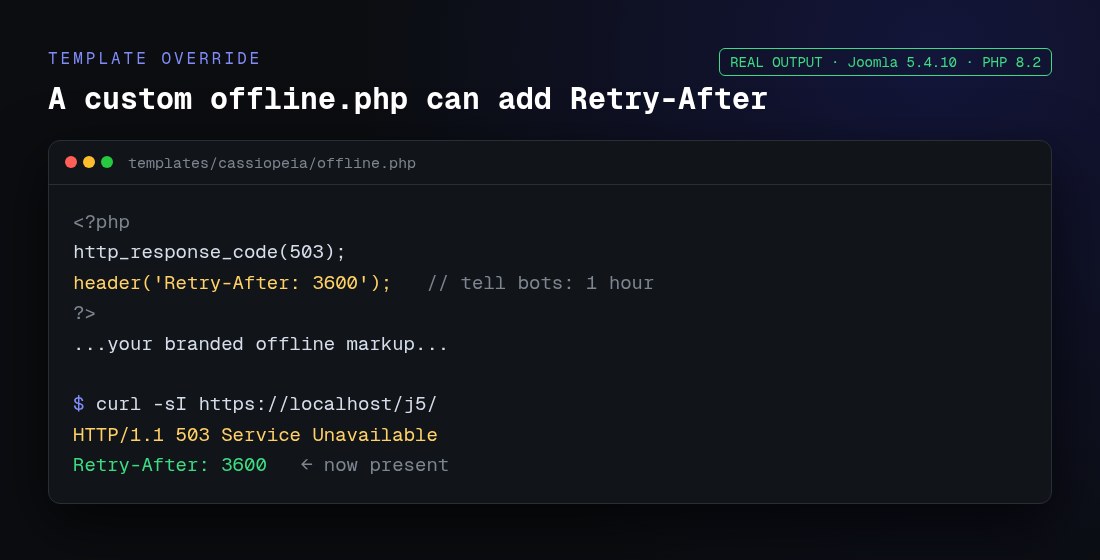
For a simple logo + message, the Offline Image and Offline Message fields are enough. For a fully custom page, override the template’s offline.php. In Cassiopeia the file is templates/cassiopeia/offline.php; copy it into your child template and edit it there so an update won’t overwrite your work. (If a template has no offline.php, Joomla falls back to templates/system/offline.php.)
Because the override is a normal PHP file, you can also set a Retry-After header from it. We tested this on the real site — adding one line produced the header:
<?php
http_response_code(503);
header('Retry-After: 3600');   // tell crawlers: try again in 1 hour
?>
Result:
HTTP/1.1 503 Service Unavailable
Retry-After: 3600
You can do the same at the server level in your .htaccess file if you prefer a maintenance page that bypasses Joomla entirely (useful during an upgrade when Joomla itself is being replaced).
Is this the same in Joomla 6.2?
Yes. We installed a clean Joomla 6.2.0 (the latest version) on PHP 8.4 and ran the same tests: the Site Offline toggle lives in the same place, guests get a 503, the admin stays on 200, and the offline page behaves identically. The only platform note is that Joomla 6.x requires PHP 8.3 or newer (Joomla 5 runs on PHP 8.1+), so a very old server may need a PHP bump before you upgrade. If you’re planning that move, our Joomla migration guide covers doing it without downtime.
Maintenance mode vs. a real upgrade or migration
Joomla’s offline switch is for short interruptions — pushing content, swapping a template, a quick extension update. It is not a backup or a staging environment. Before any risky change:
- Take a full Joomla backup (files + database) first.
- For bigger work, do it on a staging copy and only flip the live site offline for the final cut-over.
- If you’re changing the template or layout, use overrides instead of editing core so updates don’t undo your changes.
Troubleshooting: common maintenance-mode problems
| Problem | Cause | Fix |
|---|---|---|
| Offline page won’t let me log in | Wrong Super User password, or caching | Edit $offline = false; in configuration.php, then clear cache/ |
| Site still shows live after turning offline | Full-page cache / CDN serving old copy | Clear Joomla cache and your CDN (Cloudflare “Purge Everything”) |
| Visitors see offline page after I’m done | Browser or CDN cached the 503 | Set offline to No, purge caches; 503 is marked no-cache so it clears fast |
| Offline message shows raw HTML tags | Message typed with escaped tags | Use plain <br> in the field; Joomla renders it |
| Need the whole site down during a core upgrade | Joomla can’t serve its own offline page mid-upgrade | Use an .htaccess maintenance rule instead |
Help, I locked myself out
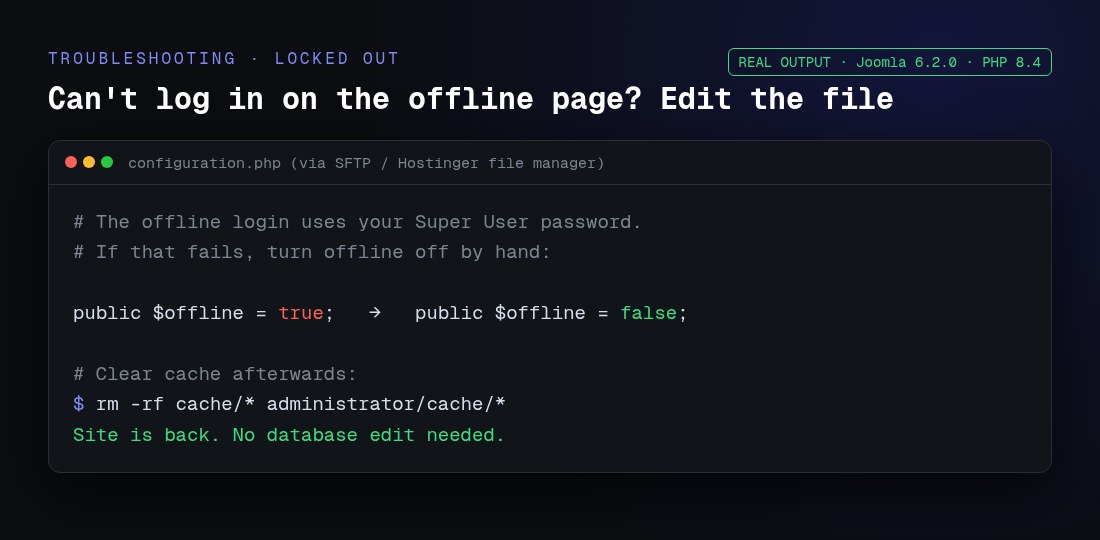
This is the one that scares people, and it’s genuinely a 60-second fix. Maintenance mode never touches your database, so you can always undo it from the files:
- Connect over SFTP, SSH, or open your host’s file manager (cPanel, Hostinger, Plesk).
- Open
configuration.phpin the site root. - Change
public $offline = true;topublic $offline = false;and save. - Delete the contents of
cache/andadministrator/cache/.
The site is back instantly. There’s no database flag and no “maintenance table” to repair — a relief if you’ve just come from cleaning up a hacked Joomla site, where offline mode is step one of containment.
Frequently asked questions
Does Joomla maintenance mode hurt my SEO?
No, as long as it’s temporary. The offline page returns HTTP 503, which tells search engines the downtime is temporary and keeps your URLs indexed. Problems only appear if a site stays on 503 for weeks — then Google may start treating it as gone.
What status code does Joomla’s offline mode return?
503 Service Unavailable, set in core. We confirmed it with curl -I on both Joomla 5.4 and 6.2. The admin area and logged-in Super Users still get 200.
Does Joomla send a Retry-After header?
No, not by default. Google handles 503 correctly without it, but you can add one via a custom offline.php override or an .htaccess rule if you want to hint a return time.
Can I still log in while the site is offline?
Yes. The offline page itself has a login form. Super Users (and any group you grant the core.login.offline permission) can log in there and browse the live site; everyone else sees the offline page. The /administrator/ login also works normally.
Where is the maintenance-mode setting in Joomla?
System → Global Configuration → Site tab → Site Offline. It’s the same location in Joomla 4, 5 and 6.2.
Can I customise the offline page?
Yes. Set an offline message and image in Global Configuration for a quick change, or override templates/<your-template>/offline.php (fallback templates/system/offline.php) for full control, ideally in a child template.
Will my REST API still work during maintenance mode?
No. We tested the API endpoint and it returned 401 while the site was offline, so integrations that rely on the public API will pause until you’re back online.
How do I take the site offline for a full Joomla upgrade?
During a core upgrade Joomla is mid-replacement and can’t reliably serve its own offline page, so use a server-level maintenance page via .htaccess instead, and always take a full backup first.
Does maintenance mode block logged-in registered users?
By default yes — only Super Users bypass it. If you want a specific group (e.g. client reviewers) to see the site while it’s offline, grant that group the “Offline Access” (core.login.offline) permission in Global Configuration → Permissions.
Is there a plugin for scheduled maintenance windows?
Joomla’s built-in toggle is manual. If you want unattended, scheduled maintenance — updates, backups, security monitoring handled for you — that’s exactly what our Joomla support and maintenance service does.