Sponsored post: This article is a paid guest contribution.
GPT Image 2.5 is OpenAI's image generation and editing model, built to create realistic visuals, follow detailed prompts, and refine existing images with targeted changes. On Pollo AI, it supports both Text to Image and Image to Image generation.
This review looks at how GPT Image 2.5 performs on Pollo AI, covering image quality, reference consistency, editing capabilities, speed, and limitations to help readers decide whether it fits their needs.
What Can GPT Image 2.5 on Pollo AI Do?
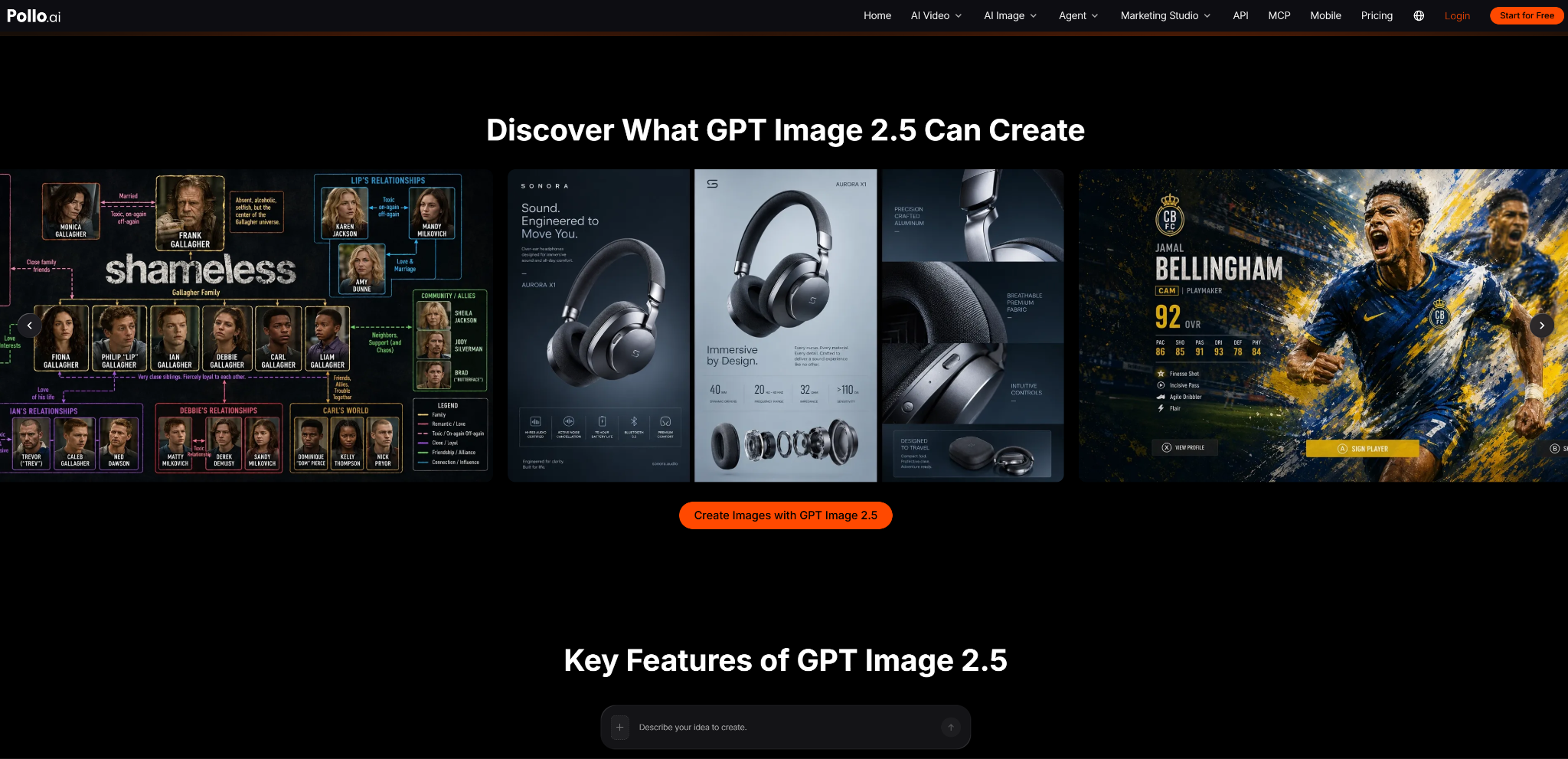
More Realistic Images
GPT Image 2.5 on Pollo AI creates images with natural lighting and detailed textures. It can also retain more recognizable features from reference photos, which helps when creating new looks for people, pets, or products.
For example, you can use a product photo as a reference and try a different setting or visual style. Check details such as logos, labels, and proportions before using the result in a listing or ad.
Edit Images with Fewer Unwanted Changes
GPT Image 2.5 is better at making specific edits while keeping the rest of an image intact. On Pollo AI, this can help when you want to change a background, adjust a product detail, or refine an existing visual without starting from scratch.
Describe the change clearly and mention what should stay the same. The model can still alter other details, so compare the result with the original.
Generate Images Faster
Pollo AI says GPT Image 2.5 can generate images in up to 50% less time than Image 2.0. That can be useful when testing several prompts or working through multiple revisions.
The 50% figure is the maximum claimed improvement, not a guaranteed speed for every image. Actual generation times vary.
Create Images from Text or Reference Photos
Pollo AI supports both Text to Image and Image to Image with GPT Image 2.5. Use Text to Image when starting with an idea, or upload a reference photo when the result needs to follow an existing subject or visual direction.
A useful prompt describes the subject, composition, and style. For edits, be specific about what needs to change—for example, replacing the background while keeping the product's color and shape. This gives the model clearer instructions and makes the output easier to assess.
How to Use GPT Image 2.5 on Pollo AI
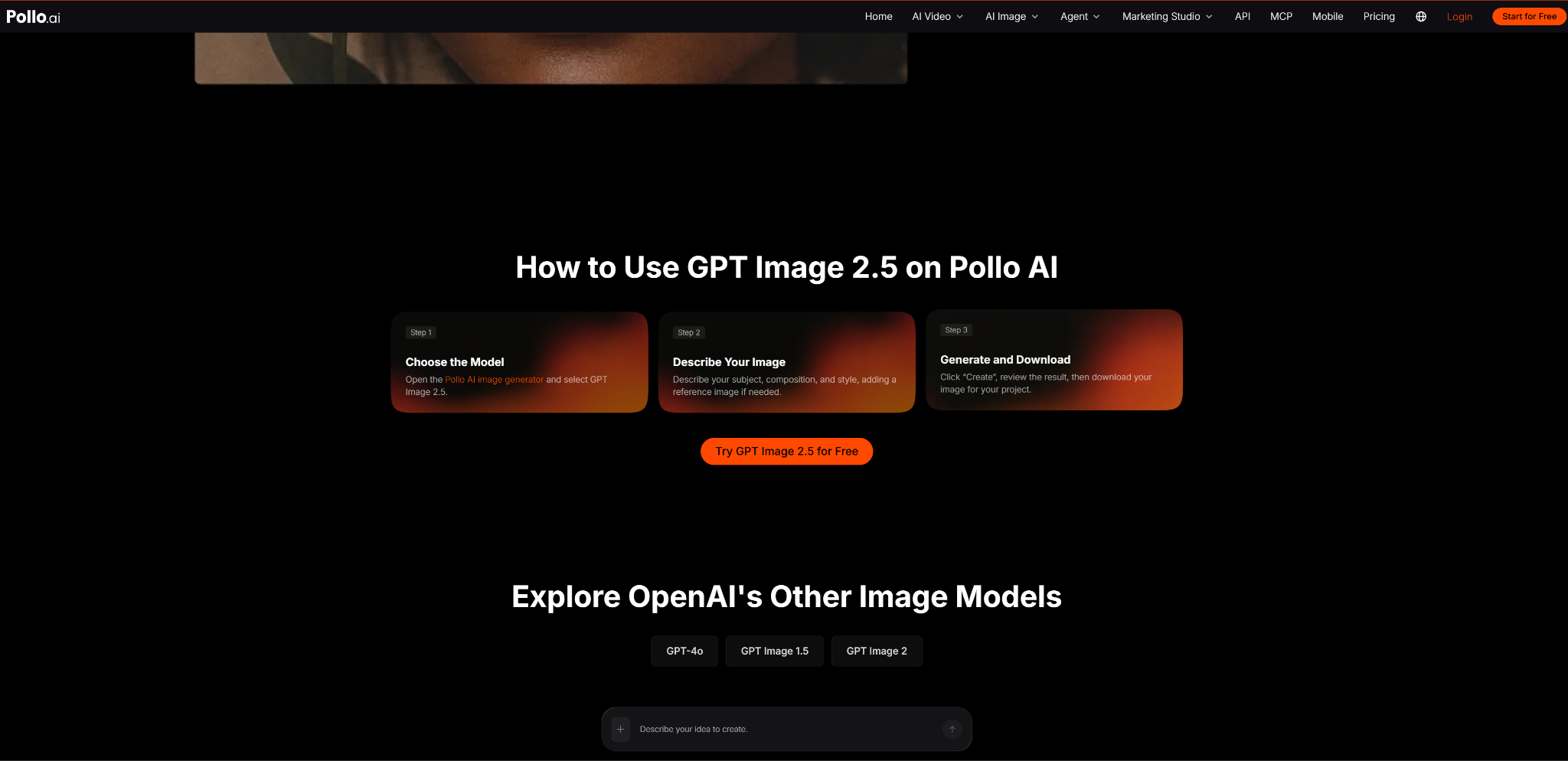
Step 1: Open GPT Image 2.5
Open GPT Image 2.5 at https://pollo.ai/im/gpt-image-2-5. Choose Text to Image for a new image or Image to Image if you want to work from an existing photo.
Step 2: Write a Prompt or Upload a Reference
For a new image, describe the subject, setting, composition, and lighting. For example, instead of asking for “a product photo,” specify the product's position, background, and light source.
If you're editing an existing image, upload it and explain what needs to change. For a product shot, you might request a new background while keeping the product's shape, colors, and label intact.
Step 3: Generate and Check the Image
Generate the image and look for details that don't match your prompt. Check faces, product features, text, and composition, especially if the image is intended for an ad or product listing. Small errors can be easy to miss when the overall image looks convincing.
Step 4: Make Targeted Edits
If the image is close to what you want, avoid rewriting the entire prompt. Ask for one specific change at a time, such as brightening the background or moving an object, and state which details should stay the same.
This makes revisions easier to compare, though the model may still change parts of the image you wanted to preserve.
Step 5: Download and Prepare the Final Image
Once you're happy with the result, download it and check the full-size version. For commercial use, you may need a separate editor to correct text, fine details, or alignment before publishing.
How Does GPT Image 2.5 Perform on Pollo AI?
GPT Image 2.5 is most useful when a project needs more than a single generation. Reference photos help guide the result, while follow-up prompts let users adjust individual details without rebuilding the image from scratch.
For product visuals, portraits, and campaign graphics, this can save time during revisions. A useful prompt names the exact change and the details that must remain untouched. Even then, check each version rather than assuming earlier details will stay intact.
The model also supports detailed compositions and text in images, but generated copy and layouts still need proofreading. A visually convincing result is not necessarily ready to publish.
Pollo AI states that GPT Image 2.5 can generate images in up to 50% less time than Image 2.0. This is the maximum claimed improvement, not a guaranteed generation time; actual speed varies.
Overall, GPT Image 2.5 is a practical option for reference-based creation and iterative editing. Its improvements can reduce rework, but they do not eliminate the need for prompt adjustments and quality checks.
Final Take
GPT Image 2.5 is worth considering for product images, portraits, advertising graphics, and other projects where recognizable subjects and controlled edits matter. For simple images, the difference may be less noticeable; for projects that require several rounds of revision, its editing capabilities may be more useful.
If you want to see how it handles your own prompts or reference images, try GPT Image 2.5 on Pollo AI with a small test project first. Compare the results with your current workflow, paying attention to subject consistency, edit accuracy, and the amount of rework needed before deciding whether it fits your needs.