A Joomla extension is installed but not working when files exist (or a zip succeeded) and the site still has no working feature: the package is undiscovered, the row is disabled, the database schema never ran, PHP is too old or too new, a menu type was never created, or a module instance was never published. “Installed” in the installer message is not the same as enabled, assigned, and given a menu item. This is a readiness checklist, not a 500 hunt and not a two-plugin conflict hunt.
If the administrator or site is a 500, stop: find which extension causes a 500. If two enabled add-ons fight, use extension conflict. If the zip never finished, stay in System → Install → Extensions and read the installer message. This page assumes the installer said success, or you uploaded files by SFTP, and the feature is still dead.
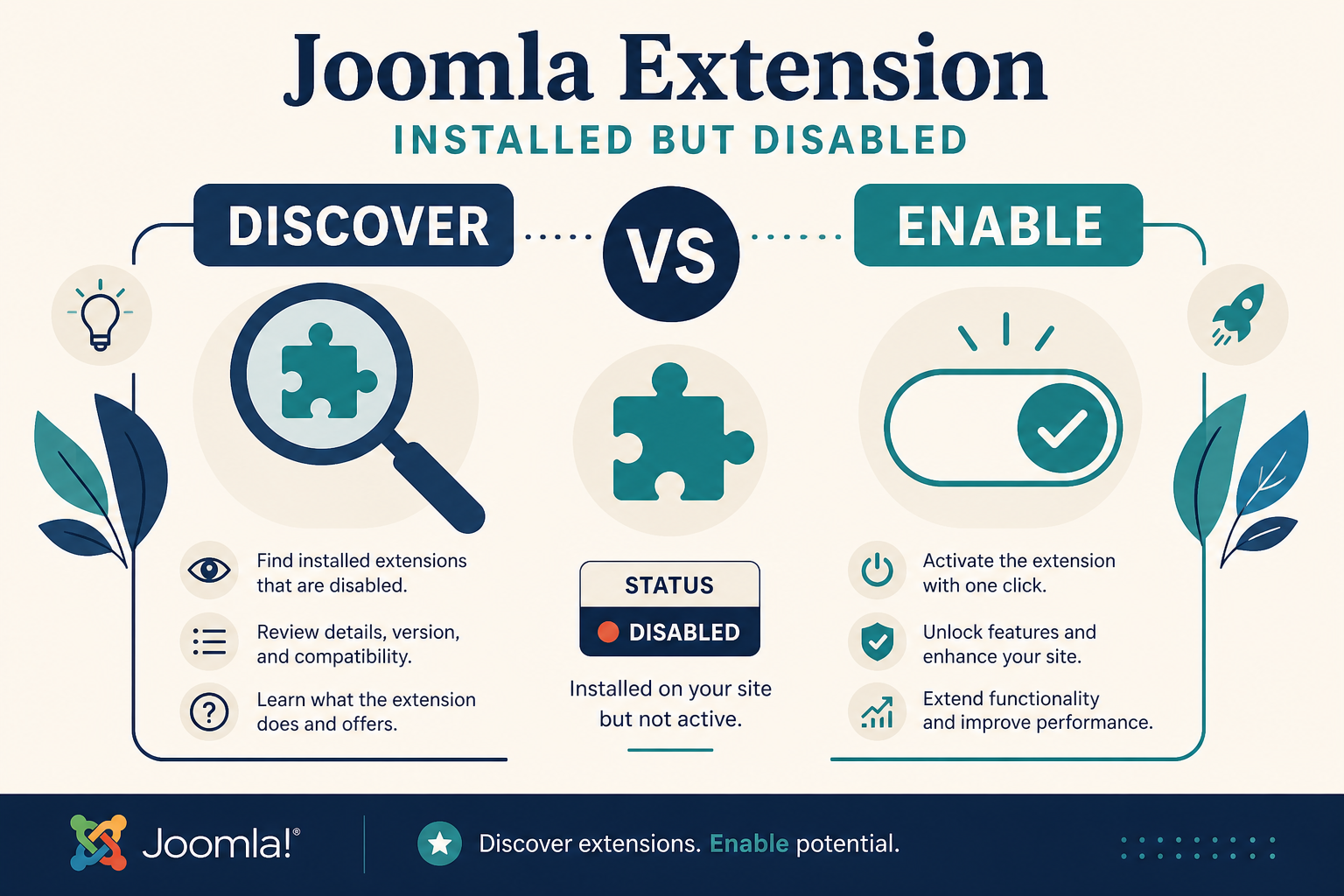
A green install is a database row and files. The feature still needs Discover or enable, schema, PHP, a menu type, and often a module you create by hand.
What you will learn
- The difference between Upload, Discover, and Enable
- How to see the extension in System → Manage → Extensions
- When System → Maintenance → Database (Update Structure) is the real fix
- How to match PHP version to the extension’s requirements
- One check for Behaviour – Backward Compatibility on Joomla 5 (not a full compatibility essay)
- Why a component can install with no menu item type until you create one
- Why a package’s module is not on the page until you create and assign it
Official: Installing an extension, Help5.x Discover, Version update, database check.
Installed, discovered, enabled, configured
| State | What is true | What you still must do |
|---|---|---|
| Files on disk only | You unzipped into components/ or plugins/ |
Discover then Install |
| Installer success | #__extensions row exists |
Enable plugins, create menu, create module |
| Enabled plugin | enabled = 1 |
Check ordering, access, and that you enabled the right plugin in a package |
| Component enabled | Admin menu may show it | Create a menu item of that type for the site |
| Module type exists | You can pick it under New Module | New, publish, position, assignment |
| Schema out of date | Files newer than SQL | Maintenance → Database → Update Structure |
Most “not working” tickets are the right-hand column, not a corrupt zip.
Step 1: Find the row in Manage Extensions
- System → Manage → Extensions.
- Search the extension name and the
com_,mod_,plg_element if you know it. - Confirm Status (enabled). A lock icon means protected core. Third-party rows should be enableable.
- Open the details. Note type (component, module, plugin, package, library, file).
A package installs several rows. The component can be enabled while the plugin that injects the feature is disabled. Filter by the package name and enable every non-core row the vendor documents.
If the search is empty, the installer did not register the extension. Either the zip failed silently (host upload limit) or someone copied folders by FTP. Go to Step 2. Do not keep uploading the same zip on top without checking Discover.
Step 2: Discover is not Enable
Discover is for files already on the server that Joomla does not have in #__extensions. Official help: Extensions: Discover.
Use it when:
- The package was too large for the web uploader, so you extracted into
components/com_example,administrator/components/com_example,media/com_example, and language folders as the installing guide describes. - A deploy process copied a git checkout of an extension into those paths.
Then:
- System → Install → Discover (some sites label this under Manage → Discover).
- Toolbar Discover.
- Tick the extension. Install.
Discover does not turn a disabled plugin on. It creates the row. Then you enable in Manage Extensions or Plugins.
If Discover finds nothing, the files are in the wrong tree (nested extra folder, or site files only without administrator files). Fix the paths. Do not invent a second copy under tmp/ and expect Joomla to see it.
Normal small zips should go through System → Install → Extensions (upload). Discover is the exception path.
Step 3: Enable the plugin (packages hide this)
System → Plugins. Search the vendor or feature name.
Many components ship:
- A system plugin that loads language or routing
- A content plugin that prints a button or shortcode
- An actionlog or privacy plugin you can leave off
If the system plugin is disabled, the component admin screen may open and the site view stays empty. Enable it. Then check Access on any module the package added.
Installer sample data sometimes creates an unpublished module. Published component + unpublished module = “not working” on the frontend.
Step 4: Fix the database schema
If the Home dashboard warns that the database is out of date, or the extension errors about a missing table or column:
- System → Maintenance → Database.
- If problems are listed, select the extension and Update Structure.
That replays skipped SQL. It is the documented fix after a partial Joomla or extension update: Version update, database check.
If Update Structure fails, the extension’s sql/updates files may not match the database engine, or a previous update died. Restore a backup and reinstall on staging. Do not create tables by hand unless the vendor gives you SQL.
A component that “installed” but never ran install.sql (Discover on incomplete files, or a failed package) will 500 or show empty lists. That can look like “not working.” Check error_log if the view fatals: 500 article.
Step 5: Match PHP version (and host extensions)
Open System → System Information (site and PHP tab). Note PHP version.
Open the extension’s documentation for minimum PHP and maximum tested. Joomla 5 itself needs a current PHP (see technical requirements for the Joomla version you run). An add-on that last shipped for PHP 7.4 will not run on PHP 8.3.
Also check System → Manage → Warnings and System Information for missing PHP modules (intl, gd, mbstring, zip). The installer may have succeeded while runtime needs curl for an API.
Host “PHP selector” can differ between the site and CLI cron. A plugin that works in admin and fails on cron is often two PHP versions.
Step 6: One Joomla 5 compatibility plugin check
On Joomla 5, core ships Behaviour – Backward Compatibility (plg_behaviour_compat). It loads Joomla 4 class aliases so older extensions can run. Official note: Compatibility plugin.
Check, do not redesign your stack around it:
- System → Plugins, search
Backward Compatibilityorcompat. - If a Joomla 4-era extension is installed and this plugin is disabled, enable it on a staging copy first and test. The Joomla docs warn that disabling it on production can fatal old extensions, and that you may need the database to turn it back on.
- If you are preparing Joomla 6, this plugin must be disabled before that upgrade, and you need extensions that do not rely on it. That is an upgrade project, not this article.
This is one checkbox in the “installed but dead” list. It is not a substitute for a vendor’s Joomla 5 build. Prefer an updated extension. Do not treat the compat plugin as a permanent architecture.
Joomla 5.4 also installs Behaviour – Backward Compatibility 6 for the later jump. Do not disable that in a way the Joomla 6 migration guide forbids. Read Compatibility plugins (5.4 to 6) when you upgrade. For “not working today on Joomla 5,” the plg_behaviour_compat enable check is enough.
Step 7: Create the menu item (missing menu type)
A component can install a menu item type (Articles → Archived Articles is the core example). Your add-on is the same. Until you create Menus → your menu → New and select that type, the site has no URL.
Symptoms:
- Administrator component works. Frontend 404 or Home never changes.
- You look for a module. The feature is a component view, not a module.
- The type is missing from the New Menu Item list: the component is disabled, Discover never ran, or the XML
submenu/ menu section failed. Reinstall or Discover. Confirm the component is enabled in Manage Extensions.
Create the menu item, set Access, set a template style if needed, save. Open that URL. Do not expect the installer to inject a menu item on a production menu. Many packages do not.
If the type appears but the view is empty, you may still need to create records inside the component (a first category, a first item). That is configuration, not a failed install.
Step 8: Create and publish the module
System → Site Modules → New. If the module type is in the list, the module type is installed. A type in the list is not an instance on the page.
Packages often do not create a published module. You must:
- New → pick the type.
- Set Position to a name the template actually prints (position not showing if the slot is empty everywhere).
- Menu Assignment (wrong pages if it appears in the wrong place).
- Publish. Public access. Language All or the right language.
If the type is not in New Module, the module file never installed (package incomplete, or you only installed the component zip). Install the full package. Discover if you dropped modules/mod_example by hand.
Editor buttons (editors-xtd) are plugins, not modules. Enable them under Plugins. They will not appear as Site Modules.
Language, ACL, and cache (short)
- Install the extension’s language pack if the vendor ships one, or you will see
KEY_NAMESas titles. For core string tweaks, language overrides. - Super User sees a module a Guest does not: Access.
- Clear cache after enable. Page cache can hide a module you just published.
Custom fields inside an extension are not core article fields. Core article fields have their own empty-frontend guide: custom fields not showing.
Warnings, update sites, and a second install attempt
System → Manage → Warnings (or Installer warnings) lists environment problems Joomla already detected: PHP version, missing modules, memory. If a warning names the same constraint the vendor lists, fix the host before you reinstall the zip. Reinstalling will not add intl.
System → Update → Update Sites (or Manage → Update Sites): if the extension installed from a URL and later “does nothing” after you expected a patch, Rebuild the update sites, then System → Update → Extensions. An old build that “installed fine” on Joomla 5 can still be a Joomla 4 package. The update site is how you learn a Joomla 5 zip exists.
If you install twice, Joomla may refuse or may leave the first schema in place. Prefer Uninstall (after a backup) then install the matching Joomla 5 package, over copying folders on top of a half Discover. Uninstall removes #__extensions rows. It can drop the extension’s tables. That is why the backup exists.
A library or file package can install with no admin menu. The feature then lives inside another component. Read the vendor’s “where to click after install” once. Searching Site Modules for a library is a dead end.
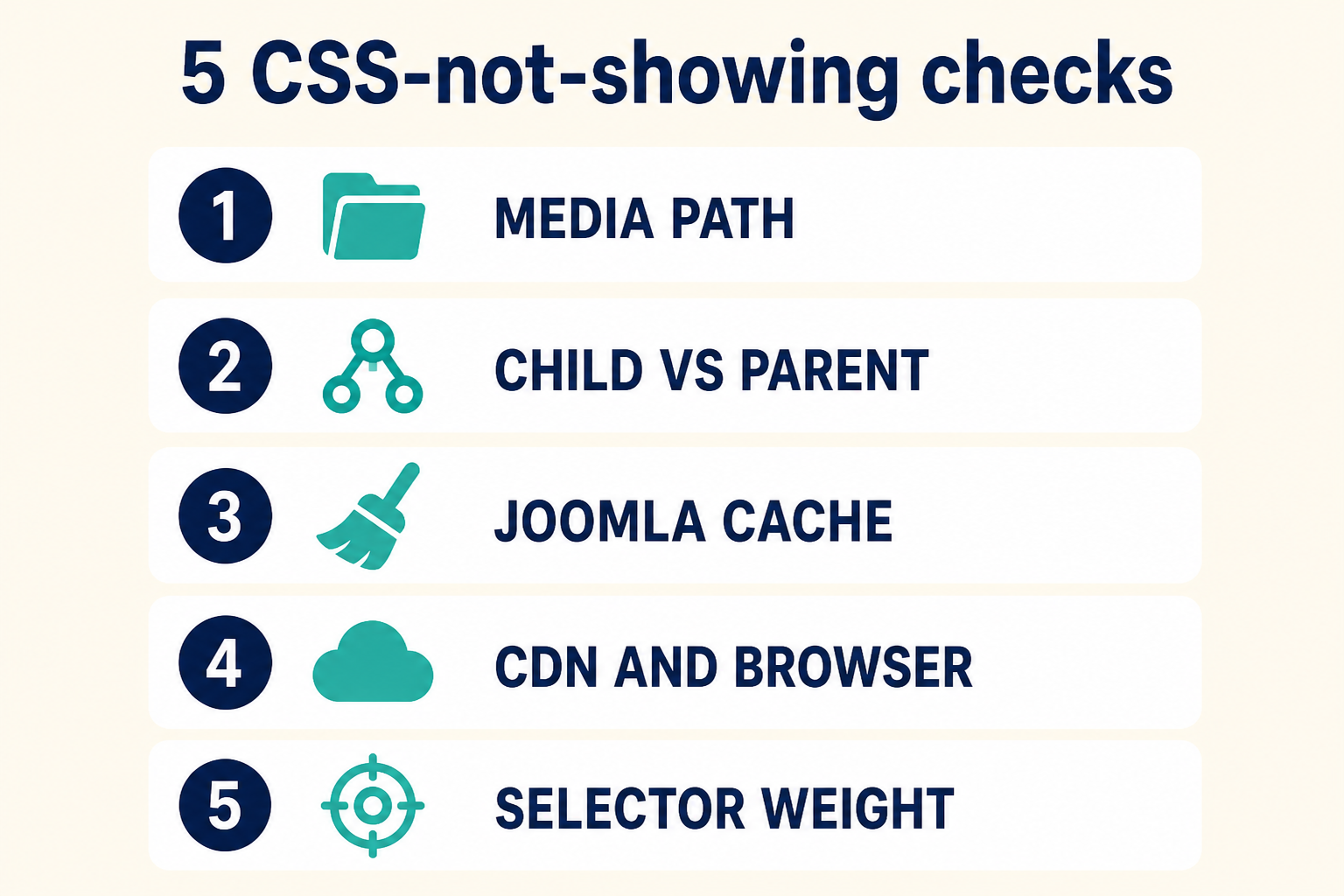
Files and a green installer are the start. Enable, schema, PHP, menu type, and a published module instance are the rest.
Key takeaways
- Installer success means a registry row. It does not mean enabled, schema-current, or on a menu.
- Discover registers FTP-copied files. Enable turns plugins on. They are different buttons.
- Packages hide a disabled system plugin. Search Plugins after every component install.
- Maintenance → Database → Update Structure when files and SQL diverged.
- Check PHP version and System Information warnings before you blame Joomla.
- On Joomla 5, confirm Behaviour – Backward Compatibility if the add-on is old. Prefer a native Joomla 5 build. This is one check, not a strategy.
- Components need a menu item type you create. Modules need a New instance, position, and assignment.
- If it 500s, leave this checklist and read the log. If it works alone and fails with a neighbour, that is a conflict.
When a vendor package is registered but the live site still has no menu, no module, and no plugin enabled, a maintainer can finish the wiring: Joomla support and maintenance.
Frequently asked questions
Why is my Joomla extension installed but not working?
The zip registered files, but a plugin is still disabled, Discover was skipped after an FTP copy, the schema is behind, PHP does not match, or you never created a menu item or module instance.
What is the difference between Discover and Enable?
Discover finds manifests on disk and creates #__extensions rows (then you click Install on that screen). Enable turns an existing row on. Uploading a zip uses Install Extensions, not Discover.
Do I always get a module on the page after install?
No. You often get a module type. You still click Site Modules → New, publish it, and assign a position and pages.
Why is there no menu item type for my component?
The component is disabled, not fully discovered, or you are looking at the wrong client (site vs administrator). Enable the component, run Discover if files were copied, reinstall the package, then Menus → New.
Should I disable the Joomla 5 compatibility plugin to test?
Only on staging, and only if you can re-enable it in the database when admin dies. For an old extension that is “not working,” try enabling the plugin first. Plan a real Joomla 5 build before Joomla 6.
Update Structure did nothing. Now what?
Confirm you selected the extension that listed errors. If SQL still fails, restore a backup and reinstall on staging. Do not drop random tables on production.
Could this be a template problem?
Yes, if it is a module in a position the template does not print, or an override that errors. Check position names and child-template overrides after the extension is enabled and assigned.