Joomla custom fields are core extra data on articles, contacts, and users. They live at Content → Fields (and Field Groups) on Joomla 4, 5.4, and 6. They replace K2 extra fields: typed inputs, groups as editor tabs, values stored per item, optional automatic display on the public page. You do not need K2, a CCK, or a page builder for price, author bio, event date, or a specification table. If you still run K2, copy extra fields into this system on Joomla 3 first. That pipeline is the companion guide: Migrate K2 to Joomla articles before you upgrade.
This article is the feature how-to. The K2 article is the migration sequence. Read both if you are leaving K2. Read only this one if you already use com_content and need structured data on articles.
K2 stored extra data on items. Joomla stores the same idea on native articles, with groups, category assignment, and display you control.
What you will learn
- How custom fields differ from K2 extra fields (and from article body HTML)
- Field vs field group vs category assignment
- How to create a group, a field, and a value on an article
- Automatic display vs
{field}in the body vs a layout override - What a K2 migration copies, and what you still set by hand
- When a child template is the right place to print fields
How this guide and the K2 guide split the work
| You need to… | Open |
|---|---|
| Move K2 items, categories, tags, images, and 301s, then upgrade 3 → 4 → 5 → 6 | Migrate K2 to Joomla articles |
| Understand, create, assign, and display custom fields (including after that copy) | This article |
| Recover a site that already jumped to Joomla 5 with K2 still installed | K2 not working in Joomla 5 or 6 |
Migrate K2 Pro (phase 2) creates field groups, fields, and values from published K2 extra fields. It does not choose Automatic Display, rebuild your K2 item layout, or invent {field} shortcodes in the article body. Those jobs stay here.
Why custom fields exist (and why they beat extra fields)
K2 extra fields existed because Joomla 1.5 and 2.5 articles were title, images, and HTML. Magazines needed “Source,” “Duration,” “Price,” “GPS.” K2 bolted that onto com_k2.
Joomla 3.7 added custom fields to core. Joomla 4, 5, and 6 kept and extended them. Tags, nested categories, and workflows also moved into core. K2 did not follow Joomla 4. Extra fields therefore have no future as a platform. Custom fields do.
Custom fields are not a second article. They are named, typed, filterable values attached to an item. The editor shows them on a Fields tab, or on a tab named after the field group. The public site can print them automatically, or you print them in an override.
Use a field when the value is structured (a number, a list, a date, a media file, a yes/no). Keep narrative in intro/full text. Do not paste a spec sheet into TinyMCE if you will sort, filter, or style it later.
🔗 Joomla Docs: Adding custom fields (J5)
Official entry points: Content → Fields, Field Groups, and the context dropdown (Article vs Category).
K2 extra fields vs Joomla custom fields
| Idea | K2 | Joomla 4 / 5 / 6 |
|---|---|---|
| Where you click | K2 extra field groups inside K2 | Content → Fields and Content → Field Groups |
| Attached to | K2 items (and K2 categories in K2’s model) | Articles, article categories, contacts, users (separate contexts) |
| Grouping in the editor | Extra field groups | Field groups become tabs |
| Which items show the field | Tied to K2 extra field group assignment | Assigned categories (default All does not include Uncategorised) |
| Public output | K2 item template / extra fields block | Automatic Display, {field ID} in the body, or com_fields layouts |
| Survives Joomla 5 and 6 | No | Yes |
| After Migrate K2 Pro | n/a | Groups, fields, and values exist. Display and category assignment still need a pass |
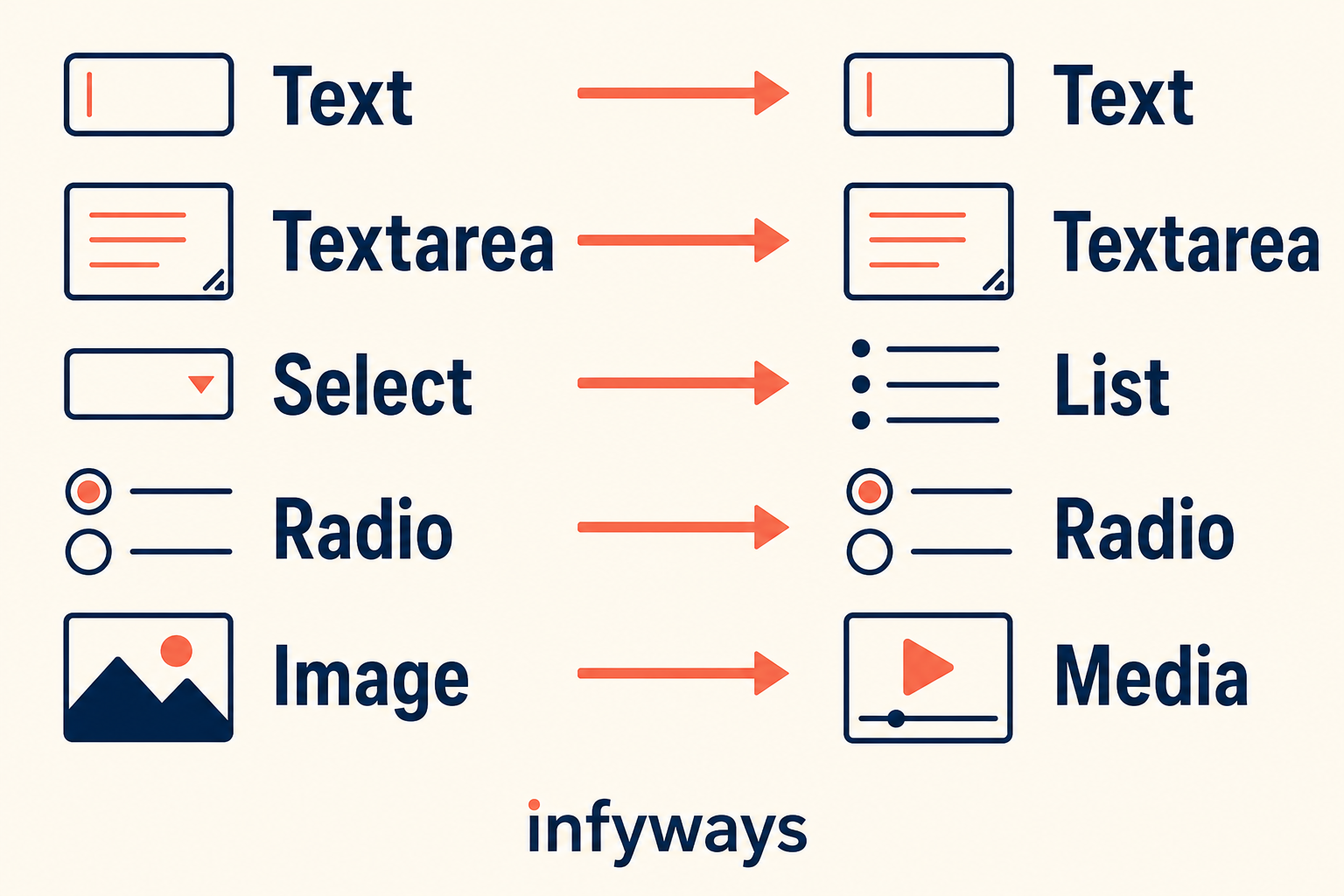
Types are close, not identical. Confirm list options and media paths after a migration. Do not change a field type after it already holds data.
Approximate type mapping (what operators actually meet):
| K2 extra field style | Joomla field type to expect |
|---|---|
| Text / header-style text | Text |
| Textarea | Textarea |
| Select / multiple select | List |
| Radio | Radio |
| Checkbox | Checkboxes or List (depends how K2 stored it) |
| Link | URL or Text |
| Date | Calendar |
| Image / media | Media |
| CSV / lists of pairs | Often List or Repeatable/Subform on a rebuild. Check values after migrate |
If a migrated field looks wrong, do not flip Type on a live field with thousands of values. Create a new field, copy values if needed, and retire the old one.
Step 1: Create a field group
Groups are editor UX. They do not change the database value. They become tabs on the article form.
- Content → Field Groups.
- Set the context to Article (not Category, unless you are adding data to the category itself).
- New. Title something editors will recognise:
Specs,Source,Event. - Save.
No group means every field piles onto a single Fields tab. That is fine for two fields. It is miserable for twenty.
After a K2 migration, groups usually already exist. Rename titles for editors. Do not delete a group until you confirm no field still points at it.
Step 2: Create the field and assign categories
- Content → Fields, context Article, New.
- Title: what editors see.
- Name: lowercase, no spaces. Used in overrides and
{field}lookups. Set it once. - Type: pick before you save production data.
- Field Group: the tab from Step 1.
- Assigned Categories: All, or the categories that should show this field. Remember: All skips Uncategorised. If migrated K2 items landed in Uncategorised, assign that category explicitly or move the articles.
- Required, default, filter: set now. Filter decides sanitisation (Text, Integer, HTML, Raw).
- Save.
New articles show the field only after a category is chosen. That is normal. Joomla waits for the category so it can apply assignment.
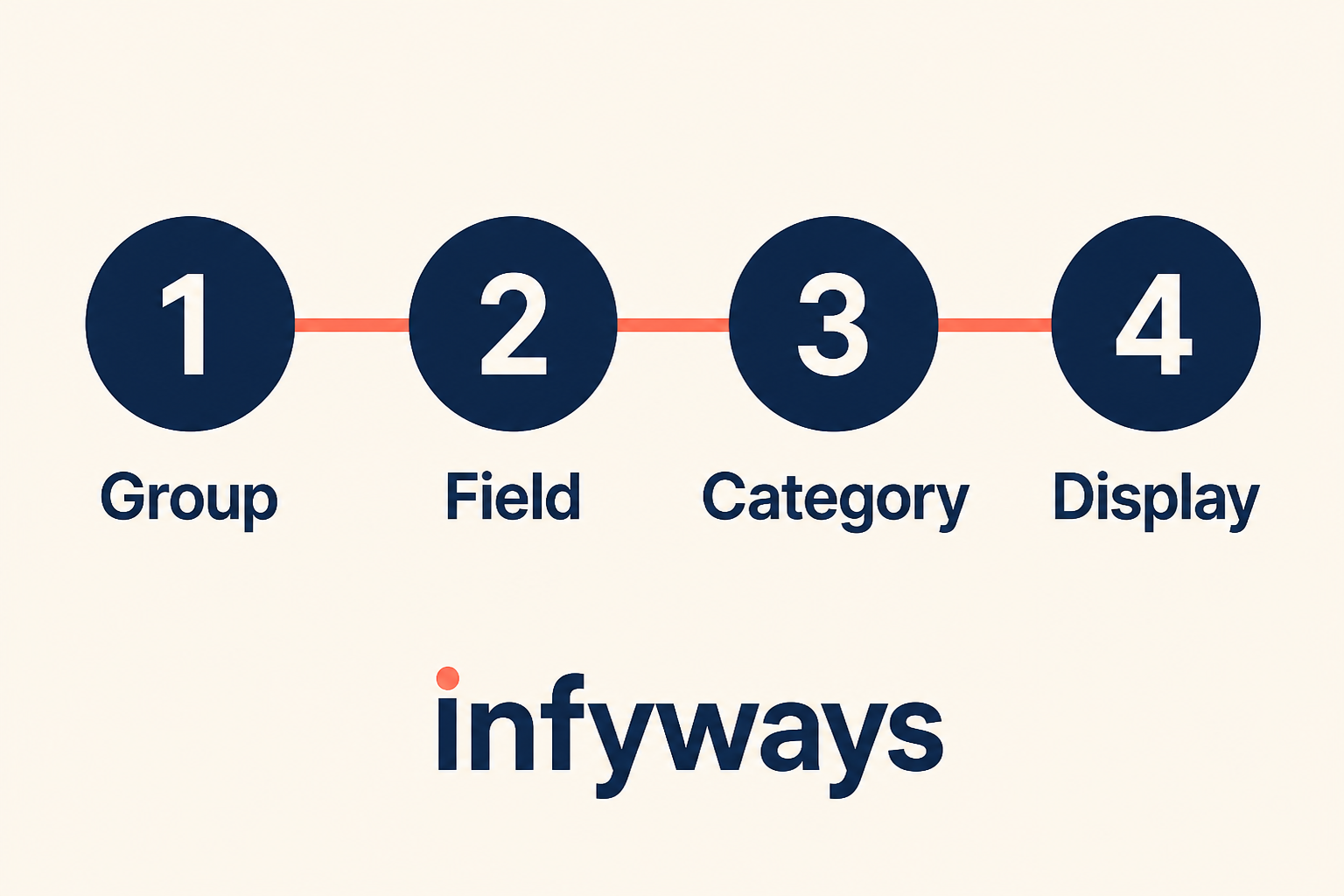
Order: group (tab), field (type and name), category (where it appears), display (what visitors see).
Step 3: Choose how the public page prints the field
Automatic Display (on the field):
| Setting | Where it injects |
|---|---|
| After Title | Between the title and the intro |
| Before Display Content | Above the article body |
| After Display Content | Below the article body |
| Do not automatically display | Nothing until you print it |
A whole field group renders as one block, in field order, in that position.
Use automatic display for simple “label: value” lines (source, duration, licence).
Use Do not automatically display plus:
{field 12}(field ID) in the article body when placement must differ per article, or- a layout override when every article in a category needs a spec table, cards, or schema markup.
Overrides belong in a child template, typically under html/layouts/com_fields/ or in the article default.php if you print $this->item field arrays yourself. Editing Cassiopeia core files will be wiped on update.

Automatic display is the fast path. Overrides are the design path. Shortcodes are the one-off path.
K2 item templates that loop extra fields do not run after you uninstall K2. If the magazine layout was a two-column spec grid, plan the override before you delete html/com_k2. The values will be in custom fields. The HTML will not.
Step 4: After a K2 migration, walk the fields once
If you used Migrate K2 Pro:
- Content → Fields and Field Groups. Counts should match published K2 extra fields and groups.
- Open five articles. Fields tab (or the group tab) must show values, not empty inputs.
- Set Automatic Display on the fields you want visitors to see without an override. Migration does not guess your old K2 item chrome.
- Fix category assignment. If a field vanished from the editor, the article category is not in the assigned list (Uncategorised is the usual trap).
- Spot-check media fields. Paths should point at
images/k2-migrated(or your configured base), notmedia/k2/. - Rebuild the public layout: automatic display, then override if the design is more than a label list.
Permissions: if an editor cannot see a field, check the field’s Access and Display When Read-Only. That is not a migration bug.
What custom fields are not
| You need to… | Use |
|---|---|
| Change “Read more” or module chrome | Language override |
| Change HTML structure of the article | Layout override in a child template |
| Move K2 items and URLs onto core | K2 to com_content migration |
| Store a novel in the article | Intro and full text, not a textarea field |
| Comments or file attachments from K2 | Export from the migrator. Core fields can hold a file you attach later. They do not import K2 comment threads |
Key takeaways
- Custom fields are core. They are the replacement for K2 extra fields on Joomla 4, 5, and 6.
- Group = editor tab. Field = type, name, value. Category assignment = which articles show the input.
- Default All categories does not include Uncategorised.
- Automatic Display prints a block.
{field ID}places one value in the body. Overrides print a designed layout. - Migrate K2 Pro copies groups, fields, and values. You still set display and rebuild K2 item chrome.
- Do not change Type on a field that already has production values.
- Put field layout PHP in a child template, not in the parent.
Frequently asked questions
Are Joomla custom fields the same as K2 extra fields?
Same job, different system. Both attach typed data to content. Custom fields are core, work on Joomla 5 and 6, and use category assignment plus Automatic Display. Extra fields die with K2.
Do I create fields before or after I migrate K2?
Let the migrator create them from published extra fields, then adjust display and assignment. Creating a parallel set by hand first causes duplicate names and empty values. Manual field setup is for sites that never used K2.
Why is the Fields tab missing on a new article?
No category is selected yet, or the field is not assigned to that category. Choose the category. Check assignment. Remember Uncategorised is outside All.
Can I show a field only in an override, not above the article?
Yes. Set Automatic Display to Do not automatically display, then print the field in a child-template layout.
Will custom fields survive a Joomla 5 or 6 upgrade?
Yes. They are com_fields. K2 extra fields will not, because K2 will not. That is why the K2 migration runs on Joomla 3.10 first.
Can I use custom fields on contacts or users too?
Yes. Those are different contexts (Contacts → Fields, Users → Fields). Article fields do not automatically appear on contact forms. Create fields in the context you need.
Conclusion
K2 extra fields were a product. Joomla custom fields are the CMS. Create groups, assign categories, then decide display. If the data still lives in K2, migrate to articles first, then come back to this page and finish Automatic Display and the article layout.
Need both the copy and the field UI done on a large magazine? Joomla K2 migration services.