Category: Wordpress

Learn about WordPress

  • Joomla 6.1 vs WordPress 7.1: Latest CMS Comparison

    Joomla 6.1 vs WordPress 7.1: Latest CMS Comparison

    As of September 2026, the latest stable Joomla is 6.1.3 and the latest stable WordPress is 7.1 “Mary Lou.” Neither release makes the other obsolete. WordPress 7.1 deepens the block editor, Site Editor, collaboration, and automation APIs. Joomla 6.1.x continues the modern 6.x line with security fixes, a smoother path from Joomla 5.4, and a product story aimed at multilingual and ACL-heavy sites. Pick by architecture and team, not by version number alone.

    The old “Joomla 5 vs WordPress 6” framing is outdated. Joomla shipped 6.0 with 5.4 as an LTS bridge in October 2025, then moved the current stable line to 6.1.x (6.1.3 security and bugfix, 18 August 2026). WordPress shipped 7.1 on 19 August 2026 (announcement). Joomla 6.2 is next on the Joomla roadmap.

    For a broader non-version comparison, see Joomla vs WordPress. This article stays on what the latest cores actually give you.

    What you will learn

    • What is current on each platform right now
    • Where WordPress 7.1 advances the editor and collaboration story
    • Where Joomla 6.1.x advances upgrade path, ACL, and multilingual estates
    • A fair feature table for 2026 projects
    • When to choose each stack (equal criteria)

    Infyways builds both: Joomla development · WordPress services.

    Current versions at a glance

    Platform Latest stable (Sep 2026) Also relevant Official source
    Joomla 6.1.3 5.4.8 LTS bridge; 6.2 in beta toward ~13 Oct 2026 GA downloads.joomla.org
    WordPress 7.1 (“Mary Lou”) 6.9.x still maintained for sites not yet on 7.x wordpress.org/news

    Market context (not a quality score): W3Techs still shows WordPress far ahead on public install share. Fit still decides the project.

    Quick verdict (both get a fair win)

    Project need Lean WordPress 7.1 Lean Joomla 6.1
    Marketing site / blog / content team used to blocks Strong default Capable; steeper editor learning curve
    Site Editor, responsive block styles, Notes collaboration Clear win in core UX Different admin model (articles, modules, templates)
    Native multilingual + ACL without a plugin maze Plugins / custom roles Core strength
    Plugin density (commerce, SEO, forms, CRM) Clear win Smaller catalog; specialists matter more
    Upgrade from prior major with compatibility bridge Continuous minor culture 5.4 → 6.x upgrade path with BC plugin
    Portal / association / multi-section information architecture Doable with custom post types Often cleaner in core concepts
    Hiring freelancers globally Easier Harder; depth when you find specialists

    What is new in WordPress 7.1

    WordPress 7.1 focuses on how editors and builders work day to day (release post):

    • Admin bar across the full admin experience, so tools stay reachable while writing or designing
    • Responsive styling in the Site Editor (Global Styles and block settings) without custom CSS for many layouts
    • Media editor upgrades: freeform and aspect-ratio crop, flip, rotation, metadata in one flow
    • Notes anywhere in content (not only block-level), with rich text and @mentions for collaboration
    • New blocks such as Playlist and Tabs, plus Icon block API improvements
    • Continued work on Abilities API foundations for integrations and automation (including AI-related tooling patterns introduced across recent majors)

    What that means in practice: WordPress keeps compounding the block/Site Editor product. If your team lives in Gutenberg and wants design control in core, 7.1 is the current tip of that spear.

    What still sits outside core: fine-grained multilingual and complex ACL usually remain plugin territory. Security and performance still depend on hosting and plugin hygiene.

    What is current in Joomla 6.1.x

    Joomla’s latest stable line is 6.1.3, a security and bugfix release on the modern 6.x codebase (announcement). Pair that with what 6.0 already established:

    • Modern PHP-era core after the 6.0 architectural jump
    • Automatic core updates (introduced with 5.4 / 6.0) for safer patch cadence
    • Behaviour – Backward Compatibility 6 plugin to ease many 5.x → 6.x upgrades
    • Native multilingual and ACL as first-class models
    • Custom fields, tags, nested categories for structured content without K2
    • Active release train toward Joomla 6.2 (editor UX, language fallback chain, clearer security update flags in beta notes)

    What that means in practice: Joomla 6.1 is the version you should be on (or targeting) for new Joomla work in late 2026, unless a vendor still requires 5.4 LTS. The “comeback” is release discipline and upgrade confidence, not market-share dominance. See Joomla vs WordPress.

    What still needs care: extension readiness, smaller freelancer pool, and K2-era sites that must migrate content before leaving Joomla 3 (K2 not working fix).

    Side-by-side: latest cores

    Topic WordPress 7.1 Joomla 6.1.3
    Editing model Blocks + Site Editor first Articles, modules, plugins, templates
    Design in core Responsive styles, media editor, new blocks Template styles, child templates, overrides
    Collaboration Notes, @mentions in content Workflow depends on roles/ACL and extensions
    Multilingual Plugins Native
    Permissions Roles + plugins for fine grain Native ACL
    Extensions Massive plugin/theme market Selective extension market
    eCommerce WooCommerce ecosystem VirtueMart and others
    Updates Dashboard updates; frequent minors Installer / auto updates; 6.x + 5.4.x patches
    Headless / APIs REST, GraphQL ecosystem, Abilities API direction Web Services API on modern Joomla
    Best “latest” reason to pick it Editor and design velocity Structured, multilingual, ACL estates on a modern core

    Developer and agency notes

    WordPress 7.1

    • Plan theme and plugin testing for Site Editor and media workflow changes
    • Treat Abilities API / automation hooks as forward-looking for integrations
    • Keep a staging site; block themes and classic themes both still exist in the wild

    Joomla 6.1

    • Prefer 6.1.3 over lingering on unpatched 6.0.x or early 6.1 builds
    • If you are on 5.4.8, schedule a staged move to 6.1 while bugfix support for 5.4 winds down around the 6.2 GA window
    • Audit templates and extensions before production upgrade (Joomla upgrade)

    When to choose WordPress 7.1

    1. Your editors already think in blocks and pages
    2. You need the plugin density WordPress is famous for
    3. Commerce leans WooCommerce
    4. Hiring and hosting options must be easy worldwide
    5. Collaboration Notes and Site Editor responsive controls match how you build

    When to choose Joomla 6.1

    1. Multilingual is a core requirement
    2. ACL and multi-group publishing are non-negotiable
    3. The site is portal-like or multi-section by design
    4. You are modernizing an existing Joomla estate (5.4 → 6.1) instead of rewriting
    5. You want native structure without assembling five plugins for basics

    Key takeaways

    1. Latest today: Joomla 6.1.3 vs WordPress 7.1. The slug still says 5 vs 6; the products have moved on.
    2. WordPress 7.1 wins on editor, design controls, and ecosystem gravity.
    3. Joomla 6.1 wins on native multilingual, ACL, and a clearer modern Joomla upgrade story.
    4. Neither “beats” the other universally. Match the CMS to the content model.
    5. Infyways supports both stacks end to end.

    Frequently asked questions

    What is the latest Joomla version?

    Joomla 6.1.3 is the current stable download as of late August 2026. Confirm on downloads.joomla.org. Joomla 5.4.8 remains the parallel 5.x security/bugfix line.

    What is the latest WordPress version?

    WordPress 7.1 (“Mary Lou”), released 19 August 2026. See the official announcement.

    Is Joomla 5 still relevant vs WordPress 7?

    Joomla 5.4 is still a supported bridge for many sites, but new Joomla work should target 6.1.x. Comparing “Joomla 5 vs WordPress 6” alone is no longer current.

    Is Joomla 6 better than WordPress 7?

    Not universally. Joomla 6.1 is better for native multilingual and ACL. WordPress 7.1 is better for block editing velocity and plugin choice. Use requirements, not brand loyalty.

    Should I upgrade WordPress 6.x sites to 7.1?

    Yes on staging first, then production, after theme/plugin checks. Follow WordPress release notes for 7.1-specific editor and media changes.

    Should I upgrade Joomla 5.4 to 6.1?

    Usually yes when extensions are ready. Test with the compatibility plugin, then harden toward native 6.x. See Joomla upgrade services.

    Where can Infyways help?

    Joomla development, WordPress services, CMS development, and the equal-weight overview Joomla vs WordPress.
  • Joomla vs WordPress: Equal Comparison for 2026

    Joomla vs WordPress: Equal Comparison for 2026

    Joomla vs WordPress: Equal Comparison for 2026

    Joomla and WordPress are both open-source PHP content management systems. Neither is universally better. WordPress wins on ubiquity, plugins, and speed to a simple site. Joomla wins on built-in access control, native multilingual sites, and structured multi-section builds. In 2026 the fair question is not “which CMS is dead,” it is which stack matches your content model, team, and upgrade plan.

    Market share is not the same thing as fit. W3Techs (2 September 2026) reports WordPress on about 40.7% of all websites (58.9% of sites with a known CMS) and Joomla on about 1.1% of all websites (1.7% CMS share). Those numbers explain hiring pools and plugin catalogs. They do not decide ACL, multilingual, or government-style information architecture.

    Infyways builds and maintains both platforms. This update is deliberately non-partial: equal sections, equal decision criteria, and an honest look at Joomla's product comeback after years of "is it dead?" headlines.

    What you will learn

    • How WordPress and Joomla compare on features that actually change projects
    • What "Joomla comeback" means in 2025 to 2026 (product, not fake market share)
    • Where WordPress still dominates for good reasons
    • A decision table you can use with a client or stakeholder
    • When to keep, migrate, or hire for each stack

    Services if you already know the direction: Joomla development · WordPress services · CMS development.

    Quick verdict (both get a fair win)

    If you need… Lean WordPress Lean Joomla
    Blog, brochure, marketing site fast Strong default Capable, but usually overkill
    Huge theme/plugin marketplace Clear win Smaller, more selective catalog
    Native multilingual without a heavy plugin stack Possible with plugins Built into core
    Granular user groups and ACL out of the box Needs plugins/roles careful setup Core strength
    WooCommerce-style eCommerce ecosystem Clear win VirtueMart / other extensions, fewer specialists
    Complex multi-section site (portals, membership, mixed content types) Doable with custom work Often cleaner in core concepts
    Agency staff availability worldwide Easier to hire Harder, but specialists are deep

    There is no single winner. There is a better match.

    What WordPress is (2026)

    WordPress is a CMS that started as blogging software and grew into the default public web platform. The core is intentionally lean. Themes and plugins do most of the product shape.

    Where WordPress is strong

    • Fastest path from idea to published pages for many teams
    • Largest ecosystem of themes, plugins, hosts, and freelancers
    • WooCommerce and a dense eCommerce / membership plugin market
    • Gutenberg / block editing familiar to non-developers
    • Headless and hybrid patterns (REST, WPGraphQL, Next.js front ends) are mainstream
    • Documentation, Stack Overflow answers, and tutorials everywhere

    Where WordPress needs care

    • Security surface grows with every abandoned plugin
    • Multilingual and complex ACL are add-ons, not core defaults
    • Performance depends heavily on hosting, caching, and plugin discipline
    • "Easy" sites become fragile when ten plugins each own a different concern

    Infyways WordPress work: WordPress services, hire WordPress developer, WordPress support maintenance, WooCommerce development.

    What Joomla is (2026)

    Joomla is a full CMS with components, modules, plugins, templates, and a permissions model designed for multi-author, multi-section sites. It never was "just a blog." That design choice is why agencies still choose it for portals, associations, multilingual institutions, and sites with serious ACL.

    Where Joomla is strong

    • Native multilingual (content languages, associations, language switcher patterns)
    • Access Control List (ACL) as a first-class core concept
    • Structured content types via core custom fields and extensions
    • Clear separation of site vs administrator templates
    • Upgrade path from Joomla 5.4 to 6.x treated as an upgrade (with compatibility plugin), not a full rewrite for many sites
    • Modern releases: Joomla 5.4 LTS and Joomla 6.0 shipped together in October 2025; 6.1.x is the current stable line; Joomla 6.2 is approaching GA

    Where Joomla needs care

    • Smaller public market share means fewer casual freelancers
    • Extension quality varies; abandoned extensions hurt upgrades
    • Learning curve is steeper for editors who only know WordPress
    • eCommerce and page-builder ecosystems are thinner than WordPress

    Infyways Joomla work: Joomla development, Joomla upgrade, Joomla support and maintenance, hire Joomla developers.

    The comeback of Joomla (what is real, what is not)

    What is not a comeback: overall public market share. W3Techs still shows Joomla far behind WordPress on raw install count. Pretending otherwise would be partial.

    What is a comeback: product discipline, release cadence, and renewed confidence among teams that already run complex Joomla estates.

    Evidence from the project and community through 2025 to 2026:

    1. Major + LTS same day. Joomla 6.0 and Joomla 5.4 shipped together (14 October 2025). Site owners got a bridge LTS and a modern major in one window.
    2. Automatic core updates. Secure automatic updates moved from experiment to a practical operations feature on current lines.
    3. Smoother 5 → 6 path. With the Behaviour – Backward Compatibility 6 plugin, many upgrades are incremental rather than "tear down and rebuild."
    4. Active 6.x train. Stable 6.1.3 is shipping security and bugfix releases; 6.2 is in public beta with GA planned around mid-October 2026 (roadmap and guide).
    5. Community tone shift. Project messaging in early 2026 framed resilience and forward motion after hard years, not nostalgia (Joomla Community Magazine).
    6. Agency reality. Infyways still sees Joomla chosen (and kept) when multilingual + ACL + structured sections matter more than plugin count. The "comeback" for those clients is technical confidence: stay on Joomla 5.4/6.x instead of a forced WordPress rewrite.

    So: Joomla is not overtaking WordPress on the public web. Joomla is back as a serious, modern CMS choice for the jobs it always did well, with a clearer release and upgrade story than the mid-2010s reputation suggested.

    Side-by-side comparison

    Topic WordPress Joomla
    Best known for Content publishing at global scale Structured sites with permissions and languages
    Learning curve Gentle for simple sites Steeper; powerful once learned
    Multilingual Plugins (WPML, Polylang, etc.) Native core multilingual
    User permissions Roles + plugins for fine grain Native ACL
    Extensions Tens of thousands of plugins Fewer extensions; quality over volume for many agencies
    Templates / themes Enormous theme market Strong commercial templates; smaller market
    eCommerce WooCommerce ecosystem VirtueMart and others; smaller talent pool
    Security model Core + constant plugin hygiene Core + extension hygiene; different attack patterns
    SEO Excellent with plugins and good hosts Strong with core SEF + extensions; see Joomla SEO and WordPress SEO
    Headless / API Mature REST / GraphQL tooling Web Services API; growing 6.x API clarity
    Hiring Easy almost everywhere Harder; specialists often better for complex builds
    Public market share (W3Techs Sep 2026) ~40.7% of all sites ~1.1% of all sites

    Sources for share: W3Techs WordPress vs Joomla comparison.

    Feature depth (equal pages, equal weight)

    Content and editing

    • WordPress: Block editor first. Ideal for marketers who think in posts and pages. Custom post types and ACF-style fields unlock structure when you invest in them.
    • Joomla: Articles, categories, custom fields, and modules ship as a coherent model. Editors who manage many sections often prefer Joomla's mental model once trained.

    Multilingual and access

    • WordPress: World-class plugin solutions exist. Budget and configuration complexity grow with every language and role.
    • Joomla: Languages and ACL are core. Associations, language filters, and group permissions are everyday admin work, not a plugin project.

    Commerce and integrations

    • WordPress: WooCommerce plus payment, shipping, and CRM plugins. Default for many online stores.
    • Joomla: Viable commerce exists (VirtueMart and others). Choose it when the rest of the site already belongs on Joomla, not because the app store is larger.

    Operations and upgrades

    • WordPress: Continuous minor updates; major friction is usually plugins and custom themes.
    • Joomla: Release trains are clearer in 5.4 / 6.x. Plan staging, extension audits, and Joomla upgrade windows. K2-era sites may need K2 migration first.

    When to choose WordPress

    Choose WordPress when:

    1. Time-to-launch and editor familiarity matter most
    2. You need WooCommerce or a plugin that only exists well on WordPress
    3. Your hiring plan depends on a large local freelancer market
    4. The site is mostly pages, posts, and landing funnels
    5. You already run a WordPress estate and standards

    Stay honest: WordPress can do complex ACL and multilingual work. It just usually costs more plugins, more testing, and more glue.

    When to choose Joomla

    Choose Joomla when:

    1. Multilingual is a core requirement from day one
    2. ACL and multi-group publishing are non-negotiable
    3. The information architecture is portal-like (many sections, many roles)
    4. You already have Joomla skills or a partner who lives in the stack
    5. You want to modernize on 5.4 / 6.x instead of rewriting into WordPress for fashion reasons

    Stay honest: Joomla will not give you WordPress's plugin density. Pick it for architecture, not for "everything has a one-click plugin."

    Migration myths (both directions)

    Myth Reality
    "Everyone should leave Joomla for WordPress" Only if WordPress fits the content and ops model better. Many Joomla sites should upgrade in place.
    "Joomla is dead" False. Releases, security patches, and agencies still ship Joomla 5/6. Market share is small; the platform is not abandoned.
    "WordPress cannot do enterprise" False. It can, with discipline, hosting, and custom development.
    "Joomla cannot do marketing sites" False. It can. WordPress is often faster for that niche.
    "Market share proves quality" Share proves distribution. Fit proves project success.

    If you are migrating platforms, budget content mapping, redirects, SEO, and editor training. Infyways handles both stacks under CMS development.

    Key takeaways

    1. Equal importance: WordPress and Joomla solve overlapping problems with different strengths. Do not pick by popularity alone.
    2. WordPress leads on ecosystem size, hiring, and commerce plugins.
    3. Joomla leads on native multilingual and ACL for complex sites.
    4. Joomla's comeback is product and release confidence (5.4 + 6.x, auto updates, clearer upgrades), not a W3Techs takeover.
    5. Choose the CMS that matches architecture and team. Upgrade or migrate with a staging plan either way.

    Frequently asked questions

    Is Joomla or WordPress better in 2026?

    Neither is universally better. WordPress is better for reach and plugins. Joomla is better for native multilingual and ACL-heavy sites. Match the CMS to the project.

    Is Joomla making a comeback?

    Yes as a product story: Joomla 5.4 LTS, Joomla 6.x, automatic updates, and a clearer 5→6 upgrade path. No as a claim that it overtook WordPress in market share. W3Techs still shows WordPress far ahead on installs.

    Is Joomla dead?

    No. It has a smaller public share than WordPress, but active releases and agencies still build and upgrade Joomla sites. "Dead" is a slogan, not a release calendar.

    Which is better for SEO?

    Both can rank. SEO depends on content, Core Web Vitals, clean URLs, and technical hygiene more than the CMS logo. Use solid practices on either stack.

    Which is more secure?

    Both are secure when updated and hardened. Risk usually comes from abandoned extensions/plugins and weak hosting, not from the core brand name.

    Can Infyways work on both?

    Yes. See Joomla development and WordPress services, or start from CMS development.

    Should I migrate my Joomla site to WordPress?

    Only if WordPress fits the requirements better. Many sites should move to Joomla 5.4 or 6.x instead. Compare ACL, languages, and extension readiness before you rewrite.

    Should I migrate my WordPress site to Joomla?

    Only for a clear architectural reason (for example native multilingual and ACL without a plugin maze). Do not migrate for nostalgia.


    SEO Metadata

    Field Value
    Meta Title Joomla vs WordPress 2026: Equal Comparison Guide
    Meta Description Unbiased Joomla vs WordPress comparison for 2026. Equal weight on both CMS, W3Techs stats, and what Joomla's 5.4/6.x comeback really means.
    URL Slug joomla-vs-wordpress
    Focus Keyword Joomla vs WordPress
  • How to Secure WordPress Website in 2025

    How to Secure WordPress Website in 2025

    Protecting your WordPress website is no longer optional – it’s essential. With hackers constantly on the lookout for vulnerabilities, a secure website ensures you stay ahead of potential threats while safeguarding your data, reputation, and users. Let’s break down the actionable steps to lock down your WordPress site and keep it hacker-free.

    Why Website Security Matters More Than Ever

    why website security matters

    Here’s the thing: WordPress powers 43% of the web (Statista), making it a juicy target for cybercriminals. A single breach can:

    • Destroy Trust: 65% of users won’t return to a site after a data breach (CSO Online).
    • Tank Your SEO: Google flags and delists hacked sites, wrecking your rankings.
    • Cost You Money: The average small business loses $200,000 per attack (CNBC).

    Step-by-Step: How to Secure Your WordPress Website

    1. Keep WordPress, Themes, and Plugins Updated

    Outdated software is a hacker’s playground. Developers release updates to patch vulnerabilities, so keep everything up-to-date:

    • Enable automatic updates for WordPress core files.
    • Use tools like ManageWP to monitor and update plugins/themes across multiple sites.

    2. Choose Secure Hosting

    secure hosting

    Your hosting provider is your first line of defense. Opt for one that includes:

    • SSL Certificates: Encrypts user data.
    • Firewalls: Blocks malicious traffic.
    • Daily Backups: Ensures quick recovery if hacked.

    Recommended Providers: SiteGround, Kinsta, or Bluehost.

    3. Use Strong Passwords and 2FA

    strong password wordpress

    Weak passwords are an open invitation for brute-force attacks. Here’s how to level up:

    • Use a password manager like LastPass or Dashlane.
    • Enable Two-Factor Authentication (2FA) with plugins like Wordfence or Google Authenticator.

    4. Install a Security Plugin

    WordPress security plugins make it easy to monitor threats and block vulnerabilities. Top picks include:

    • Wordfence: Comprehensive firewall and malware scanner.
    • iThemes Security: Login protection and brute-force attack prevention.
    • Sucuri: Malware detection and removal.

    5. Limit Login Attempts

    Brute-force attacks try thousands of password combinations until they get in. Prevent this by limiting login attempts with plugins like:

    • Limit Login Attempts Reloaded.
    • Loginizer.

    6. Secure Your wp-config.php File

    The wp-config.php file holds critical WordPress configuration details. Protect it by:

    • Moving it one level above the root directory.
    • Adding deny from all rules in your .htaccess file.

    7. Implement Regular Backups

    regular backup

    Backups are your safety net. Schedule them daily and store them offsite using tools like:

    8. Switch to HTTPS

    HTTPS encrypts data transfer between your site and users, making it harder for attackers to intercept sensitive information. Get an SSL certificate from:

    • Let’s Encrypt (free).
    • Your hosting provider.

    9. Disable Directory Listing

    Directory listing can expose sensitive files to attackers. Disable it by adding this line to your .htaccess file:

    Options -Indexes

    10. Monitor for Malware

    monitor malware

    Use malware scanners to catch threats before they cause damage:

    Bonus Tips for Advanced Users

    • Restrict File Permissions: Ensure only authorized users can edit files.
    • Change Default Login URL: Obscure your login page with plugins like WPS Hide Login.
    • Block XML-RPC: Unless required, disable XML-RPC to prevent DDoS attacks.

    Final Thoughts: Security Is a Continuous Process

    WordPress security isn’t a one-and-done task. Hackers evolve, and so should your defenses. By implementing these steps and staying vigilant, you can protect your website, data, and users.

  • What is Headless WordPress? A Beginner’s Guide with Next.js

    What is Headless WordPress? A Beginner’s Guide with Next.js

    The demand for faster, scalable, and more flexible websites has skyrocketed in recent years. Developers and businesses are exploring new approaches to web development, and Headless WordPress has become a buzzword in this space.

    But what exactly is Headless WordPress? And how can you use it with modern front-end frameworks like Next.js to create high-performing websites and web applications? Let’s break it down step by step in this beginner-friendly guide.

    1. What is Headless WordPress?

    Headless WordPress refers to the decoupled architecture where WordPress is used purely as a content management system (CMS) for storing and managing content, while a separate front-end framework (like Next.js) handles the website’s user interface (UI).

    Here’s how it differs:

    Traditional WordPress:

    • WordPress handles both content creation (back-end) and how it is displayed to users (front-end).

    Headless WordPress:

    • WordPress remains your back-end CMS.
    • Content is served via APIs (REST API or GraphQL).
    • Front-end rendering is managed by frameworks like Next.js, giving developers complete freedom to design dynamic, fast, and interactive UIs.

    2. Why Are People Moving Toward Headless WordPress?

    Businesses and developers are moving toward headless architecture for several reasons:

    2.1 Speed and Performance

    • Headless setups significantly improve page load times. According to Google, websites that load within 2 seconds have 50% lower bounce rates compared to slower websites.
    • Next.js enables static site generation (SSG), server-side rendering (SSR), and incremental static regeneration (ISR) to serve ultra-fast pages.

    2.2 Flexibility in Front-End Design

    • Developers aren’t constrained by WordPress themes. With frameworks like Next.js, you can design custom, interactive experiences tailored to your brand.

    2.3 Seamless Multi-Channel Delivery

    • Content can be reused across platforms, from websites to mobile apps, chatbots, and even IoT devices. WordPress acts as a content hub, while APIs handle distribution.

    2.4 Enhanced Scalability

    • Headless WordPress handles high traffic better because the front-end and back-end work independently. Your site won’t slow down during peak periods.

    2.5 Improved Security

    • By decoupling the front-end, the WordPress admin area is hidden from the public, reducing exposure to common vulnerabilities like brute force attacks or plugin exploits.

    Stat Check:

    According to WP Engine, 64% of enterprise-level developers plan to adopt headless WordPress for their next project.

    3. How Does Headless WordPress Work?

    Here’s how a headless setup operates:

    1. Content Creation:
      • Create pages, posts, or media in WordPress as usual.
    2. Fetching Data via APIs:
      • Use the WordPress REST API or WPGraphQL to fetch content programmatically.
    3. Front-End Rendering:
      • Build the UI with Next.js using React components.
    4. Deployment:
      • Host your Next.js front-end on platforms like Vercel, while WordPress runs on managed hosting or servers.

    4. Benefits of Combining WordPress with Next.js

    4.1 Enhanced Performance

    • Next.js optimizes loading speed with server-side rendering (SSR) and static generation (SSG).
    • Page load speeds directly impact SEO and conversions. Faster sites rank higher on Google and keep users engaged longer.

    4.2 SEO Benefits

    • Next.js ensures fully-rendered HTML for crawlers, improving your Core Web Vitals scores (essential for Google rankings).
    • Custom meta tags and schema markup are easier to manage with a Next.js front-end.

    4.3 Developer-Friendly Setup

    • Developers can use modern tools (React, TypeScript) while content managers stick to the familiar WordPress dashboard.

    4.4 Customization

    • Unlike WordPress themes, which often require extensive tweaking, Next.js allows complete control over the user experience.

    5. Setting Up Headless WordPress with Next.js

    Step 1: Install WordPress

    • Set up WordPress on your hosting platform.
    • Install WPGraphQL for API access if you prefer GraphQL over REST API.

    Step 2: Create a Next.js Project

    • Initialize a Next.js app:
    npx create-next-app my-headless-wordpress

    Step 3: Fetch WordPress Content

    Use REST API:

    const res = await fetch("https://your-site.com/wp-json/wp/v2/posts");
    const data = await res.json();

    Or GraphQL:

    query GetPosts {
    posts {
    edges {
    node {
    title
    content
    }
    }
    }
    }

    Step 4: Render Data

    Use React components in Next.js to display your content dynamically.

    Step 5: Deploy

    • Deploy your Next.js site on Vercel and manage WordPress on a separate host.

    6. Alternatives to Headless WordPress

    If WordPress doesn’t suit your needs, here are alternatives to explore:

    • Strapi: Open-source headless CMS with a flexible API-first approach.
    • Contentful: Enterprise-grade CMS for omnichannel delivery.
    • Sanity.io: Offers real-time collaboration and structured content.

    7. Challenges of Using Headless WordPress

    7.1 Steeper Learning Curve

    • Requires familiarity with APIs, JavaScript frameworks, and deployment tools.

    7.2 Plugin Incompatibility

    • Some WordPress plugins won’t work in a headless setup since they depend on the traditional WordPress theme system.

    7.3 Maintenance Overhead

    • Managing two systems (WordPress and Next.js) means more complexity.

    9. Hosting Your Headless WordPress Site for Free with Vercel

    If you’re diving into headless WordPress with Next.js, you’ll need a reliable and performance-optimized hosting platform for your front end. That’s where Vercel shines. Best of all, you can host your Next.js application on Vercel for absolutely free, making it a perfect option for developers and businesses starting their journey into headless architecture.

    9.1 What is Vercel?

    Vercel is a cloud platform optimized for front-end frameworks like Next.js. It was developed by the same team that created Next.js, ensuring tight integration and seamless performance for any Next.js application.

    9.2 Why Use Vercel for Next.js?

    Here are a few reasons why Vercel is the best hosting platform for Next.js applications:

    • One-Click Deployment: Deploy your Next.js application from your GitHub repository with just one click.
    • Automatic Optimization: Vercel automatically optimizes your Next.js app for performance, including server-side rendering (SSR) and static site generation (SSG).
    • Global CDN: Your application is delivered via Vercel’s global content delivery network (CDN), ensuring fast load times for users worldwide.
    • Serverless Functions: Add server-side logic to your application effortlessly with Vercel’s serverless function capabilities.
    • Free Tier: Vercel’s free plan supports personal projects, giving you:
      • Up to 100GB bandwidth per month.
      • Unlimited deployments.
      • Access to all essential features.

    9.3 How to Deploy Your Headless WordPress Site on Vercel

    Here’s a step-by-step guide to hosting your Next.js front end on Vercel:

    Step 1: Set Up Your Next.js Project

    Ensure your Next.js app is ready for deployment by running it locally:

    npm run build
    npm run start
    
    Step 2: Push to GitHub

    Commit your Next.js project to a GitHub, GitLab, or Bitbucket repository.

    Step 3: Connect Vercel to Your Repository
    1. Sign up for a free account at Vercel.com.
    2. Click “New Project” and link your repository.
    3. Vercel will automatically detect that you’re using Next.js and configure your build settings.
    Step 4: Deploy

    Click “Deploy”, and your Next.js application will be live in minutes!

    9.4 Why is Next.js and Vercel a Perfect Match?

    • Built for Each Other: Next.js was created by Vercel, so the platform natively supports all Next.js features, including ISR (Incremental Static Regeneration) and API routes.
    • Effortless Updates: Every time you push changes to your GitHub repository, Vercel automatically redeploys your app.
    • Scalable by Design: Vercel’s free tier is perfect for small to medium projects, while paid plans offer advanced scaling options for enterprise applications.

    Example Use Case:

    A content-heavy blog powered by headless WordPress uses Next.js for front-end rendering. By deploying the front end on Vercel and managing content on WordPress, the site achieves:

    • Fast page loads globally thanks to Vercel’s CDN.
    • Cost savings by leveraging Vercel’s free plan.
    • Dynamic content updates via WordPress REST API and Next.js ISR.

    Conclusion: The Full Stack Advantage

    Combining Headless WordPress, Next.js, and Vercel offers a powerful, modern web stack:

    • WordPress: A familiar CMS for content management.
    • Next.js: A cutting-edge framework for performance and flexibility.
    • Vercel: A hosting platform perfectly optimized for Next.js, offering free deployment and global scalability.

    This stack ensures speed, scalability, and flexibility while keeping costs low, making it ideal for developers, startups, and enterprises alike.

  • Can WordPress Be Used for Web Applications? An Honest Review

    Can WordPress Be Used for Web Applications? An Honest Review

    When you think of WordPress, you probably picture blogs, small business websites, or online stores. But can it handle web applications—dynamic, interactive platforms like booking systems, customer dashboards, or CRMs?

    The answer isn’t a simple yes or no. While WordPress can power web applications under certain conditions, it has limitations that may make other platforms more suitable for complex use cases. In this blog, we’ll explore WordPress’s potential for web applications, its challenges, and 5 alternatives better suited for specific needs.

    1. What Makes WordPress Suitable for Web Applications?

    WordPress powers 43.2% of all websites on the internet (W3Techs), making it the world’s most popular CMS. Here’s how it adapts to web applications:

    1.1 Custom Post Types and Taxonomies

    WordPress’s custom post types allow developers to structure data for web apps like:

    • Real Estate Listings: Displaying dynamic property data.
    • Membership Platforms: Managing different user roles and permissions.

    For example, a small non-profit built a volunteer management system using custom post types to track events, sign-ups, and schedules.

    1.2 REST API Integration

    WordPress’s REST API makes it a viable back-end for web apps. Developers can use frameworks like React or Vue.js for a dynamic front-end while leveraging WordPress’s content management capabilities.

    Use Case Example: A fitness company built a custom mobile app with React, fetching workout plans and user data from WordPress via its REST API.

    1.3 Plugins for Functionality

    With over 60,000 plugins, WordPress allows you to add complex features like:

    • Advanced forms (e.g., Gravity Forms).
    • Payment processing (e.g., WooCommerce).
    • Multi-step booking workflows.

    These tools provide the foundation for basic web applications without extensive coding.

    2. Limitations of Using WordPress for Web Applications

    While WordPress is highly flexible, it wasn’t built for heavy-duty web apps. Here are its common challenges:

    2.1 Performance Bottlenecks

    Handling high traffic or large datasets can overwhelm WordPress, especially when plugins introduce code bloat. Without caching (e.g., Redis) or database optimization, performance suffers.

    • Stat Fact: Websites lose 7% of conversions for every second of delay in load time (Google).

    2.2 Security Vulnerabilities

    Being the most popular CMS makes WordPress a target for hackers. Web apps require stronger security layers that often go beyond standard WordPress plugins.

    • Stat Fact: Over 90,000 attacks occur on WordPress sites every minute (Kinsta).

    2.3 Lack of Real-Time Features

    WordPress doesn’t natively support real-time updates (e.g., WebSockets). This can hinder applications like:

    • Chat systems.
    • Live notifications.

    2.4 Complex Scaling

    Scaling WordPress for millions of users often requires:

    • Server-level optimizations (e.g., Nginx).
    • Cloud hosting with auto-scaling capabilities.

    These are possible but require expertise, making alternatives more practical.

    3. Best Use Cases for WordPress as a Web Application Platform

    Despite its limitations, WordPress excels in specific scenarios:

    • Membership Platforms: Manage users with plugins like MemberPress.
    • Learning Management Systems (LMS): Use LearnDash for course delivery.
    • Content-Driven Apps: Build directories, portfolios, or media sites.

    Example: A startup used WordPress to build a customer portal for support tickets, leveraging custom fields and automation plugins.

    4. Alternatives to WordPress for Web Applications

    If WordPress doesn’t meet your requirements, here are some alternatives:

    4.1 Laravel (PHP Framework)

    • Best For: Scalable, complex apps like CRMs or marketplaces.
    • Features:
      • Built-in ORM (Eloquent) for database management.
      • Secure authentication systems.
    • Stat Fact: Laravel is used by 1.1 million developers worldwide (Laravel.com).

    4.2 Node.js

    • Best For: Real-time apps (chat, gaming).
    • Features:
      • Non-blocking, event-driven architecture.
      • Integration with React or Angular for modern front-ends.
    • Stat Fact: Node.js reduces response time by up to 50%, making it ideal for high-performance apps (Node.js Report).

    4.3 Django (Python Framework)

    • Best For: Secure, data-heavy apps (e.g., financial tools, CRMs).
    • Features:
      • Pre-built admin dashboard for rapid development.
      • Security features like SQL injection prevention.
    • Stat Fact: 59% of developers prefer Python for its versatility (StackOverflow).

    4.4 Ruby on Rails

    • Best For: Startups needing quick prototypes.
    • Features:
      • Convention over configuration for simplicity.
      • Easy integration with APIs.
    • Stat Fact: Rails powers Airbnb and Shopify, demonstrating its scalability.

    4.5 Headless CMS (e.g., Strapi, Contentful)

    • Best For: Modern apps with flexible front-end options.
    • Features:
      • API-first approach for seamless content delivery.
      • GraphQL support for precise data fetching.

    5. WordPress vs. Alternatives: A Comparison

    FeatureWordPressAlternatives (Laravel, Node.js, etc.)
    Rapid prototyping✔️ Easy with plugins✔️ Flexible, more control
    Scalability❌ Limited✔️ High scalability
    Security❌ Requires plugins✔️ Built-in advanced security
    Real-time updates❌ Not supported✔️ Supported (Node.js)
    Learning curve✔️ Beginner-friendly❌ Steeper learning curve

    6. Conclusion: Should You Use WordPress for Web Applications?

    WordPress can handle basic to moderately complex web applications, especially if you need:

    • Cost-effective development.
    • Rapid deployment using pre-built plugins.
    • A content-heavy or membership-focused app.

    However, for real-time features, high traffic, or complex logic, platforms like Laravel, Node.js, or Django are better suited.

    Key Takeaway: WordPress is a great starting point, but not the only option. Evaluate your app’s scalability, security, and performance needs before deciding.

    Ready to start your web application journey? Contact us to find the best platform for your project!

  • Want to Hire WordPress Developers? Explore Go To Sites in 2024!

    Want to Hire WordPress Developers? Explore Go To Sites in 2024!

    As WordPress continues to evolve, businesses are increasingly relying on this platform. And why wouldn’t they?

    WordPress dominates the CMS market, capturing 63% of the global share, thanks to its SEO-friendly nature and popularity. With this growth, more businesses are seeking WordPress development services or looking to hire WordPress developers.

    If you’re looking to hire the best WordPress developers, here is a list of top sites where you can find experts for your site development needs.

    What should you look out while Hiring WordPress Developers?

    When hiring WordPress designers and developers, it’s crucial to understand what to look for. Here are key factors to consider when evaluating potential candidates:

    Technical Skills

    A competent WordPress developer should possess strong technical skills, including:

    • Proficiency in WordPress theme development and plugin customization
    • Knowledge of programming languages like PHP, HTML, CSS, and JavaScript
    • Experience with web technologies and frameworks

    Communication Skills

    Beyond technical abilities, effective communication is essential. Look for developers with strong verbal and written communication skills who can clearly understand and articulate project requirements.

    Experience and Portfolio

    Experience is another critical factor. Ensure the developer has substantial experience in WordPress site development and can provide examples of previous projects. Reviewing their portfolio will give you insight into their capabilities and the quality of their work.

    Design Skills

    A WordPress designer focuses on the site’s aesthetics and user experience. Key skills include:

    • An eye for design
    • Understanding of design theories, typography, and layout principles

    Evaluating Portfolios

    When considering a WordPress designer, it’s vital to evaluate their design portfolio to ensure it aligns with your brand’s style and vision. A well-rounded designer-developer team can create a functional and visually appealing WordPress site.

    Need a WordPress Developer?

    If you’re running a business with a website, chances are you’re using WordPress. As one of the world’s most popular content management systems (CMS), WordPress is known for its flexibility, ease of use, and large community of users and developers.

    However, even though WordPress is user-friendly, creating a unique and effective website without the help of a WordPress developer can be challenging. A skilled web developer can elevate your website design and functionality by tailoring it to your specific needs and goals.

    Why Hire a WordPress Developer?

    Custom Themes and Plugins: A developer can create custom themes and plugins to enhance your website’s functionality and user experience, ensuring it stands out from the competition.

    SEO Optimization: Developers can optimize your website for search engines, making it easier for potential customers to find you online.

    Troubleshooting and Maintenance: From plugin conflicts to broken links, a developer can quickly identify and fix issues, ensuring your site runs smoothly.

    Business Growth: A well-designed and functional website can transform your business, turning it into a lead magnet. By hiring an experienced WordPress developer, you ensure your site is built to support your business goals.

    Top Sites to Hire WordPress Developers & Designers

    Finding and recruiting the best WordPress designer & developer for your web improvement venture can plague you. Luckily, there are a few extraordinary sites out there that can assist you with tracking down the ideal fit for your venture. Here is a rundown of the top locales to recruit WordPress developers & designers.

    1. Infyways Solutions

    Hire WordPress Developers

    Infyways Solutions is an entirely white-name WordPress organization, exclusively devoted and enthusiastic about offering PRO WordPress improvement administrations. From WordPress improvement and custom web composition to WordPress transformation benefits and hacked website fixes, top organizations completely entrust Infyways Solutions with their WordPress projects. The way that we have the best ability in WordPress and PHP from India and across the globe shows in their client surveys.

    We likewise have elite client maintenance administrations for the web that forestall clients agitating to a super level. Clients who might leave because of unsettled questions stay for 10+ years with the WordPress web-facilitating organization in light of their maintenance administrations.

    Not to neglect, their select commercial centers for organizations help in fantastic correspondence and conveying the best outcomes. It is no big surprise why organizations trust Infyways Solutions for WordPress administrations. Now is the ideal time to explore WordPress administrations’ maximum capacity with Infyways Solutions.

    Pricing: You can employ engineers at Infyways Solutions for an hourly rate. Or, you can simply hire us at our standard plan: 

    • Standard – $89 per month.
    • Professional – $149 per month.
    • Enterprise – $299 per month

    2. Upwork

    Hire WordPress Developers

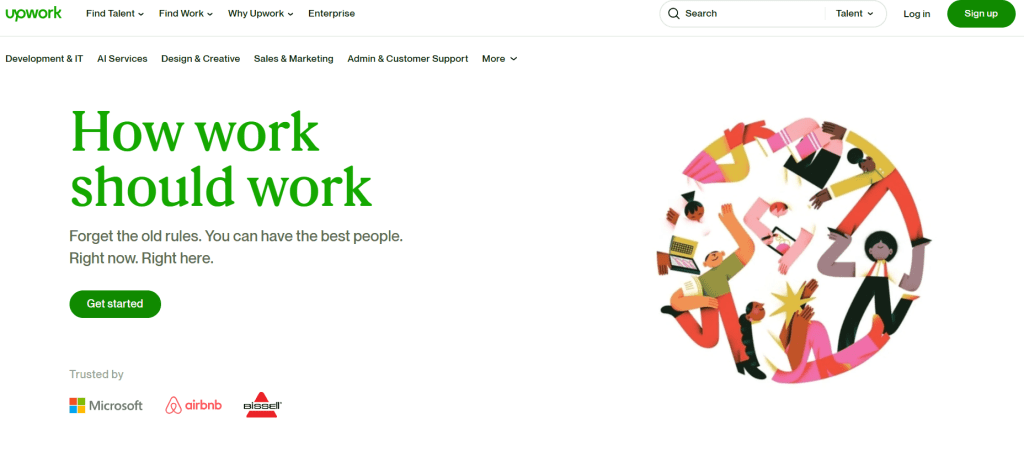
    Upwork is one of the biggest online job platforms for freelancers in every job field, including WordPress occupations. Here, you don’t need to search for site engineers, CMS designers, or WordPress developers; the web designers will contact many you post a task. Every applicant offers on your work posting.

    The benefit is you can survey every one of your competitors’ profiles and recruit developers that are most appropriate to your requirements. The subtleties of the applicants, similar to past work, insight, ranges of abilities, and appraisals, are noticeable in their profiles. One more benefit is tracking down independent WordPress developers who are affordable for you.

    Nonetheless, unlike a WordPress office that can give you the best designer in light of your venture necessities, here, you want to conclude which engineer is appropriate for your WordPress project given their profile.

    Pricing: They charge a one-time per-contract inception expense of up to $4.95

    3. LinkedIn

    Hire WordPress Developers

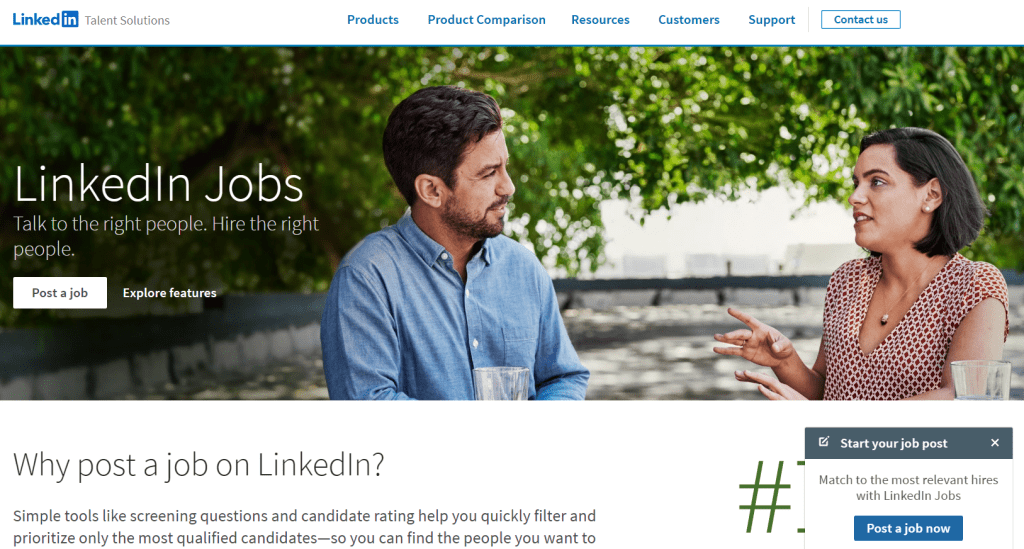
    While recruiting WordPress designers & developers and searching for a reasonable stage to get the ideal individuals ready, it is impossible that you can miss LinkedIn. LinkedIn is the world’s ideal and most famous web-based entertainment stage, which assists you with associating with many gifted experts worldwide.

    It is one of the best places to associate with the best WordPress architects and engineers. LinkedIn is the ideal decision whether you are an undeniable business, a startup, an independent company, or even a specialist searching for a one-time frame WordPress project coordinated effort. You can set up your organization subtleties and a rundown of WordPress employment opportunities you need to recruit for. Work searchers can apply for themselves and offer their work profiles to you. It is a phenomenal stage for both – web engineers searching for WordPress work and organizations needing to employ a quality WordPress developer.

    Pricing: LinkedIn is an open-source stage and is allowed to be utilized. In any case, you can purchase its exceptional membership to access its high-level features per your needs.

    4. Fiverr

    Hire WordPress Developers

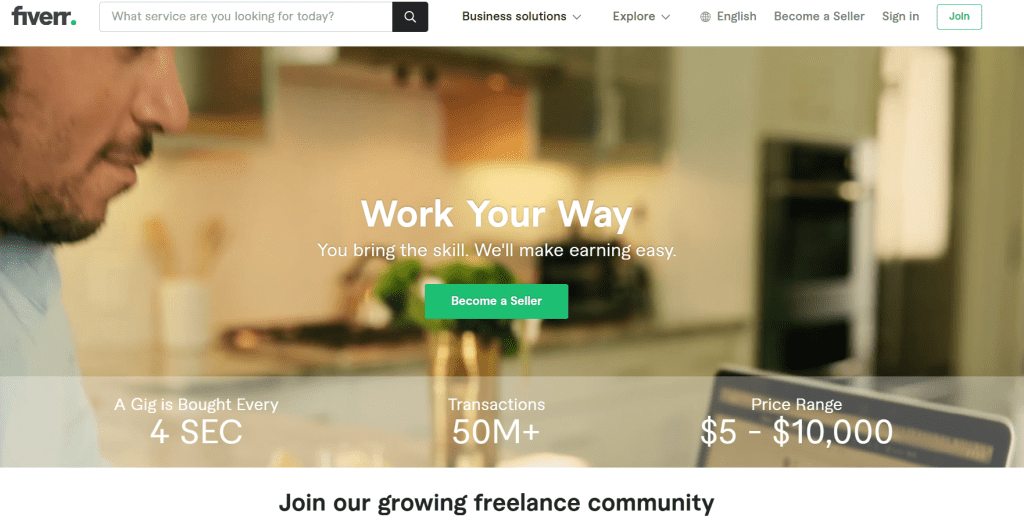
    Fiverr is another of the best freelance job-finding & posting platforms. You can continuously see freelancers & other clients’ feedback to pick the one that suits your business best. The hunt device on Fiverr assists organizations with finding up-and-comers explicitly for their prerequisites. Fiverr holds privacy for the benefit of occupation banners, and just required subtleties are noticeable to specialist web designers.

    As for improvement, you can go to Fiverr to enlist a WordPress engineer according to your spending plan. It offers low-charge workers for hire, so assuming you are simply beginning and need minimal-expense web development services, Fiverr can be an optimal spot to land designers for your business.

    Pricing: Fiverr charges 20% of all deals among customers and vendors

    5. Codeable

    Hire WordPress Developers

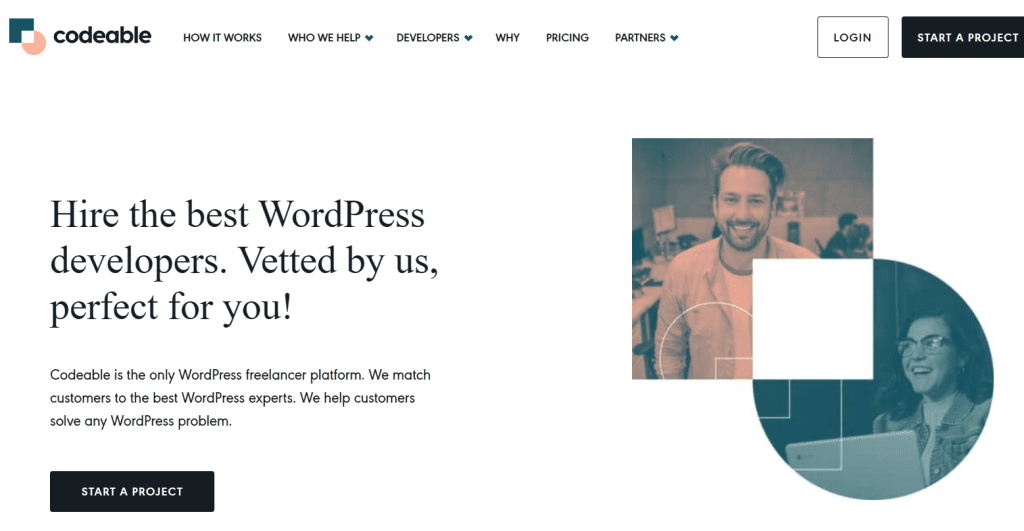
    Codeable was established in 2012 and is a WordPress stage to track freelancers. In contrast to Upwork and Fiverr, on Codeable, you can’t offer the most reduced offers. A cost mini-computer calculation chooses a decent measure for specialists and clients. From the present moment, repeating and full-time WordPress work, you can think it is all on Codeable. They have a center group 20 and more than 510 specialists dispersed worldwide.

    Pricing: Codeable charges $70-120 every hour in light of your undertaking.

    6. WordPress Jobs

    Hire WordPress Developers

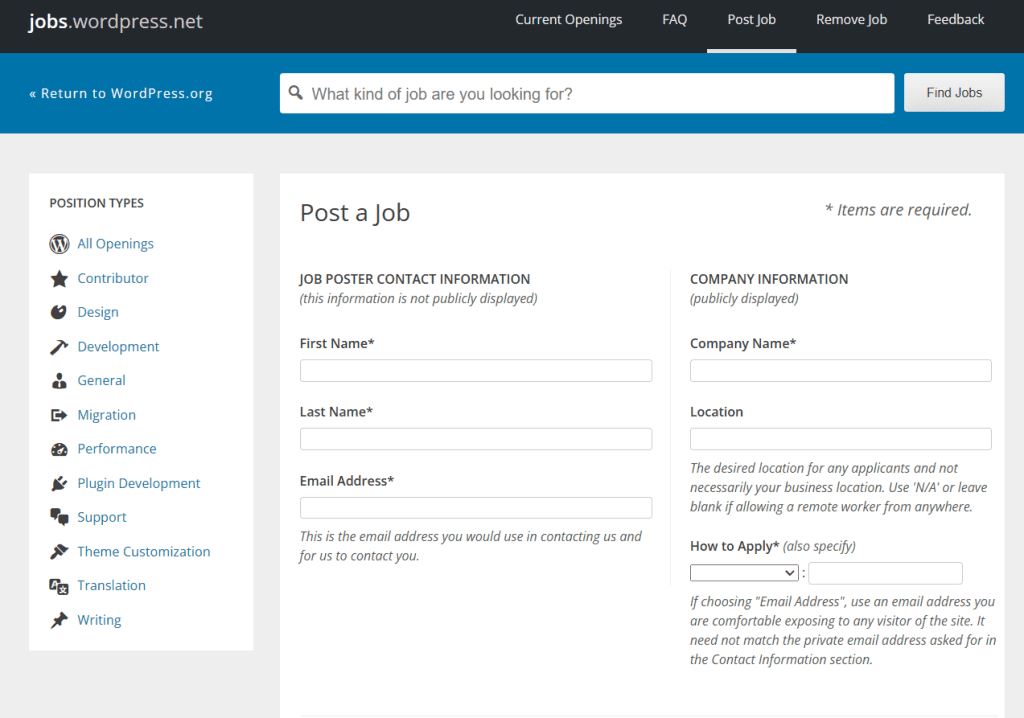
    WordPress Jobs is a stage where you can recruit top-quality WordPress developers. It is an authority WordPress work posting site where you can enlist for WordPress advancement and movement administrations, subject turn of events and customization, module improvement, and so on. Like a typical work posting platform, you post a task here with an expected set of responsibilities, and qualified competitors go after these WordPress positions. You can employ a web engineer given your prerequisites – full-time, part-time, or on a venture premise.

    Your work posting stays dynamic for 21 days after endorsement. This gives you sufficient opportunity to choose the proper contender for your business. The most significant aspect is that you can post work postings here for free.

    7. SolidGigs

    This WordPress developer job website associates individuals searching for secure associations and certifiable profiles. It records top WordPress designer occupations and guarantees that the bids for employment and profiles are genuine.

    SolidGigs is a job board made by a group of WordPress engineers, making it not the same as other outsourcing sites. On the off chance that you are a designer searching for a task or a spotter hoping to recruit, you should give the subtleties and the kind of work required. SolidGigs will then get a reasonable line of work or engineer for you. You can recruit a certified engineer whenever you have met the best match.

    Pricing: It is a paid stage beginning at $35/month.

    8. Elementor Experts

    Elementor Experts is an organization for website designers and developers. You can survey the recorded profiles of applicants and check their website composition, promotion, and web advancement projects.

    An excellent stage for employing designers can perform WordPress undertakings like establishment and full-stack WordPress improvement. Here, you can likewise find support for web facilitating from talented people educated in CSS systems, PHP, HTML, and JavaScript.

    Here, the engineers charge a set cost for the help they give. Notwithstanding, you can continuously search for the one that accommodates your spending plan and necessities.

    Pricing: The Elementor Experts plan begins at $199/year.

    9. Dice

    wordpress developer 5

    Dice is an objective for WP tech specialists overseeing more than 9 million competitors in the US. This proficient stage assists innovation experts with vocations, and managers interface with exceptionally gifted tech ability.

    If you are looking for a WordPress master for custom website architecture and improvement, you can peruse Dice. Here, you can look at and recruit a WordPress designer because of explicit abilities and errands.

    Pricing: Dice extends to mass buys for employment opportunity postings with discounts.

    10. Toptal

    wordpress developer 6

    Toptal has a universally conveyed organization of freelance software developers, designers, finance experts, product managers, and project managers. They have a profoundly specific cycle to finish up-and-comers from all over the globe. Their employment cycle includes meeting with a WordPress master, who will interface you with the proper competitor.

    Toptal effectively works with Microsoft, Motorola, and Salesforce, offering profoundly talented designers and self-employed entities. You can, without much of a stretch, find and recruit qualified WordPress designers who match your business needs.

    Pricing: The evaluation in Toptal relies upon the particular work position you hope to fill.

    11. 1840 & Company

    wordpress developer 7

    As a screened worldwide commercial center, 1840 and Organization has practical experience in interfacing organizations with master WordPress engineers and consultants.

    With 1840, you will not need to invest energy filtering through vast arrangements of candidates or posting position postings. You’ll get a devoted record director who carves out the opportunity to grasp your particular necessities and coordinate you with the ideal competitor.

    Whether you need to employ extra jobs like visual fashioners or computerized advertisers, 1840 has an organization of gifted experts to address every one of your issues.

    Pricing: You should plan a call with them to get a redone quote!

    12. Stack Overflow Careers

    wordpress developer 8

    Stack Overflow Careers is a specialized assist discussion and an essential occupation with boarding for managers looking for gifted experts, including WordPress engineers. With its immense client base and 100+ million month-to-month guests, Stack Flood offers a massive pool of likely contenders for your employment needs. You can post your work prerequisites on the discussion board and effectively speak with intrigued engineers through email or the gathering.

    Conclusion

    Since you have gone through the rundown of the best locales to employ top-quality WordPress developers, you can feel free to enlist an accomplished engineer in light of your requirements. Other sites are also available for recruitment, like Smashing Jobs, Remote OK, and WPhired.

    Recruiting a WordPress developer is a significant choice that could affect the progress of your venture. Thus, try to pick the best. Most of these locales and stages recorded above have a pool of top gifts and web experts. In any case, filtering through them can be an issue.

    Consequently, to save time and exertion, it is ideal to team up with a particular WordPress office. They will want to track down an accomplished and reliable developer who meets your requirements while being savvy.

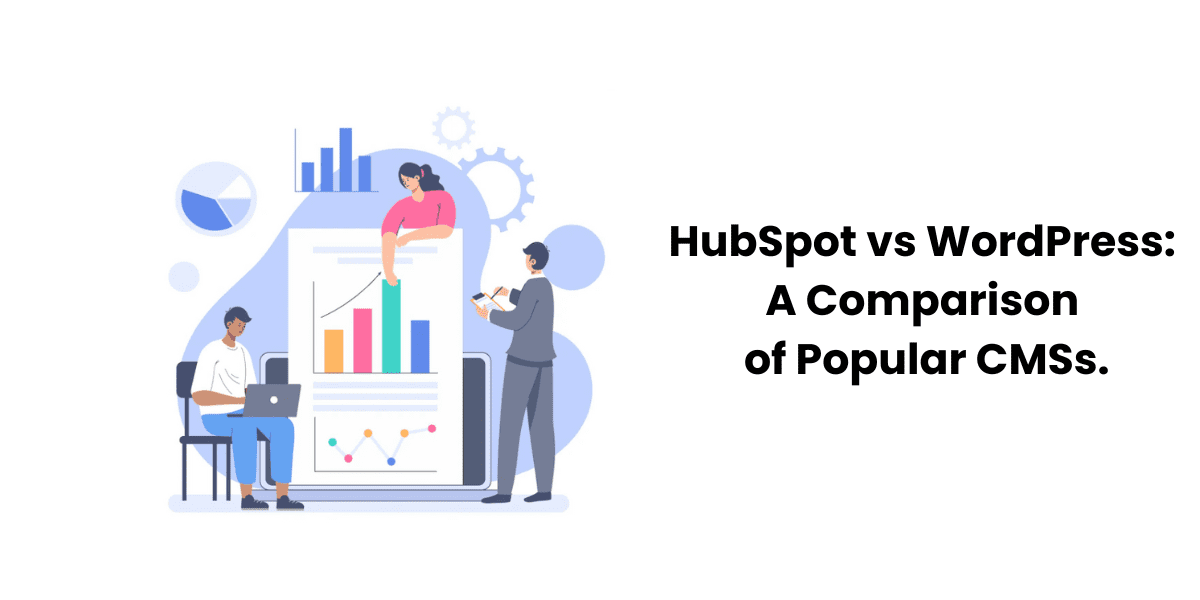
  • HubSpot vs WordPress: A Comparison Overview of Popular CMSs. 

    HubSpot vs WordPress: A Comparison Overview of Popular CMSs. 

    HubSpot vs WordPress? What best? Indeed, for more than ten years, WordPress has been the preferred CMS platform. Today, it is more than the exception for most content management systems to use it, and about half of all websites use it. It is worth noting, however, that a newcomer has entered the field.

    Since its introduction in 2020, HubSpot CMS has consistently gained popularity. In this article, we will compare WordPress and Hubspot CMS so that you can decide what option would suit you best. To commence, let us proceed.

    WordPress, as a content management system, shares a similarity with HubSpot. The platforms also allow users to edit each site’s aesthetic, layouts, and functional components. However, WordPress and HubSpot may be ideal for different classes of users. Consequently, we will consider the types of demography that best suit these channels.

    It is worth mentioning that our focus is on wordpress.org rather than the other side, which is wordpress.com. Elegant Themes thinks that the.org product is much stronger than the other option. Should you be undecided on which platform to take, please refer to our detailed article outlining their differences.

    Content Management System: WordPress

    HubSpot vs WordPress

    One of the best content management systems in the world includes WordPress. More people are using WordPress, which has a power range of 44% to 65%. Additionally, WordPress is highly customizable. In this scenario, developers need to create unique themes, plugins, and templates that will allow them to separate themselves from others.
    HubSpot has come up with a WordPress plugin that integrates with WordPress. Additionally, WordPress tends to be user-friendly. There are many tutorials aimed at beginners in the web development industry that can help novices begin working with WordPress sites.
    Content Management System: HubSpot 

    HubSpot vs WordPress

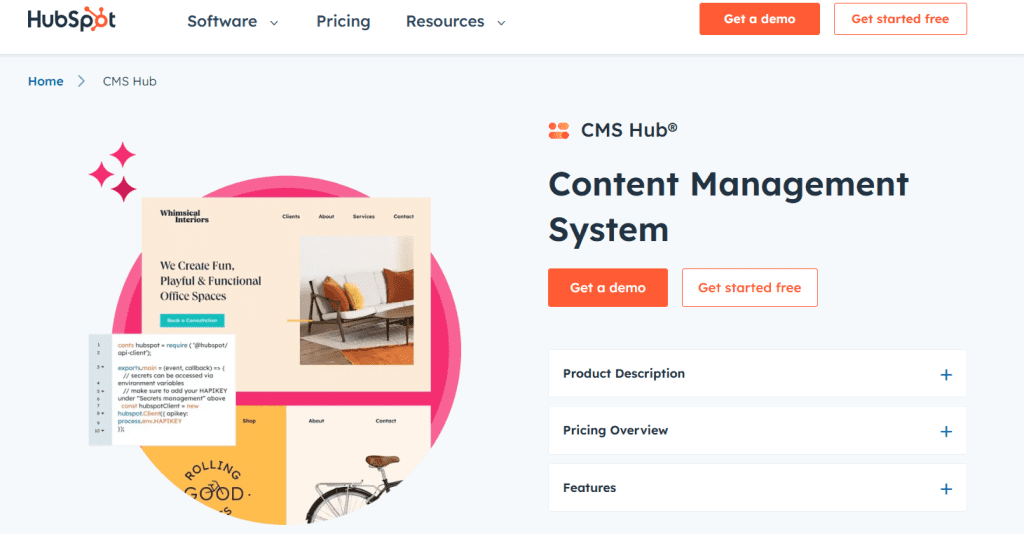
    The HubSpot CMS is designed with marketers and developers in mind. HubSpot enables marketers and developers to have an immediately operational marketing hub that is wholly integrated. Utilize built-in reporting to obtain customer data, establish marketing automation, and access HubSpot CRM directly without needing customized integrations.

    For comprehensive visibility into customer activities, HubSpot CMS provides the necessary tools. A single action provides access to reporting and analytics via the unified HubSpot ecosystem. For more, consult our comprehensive HubSpot overview.

    Comparing WordPress and HubSpot CMS in Terms of Usability

    More small business owners and individuals are penetrating this market than ever before. This explains why small business expansion since 2011 has consequently more than doubled. Moreover, there seems to be a side business to everything these days. Due to this, content management systems have become a popular way of building websites.

    More and more people are trying to minimize expenditures by building their sites. Therefore, it is imperative to use an affordable, easy-to-learn, and easily understandable platform. Contemporary users require competencies like loading pictures, writing blogs and handling the admin page effectively.

    WordPress CMS Usability 

    HubSpot vs WordPress

    The WordPress content management system is an intricate platform. The degree of usability is highly variable and contingent upon factors such as the chosen theme, the intended functionalities, and the user’s technical proficiency. Due to WordPress’s extensive existence, many tutorials and how-to documentation can be found on YouTube and numerous other websites.

    Therefore, novices will have little difficulty acquiring knowledge if they are solely required to develop an informative website to publish their content online. Using a Divi theme, a WordPress novice can also construct a straightforward website without requiring any coding expertise.

    Conversely, individuals desiring to develop more sophisticated WordPress websites featuring customized integrations and functionalities will require substantial expertise in CSS, PHP, HTML, and Javascript to optimize the platform.

    While it is true that there are thousands of plugins available to assist in the creation of the desired website, doing so requires sophisticated troubleshooting skills and knowledge to ensure that the plugins function harmoniously with one another. Additionally, this may be highly overwhelming for WordPress novices. 

    A User-Friendly HubSpot CMS 

    HubSpot vs WordPress

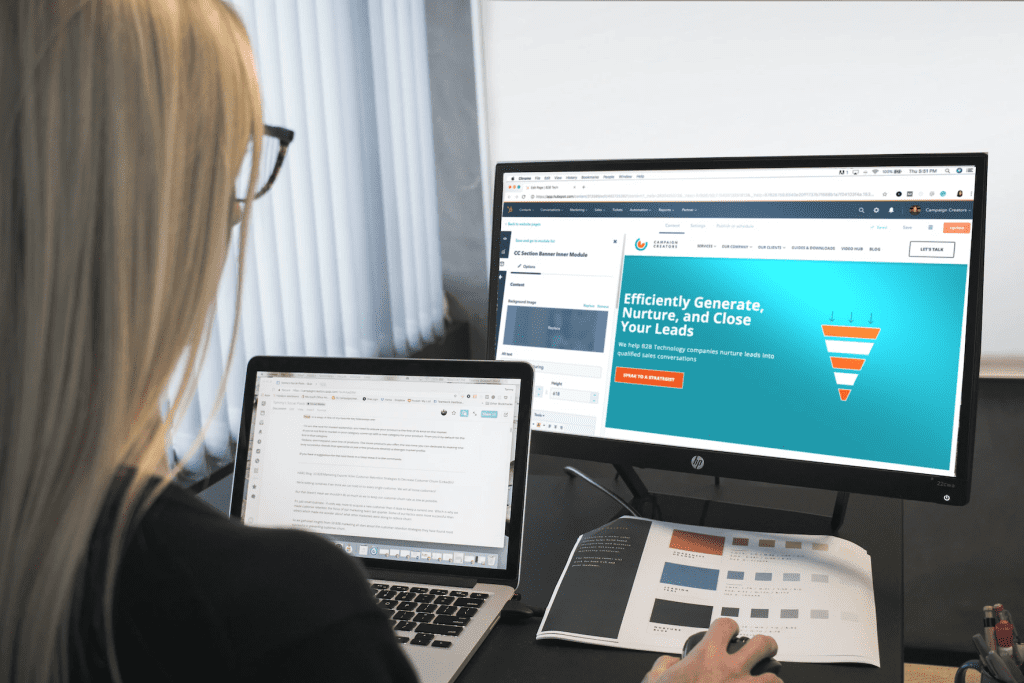
    Marketers, developers, and IT teams are all considered while developing HubSpot’s content management system. Marketers enjoy great flexibility in that, with a drag-and-drop editor, they can make whatever type of website they desire. Moreover, it offers a highly functional platform for small business owners and anyone wishing to develop websites quickly.

    Creating a more complex site will be as technically challenging as it would be on WordPress. Nevertheless, there are numerous ways to build websites using the HubSpot platform. On the other hand, it does not offer any extensions to be purchased at a price. That’s because HubSpot is an integrated system.
    Nevertheless, learning to operate on it takes a lot of effort and hard work. Fortunately, HubSpot has an academy that will help you through all stages of creating your first website. Hence, be ready to spend 5 hours at the academy.

    On completion, you will be certified to build themes and templates for the Hubspot CMS platform. For new content management system users, HubSpot has developed a new page creator that is more user-friendly for beginners.

    Hubspot CMS versus WordPress: Customization 

    First impressions are critical. In addition to the utmost importance of excellent content, a professional appearance is also crucial. Your website’s credibility and aesthetic appeal increase visitors’ likelihood of staying on it. For this reason, the capability of customizing your website is of the utmost importance. 

    Options for Customizing WordPress

    The WordPress content management system stands out for its high level of customizability. Even on the most fundamental WordPress themes, users can modify the width of their site, select the colors implemented, and select from an extensive library of typefaces for their website.

    In addition, an incalculable number of options available for extensions and themes provide the desired functionality and aesthetic. Plugins are classified into various categories, including form, security, and SEO plugins. WordPress supports a variety of modules and themes, some of which are available for purchase. With the help of Gutenberg blocks, pre-installed WordPress themes offer customization options. Users can modify text, media, layouts, and custom code by selecting from nearly thirty elements.

    Using premium themes like Divi provides an inexhaustible array of customization options. WordPress is transformed into a no-code design juggernaut with the addition of premium themes, which grant users access to an extensive library of content elements (including accordions, number counters, and video galleries) and the ability to modify every aspect of a site.

    Options for Customizing HubSpot 

    In addition to other customizable features, HubSpot CMS provides a drag-and-drop editor for marketers and non-programmers. Customizable, pre-built website themes are available through the CMS. The number of modules that can be edited and added differs based on the selected motif. Furthermore, apart from modifying modules, one can also adjust author settings, theme configurations, and header and footer options.

    The management of customization options for developers is accomplished through the command-line interface (CLI) version of HubSpot CMS. The capability to develop modules for implementation on web pages offers boundless potential. Modules are amenable to any form of customization that developers desire.

    Each template generated via the HubSpot CLI platform is constructed in the code editor from the ground up and may comprise an unlimited number of modules, each offering distinct customization possibilities. Thus, its degree of customization is absolute; everything else is contingent on the developer’s technical prowess.

    CMS: WordPress versus HubSpot: Templates and Themes 

    Themes constitute an essential component of all content management systems (CMS). By altering a theme, a website can acquire an entirely new aesthetic and gain access to additional functionalities. Consequently, it is essential to have a wide variety of themes available, particularly for users who may lack the capability to develop their own. 

    Templates and Themes for WordPress 

    HubSpot vs WordPress

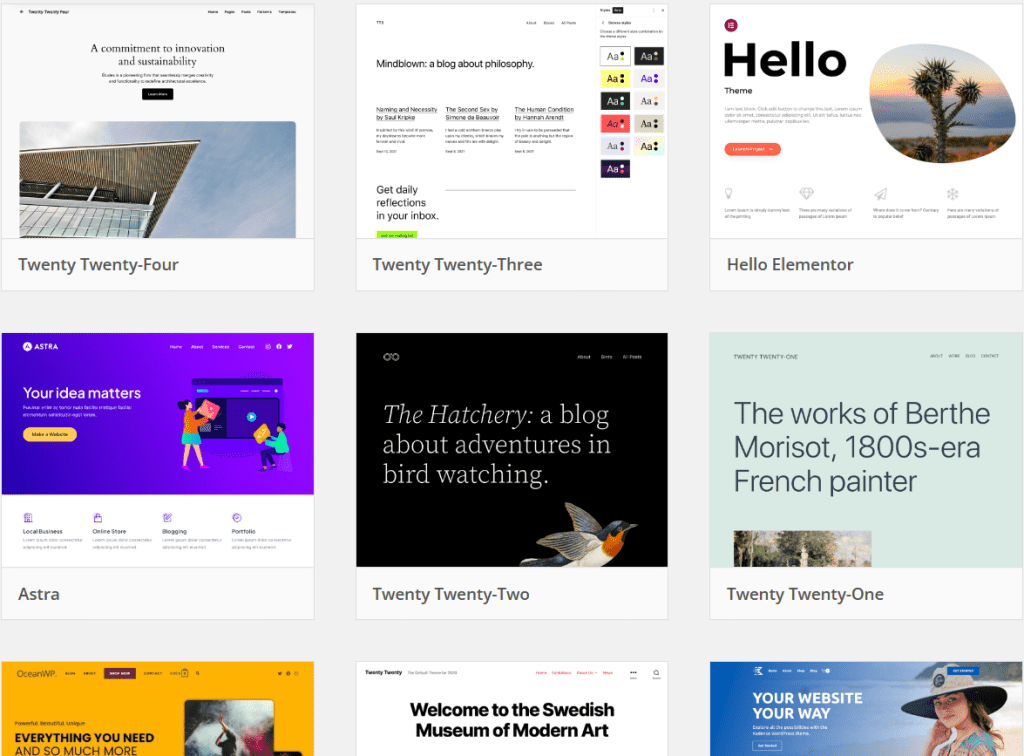
    WordPress stands out with the most incredible variety of free and premium themes of any CMS. Given the vast number of theme developers in the WordPress community—hundreds—it is fair to assume you will discover one you adore. The leading premium themes in the WordPress ecosystem, such as Divi, can completely transform the appearance and feel of a website with their dozens of modules and countless customization options.

    Users may also select a free motif, such as Twenty Seventeen, and modify it to their specifications using PHP, Javascript, and CSS. Developers may also generate bespoke page templates to expand the functionality of their theme.

    HubSpot Templates and Themes 

    hubspot vs wordpress 3

    HubSpot provides user-facing default themes. They become readily accessible at no cost upon registering for a HubSpot CMS account. Users can generate a custom theme based on the default theme or obtain it for their websites. The process of downloading HubSpot-compatible themes occurs via the HubSpot marketplace. It is an excellent option for individuals who desire a website that showcases their business while requiring minimal coding expertise.

    To modify a default motif, developers must utilize HubSpot CLI, the command-line interface of HubSpot. They then request the importation of a theme into their dashboard.

    HubSpot CMS versus WordPress: Publishing Tools 

    While WordPress and HubSpot CMS can publish blog posts, they do so through distinct mechanisms. 

    WordPress 

    WordPress simplifies the process of generating blog entries for its users. There are two potential approaches to achieving this objective. Users may initially utilize the traditional editor, a standard word processor. Individuals with prior experience with Google Docs or Microsoft Word will find the classic editor highly intuitive.

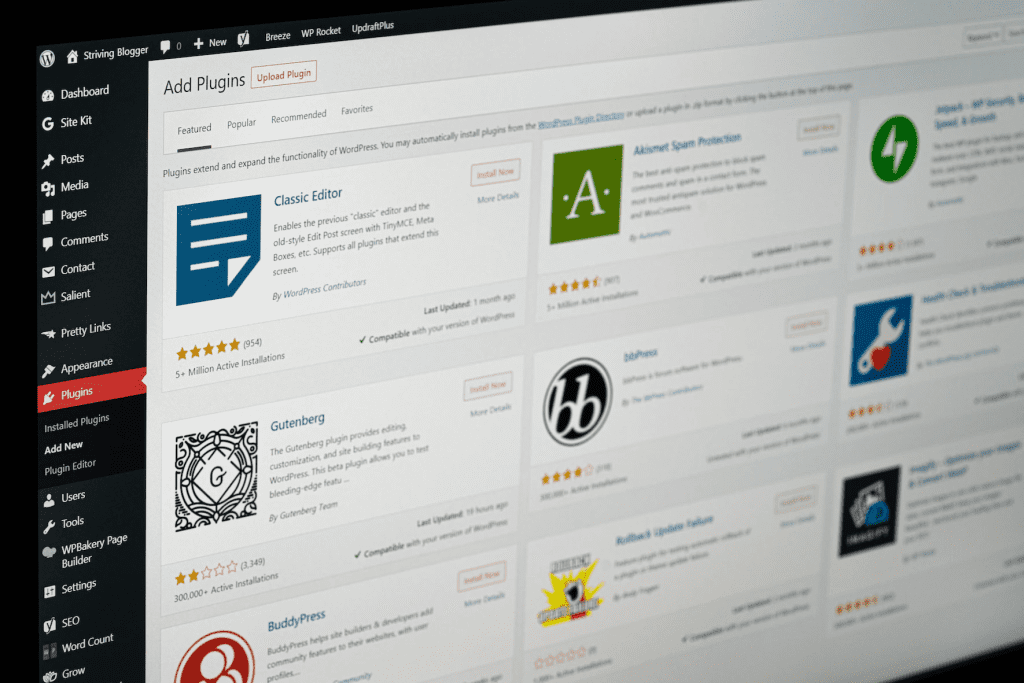
    One may enhance the functionality of the publishing tools by installing modules. For instance, Yoast SEO is an excellent instrument that can facilitate the influx of visitors to your website. Additionally, should you opt to utilize the Gutenberg Blocks editor, many extensions exist to augment its functionality by adding supplementary modules. 

    HubSpot Content Management

    The HubSpot CMS is also capable of managing blogs. However, it operates somewhat differently. Using tabs, one can generate website pages, landing pages, journals, and the site tree in HubSpot. In addition to two sections, the post editor includes configurations for the footer, blog content, header, and your website’s comments.

    Additionally, you can designate themes for your posts, which is a helpful function if you wish to modify the appearance of your posts according to their content. Although the interface is straightforward, those accustomed to other post-editors may require some adjustment time.

    CMS: WordPress versus HubSpot: Security 

    Website security is critical, particularly in the current climate. Without robust security protocols, your website becomes susceptible to various attacks, including denial of service (DDoS), malware, bots, and hacking. Both HubSpot and WordPress prioritize security, which is fortunate. 

    WordPress Security Part

    Security for WordPress is a complex issue. It largely depends on the modules and host that you select for your website. Superior hosting providers offer everything required to safeguard your WordPress site. Furthermore, regarding security, SiteGround and Cloudways distinguish themselves by providing SSL certificates, fraud protection, and server-side malware options.

    Users who wish to safeguard their website with a plugin can choose from various exceptional WordPress security plugins. Wordfence and Sucuri, for instance, are extensively employed extensions that offer defense against DDoS attacks, bot protection, and firewall functionality. Moreover, WordPress maintains a competitive edge by consistently introducing updates to its platform. 

    HubSpot Security Part

    The security features of HubSpot CMS are among its finest attributes. As a software-as-a-service (SaaS) solution, HubSpot provides all the necessary components in a single bundle. An SSL certificate, network and perimeter security, protection of customer data, and application security are all provided by HubSpot on a single platform.

    No additional services require addition to your account, and the installation of extensions is not required. TLS 1.2 or 1.3 is the industry standard, and end-to-end encryption is employed. This ensures that your website’s files and customer information are protected and secure throughout the entire process. You will also receive a web application firewall, safeguards against DDoS attacks, and routine vulnerability scanning.

    Conclusion

    The advantages of a WordPress site versus a HubSpot site are contingent upon the intended purpose of the site. WordPress will have the most significant degree of customizability among all platforms, permitting the selection of tens of thousands of themes and plugins. It may take years for HubSpot to catch up to WordPress in terms of market share.

    Developers have been creating content for WordPress for almost two decades. Setting up both WordPress and HubSpot can be challenging for novice users. However, novice WordPress users can access abundant educational resources on the internet. A regular Google search can provide novices with a wealth of information that can significantly assist in commencing their endeavors.

  • Boost Your Website’s Performance with Expert WordPress Speed Optimization Services

    Boost Your Website’s Performance with Expert WordPress Speed Optimization Services

    WordPress Speed Optimization Services for Website maintenance is a full-time job. Apart from introducing new features, you must ensure your website works quickly and without hiccups. As a result, you may be looking for the most efficient WordPress workflow to reduce your workload. One of the benefits of outsourcing website optimization is the ability of the business to devote time and effort to other areas of use, such as content marketing, etc. It is rightly said that most services will perform and deliver a full audit of your pages. The strategies are so good that if they were used to accelerate their start yesterday,

    In this article, we will see the best WordPress performance optimization services. Pricing, features, and pros and cons will be analyzed to determine the best implementation for your website. Let’s get it started!

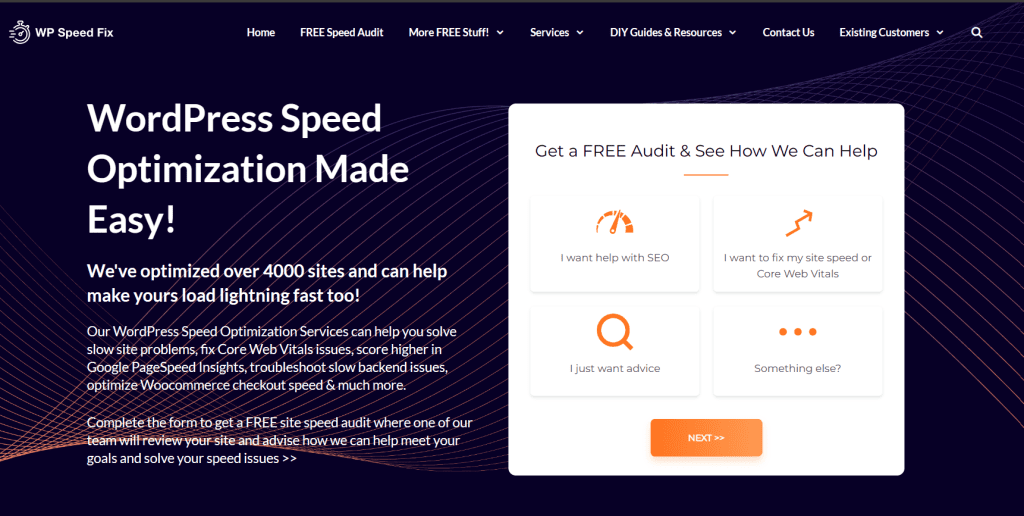
    1. WP Speed Fix

    WordPress Speed Optimization Services

    We can tell from the name that WP Speed ​​Fix promises to increase the speed and performance of your website. It claims to have optimized over 4,000 websites and offers free website speed audits.

    The company’s performance is so good that it can help you manage Core Web Vitals issues, improve your Google PageSpeed ​​Insights rankings, fix slow page load issues, and more. You have used WP Speed ​​Fix to speed up your shopping and experience in the WooCommerce store.

    Principal features:

    It simplifies the configuration and tweaking of browsers and page caching and makes it easier to optimize, minimize, and optimize CSS and JavaScript. It features sophisticated caching and database management. Additionally, it supports WebP, specializes in lazy image and video loading, and offers excellent image compression and resolution.

    In addition, WP Speed ​​Fix sets up and provides a content distribution network (CDN) for your website. It is an international network of dispersed servers. A content delivery network (CDN) delivers your site’s content from a server close to the visitor to reduce latency and loading time.

    Advantages

    • It is a free site to check speed audits and analysis
    • The best part is that it is a speed-optimization course for marketers and developers.
    • No monthly plans are offered; a one-time fee is required for the selected package.
    • Optimization for Core Web Vitals is provided as an additional service.

    Price 

    WP Speed ​​Fix offers a variety of customization services. The Speed ​​Consult and Implementation Service costs $995. The Core Web Vitals Optimization package currently costs $495. Alternatively, you can choose WordPress Speed ​​Optimization Advice and Micro-Consult for $195.

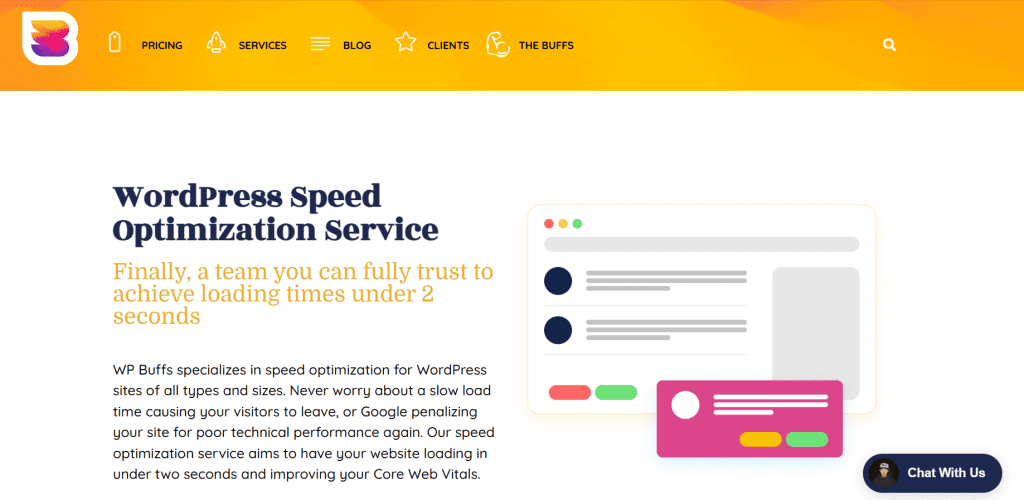
    2. WP Buffs

    WordPress Speed Optimization Services

    WP Buffs offers a variety of WordPress functions, including site maintenance and speed optimization. The company promises to load your website in less than two seconds.

    Should you desire to enhance your Core Web Vitals scores, WP Buffs will assess your performance in critical domains and take appropriate action. Increasing your scores in search engine results for metrics like Largest Contentful Paint (LCP) and Time to Interactive (TTI) can be beneficial.

    Note: WP Buffs only sells re-subscription plans, so if you’re willing to pay once for one-time customization, this isn’t a good option. However, this approach has the advantage of continuing to help you optimize your strategy throughout your life.

    Principal features:

    It has the most advantageous functionalities, including browser caching, lazy loading, image optimization with lossless compression, Javascript and CSS (minification) optimization, render-blocking resources, inline-critical CSS, etc.

    WP Buffs will monitor the resources of your hosting provider and provide suggestions for increasing the performance of your website. It adheres to Google’s recommendations for optimizing page launch times as well. These include freezing render-blocking resources and inlining CSS, which is required.

    Advantages

    • Weekly reports to ensure transparency 
    • White-label options for companies using WordPress

    Disadvantage

    • The WordPress speed optimization service is not included in basic packages.

    Price

    WP Buffs offers maintenance plans. The cheapest option is the Maintain plan, which starts at $79.00 per month. However, this includes improving speed. If you want to take advantage of the company’s speed and image-friendly services, you’ll need to purchase the Perform plan, which starts at $219 per month.

    3. FixRunner

    WordPress Speed Optimization Services

    FixRunner offers eCommerce site customization and maintenance services. An organization can help increase conversion by making the following improvements to your website’s performance and user experience (UX):

    Additionally, FixRunner offers unique speed optimization services designed to help improve your Core Web Vitals score. This can be an excellent option for people with smaller sites or blogs.

    Principal Features

    FixRunner can accelerate the load time of your website by reducing the size of HTML, CSS, and JavaScript code. Additionally, non-essential programs will be delayed to decrease initial load times.

    Advantages

    • Plans come with dedicated support.
    • You can find comprehensive information about the team’s work.
    • You can order one-time support instead of subscribing to a monthly plan.

    Disadvantages

    • You must purchase a separate service to optimize your site for Core Web Vitals.
    • Phone support is only available on the most expensive plans.

    Price 

    Monthly pricing for plans commences at USD 69. Alternatively, a one-time repair could be obtained for a mere $49. In the interim, for an estimate on the performance optimization service for Core Web Vitals, please get in touch with the FixRunner team.

    4. WP Faster

    WordPress Speed Optimization Services

    WP Faster is another company that can help you improve your site’s speed and UX. It tests different presentation formats to see what works best for your website.

    With WP Faster, you’ll get a customized solution based on your site’s real-world performance. Additionally, the company claims that 98% of the websites it works with run twice as fast after being optimized.

    Principal features

    It provides an all-encompassing caching solution, encompassing fragment, object, memory, and full-page caching. Additionally, it reduces the size of requests and redirects and inlines small CSS and JavaScript. It optimizes the sequence of styles and scripts and minimizes CSS, HTML, and JavaScript code. It effectively removes query strings from static resources and eliminates render-blocking resources.

    WP Faster can also optimize your site for Core Web Vitals and help you move your website to a more powerful hosting environment. Plus, it allows you to compress images on your website. It also ensures that you are running your website on the latest version of PHP.

    Advantages

    • WP Faster provides financial services to low-income people. 
    • You’ll find speed-optimization programs tailored to your needs.

    Disadvantages

    • There is no set plan; the size of your site, the type of hosting solution you use, and how fast you want your website to be optimized determine the price.
    • Services such as advanced reporting and advanced support are offered as “add-ons” that can add value.

    Price

    The prices depend on the number of pages on your site, your hosting plan, and other factors. If you have a small site (no more than 499), use a shared hosting plan, and want expanded support and advanced reporting, you can give between $400 and $500.

    5. W3 SpeedUp

    image 4

    Talking about the WordPress company that is best at performance optimization is W3 SpeedUp. With more than a decade of experience in website optimization, the company ensures a PageSpeed Insights score of 90 or more.

    This is designed for WordPress blogs, workspaces, and WooCommerce websites and stores. The expert developers will first evaluate your site and point out areas for improvement. Then, they will share their findings and recommendations and help you choose the proper layout for your fantastic website.

    Principal features:

    It will decrease the size of your website by utilizing its most advantageous functions: browser caching and CDN configuration, code cleanups and CSS/JavaScript minification, image optimization, and Gzip compression. In addition, it features a DNS-level firewall that reduces the load on your hosting server by identifying legitimate traffic and cache control that facilitates client-side caching and establishes the maximum resource age.

    Further, it will add to your server’s response time, and W3 SpeedUp will assist you in migrating your website to its completely managed WordPress hosting environment. Looking to provide more benefits, the company provides solutions for optimizing the efficacy of Core Web Vitals.

    Advantages

    • Immediate propaganda support
    • 100% money-back guarantee
    • Free speed report before purchase plan

    Disadvantage

    • Core Web Vitals optimization is offered only at the highest levels of configuration or as a separate service.

    Price

    Plans start with a one-time $100 fee. The Core Web Vitals customization package costs $225.

    The Benefits of using WordPress Speed ​​Optimization Services for your website

    WordPress speed optimization services can help improve the speed and performance of your WordPress website. Here are some of the benefits of using WordPress speed optimization services:

    • To improve the load time of your WordPress website. This is important because an agile website can improve the user experience and increase conversion rates.
    • To improve your website navigation, visitors can easily find what they are looking for on your website.
    • To optimize your WordPress code for faster deployment. This can improve performance and lower server resource usage.
    • To improve the security of your website. That will protect your website from hackers and other online threats.
    • WordPress speed optimization services can provide these benefits and more. With this service, you can improve the speed and performance of your WordPress website.

    Conclusion

    Optimizing speed is crucial to the success of your website. It can help you rank higher in Google search results and increase conversions and users.

    Fortunately, many companies can handle significant customization services for your WordPress website. If you are looking for a complete speed optimization solution that covers Core Web Vitals, consider opting for WP Buffs. This premium service includes everything from image optimization to browser caching and lazy loading. If you’re interested in a customized service with a flexible pricing structure, WP Faster could be a good choice.

    WordPress speed optimization services can help improve the performance of your WordPress website. By optimizing your WordPress site for speed, you can reduce the load time for your pages and improve the user experience for visitors. WordPress speed optimization services can also help improve your search engine ranking, as pages that load faster rank higher in search results.

    If one wishes to improve the performance of their WordPress website, WordPress speed ​​optimization services can provide them with the tools and resources they need to get the job done. You should make every effort to optimize the loading speed of your WordPress site. It is one of those infrastructure-related factors that significantly influences the audience and their interpretation of your work. Fortunately, one can expedite remarkable progress by implementing a few of these most effective strategies.

  • Fixing There Has Been A Critical Error On This Website WordPress

    Fixing There Has Been A Critical Error On This Website WordPress

    Nothing is more terrifying than when your WordPress website is going down, especially when you get an alarming message like “There Has Been A Critical Error On This Website WordPress.”

    When you’re locked out and the front end is down, you must recognize a way to restore the vital errors now. Every minute that passes is driving away traffic as they encounter an evident error screen.

    Luckily, solving this vital error usually involves a count number, including a small PHP function or deleting a problem plugin. Here, we’ll review several approaches to troubleshoot this problem and get your website up and strolling rapidly.

    Causes of “There Has Been A Critical Error On This Website WordPress” Error

    Fixing There Has Been A Critical Error On This Website WordPress

    If you’ve been using WordPress for some time, you’ve likely heard of or, in all likelihood, even encountered its most infamous error: the White Screen of Death. This startling glitch could cause your complete website, and occasionally even your backend, to load as a blank white web page.

    In recent variations of WordPress, this blank display has been replaced with the essential errors and the textual content: “There Has Been A Critical Error On This Website WordPress.” Please check your site admin e-mail inbox for commands.” While that is less panic-inducing than your web page sincerely refusing to load at all, the error textual content isn’t much more helpful than before, and it’s likely to leave you wondering: What reasons for these critical errors?

    Much like the White Screen of Death, the difficulty can usually be traced back to a difficulty with PHP.: your memory restriction being passed or an error to your code, plugins, or theme. It can also cause database corruption.

    While the error textual content itself won’t be very beneficial, understanding this simplifies troubleshooting.

    You may also need to investigate these other WordPress errors, as you can be experiencing more than one of them:

    • ERR_CONNECTION_TIMED_OUT — Caused by a slow or overloaded web server.
    • ERR_CACHE_MISS — If you see this, look into your website’s cache or PHP tools like plugins, as they’re likely the cause.
    • 500 Internal Server Error — A severe error usually traced back to server file corruption.
    • Error Establishing a Database Connection — Corruption in your database or a database server issue can be the root of this problem.
    • HTTP 503 Service Unavailable — Indicates an issue with your server.
    • HTTP 502 Bad Gateway — Yet another server issue, often caused by too many visitors overloading it.
    • And if you see any other strange errors, look through these HTTP status codes.

    Fixing the “There Has Been a Critical Error on Your Website” Error

    You’re right here to get your site up and running once more, and to that end, we’ve accrued numerous one-of-a-kind capability approaches to restore the difficulty. Knowing that the purpose is likely PHP-associated, those may also involve modifying core WordPress documents. Even with your website in a broken state, back up again before enforcing any of these guidelines, as we don’t want to make it worse!

    Fixing There Has Been A Critical Error On This Website WordPress

    If you can log in to your website’s backend, it helps immensely. But as your entire website is down, you’ll likely want to enter it via FTP (or SFTP).

    Contact your web host or look through your hosting dashboard to locate your FTP login credentials and ensure you install an FTP customer like FileZilla. This manual on connecting to WordPress over FTP can assist, too.

    Enable Debug in WordPress

    If you’re having a hassle with WordPress, one of the first things you must do is allow debugging. With debug mode on, you’ll be capable of seeing the various PHP errors going on to your website, and you can use this to hint again at the foundation of the problem.

    As you may be unable to access your dashboard, you’ll additionally want to permit the debug log. This will write all PHP errors to a document.

    If you need to turn on debugging manually or get the right of entry to the debug log, comply with those steps.

    • Step 1: Connect on your website with FTP.
    • Step 2: Find wp-config.The Hypertext Preprocessor is in the root folder; open it with a textual content editor or IDE.
    • Step 3: Place the following code at the lowest of the report, just earlier than the final message, then keep it near the file:

    Debugging is now enabled on your web page, and mistakes may be written to the log. You can find the debug log within the wp-content material folder, named debug.Log.

    Look for names of your theme or plugins to factor in them being the reason or references to a selected report. Even if you aren’t sure what to do with these statistics, keep them someplace — they can help you in case you need to reach out for assistance.

    When you’re finished debugging, do away with these lines of code.

    Roll Back Your Site

    When WordPress errors rear their head, restoring a backup may be a brief and clean way out. While it won’t continually solve the issue, it’s worth a shot. If the problem takes place once more, you will be able to retrace your steps over time.

    How you restore your website depends on the way you sponsored it. If you operate a plugin, observe the instructions in the documentation. If backups are covered with your host, you’ll probably be able to do it from your hosting dashboard.

    Revert to a Default Theme

    The crucial errors may sometimes be traced to a conflict inside your theme. The quality manner to test for that is to temporarily delete it and revert to a default subject, which should clear up the problem immediately.

    Make sure you back up your site first, as you’ll want a way to get your subject files returned when they’re gone. Simply reinstalling the topic might also motivate you to lose your custom styling.

    • If you’ve got access to your dashboard, this is easy. Go to Appearance > Themes, click on the topic to select it, and delete it in the lower proper corner of the pop-up window.
    • If you don’t see the choice, try downloading and switching to another theme. The safest bet is to try a default topic like Twenty Twenty-One.
    • If you don’t have access to your backend, follow these instructions to revert to a default theme with FTP.

    Step 1: Connect to your site with FTP.

    Step 2: Navigate to wp-content/themes. You have two choices here: either rename your theme folder (which will allow you to turn the theme back on later) or simply delete it.

    Step 3: If you don’t already have a backup theme, manually download Twenty Twenty and place its files into the themes folder.

    Your site should now revert to Twenty Twenty. If it loads correctly now, you know it was a theme conflict. To restore your theme files, simply reinstall or change the folder to its original name.

    Disable All Plugins

    When you’re having critical errors, a plugin is frequently in charge. If you have several or maybe dozens of plugins for your website online, trying to discover the only one with the issue may also appear frightening.

    But there’s a smooth way to discover the problematic plugin: virtually turn them all off and notice if that fixes the problem. If it does, permit them one by one till your website breaks again. And there’s the culprit!

    To disable your plugins from the dashboard, go to Plugins > Installed Plugins and tick the checkbox at the pinnacle of the listing to select them all. Then click Bulk Actions > Deactivate, which must be enough to turn off any conflicts and restore your website.

    You also can click Delete as a substitute to put off their files, though you’ll need to reinstall them manually or restore a backup.

    You can then turn them on one by one by returning to Installed Plugins and clicking Activate on each. You can do essentially the same thing through FTP.

    • Step 1: Log in to your site with FTP.
    • Step 2: Open the wp-content folder to find your plugins.
    • Step 3: Rename the plugins folder to plugins_old and verify that your site is working again.
    • Step 4: Rename the folder back to “plugins”. The plugins should still be turned off, so you can log in to your dashboard and activate them individually. If the plugins reactivate automatically, rename individual plugin folders with _old until your site is restored.

    Raise the PHP Memory Limit

    Even if a plugin or theme is the reason for your broken website, the PHP reminiscence restriction is regularly the real one accountable.

    What is the PHP memory limit? Your net server only has a certain quantity of RAM or memory, so WordPress units a difficult limit on how many reminiscences a single PHP script can take in. When this limit is passed, you’ll come upon the white display screen of death or a critical error.

    While you don’t want to set the memory limit too high and permit misconfigured scripts to make your web page move slowly, the default price may be too low. Raising your PHP restriction just a bit ought to immediately repair your damaged website.

    • Step 1: Access your site through FTP and open wp-config.php.
    • Step 2: Insert the following code right before the final line and save.

    You can also try 256M if this doesn’t fix the issue, but anything higher is unnecessary unless expressly called for in plugin documentation. If the issue is with the memory limit, the plugin you’re using is almost undoubtedly broken and needs to be disabled.

    Raise the Max Upload File Size and Text Processing Functions

    If you’re most effective at seeing the critical errors in certain conditions and not continuously on each web page, a minor tweak to 3 PHP features might be capable of fixing it.

    Uploading large documents and finding yourself on an error screen is probably a result of the max add file size being too small. At the same time, big page breaking can be constant using growing recursion and backtrack limits.

    First, test your most add size and compare it to the report you’re trying to add. You can discover this using journeying Media > Add New and checking under the file uploader.

    To fix either of these issues, you’ll need to log into FTP and edit the wp-config.php file, placing the new code right above the final comment line.

    Clear Your Site Cache

    Caching is an exquisite way to speed up your website, and most of the time, it’s strictly a good component. But occasionally, the cache can get corrupted, leaving your site throwing out errors.

    When this occurs, an easy solution is to clear the cache, which has to be all you want to remove the problem and restore your site to operating order.

    Upgrade Your PHP Version

    Outdated PHP can cause your site to break, and other conflicts are sure to occur. You usually want your site on the latest version of PHP supported by WordPress, currently PHP 7.3 to 8.0.

    Some WordPress users prefer to stay on PHP 7.4 as they’re concerned about theme and plugin compatibility. Usually, this won’t cause problems. But if you’re using PHP 5.x, it’s imperative you upgrade as it can cause serious conflicts.

    Check for Malware

    Sometimes, a crucial error can result from malware, mainly if you notice abnormal PHP scripts that can’t be traced back to your plugins or theme. Removing the malware is difficult, so you’re locked out of your website and may not even run an experiment.

    Conclusion

    WordPress critical errors may have various reasons, although the problem frequently concerns PHP. Either the PHP memory restriction has been exceeded, or your plugins or themes are having trouble.

    The fastest manner to restore the trouble is to roll your website over when you have a backup. However, you could attempt numerous other techniques, from elevating the PHP reminiscence limit to identifying and turning off a problem plugin.

    If you are still facing an issue with your WordPress, contact our experts!