To set up a Joomla child template, open System → Site Templates, open an inheritable parent such as Cassiopeia, click Create Child Template, add only the files you will change, then assign the new style. You need Joomla 4.1 or later (5 and 6 included). Joomla 3 and 4.0 have no Create Child Template button.
Do this before you edit Cassiopeia. A child keeps your CSS, layout overrides, and extra positions when the parent updates. A template style duplicate does not.
This is a setup guide. You will create the child, put user.css in the right folder, add an override, assign it to a menu item, and know when to copy index.php.
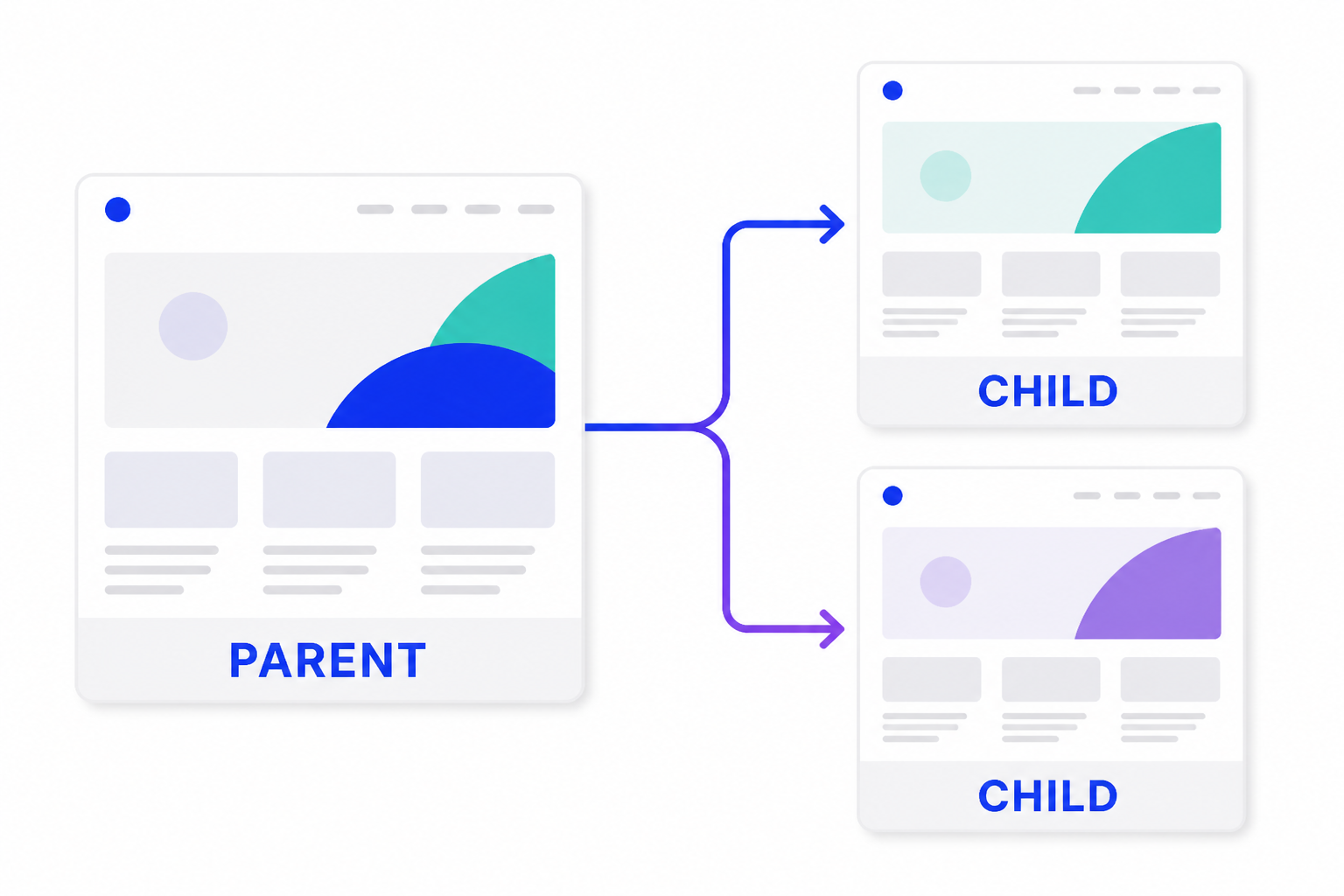
The parent stays stock. Each child keeps only the files you change.
What you will set up
- A child of Cassiopeia (or another inheritable template)
user.cssthat actually loads- Optional HTML overrides and extra module positions
- A template style assigned as default or per menu item
- The Joomla 6 path if you already have Cassiopeia Extended
- How to make your own (or a fork you control) support children
The problem a child template solves
Most Joomla sites get slow to update for a boring reason: someone edited the parent template.
You change index.php or drop a user.css inside Cassiopeia. It looks fine. Then Joomla (or the club) ships a template update. Core files go back to stock. Your header colour, extra module position, and article override are gone. Restore from backup, or skip the update and sit on an unpatched template.
The usual workaround is worse. Duplicate the whole template, rename it “Cassiopeia custom,” and never touch the original again. You now maintain hundreds of files you did not write. The next Cassiopeia security fix never reaches that copy.
A template style does not fix this. Styles store parameters and menu assignment. They still point at the same parent files. Duplicate the style, change the logo, and you are fine. Edit PHP or CSS in the parent, and the next update still wipes it.
That is the problem. Custom look, stock parent, files that survive updates. Child templates are the core feature built for that, from Joomla 4.1 onward.
Why you set up a child instead of editing the parent
A template style only stores parameters and menu assignment. It still uses the parent’s files. Edit templates/cassiopeia/index.php and the next Joomla update puts the stock file back.
A child template is a second template. Same-named files in the child win. Everything else loads from the parent. Updates replace the parent. Your child folder stays.
Set up a child as soon as you need custom CSS, a layout override, extra positions, or a second look (home vs knowledge base vs portal). If you only need a different logo colour and no PHP, a style on the same template can be enough. The moment you touch a file Joomla will overwrite, create the child first.
Assigning styles to pages is covered here: How to Change Template in Joomla 4.
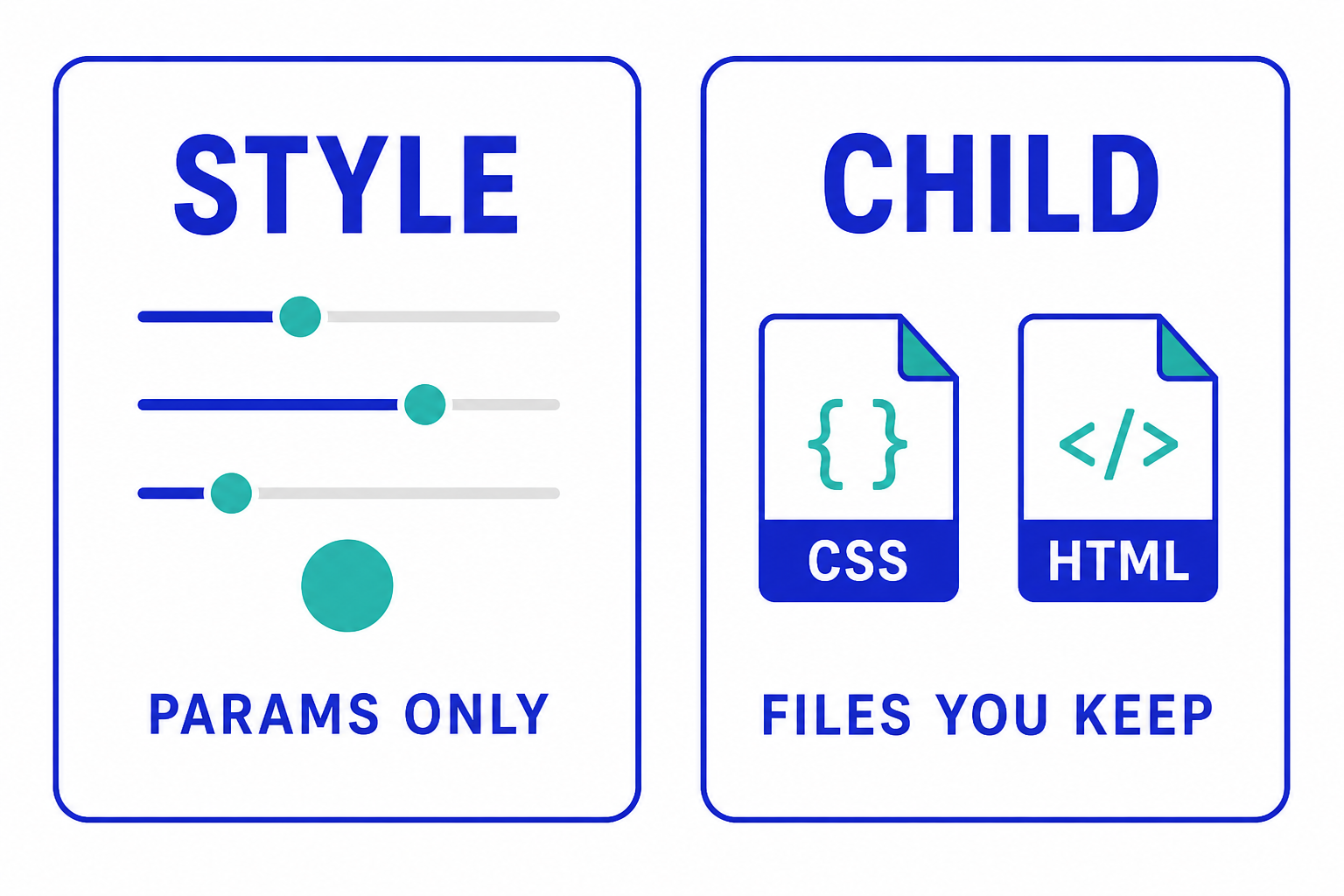
A style stores params. A child stores files. You usually need both: create the child, then assign its style.
Benefits of a Joomla child template
Here is why this is worth the extra click.
- Updates stop wiping your work. Joomla can patch Cassiopeia (or your club parent). Your
user.css, overrides, and extra positions stay in the child folder. - You keep a stock parent. Security and accessibility fixes in the core template actually get installed. You are not sitting on a frozen fork named “Cassiopeia copy 3.”
- The child stays small. You duplicate one file, not the whole template. Less to maintain, easier to see what you changed.
- Several looks, one parent. Homepage, knowledge base, and logged-in portal can each have a child. Same Cassiopeia under them, different CSS or
index.php. - Overrides stop fighting the vendor. If the parent already ships
html/com_content/article/default.php, you override it in the child. A parent update refreshes their copy. Yours stays. - The administrator can match the brand. Atum is inheritable. A child of Atum can add a client logo or hide clutter without forking the backend template.
- You can still use styles. Logo, colour params, and menu assignment stay on the style. The child protects files. Together they cover look and safety.
A child is not a speed plugin and not a page builder. It does not replace PHP 8, a CDN, or image work. It replaces the habit of editing files Joomla will overwrite.
Before you click Create Child Template
- Version. System → System Information. You need 4.1.0 or newer. Joomla 5.4 and 6.1 both work.
- Backup. A child is safe. Deleting the parent later is not.
- Parent must be inheritable. Open the parent’s
templateDetails.xmland confirm<inheritable>1</inheritable>. Cassiopeia (site) and Atum (admin) have it. Many older commercial templates do not. If the button is missing, this is why. - Work from Templates, not Template Styles. Styles assign. Templates create children.
On Joomla 3, stop here. There is no native child. Migrate first: Joomla 3 to Joomla 6 Upgrade.
🔗 Joomla User Manual: Child Templates
Official clicks: create the child, adduser.css, assign a menu item.
Do these in order: create, CSS, override (if needed), assign. Creating the child does not change the public site until you assign the style.
Step 1: Create the child from the parent
- Go to System → Templates → Site Templates.
- Open Cassiopeia Details and Files (or your inheritable parent).
- Click Create Child Template.
- Type a short name, for example
brandorportal. Joomla prefixes the parent. You getcassiopeia_brand. - Create, then Close the parent.
- Open cassiopeia_brand Details and Files.
You should see a folder tree and almost only templateDetails.xml. That emptiness is correct. Do not copy the whole parent in.
Joomla 6.1 extra: if you already use Cassiopeia Extended and want a second variant, open that child and use Copy Child Template instead of creating from Cassiopeia again. Then check that /templates/your_child and /media/templates/site/your_child use the same element name. If the editor says the directory is not writable, the media folder name is usually wrong. Rename it to match, or recreate the child on the current 6.1 patch.
Administrator child: same flow under System → Administrator Templates, parent Atum. Assign that style afterward if you want a branded backend.
Step 2: Know where your files must live
Put files in the child, not in Cassiopeia.
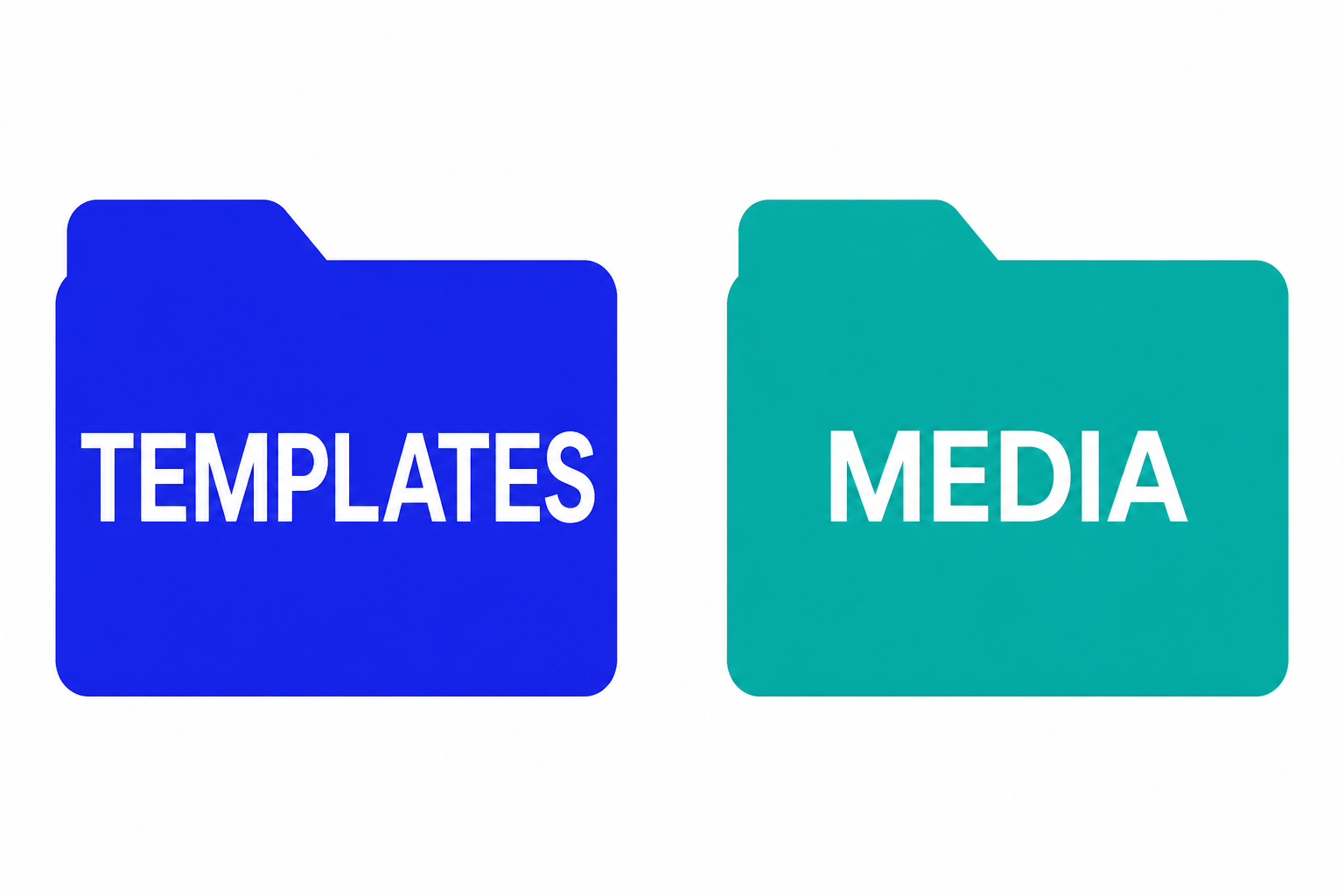
PHP, XML, and html/ overrides live under templates/your_child/. CSS, JS, and images live under media/templates/site/your_child/. The Template Editor css folder is the media folder.
| What you are changing | Put it here (example child cassiopeia_brand) |
|---|---|
| Manifest, extra positions | templates/cassiopeia_brand/templateDetails.xml |
index.php, error.php |
templates/cassiopeia_brand/ only if you copy them |
| Component and module overrides | templates/cassiopeia_brand/html/… |
| CSS, JS, images, scss | media/templates/site/cassiopeia_brand/ |
The Template Editor’s css folder is the media CSS folder. It is not templates/cassiopeia/css/ on Joomla 4.1, 5, or 6. If user.css sits in the old 4.0 path, the site ignores it.
Leave the parent XML as inheritable. The child XML should look like this (simplified):
<inheritable>0</inheritable>
<parent>cassiopeia</parent>
If you zip the child for another site, change the template name and the media destination together.
Step 3: Add user.css (do this on almost every site)
Cassiopeia loads user.css last when the file exists in the child.
- In the child, click New File.
- Select the css folder.
- Filename:
userwith no.cssin the name field. File type: .css. - Create, then paste your rules. Save.
Starter example:
.container-header {
  background-color: darkgreen;
  background-image: none;
}

h1, h2, h3 {
  color: darkgreen;
}
Clear Joomla cache and the browser cache, then view a page that uses this child’s style. If nothing changes, you assigned the wrong style, or the CSS file is not in the child’s media folder.
On Joomla 6 with Cassiopeia Extended assigned: use Colour Settings and Font Settings on the style first. Those write CSS variables such as --headerbg and --link-color. Add user.css only for rules the params cannot do. You can still use those variables inside user.css.
🔗 Cassiopeia Extended colour and font options
How the core Joomla 6 child adds params without you forking Cassiopeia.
Step 4: Add a layout override in the child
Do not edit overrides inside Cassiopeia. Create them in the child.
- Open the child Details and Files.
- Open the Create Overrides tab.
- Pick the component or module, for example com_content → article.
- Joomla copies the layout into the child’s
html/folder. - Edit that file. Save.
Typical path: templates/cassiopeia_brand/html/com_content/article/default.php.
If the parent already ships an override, still create yours in the child. A parent update can replace the parent’s html/ files. It will not replace the child’s.
Step 5: Copy index.php only when chrome must change
Skip this step if CSS and overrides are enough.
Copy index.php into the child when you need extra module positions, a different grid, or extra Web Assets. Prefer requiring the parent instead of pasting a full fork.
Cassiopeia Extended does this: it loads Cassiopeia’s index.php, then registers extra CSS. The idea in the child is:
defined('_JEXEC') or die;

require JPATH_THEMES . '/cassiopeia/index.php';

$wa = $this->getWebAssetManager();
// register extra styles or scripts here
Need custom JavaScript? Put a JS file in the child’s media js folder and register it, or follow How to Add Custom JavaScript to Joomla. Do not drop a raw <script> into a copied index.php unless you have no other hook.
Step 6: Add a module position (only if the layout needs it)
- Edit the child’s
templateDetails.xml. - Add a
<position>brand-hero</position>(use your name). - If
index.phpis not in the child yet, copy it, then add:
<jdoc:include type="modules" name="brand-hero" style="html5" />
- Save both files.
- In Content → Site Modules, the new position should appear.
XML without the jdoc:include lists the position in the manager and never prints it on the page. Do not remove parent positions that modules still use. You will get an empty region and no error.
Step 7: Assign the child on the front end
Creating the child does not change the public site.
- Go to System → Templates → Site Template Styles.
- Open the style for the child (often
cassiopeia_brand - Default). - Rename it to a human label, for example Cassiopeia Brand.
- Either set it as default, or open Menu Assignment and tick the items that should use it.
- Save. Open those URLs logged out.
Home can stay on Cassiopeia. A landing page can use the child. Same assignment model as any other template.
Step 8: Check the result and cache
- View source or the Network panel and confirm
user.cssloads from/media/templates/site/cassiopeia_brand/css/(your child name). - Confirm the override markup on an article if you added one.
- System → Maintenance → Clear Cache, then a hard refresh.
- Update Joomla on staging and confirm the child files are still yours.
If CSS never loads, the file is in the parent, the style is wrong, or a CDN is serving an old sheet. Child templates do not replace hosting and image work. For that stack use How to Speed Up a Joomla Website in 2026.
Which setup to use
| You need to… | Set up |
|---|---|
| Colour, font, spacing | Child user.css, or Joomla 6 colour/font params |
| Different article or module HTML | Child html/ override (Create Overrides) |
| Extra positions or extra assets | Child index.php that requires the parent when possible |
| Logo or brand colour per menu item, no PHP | Template style on the same template |
| Second full look that survives updates | Second child, then assign styles |
| Branded administrator | Child of Atum, then assign the admin style |
What not to do while setting up
- Do not edit Cassiopeia or Atum “just this once.” Create the child first.
- Do not copy every parent file into the child. That is a fork. You will skip updates.
- Do not uninstall the parent while children exist.
- Do not assume a commercial template is inheritable. Check
<inheritable>1</inheritable>. - Do not put
user.cssundertemplates/cassiopeia/css/on 4.1+. - Do not treat Cassiopeia Extended as a parent to hack. It is already a child. Copy it on 6.1, or create a new child of Cassiopeia.
Building a new inheritable parent is a different job. The Joomla template generator scaffolds that XML flag. It does not convert an old Helix or Protostar fork by itself, and it does not replace Create Child Template.
Make any template support child templates
Any Joomla 4.1+ template can support child templates if the parent opts in. Cassiopeia and Atum already do. A club template does not, until its templateDetails.xml says so and its CSS, JS, and images live under media/.
This is a parent-template change. You need the source (your template, or a fork you are allowed to change). You cannot turn Helix into an inheritable parent by creating a child of Cassiopeia.
Work on a copy. Package it as a template update. Test on staging.
🔗 Child templates are opt-in (dGrammatiko)
The feature author: inheritable XML, media folder, and the PHP path mistakes that break children.
1. Confirm the button is really missing
Open System → Site Templates, then the parent Details and Files. If Create Child Template is there, stop. The parent already supports children. Go to Step 1 of this article.
If the button is missing, open templateDetails.xml. No <inheritable>1</inheritable> means this parent cannot have children yet.
2. Mark the parent as inheritable
In the parent’s templateDetails.xml add (or set):
<inheritable>1</inheritable>
Leave it off the child. Children use:
<inheritable>0</inheritable>
<parent>yourtemplate</parent>
yourtemplate must match the parent’s folder name, for example cassiopeia or acme.
3. Move CSS, JS, and images into media
Child templates expect static assets in Joomla’s media tree, not only inside templates/yourtemplate/css/.
In the install package, put css, js, images, and scss under a media/ folder, then declare:
<media destination="templates/site/yourtemplate" folder="media">
  <folder>css</folder>
  <folder>js</folder>
  <folder>images</folder>
  <folder>scss</folder>
</media>
After install, files land at media/templates/site/yourtemplate/. For an administrator template, use templates/administrator/yourtemplate as the destination.
Keep PHP chrome (index.php, error.php, html/) in templates/yourtemplate/. That split is the same as Cassiopeia.
4. Stop building URLs with $this->template
A child has a different folder name. If the parent does this, the child’s CSS and logos miss:
$path = $this->baseurl . '/templates/' . $this->template . '/images/logo.svg';
Point at the parent media path, or register files in joomla.asset.json / the Web Asset Manager:
$path = 'media/templates/site/yourtemplate/images/logo.svg';
PHP includes have the same trap. Include the parent file, not a path that uses $this->template:
include JPATH_THEMES . '/yourtemplate/base.php';
If you skip this step, Create Child Template may appear and the site still looks unstyled.
5. Reinstall or update so the database matches
Saving XML in the Template Editor is not always enough. Joomla also stores inheritability on the template style row.
Install the updated package (or copy files, then reinstall with method="upgrade"). After that, Create Child Template should show on the parent.
If the XML looks right and the button is still missing, the #__template_styles row for that template may still have inheritable set to 0. Fix it on staging, then reload the Template Manager. Do not guess at production SQL.
6. Create the child the normal way
Use Step 1 in this article on the new parent. Custom CSS goes in the child’s media css folder. Cassiopeia auto-loads user.css. Your template might not. If it does not, register that file in the parent (or in a thin child index.php that requires the parent) so the child sheet actually prints.
Club templates you cannot fork: ask the vendor for a 4.1+ inheritable build, or keep their documented custom-CSS field. Do not paste <inheritable>1</inheritable> onto a live Helix package that still stores CSS under templates/.
🔗 templateDetails.xml (Joomla Programmers Documentation)
Officialinheritableandmediaelements for a parent template.
🔗 JCM deep dive on child files and positions
Media destinations, extra positions, and child vs override.
Key takeaways
- Create the child from Site Templates, add only what you change, assign it under Template Styles.
- Benefits: updates do not wipe custom CSS and overrides, the parent stays stock, you can run several looks, and Atum can have a child too.
- You need Joomla 4.1+. Cassiopeia and Atum are inheritable. Joomla 6 ships Cassiopeia Extended as a ready child.
user.cssbelongs in the child’s media CSS folder.- Overrides belong in the child’s
html/folder, created from Create Overrides. - Copy
index.phponly for chrome and positions. Prefer requiring the parent. - Styles assign. Children protect files. You usually set up both.
- Any template can be a parent if it ships
<inheritable>1</inheritable>, assets undermedia/templates/…, and paths that do not depend on$this->template.
Frequently asked questions
How do I create a Joomla child template?
Open System → Site Templates, open Cassiopeia (or another inheritable parent), click Create Child Template, name it, then close. Open the new template, add files, then assign its style under Site Template Styles.
What problem do Joomla child templates solve?
Edits inside Cassiopeia (or any parent) disappear when that template updates. Duplicating the whole template avoids the wipe but blocks future parent fixes. A child keeps only your files, so the parent can still update.
Why use a Joomla child template?
So Joomla can update the parent while your CSS, layout overrides, and extra positions stay in a separate folder. You also get more than one look from the same parent, and you can brand Atum the same way.
Which Joomla version do I need?
Joomla 4.1.0 or later, including Joomla 5 and 6. Joomla 3 and Joomla 4.0 have no Create Child Template button in core.
Why is the Create Child Template button missing?
You are below 4.1, or the template is not inheritable. Open templateDetails.xml and look for <inheritable>1</inheritable>.
Where do I put user.css?
In the child, New File → css folder → filename user → type .css. On disk: media/templates/site/your_child/css/user.css.
Is a child template the same as a template style?
No. Create the child under Templates. Assign it under Template Styles (default or Menu Assignment). You need both for the public site to change.
Do I have to copy index.php?
No. Most setups only need user.css and maybe one override. Copy index.php when you add positions or change page chrome. On Joomla 6, try Cassiopeia Extended’s colour and font tabs first.
Can I set up a child of the administrator template?
Yes. System → Administrator Templates → Atum → Create Child Template, then assign the admin style.
What if my commercial template has no child button?
It is probably not inheritable. Use the vendor’s custom CSS feature, ask them for a 4.1+ inheritable build, or switch to an inheritable parent. Do not only add <inheritable>1</inheritable> if CSS still lives under templates/.
How do I make my own template support child templates?
On the parent: set <inheritable>1</inheritable>, move CSS, JS, and images into media/ with a <media destination="templates/site/yourtemplate"> block, stop building URLs with $this->template, then reinstall so the style row updates. After the Create Child Template button appears, create the child as usual.
Conclusion
Setup is the whole point. Create the child, put user.css in the media CSS folder, add overrides in the child’s html/ folder, assign the style, leave the parent stock.
Do it on staging today. One menu item is enough to prove it. Then stop editing Cassiopeia.
If the parent is a custom Joomla 3 fork with no inheritable flag, Infyways Joomla design and Joomla upgrade set this up as a cutover: stock parent, thin child, files you can still explain in six months.