A Joomla 500 error means PHP or the web server aborted the request. The extension name is in the log, not in the generic “Whoops” page. Read error_log (and Joomla’s log folder), turn Debug on from Global Configuration or configuration.php, then isolate the last update. On a staging copy only, you can temporarily rename a plugin folder to prove the group. Never delete production files without a backup, and never “clean up” live plugins to find a 500.
The browser message is empty on purpose. Production hides fatals. Your job is to make the fatal visible in a log, then disable one extension, not the whole site.
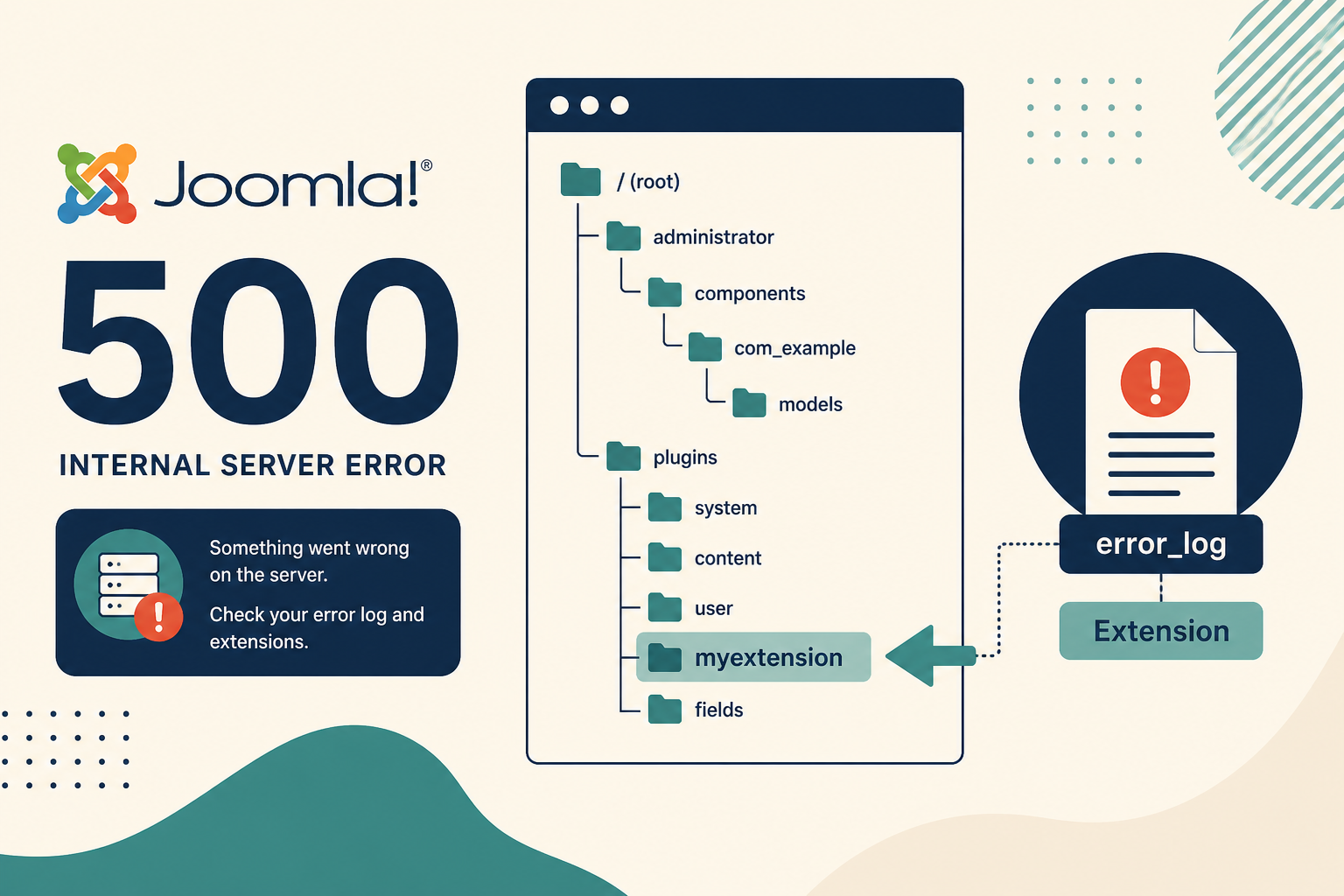
The HTML is a dead end. The PHP error log is the map. The path under plugins, modules, or components is the extension.
What you will learn
- Where hosts put
error_logand where Joomla writesadministrator/logs - How to enable Debug and Maximum error reporting when the admin still opens
- How to set
$debugand$error_reportinginconfiguration.phpwhen admin does not - Why the last update is the first extension to disable
- How to rename a plugins folder on staging only as a group test
- How to disable one row in
#__extensionswithout deleting files - What not to do on production
Official: Fatal error (Joomla User Manual). If the site runs but two add-ons fight, use Joomla extension conflict instead of this 500 path.
500 vs white screen vs “Whoops”
Joomla 4 and 5 often show a page titled like Whoops, looks like something went wrong with an HTTP 500 status. That is still a server 500. A white screen is the same class of failure with display_errors off.
| Source | What it is good for |
|---|---|
PHP error_log (host panel, or a file in the account) |
Fatals that happen before Joomla’s pretty error page |
| Web server error log (Apache/nginx) | .htaccess, PHP-FPM socket, permissions |
administrator/logs/ (or the path in Global Configuration) |
Joomla Log::add and some extension logs, not every fatal |
| Debug System + Error Reporting Maximum | Stack trace after Joomla has bootstrapped |
| Browser Network tab | Confirms 500 vs 403 vs timeout. Does not name the PHP file |
If the log line is .htaccess or mod_security, you may not have an extension problem. Fix the server rule, then come back if PHP still fatals.
Step 1: Copy the site, then backup production anyway
Before any rename, disable, or configuration.php edit on a live site:
- Snapshot or copy files and the database (host backup, or your own). If you cannot restore, do not experiment on production.
- Prefer a staging URL with the same Joomla and PHP versions. Do the hunt there. Deploy the known-good disable back to production.
- Tell the team the site may be briefly noisy if you enable Maximum error reporting on production.
Do not delete the plugins directory on production “to see what happens.” You will take down authentication, two-factor, and SEF. You may not get admin back without a restore.
If you need someone else to hold the copy and the log hunt: Joomla support and maintenance.
Step 2: Read error_log before you click around
Ask the host where PHP logs. Common places:
- cPanel Errors or Metrics → Errors
- Plesk PHP log
- A file named
error_loginpublic_htmlor in the account home ~/logs/error.logon some VPS stacks
Open the log at the timestamp of your test request. One line of PHP Fatal error is worth an hour of plugin guessing.
Copy:
- The exception class (
Error,TypeError,ParseError) - The file path and line
- The first few frames of the stack if present
Map the path:
plugins/system/example/→ System plugin “example”plugins/content/example/→ Content pluginmodules/mod_example/→ that module (unpublish it in Site Modules once admin works)components/com_example/→ that componenttemplates/cassiopeia/or a child → template PHP, often an override. See customize without editing core after the site is up.libraries/→ core or a library package. Do not deletelibraries. Restore a backup or revert the last Joomla update.
Joomla also logs under Global Configuration → System → Path to Log Folder (default administrator/logs). Check everything.php or dated files if the host PHP log is empty. Many fatals never reach Joomla’s logger because PHP died first. That is why error_log is step 2, not step 5.
Step 3: Debug from Global Configuration, or from configuration.php
If administrator still loads:
- System → Global Configuration.
- System tab: Debug System = Yes.
- Server tab: Error Reporting = Maximum.
- Save. Reload the failing site URL once (and the admin URL if that is what 500s).
- Read the on-screen file and line. Then set Debug = No and Error Reporting = System Default. Save.
The Debug console is configured by System – Debug. Allowed Groups can hide the console from guests. You still want Maximum reporting for the fatal text.
If administrator is a 500 too, do not keep hitting login. Use FTP or the host file manager:
- Download
configuration.php. Keep a copy. - If the file is 444, set it to 644 long enough to edit (the manual describes this).
- Set
public $debug = true; - Set
public $error_reporting = 'maximum'; - Save. Reload once.
- Put
$debugback tofalseand$error_reportingback to'default'or'none'(match what you had) as soon as you have the path. Leaving Maximum on production leaks paths to visitors.
Official steps: Fatal error.
Optional: rename the template’s error.php on staging if that file is itself fataling and hiding the real message. Do that only on the copy.
Step 4: Disable the last update first
System → Update → Extensions (if admin works) or your change log:
- Last extension update
- Last Joomla update
- Last PHP version change on the host (this 500s old extensions without a zip install)
Disable in this order once you have a path, or if the log is empty but the clock matches an update:
- The extension named in the log.
- If the log names a plugin, disable that plugin in System → Plugins (or
#__extensionsbelow). - If admin is down, you cannot click Plugins. Use the database: table
#__extensions(your prefix), findelementmatching the plugin name, setenabledto0. The user manual describes this for a faulty extension. Do not set core rows to0unless you know the row. - If the last change was a component update, disable its plugins first (packages register several rows). Then take the component off the default menu item so it is not the Home view.
Clear cache files on disk if page cache is on (cache/ folder) after a disable. A cached 500 is rare. A cached blank HTML is less rare. Still worth deleting cache/ on staging.
Step 5: Staging only, rename a plugins folder to test a group
This is a group proof, not a production technique.
On staging:
- Confirm you can restore (snapshot, or a zip of
plugins/you just made). - Rename one third-party plugin directory, for example
plugins/system/suspect→plugins/system/suspect.off. Joomla will skip that folder. Core plugins stay. - Reload. If the 500 is gone, that folder was in the path (or something it triggered was).
- Rename it back. Disable the plugin properly in the database or UI so the site does not fatal on the next page that autoloads it in a different way.
You can rename a group folder on staging in an emergency, for example plugins/system → plugins/system.off, to see whether any system plugin is involved. That will break a lot of features. It is a binary test on a copy, then you put the folder name back immediately and disable one plugin at a time.
Do not do this on production. Do not delete the folder. Do not rename plugins as a whole on a live shop. You will remove authentication plugins and lock everyone out. If you already did that on production, restore the backup from Step 1. Do not invent a “fix” by uploading empty directories.
If you need a batch disable with the UI still up, that is the conflict article’s plugin batches, not a filesystem delete.
Step 6: Database disable when the UI is dead
phpMyAdmin or an SQL client, on a backup first:
- Table:
{prefix}_extensions - Find the row:
type= plugin,element= the plugin name,folder= system/content/… - Set
enabled= 0
For a module, you can also unpublish in {prefix}_modules (published = 0) if the log named mod_….
For a component Home page that 500s, change the default menu item in {prefix}_menu to a core featured or article view, or disable the component’s plugins, rather than DROP TABLE. Deleting tables is how you turn a 500 into a restore.
When admin returns, uninstall or roll back the extension with System → Manage → Extensions if you are done with it. Uninstall is not the same as deleting folders by hand. The installer cleans #__extensions rows.
Memory, timeouts, and logs that name PHP, not an extension
Some 500s never mention plugins/. They still belong to an extension.
- Allowed memory size exhausted at a line in
plugins/system/example/is that plugin (or a loop it triggered). Raisememory_limitonly on staging to confirm. On production, fix the plugin or the data set it loads (a module that queries every article is a typical case). - Maximum execution time exceeded in a component view is that component, or a plugin that runs on that view. Do not raise
max_execution_timeas the only fix. - PHP Parse error in an override under
templates/…/html/is your copy, not the vendor zip. Restore the core layout on staging, then repair the override in a child.
.htaccess 500s often follow a security plugin that wrote rewrite rules, or a hand edit after an extension installer. On staging, temporarily rename .htaccess to .htaccess.bak and use Joomla’s default htaccess.txt copied to .htaccess. If the 500 vanishes, the rules were the problem. Put your custom rules back one block at a time. Do that on production only after a backup, and only if you can restore via the host panel when you lock yourself out.
Gzip in Global Configuration plus Maximum error reporting can produce odd output on some hosts. If Debug shows a fatal and the browser still shows a generic 500, disable Gzip for the test. Turn it back on later.
After the site loads, close the hole
- Set
$debugfalse and error reporting off/default. - Set Preview and Debug plugins back to normal groups.
- Update or replace the extension. If it needs old class names on Joomla 5, that is a compatibility check on the installed but not working article, not a reason to leave Debug on.
- If a plugin
tmplwas the fatal (parse error in an override), fix the override in a child. Plugin override. - Write the extension name and version in your runbook so the next 500 is shorter.
Log first. Last update second. Rename plugin folders only on staging. Never delete live files to “test.”
Key takeaways
- A Joomla 500 is a server abort. The extension is named in error_log (or a Debug stack), not in the Whoops HTML.
- Copy the site or take a full backup before you change
configuration.phpor plugin folders on anything you care about. - Enable Debug and Maximum error reporting only for the reproduce, then turn them off.
- Disable the last updated extension first when the clock matches and the log agrees.
- Rename plugin folders only on staging, as a temporary proof. Put the names back. Disable via Plugins or
#__extensions. - Never delete production
plugins/,components/, orlibraries/to debug. Restore from backup if you already did. - Database
enabled = 0on one extension row is the safe UI-down move. Dropping tables is not. - When two extensions work alone and 500 together, finish recovery then use the conflict process.
Frequently asked questions
How do I find which Joomla extension is causing a 500 error?
Read the PHP error_log at the request time. The file path under plugins/, modules/, or components/ is the extension. Enable Debug if Joomla still bootstraps. Then disable that extension, starting with the last update if the log is empty.
Can I rename the plugins folder on the live site?
No. Use staging. On production, take a backup and disable one #__extensions row, or restore. Renaming plugins on live removes authentication and can lock out admin.
Admin is a 500. How do I turn on debug?
Edit configuration.php: $debug = true and $error_reporting = 'maximum'. Reload once, copy the error, then turn both back off. The user manual documents the permission change if the file is read-only.
The error_log is empty. What next?
Check the web server log, Joomla’s log path, and whether you are looking at the right vhost. Enable Maximum reporting on staging. If PHP dies before logging, ask the host for the FPM log.
Should I delete the extension files to stop the 500?
No. Disable it. Deleting files on production without a backup is how you lose the only copy of a paid extension and still leave broken #__extensions rows. Restore, then uninstall from the administrator when it loads.
Could PHP be the “extension”?
A host PHP upgrade can fatal old extensions. The log still names the extension file. The fix is an update of that extension, or rolling PHP back on staging to prove it.
When is a 500 not an extension?
Disk full, bad database credentials in configuration.php, a broken .htaccess, or a core update that failed mid-way. The log still decides. If it names libraries/ after a Joomla update, restore the update backup, do not delete libraries.