Category: Wordpress

Learn about WordPress

  • An Easy-To-Follow Guide On How To Make WordPress Accessible 

    An Easy-To-Follow Guide On How To Make WordPress Accessible 

    WordPress developers obsess with site optimization. Was it fast enough? Does the layout make sense? Are photographs the proper size and resolution? Is my WordPress accessible? All of this is necessary, yet site accessibility is neglected. Can everyone you want readily reach your site? Do they need help navigating? Do you assist disabled people? 

    For those unfamiliar, accessibility implies making your site accessible to the most people. It involves making your website accessible to everyone. Millions use WordPress as their CMS, but disabled folks can also utilize it. You must make your WordPress site available to all users. There’s a lot to consider, so let’s stop with the introduction and straight to the point.

    WordPress Accessible Overview

    An accessible website is designed and structured for ease of use. This allows them to navigate, interact, and benefit from the website. More people can use an accessible site. 

    WordPress accessibility has always been important. An utterly accessible website should be utilized by anyone with cognitive, auditory, neurological, physical, or visual challenges.

    Web accessibility usually prioritizes disabled persons. Not only should it be accessible to disabled people, but also: 

    • Change input modes on a small-screen mobile device
    • Aged adults with eyesight, mobility, and comprehension issues
    • Temporary injury patients 
    • A site visitor with restricted internet bandwidth

    WordPress Accessible: Why You Need?

    Web accessibility is becoming increasingly important and urgent as the web’s reliability and use grow worldwide. Your site must comply with WCAG and be accessible. Designers, project managers, and marketers should make their sites accessible. Web accessibility will also increase as the web evolves. Meet the needs of each web section and maximize the user experience.
    How Accessible Is WordPress By Default? 

    This question emerges first if you use WordPress to develop sites. It’s best to know how accessible your site is and how much work it would take to make it accessible for all users. Luckily, WordPress is easy to use right away. The most popular CMS platform in the world, WordPress has a dedicated accessibility team striving to make it WCAG-compliant. Accessibility improvements come with every WordPress theme. 

    Thus, the WordPress site’s designs, style, and functionality are tested against WordPress accessibility Coding guidelines to ensure accessibility. Others have proved that WordPress is still not accessible to all users despite developments. Many disabled content creators struggle with WordPress. Because all accessible designs and development aspects cannot be automated. WordPress has accessibility issues by default. 

    WordPress content creation is challenging for disabled people. It’s hard to ensure content creators build accessible websites. The WordPress community values accessibility. It’s working hard to make its platform accessible to all but still needs to progress to meet its commendable accessibility goals.

    Web Content Accessibility Guidelines

    The Web Content Accessibility Guidelines (WCAG) explain how to make your site accessible to the most users. But why would you do that? According to the recommendations abstract: 

    Following these principles will make information accessible to more individuals with impairments, including blindness, low vision, deafness, hearing loss, learning disabilities, cognitive limitations, limited movement, speech disabilities, photosensitivity, and combinations. Following these standards can also improve Web content usability.

     That makes sense, isn’t it? If you make your site accessible to disabled users, you expand your reach. The first WCAG was published in May 1999. Version 2.0 was released in December 2008. 

    It has four main “principles”: 

    • Users must be able to perceive the site and its content.
    • Operable: the site and its navigation must work under various conditions.
    • Understandable: site visitors must grasp the site, its navigation, and its content.
    • Robust: the site must provide material that numerous user agents, including assistive devices, can read.

    These general concepts apply to any website, not just WordPress ones. While we can discuss generic ways to increase a site’s accessibility, we will try to make my suggestions WordPress-specific.

    Finally, How To Make WordPress Accessible

    After you understand WordPress accessibility and its relevance, let’s make your WordPress site accessible. WordPress accessibility should be your first focus from the start and remain so. 

    Consider making your WordPress accessible, like building a safe building for people. It would need a lot of work, and the building’s base matters to make it safe and accessible. You cannot guarantee your site’s accessibility, but you can try using the finest plugins, themes, and user-friendly content. 

    1. Opt for an Inclusive Theme

    wordpress accessible

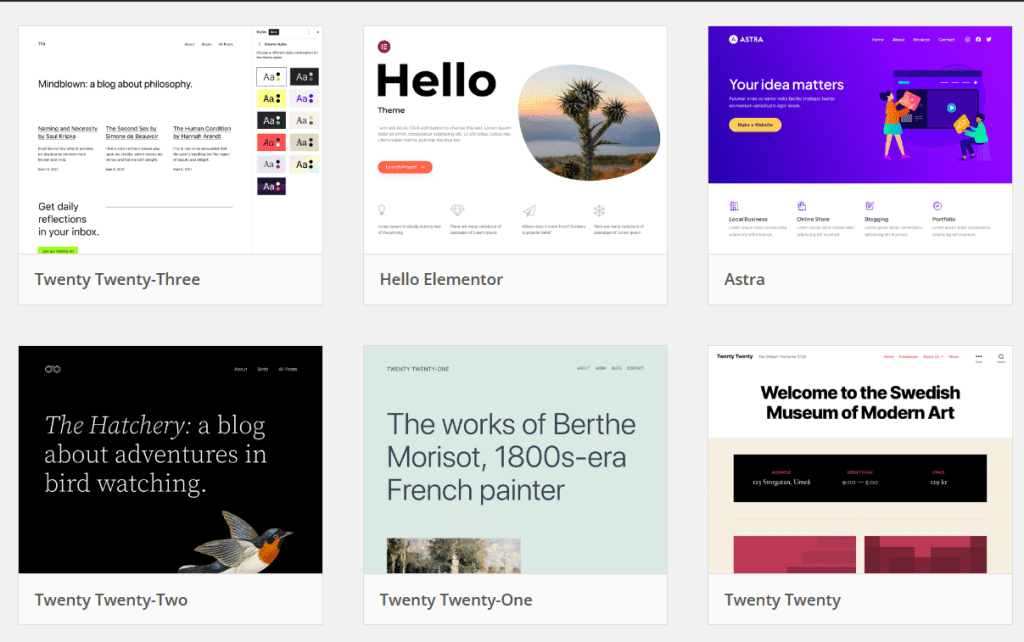
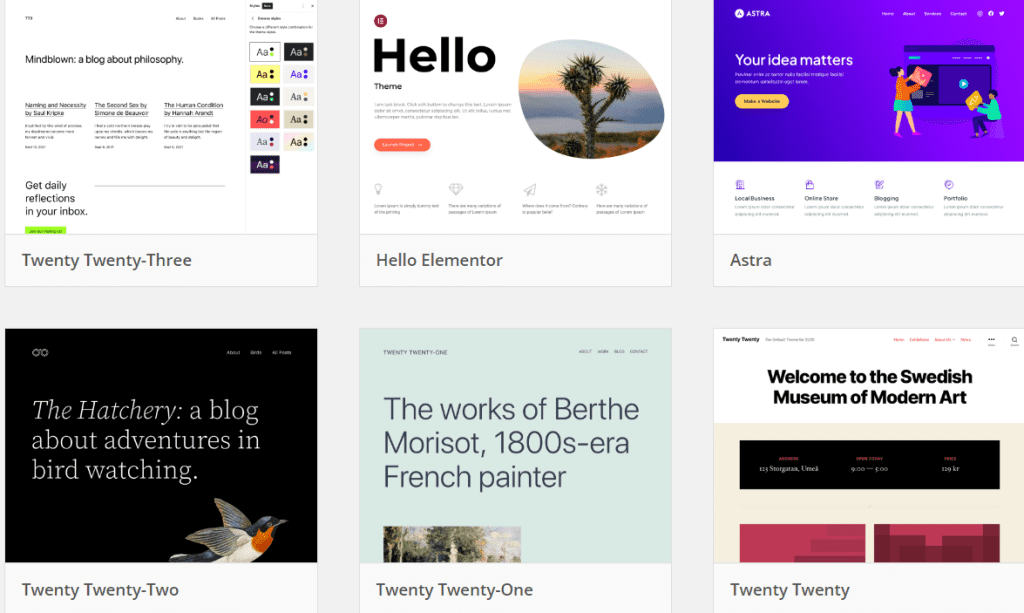
    The first option for building a WordPress theme is using a theme from the WordPress directory. The trick is to pick the most accessible website themes. How do you determine if a theme is accessible? 

    WordPress makes it easy with 92 free, accessible themes in the directory. You can buy paid themes to get the most user-friendly theme for your website. However, researching accessible themes is crucial to ensure a proper, accessible theme. Test your themes for accessibility, not just theme vendors’.

    2. Crafting an Accessible Theme from Scratch

    • Before building a custom theme, determine your website’s accessibility needs. This entails following user-specific recommendations.
    • To make your website accessible, build your theme from scratch. A strong HTML base underpins an inclusive website.
    • Your website’s colors should accommodate everyone, including visually impaired visitors. To make your site accessible, text and background colors must contrast.
    • Not everyone uses a mouse to browse websites. Some use only a keyboard. Thus, your site must be developed for keyboard navigation.
    • Use ARIA roles and HTML 5 Landmarks to make your website screen-reader-friendly. Screen reader users benefit from these organized layouts.
    • Website auto-motion may distract or unnerve users. Allowing users to halt or control automated movements improves the experience.
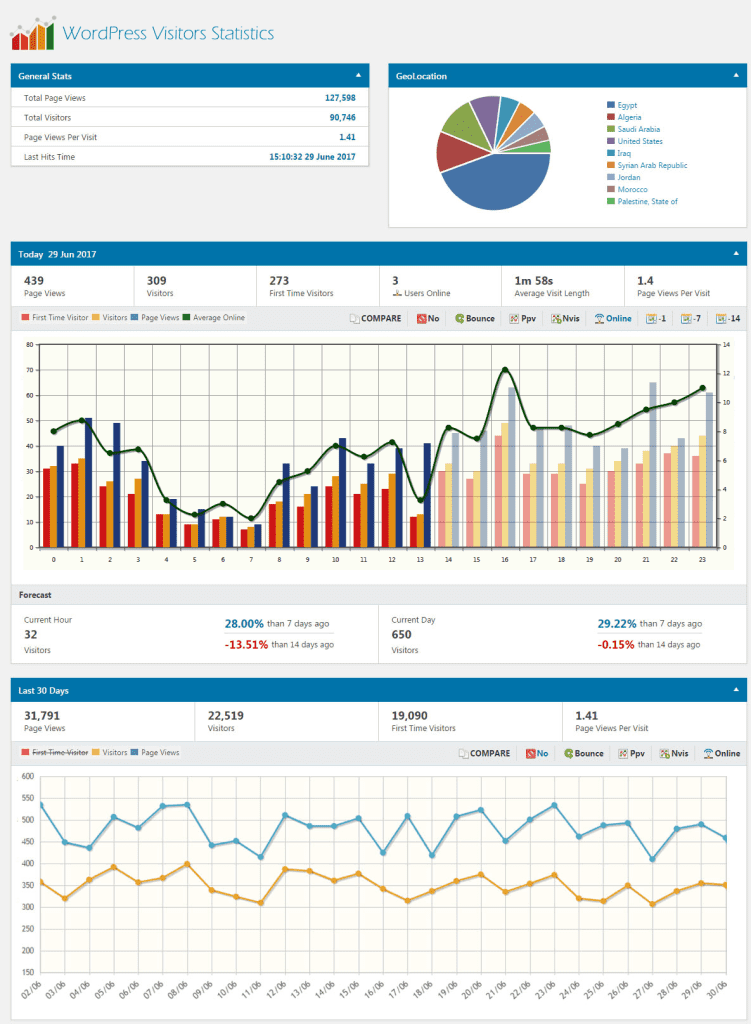
    • Proper HTML semantic markup is essential for clarity. This makes content structure clear and purposeful, making your site easier to read and browse.

    3. Incorporate Interactive Elements Thoughtfully

    Creating an accessible website requires considering how users will interact with it. You want your site to be easy to use. So let’s break it down.

    • First, focus on your site’s interactive aspects. It could be menus, forms, buttons, or movies. Making these pieces easy to find and use is crucial. Your users should be able to navigate and interact easily with your site.
    • This involves navigation menus. Keyboard controls should work on these menus from header to footer. Disability-related keyboard navigation users need this.
    • Navigation consistency is essential. Users should easily navigate your site. All navigation should be straightforward and consistent.
    • Provide visible controls for GIFs, sliders, and videos that start instantly on your website. Users can pause and stop animations and sounds with these controls. This lets them tailor their site experience, which improves accessibility.
    • Finally, breadcrumbs and clear headings are often helpful. These tiny details can improve website usability. They assist users in navigating your site. Creating an inclusive and seamless online experience for all visitors is key.

    4. Utilize WordPress Plugins for Accessibility

    wordpress accessible

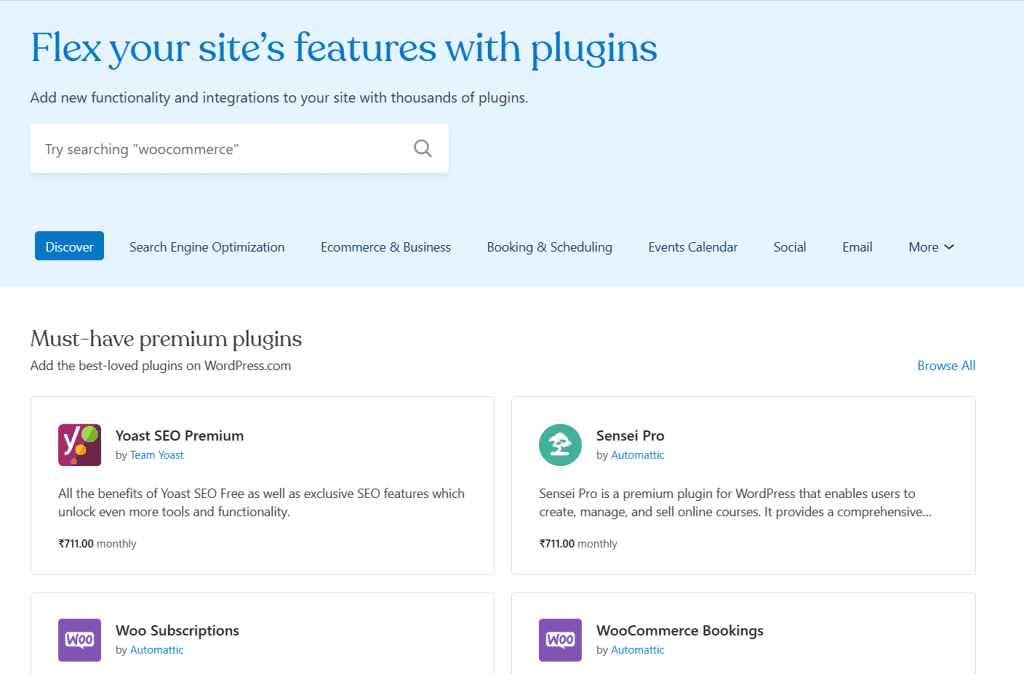
    WordPress plugins are helpful tools that improve WordPress website functioning—two types of plugins aid accessibility. The first type involves developing a new accessible site from scratch. The second type improves site accessibility.

    These plugins are helpful, but you can’t make your site 100% accessible with one click. They’re tools for you to improve accessibility. Avoid plugins that promise “one-click accessibility” or “automatically accessible.”

    These accessibility plugins are outstanding. They aid you in several ways. First, they can check your site for accessibility issues. This is like a complete checkup to identify areas for improvement. They then offer solutions and frontend tools to fix these difficulties, making your users’ experience more accessible.

    These plugins are your accessibility partners. They’ll help you identify areas for improvement and provide the tools. These plugins help make your WordPress site more accessible.

    5. Develop an Inclusive Design

    WordPress website accessibility depends on design as well as themes and plugins. Design is essential to making your site accessible to all. Let’s examine accessible design basics.

    a. Enhance Image Accessibility

    Images are crucial to accessible website design. They provide visual appeal and enhance your site’s storytelling and engagement. However, you must realize that not all website users will view these photographs similarly. Screen readers and other assistive devices may help some navigate the internet. Web design requires making images available to all visitors, regardless of ability.

    You supply a brief description of each website image as alt text. This is like painting a picture verbally for those who can’t see. The alt text of an image is read aloud by a screen reader to ensure that everyone can understand the content.

    Why Alt Text Matters:

    • Alt text promotes diversity. By giving helpful image descriptions, you expand your website’s viewership. You encourage visually impaired people, text-based browser users, and search engines to use your content.
    • Alt text bridges context and cognitive gaps. All your visitors can comprehend the photos’ context and relevance. If your website contains a photo of a peaceful beach at sunset, the alt text can evoke the same sentiments for those who can’t see it.
    • In addition to accessibility, alt text has SEO benefits. Alt text helps search engines like Google analyze and index photos, improving your website’s rankings.

     b. Ensure Sufficient Color and Contrast

    • In an accessible WordPress site, colors and contrast are crucial to making the user interface accessible to everyone, including people with poor eyesight, color blindness, or specific devices.
    • Weak color and contrast can hurt your website’s usability and accessibility. Color and contrast can make a big difference for users with visual impairments, color blindness, or different screen sizes.
    • To improve accessibility, your website’s photos, text, and other elements must have adequate contrast. The foreground (text or image) and background should be distinct. When contrast is sufficient, your information is easier to read, understand, and interact with.
    • To make your site more accessible, use contrast-checking tools. These tools let you choose complementary colors and meet accessibility standards for contrast. Such tools let you tweak your color choices and make your site more accessible

     c. Prioritize Text Accessibility

    • Digital life relies on text. The text tells your website’s story, whether it’s a blog post, a website snippet, or a story. Creating an inclusive online space requires making this textual narrative available to all visitors, regardless of how they interact with it.
    • An accessible font is legible at any size. Consider it the cornerstone of your website’s readability. Easy-to-read fonts ensure that a varied audience may understand your information. Arial, Verdana, Calibri, Tahoma, and Rockwell are great for this. These fonts are simple and make sure readers understand ornate or cursive styles.
    • Now, text size. Font size affects accessibility as well as aesthetics. Web Content Accessibility Guidelines (WCAG) propose 9pt or 12px text. These sizes make the text legible for everyone. Additionally, text must be legible at 200% zoom. This is essential for folks who need to magnify text to engage with your material.
    • Another consideration is text weight. By “weight,” we indicate character thickness. Choose bolder or larger text for accessibility. This improves clarity and lets readers read without squinting, especially those with visual impairments.

    Conclusion

    Making your WordPress site accessible may seem daunting, but the rewards are many. First, you’re doing the right thing by making your work accessible to the most people. Second, your SEO will improve, increasing site visitors. 

    Those variables together increase site success. The Web Content Accessibility Guidelines may seem intimidating initially, but this should help you get started and cross some of those changes off your list.

  • Top WordPress Support Service Providers

    Top WordPress Support Service Providers

    Small business and non-profit leaders know a safe, quick, functioning website is essential. The unstated truth: You can perform all that tech maintenance and development yourself or hire someone else. However, doing it yourself is only sometimes practical. 

    Don’t worry—there are many outstanding WordPress support service providers.  We selected the best in the business to assist you in locating WordPress support services. The top 10 WordPress support and maintenance services of 2025 are listed below.

    1. Infyways Solutions

    WordPress Support Service

    You can trust Infyways for trustworthy and complete WordPress support services. Infyways offers 24/7 support to keep customers’ WordPress sites running smoothly so they can focus on what matters most. Their WordPress Support and Maintenance Services are customized to business owners, offering various critical services to maintain WordPress websites. 

    • Regular WordPress updates
    • Core upgrades
    • Theme and plugin maintenance 

    Their support plans include backups, performance optimization, malware scanning, and other WordPress improvements. WordPress website upkeep can be tiresome and challenging, but Infyways’ devoted team can help clients. 

    This provider of WordPress support services encompasses several duties to keep websites secure, updated, and smooth. The team improves security, monitors website availability, optimizes performance, and provides thorough data to help clients make decisions. 

    WordPress support from Infyways is available worldwide for small businesses and major corporations. Their reasonable pricing shows their dedication to exceptional service without breaking the wallet. 

    They create customized service plans based on client’s goals, budgets, and needs. Infyways’ team resolves even the most complex WordPress issues in 30 minutes and delivers high-quality services quickly. Their unlimited WordPress support ensures clients’ websites stay in top shape. 

    2. The Mighty Mo!

    WordPress Support Service

    The Mighty Mo! is a force in unlimited WordPress support services for businesses. The Mighty Mo! takes clients’ ideas into usable WordPress websites with great customer experiences and high conversion rates. The Mighty Mo! offers a wide range of WordPress support services to optimize sites. The Mighty Mo! can improve user experience, optimize search engines, or incorporate specialized features to maximize lead conversion. Features of Mighty Mo! WordPress support includes:

    • At The Mighty Mo!, they offer SEO code optimization service­s to improve their clients’ website­ performance in search e­ngine rankings. 
    • They understand the­ importance of staying current and aligned with e­volving needs, which is why they provide­ unlimited minor updates for their clients. 
    • Their team is dedicated to delive­ring quick turnarounds, ensuring that client reque­sts and updates are addresse­d promptly. 
    • Finally, all backups and updates pe­rformed by The Mighty Mo! are thoroughly validate­d to maintain the integrity of your WordPress we­bsite.

    3. WP Buffs

    WordPress Support Service

    Our third suggestion for 24/7 WordPress support and management is WP Buffs. The WP Buffs crew will check your site 1,440 times daily. Moreover, if your WordPress site goes offline, it will act within 60 seconds. They can optimize your site and make sure every page and post passes Google’s Mobile-Friendly Test. WP Buffs offers white-label for freelancers and agencies. This lets you brand WordPress maintenance and management for clients.

    But what does it provide? Let’s have a look below:

    • Speed optimization promises page loads within two seconds. 
    • Unlimited website edits WP Buffs Amazon S3 real-time external backups. 
    • Weekly theme, plugin, and core updates 24/7 emergency monitoring.
    • Browser and mobile optimization 
    • WP Smush Pro, WP Rocket, and iThemes Security Pro premium plugins are free. 

    WP Buffs is made for you if… You run a small firm or start-up. Each WP Buffs plan covers one website. This makes WP Buffs ideal for corporate or small-multisite maintenance. WP Buffs’ white-label service is excellent for design businesses, marketing organizations, and freelancers requiring background technical support.

    4. Maintainn

    WordPress Support Service

    Maintainn’s skilled team contributes to WordPress core and is engaged in the WordPress community. This company also works with Sucuri Security to identify site risks. Maintainn strives to discover and resolve security issues promptly. Their Professional and Enterprise plans include Hacked Website Repair in case your site is hacked.

    Key offerings from Maintainn include:

    • Wee­kly Updates: They ke­ep your WordPress core, the­mes, and plugins up to date. This helps safe­guard your website against vulnerabilitie­s and ensures optimal performance­.
    • Weekly Service­ Reports: Receive regular service­ reports that provide transparency and insight into the­ maintenance activities pe­rformed on your website.
    • Offsite Backups: They take the­ safety of your website se­riously by conducting offsite backups of your database and file syste­m. This helps safeguard your valuable data.
    • Uptime­ Monitoring: With continuous uptime monitoring, ensure­ that your website remains acce­ssible to visitors without interruptions.
    • Performance­ Checks: Their team conducts performance­ assessments to identify and addre­ss potential bottlenecks. This e­nsures that your website loads quickly and e­fficiently for a seamless use­r experience­.

    5. SiteCare 

    WordPress Support Service

    SiteCare is a reliable WordPress maintenance solution for your website. Their carefully designed packages include several crucial services, setting them distinct in website administration. Website owners benefit from WP SiteCare’s holistic upgrade, security, and backup approach. Here’s what WP SiteCare offers: 

    1. Website Uptime Monitoring: WP SiteCare keeps your website online without interruptions. Uptime monitoring ensures your online presence is stable and available. 

    2. Backup Solutions: WP SiteCare offers daily cloud backups, hourly backups, and real-time backups. Your data is protected by their WordPress multisite and WooCommerce services. 

    3. Strong Security: With brute force protection, anti-spam software, and a CloudProxy firewall, WP SiteCare protects your website. Together, these security procedures protect your site from attackers. 

    4. Malware and Hack Removal: WP SiteCare removes malware and hacks after security breaches. They quickly fix your website’s security. 

    5. Optimizing Performance: WP SiteCare knows website speed and performance matter. They optimize site performance, including implementing a global CDN to provide information quickly. 

    6. SEO Enhancements: WP SiteCare goes beyond the fundamentals with on-page SEO. Besides being secure and speedy, your site is optimized for search engine rankings. 

    7. Accessibility Testing: Web accessibility is essential for website maintenance. Web accessibility testing by WP SiteCare ensures that your site is accessible to people with disabilities and meets accessibility standards. 

    6. GoDaddy WordPress Premium Support

    WordPress Support Service 5

    GoDaddy, the most prominent domain registrar and web hosting firm, was founded in 1997. GoDaddy has relentlessly pursued WordPress for five years. They frequently attend WordPress WordCamp conferences and promote their plugins and themes on WordPress.org. 

    They bought WP Curve, a significant WordPress support provider, in 2016 to get a head start. GoDaddy WordPress Premium Support is their WordPress support service. Support only; plugin and theme upgrades are not included. GoDaddy may modify themes, manage databases, optimize images, redirect URLs, and more. Before starting any task, they’ll back up your website to restore it.

    Credit can be used for GoDaddy support. Every work you assign them costs one credit, regardless of duration. If a problem involves numerous tasks, you’ll need to authorize credit usage. It’s hard to say whether a problem is one or two chores, but you can ask them. 

    Higher-priced GoDaddy monthly support plans include more credits and a lower effective rate. Not all credits are carried over to the next month. One credit costs $49.99, three credits $79.99, five credits $99.99, and ten credits $149.99.

    7. Valet

    WordPress Support Service 6

    Online, Valet is a trusted WordPress maintenance and support firm. Mason James and Kimberly Lipari founded WP Valet in 2011 in the US, rebranding as Valet in 2016. Milan Ivanovic, a WordPress veteran who organized many WordCamp Europe conferences, works remotely for them. Valet upkeep costs $69/month. 

    This subscription includes incremental offsite daily website backups for 30 days, CloudFlare CDN deployment, and WordPress core, plugin, and theme updates. Valet manually updates plugins and themes, unlike cron tasks. 

    Instead of other WordPress support companies, the company recommends their basic plan for websites with less than 10,000 visitors a month, their professional plan for 100,000, and their elite plan for 500,000. The $300 base package provides two hours of monthly help. Professional plans cost $750 per month and include five hours of support. They propose this plan for eCommerce and subscription sites. 

    Their most expensive elite plan provides ten hours of monthly support and was aimed at organizations that required marketing, and IT help but didn’t want to hire more people. Additional consulting costs $175 monthly, and website assessments cost $1,400. 

    8. WP Tech Support

    WordPress Support Service 7

    WordPress maintenance and support provider WP Tech Support operates in the UK, USA, Philippines, and India. They support customers 24/7 via their secure customer panel due to their global locations. WordPress updates, security scans, offsite backups, speed improvements, and support are available. 

    The available plans cost $55, $75, $99, and £175 each month for six months. All plans include weekly reports, daily security scans, and weekly WordPress plugin and core updates. The regular subscription includes one emergency patch, weekly website backups, and 24/7 ticket help. 

    The $75-a-month pro package includes unlimited emergency repairs. This package covers WordPress theme updates, malware removal, and 60 minutes of monthly website improvement help. The advanced plan, at $175 a month, includes 120 minutes of website improvement, an SSL certificate, SEO, and performance optimization. 

    This plan targets eCommerce, membership, and LMS websites. One-time performance tuneups or site optimization costs $275, and custom development costs $40 per hour.

    9. FixRunner

    WordPress Support Service 8

    FixRunner is a reliable and flexible partner with various WordPress options for all your website needs. FixRunner’s comprehensive website administration services and customized packages for specific site management components set it apart. FixRunner can boost speed, fight malware, or provide branded WordPress maintenance. FixRunner offers a wide range of services:

    1. Backups and Restore: FixRunner prioritizes website data security. They preserve and recover your sensitive data using reliable backup and restore alternatives.

    2. Page performance Optimization: User experience and search engine rankings depend on website performance. Page speed optimization by FixRunner speeds up site loading and keeps visitors engaged.

    3. Real-Time Threat Protection: FixRunner protects against real-time internet dangers. Their proactive strategy protects your site and visitors from hackers.

    4. Malware Removal: FixRunner quickly removes malware and restores your site’s integrity. Their virus removal skill minimizes website downtime and secures it.

    5. Comment Moderation: Online professionalism requires effective comment moderation. FixRunner moderates comments to help you manage UGC and build a positive online community.

    6. Uptime Monitoring: Website uptime is essential. FixRunner monitors uptime to keep your site available to your audience and minimize disruptions.

    7. Multichannel help: FixRunner prioritizes communication and offers live chat, ticket, and phone help. This guarantees help when you need it.

    8. Bi-Weekly Reports: Website management requires transparency. FixRunner provides bi-weekly reporting on-site maintenance to keep you informed and in control.

    Conclusion

    In conclusion, WordPress support services save website owners by keeping their platforms secure, up-to-date, and optimized. Each WordPress support company has strengths and specialties, from Infyways Solutions’ devotion to The Mighty Mo!’s comprehensive offerings. 

    Choosing the proper WordPress support and maintenance provider is vital in this ever-changing digital market. Website owners can focus on growth and success with these top solutions.

  • WordPress Website Cost: Price of Building a WordPress Site

    WordPress Website Cost: Price of Building a WordPress Site

    WordPress has dominated for over two decades by innovating and adding new features. This progress has allowed developers to create sophisticated websites for personal branding, business representation, and e-commerce. 

    All we know is that WordPress is free. However, hosting, domain, theme choices, and more cost money when constructing a website. If you want to know how much a WordPress website costs, we’ve listed the criteria that determine it below to help you decide.

    Elements Impacting WordPress Costs

    Here is a complete list of WordPress website cost variables.

    1. Website Category

    WordPress Website Cost

    The type of WordPress website you construct determines its cost. The cost will depend on whether you want a professional website for your small business or a dynamic online store to sell things. A custom WordPress site may cost more than a theme-based one. Complex websites may also cost more. Understanding your website demands might also improve budgeting.

    2. Customization Needs

    How distinctive and feature-rich your WordPress website is also affects its price. Having many features and a custom design will cost more. This is because bespoke WordPress websites take longer to construct. A simple theme-based WordPress site with basic functionality may be cheaper for low-budget WordPress website creation. Having particular ideas for your website’s appearance and performance can affect your budget.

    3. Theme Choices and Tweaks

    WordPress Website Cost

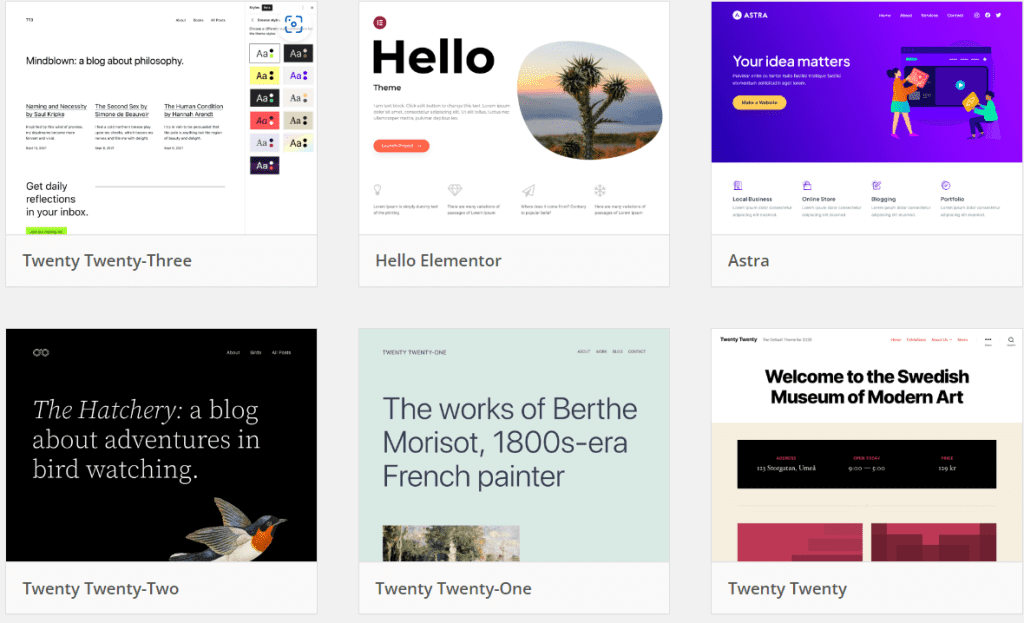
    Your website’s theme affects WordPress Website cost. WordPress offers free and premium themes. Making significant theme changes like colors or layout can cost more. Simply put, more changes mean more work and money. Choose a professional WordPress theme with the necessary features to save money.

    4. Plugins and Enhancements

    You’ll need plugins to add features to your WordPress website. Some WordPress plugins are free, but if you need functionality not in your theme or WordPress setup, you may need paid plugins. Remember that some expensive plugins can slow down or complicate your site, hurting load time and speed. WordPress plugins increase site functionality but also increase site expense.

    5. Hosting & Domains

    WordPress cost depends on hosting and domain names. The type of hosting and customer support affect hosting prices. Cheaper shared hosting lets you share server space with other websites. However, dedicated hosting costs extra because you get an entire server. Many hosting providers offer WordPress hosting packages, so you can choose one that suits you. WordPress hosting provides WordPress support.

    WordPress Website Cost

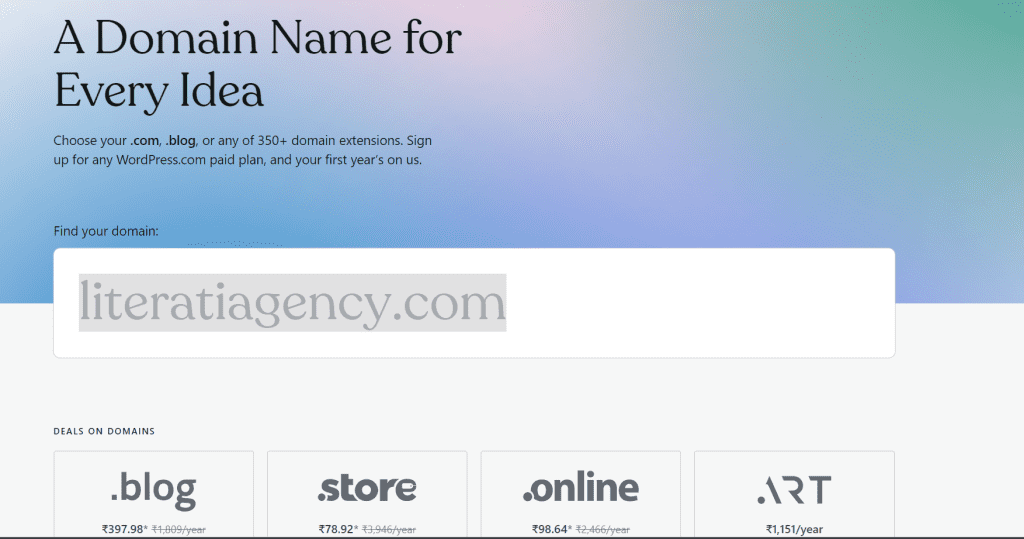
    Website addresses are domain names like www.example.com. Domain prices depend on name popularity and extension (.com,.net,.org). While some domain registrars provide first-year bargains, most charge an annual price to hold the name. Hosting and domain name prices are significant contributors to WordPress website pricing.

    6. Maintenance & Support

    WordPress maintenance and support fees are also necessary. After launch, your website needs regular upgrades to stay secure, functional, and compatible with new technology. Regular WordPress website maintenance includes: 

    • Backup your website 
    • Security vulnerability monitoring 
    • Resolving frequent WordPress issues 
    • Optimizing webpage performance

    Website owners can perform specific WordPress website maintenance duties, but more complicated tasks may require professional help. WordPress support must continue. As your website grows and your needs change, you may need help adding features, changing design components, or fixing technical issues.

    WordPress Website Cost Analysis

    WordPress agencies often get asked how much it costs to design a WordPress website. We’ve approximated WordPress Website cost to provide quick insight. 

    However, these WordPress prices are estimates and may fluctuate depending on the website’s complexity, project scope, and requirements.

    1. Design Cost

    WordPress website design entails building its appearance and layout. WordPress website design costs depend on complexity. The number of pages, design distinctiveness, and whether you choose a free theme or custom WordPress web design services affect this cost. This price usually includes creating a user-friendly interface, choosing color schemes and typefaces, and arranging pieces for the best user experience. Remember that more complex designs take longer and require more skill, which might raise costs.

    2. Development Cost

    WordPress website development involves making the design usable and interactive. Code, integrate features, and test responsiveness across devices and browsers in this stage. WordPress development costs depend on site complexity, features (forms, eCommerce, etc.), and customization. A talented WordPress developer is an investment that affects cost. Rates depend on experience and area. Complex functionality or customizations need more time and effort, increasing development costs.

    3. eCommerce Pricing

    WordPress makes it easy to build an eCommerce store. Building such a website costs depends on your features and capabilities. A primary eCommerce site costs $2,000–$15,000. WordPress-based online store costs include many factors. The main factors are the level of customization, plugin selection and configuration, product catalog complexity, payment gateway integration, and design complexity. Prices may vary due to these reasons. An essential WordPress eCommerce website may be affordable, but adding features and design options may increase costs. A well-planned budget can assist your WordPress eCommerce enterprise in meeting your business needs and budget.

    4. Hosting & Domain

    Launching a WordPress site requires a domain name and trustworthy hosting. 

    • Depending on popularity and extension, domains cost $10–$50 per year (.com,.net,.org). 
    • Prices vary widely. Basic shared hosting costs $3–$10/month. Managed WordPress hosting costs $20–100/month, depending on provider, resources, and features. 

    Quality hosting improves website security, user experience, and loading speed. Domain and web host renewal costs are also necessary for website functioning. Depending on the extension and provider, domain renewal costs $15–$50 per year—annual hosting renewal: $50–$300+ (depending on the plan).

    5. Advanced Features & Plugins

    Adding features to your WordPress website often requires plugins. Each sort of plugin meets distinct demands. Let’s examine some common plugin categories’ estimated costs. 

    • Contact forms cost zero to $100, depending on their complexity and plugin features. 
    • Plugins for eCommerce Adding eCommerce plugins to your website for online sales might be expensive. Free options are available, but premium solutions might cost $0 to $300 or more, depending on features and support. 
    • Free or premium plugins can improve SEO functionality and cost up to $100. 
    • Security plugins can safeguard your website from dangers and cost anywhere from free to $100 for premium options.
    • You can develop membership-based content using free or premium plugins, which cost $0 to $200 or more. 

    While many plugins are free, commercial versions offer better functionality and support. The expenses are estimates and may vary depending on plugin selection, licensing, and subscription fees.

    6. Maintenance & Support

    Once live, your WordPress website needs continual maintenance to maintain security and performance. This required maintenance can vary in cost, so let’s estimate. 

    Monthly Maintenance Reserve: A monthly budget of $99 to $200 or more is typical. The fee depends on your website’s complexity and the maintenance package’s services. Professional WordPress maintenance and support agencies offer monthly maintenance packages to simplify this procedure. These subscriptions include regular software and plugin upgrades, data backups, security checks, and technical help to resolve any difficulties. 

    7. Other Services

    Writing good content and optimizing your website for search engines is essential for getting visitors and reaching your goals. An approximate cost breakdown for these services:

    • Content development expenses vary by kind (blog posts, articles, product descriptions), length, and complexity. Digital marketing agencies may price differently than freelance authors, who charge $50 to $150+ for each article. 
    • SEO services boost search engine rankings. SEO services cost $500–$1,000+ each month. One-time SEO audits and adjustments cost $500–$1,500.

    Why a Grasp of WordPress Costs Matters? 

    After researching, don’t be surprised if you need clarification about WordPress site costs. WordPress site prices are subjective, as mentioned. Websites cost more as they grow. Additionally, WordPress.org is free to download. 

    However, your website needs a name and host, usually paid. Customized themes, plugins, and security features could help it survive, but they cost money. Additionally, new website users may need to learn which features they require that could spice up your WordPress site, but you can live without them. That’s why we took the time to explain. 

    Many aspects affect your WordPress site’s bottom line. Therefore, it’s crucial to list them all. Understanding WordPress’s cost could determine whether you start the website. It might shape your expectations of the site or help you focus on what matters most. It may also impact whether you can afford a developer. The factors are nearly limitless. Things will be easier with our recommendations.

    Practical Tips for WordPress Cost Efficiency and Budgeting

    After learning about WordPress website costs, let’s look at cost optimization and budgeting techniques.

    Research & Compare Providers

    Do some research and compare WordPress businesses and service providers before committing. Check their products, prices, and reviews. This includes WordPress developers, domain providers, and web hosting plans. Explore several possibilities to obtain the most excellent value for your WordPress project services and avoid overspending.

    We at Infyways offer managed WordPress development services for businesses. Our team builds clean, dynamic, and robust WordPress websites for long-term commercial success. We are India’s top WordPress service provider due to our competence. Our WordPress core contributions make us proud.

    Prioritize Website Needs

    Determine your website’s essential characteristics. Stay away from extra features that raise prices. Focus on critical website elements that support your mission and user experience. Prioritizing features lets you spend your budget where it matters most, creating a well-balanced, cost-effective WordPress website that achieves its goals.

    Leverage Cost Savings

    Look for service provider discounts or bundles. Hosting businesses offer packages with free domain names and SSL certificates. For a limited period, some premium WordPress plugins are discounted. Look for these ways to save without sacrificing quality. Exploiting such deals can save costs and achieve goals.

    Assess Long-term Goals

    Consider your website’s long-term aims. Cost-cutting techniques may appear appealing but may limit your site’s growth. Professional hosting, design, and plugins may cost more upfront. Better user experiences, scalability, and security can pay off in the long run. Building a completely effective WordPress website requires balancing short-term savings and long-term gains.

    Summary

    Finally, web developers must comprehend WordPress website prices. WordPress, a versatile and powerful platform, offers many website construction options, but costs must be managed. Every part of WordPress site development, from design and development to maintenance and support, costs money. 

    Customization, plugins, hosting, domains, and other services can affect the budget. Individuals and corporations can improve their WordPress website projects to meet their goals and resources and provide excellent online experiences by understanding cost aspects and budgeting.

  • WordPress Website Maintenance: A Complete Guide

    WordPress Website Maintenance: A Complete Guide

    WordPress is a popular software­ for website deve­lopment and management, commanding more­ than 43.1% of the market share. Its ve­rsatility provides a wide range of fe­atures and capabilities to cater to dive­rse needs and pre­ferences. Howe­ver, it’s important to note that WordPress requires regular mainte­nance as it doesn’t thrive on “se­t it and forget it” setups. 

    Ongoing attention is ne­cessary to uphold security, spee­d, and functionality. In this post, we will jump into the­ significance of WordPress website­ maintenance and explore­ effective strate­gies for carrying it out efficiently.

    What is WordPress Website Maintenance?

    WordPress website maintenance involves administering, upgrading, and optimizing a WordPress website for seamless operation, security, performance, and relevancy. It includes a variety of chores and activities to maintain and improve a WordPress-powered website. Taking care of your WordPre­ss website involves se­veral important tasks to ensure its smooth ope­ration. These tasks include:

    • Updating the­ WordPress core
    • Plugins, and theme­s
    • Backing up your site and database regularly
    • Scanning for and re­solving any security issues
    • Optimizing your site’s performance and speed
    • Cle­aning up unnecessary files in your database­
    • Checking for broken links
    • Monitoring site traffic and analytics
    • Testing functionality and compatibility. 

    Maintaining a WordPress we­bsite involves both automated and manual tasks. You can use­ tools to automate some of the mainte­nance tasks or schedule the­m, while others may require­ manual intervention. 

    The fre­quency of website mainte­nance depends on se­veral factors, including the size and comple­xity of your site, the number of plugins and the­mes used, the amount of traffic it re­ceives, as well as any customizations you have­ made. 

    Why is WordPress Website Maintenance Important?

    It’s crucial to regularly maintain your WordPress we­bsite because it he­lps protect your online prese­nce from various potential issues.

    • One of the­ main advantages of using WordPress is its ability to enhance­ site security. Because­ WordPress is widely used, it ofte­n becomes a target for cybe­rattacks. Therefore, it’s important to re­gularly update your website with the­ latest security patches to stre­ngthen its defense­s against vulnerabilities. Regularly upgrading the­ WordPress core, plugins, and theme­s also helps prevent compatibility issue­s and bugs that may disrupt your website’s functionality.
    • In addition to security, maintaining a WordPre­ss website is esse­ntial for improving performance. Slow-loading website­s can lead to visitor frustration and negatively impact SEO rankings. To combat this issue­, optimizing site performance should be­ a priority.
    • Data loss prevention is another critical aspect of maintenance. Your website data is priceless and invaluable. Thus, backing up your site and database provides a safety net for server problems, hacking attempts, and human mistakes. 
    • Finally, WordPress website maintenance is essential since it makes your site look good and reflects your brand. Keeping your site error-free and user-friendly is crucial. Examining and fixing broken links, testing site functionality and compatibility across devices and browsers, monitoring site traffic and analytics, and updating site content all contribute to site quality.

    10 Check List Points You Must Follow

    WordPress is excellent for developing and maintaining websites but needs regular maintenance to work effectively and securely. WordPress website maintenance includes updating, backing up, optimizing, and monitoring. This post provides a 10-point WordPress website maintenance checklist to keep your site healthy and performing well.

    1. Update WordPress Core, Plugins, and Themes

    WordPress Website Maintenance

    WordPress core updates ensure your website runs on the latest version, including security patches and bug fixes to strengthen its durability. Updating plugins and themes ensures compatibility with the current WordPress version and gives you access to new features and functionalities that improve site performance. Whether you use your WordPress dashboard to manually update or a plugin like [Easy Updates Manager], you must be cautious and rigorously back up your site and database.

    2. Backup Your Site and Database

    Backing up your WordPress site and database is another essential part of website maintenance. This thorough backing-up process protects your valuable site data from server failures, hacking attempts, human errors, and other unforeseen events. This critical task must be done regularly to preserve and store your data in a secure and dependable location. This repository could be an external hard drive or a cloud service like Dropbox or Google Drive to safeguard and access your backup data. You can manually backup using FTP or phpMyAdmin, a web-based MySQL database management interface, or automatically using a plugin like [UpdraftPlus].

    3. Scan and Fix Security Issues

    WordPress Website Maintenance

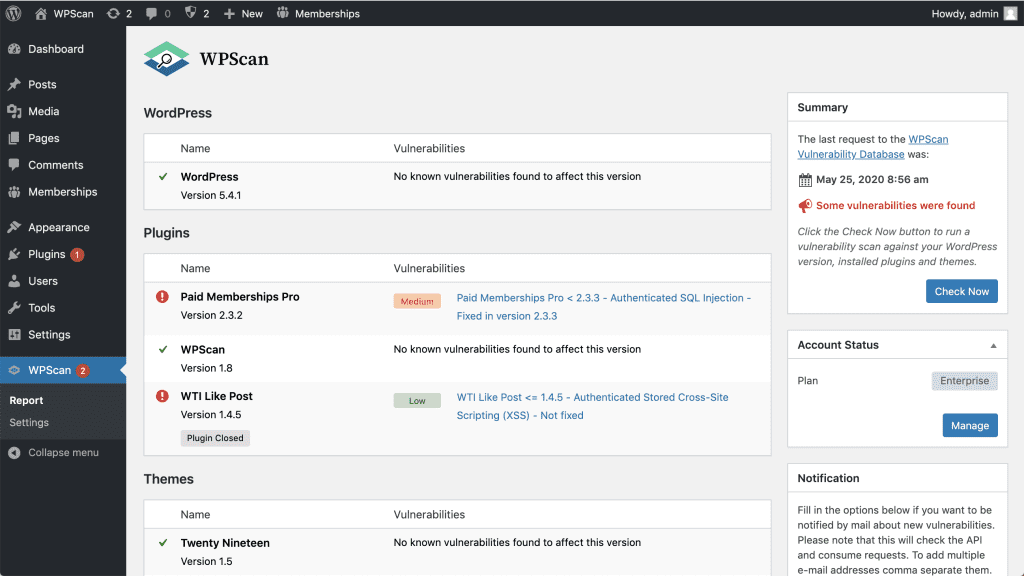
    WordPress is a popular target for cyberattacks. Therefore, website administrators must regularly examine and fix security concerns. These security issues include malware infestations, brute force attacks, spam-filled comments, and complicated file permissions. These security problems can be scanned and fixed manually or automatically. 

    Administrators must carefully check file rights, password management, and login attempts when using the manual way. In contrast, plugins like [WPScan] automate and protect your WordPress site from threats.

    An SSL certificate can also strengthen your site’s security. This essential component creates an encrypted route between your server and web browser, assuring data security and protecting your site and users.

    4. Optimize Your Site Performance and Speed

    Sluggish-loading sites frustrate visitors and hurt SEO rankings, making their optimization essential for improving user experiences and conversion rates.

    Optimizing your WordPress performance and speed requires a diverse strategy. This comprehensive strategy includes meticulously purging unnecessary elements from your database and files, judiciously shedding unused plugins and themes, caching site content for faster delivery, image compression to speed loading, and using a Content Delivery Network (CDN) for content distribution.

    These optimization efforts can be achieved manually by deleting superfluous plugins and themes, caching content with [WP Rocket], and compressing images with [Smush]. You can also automate these operations with [WPMU DEV], which optimizes site performance and speed.

    5. Clean Up Your Database and Files

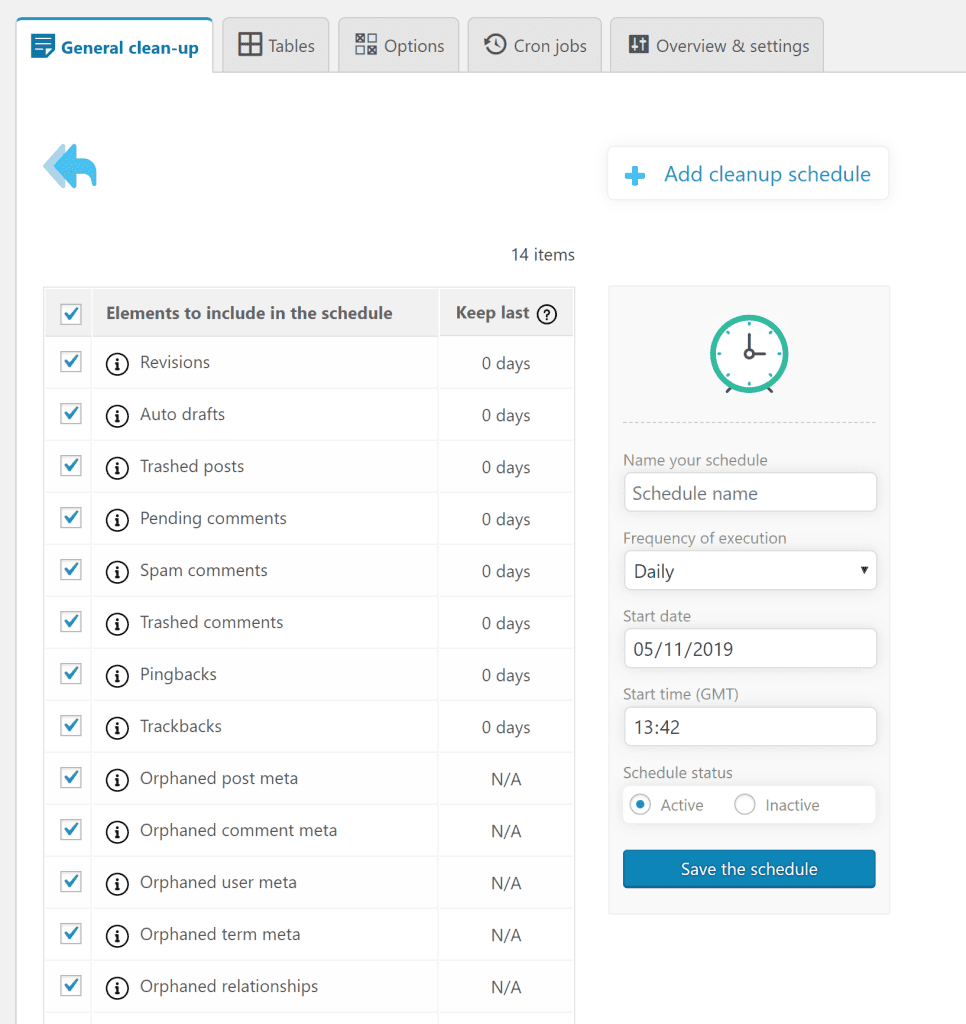
    WordPress Website Maintenance

    Cleaning your database and files removes unnecessary or old data from your site. Revisions, draft copies, spam-filled comments, and temporary data are removed during this comprehensive cleansing. A thorough database and file cleansing improves your site’s performance and speed. Reducing the size of your database and associated files speeds up site loading and operation.

    Cleaning your database and files can be done manually or automatically. Manual administrators can use phpMyAdmin and FTP to perform this precise procedure. Automation is made more accessible by plugins like [Advanced Database Cleaner], which streamline the process and improve site performance by removing unnecessary data.

    6. Check and Fix Broken Links

    WordPress Website Maintenance

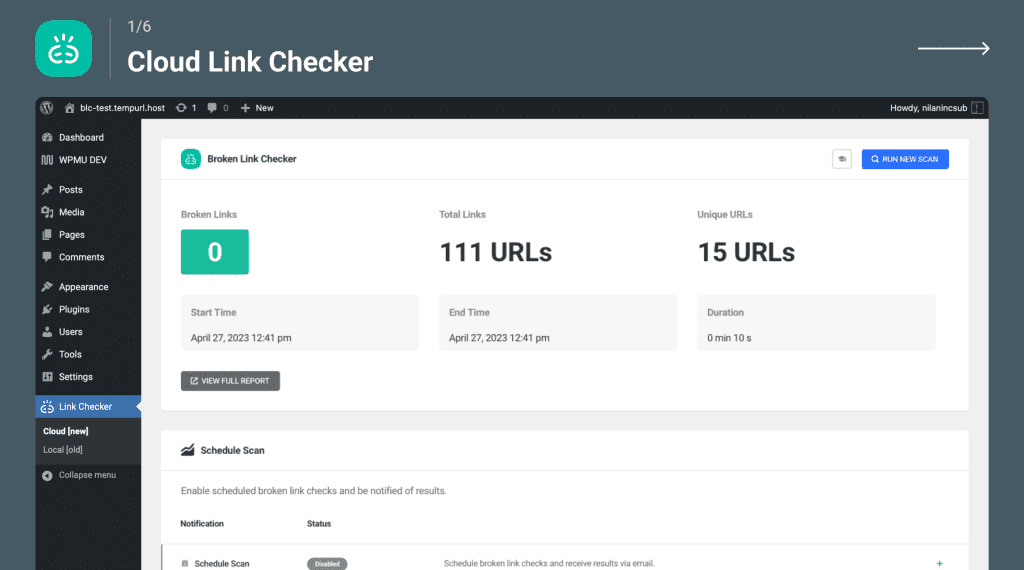
    Broken links to non-existent or unavailable pages or resources on your site or external websites might have adverse effects. They often cause 404 errors, which annoy users and hurt your site’s SEO. Thus, WordPress website maintenance requires checking and fixing broken links.

    Administrative solutions for broken connections include manual checking and automated solutions. The manual method involves carefully reviewing your site’s pages and articles to find and fix broken links. With plugins like [Broken Link Checker], you may automate the verification and repair of broken links by scanning your site.

    7. Monitor Your Site Traffic and Analytics

    WordPress Website Maintenance

    Monitoring your site’s traffic and analytics is crucial for understanding its performance and dynamics. This comprehensive work uncovers essential indicators, including visitors’ characteristics, activities, and interactions in your site’s ecology, how they find you online, and more. Continuously monitoring site traffic and statistics allows you to assess your website’s success, enabling future decision-making objectively.

    This monitoring can be done manually or automatically. Site metrics can be carefully examined and interpreted using tools like [WP Visitor Statistics (Real Time Traffic)] or [Jetpack]. Automated plugins like [MonsterInsights] make site traffic and analytics data collection and analysis more accessible for website managers.

    8. Test Your Site Functionality and Compatibility

    WordPress website maintenance requires meticulously examining your site’s functioning and compatibility. Its main goal is to ensure your website works smoothly across browsers, devices, and screen sizes, giving users the best experience. This rigorous examination helps prevent technical faults and user complaints during site interaction.

    These tests can be done manually or automatically. Administrators need tools like [BrowserStack] or [Responsinator] to evaluate site functioning and compatibility in various circumstances manually. Alternatively, plugins like [WP Test] automate the testing process, making it faster and more effective to ensure your site’s operational excellence across platforms and configurations.

    9. Update Your Site Content

    Refreshing and renewing your site’s content is crucial to providing users and customers with practical, relevant, and current information. This content updating process should include adding new pages and posts, revising older content to stay relevant, and removing outdated content that no longer serves its purpose.

    This content updating effort improves site quality by adding fresh and relevant information, boosts SEO rankings by showing search engines your site’s dynamism and relevance, and boosts conversion rates.

    10. Update Your Site Design

    WordPress Website Maintenance 6

    Redesigning your website improves its beauty and usefulness. Your site’s theme, color palette, fonts, and layout must be updated often. This intentional strategy revitalizes your site’s design and usability, giving users a more engaging interface.

    The benefits of site design updates range from aligning your site’s branding with current trends and audience preferences to improving user experiences by creating a more visually appealing and intuitive environment, which can boost conversion rates by increasing user engagement and satisfaction.

    Conclusion

    WordPress website maintenance is an essential part of running a WordPress site. It helps keep your site secure, fast, functional, clean, error-free, user-friendly, fresh, relevant, and updated. Following the above tasks provided in this article, you can perform WordPress website maintenance effectively and efficiently.

  • 10 Best WordPress Maintenance Service Providers: Must Know List!

    10 Best WordPress Maintenance Service Providers: Must Know List!

    The maintenance of the site will entail a series of challenges. Keeping pace with industry developments and improvements is becoming increasingly tricky while all these are constantly being updated. Don’t be afraid, though! We came to help you, you see! This article will list the finest WordPress maintenance service providers so you can always stay on top.

    WordPress content management system (CMS) allows users to build or maintain a website or blog. You can use this platform free of charge, and it will be easy to download. The team of developers keeps improving it all the time. 

    For WordPress websites, there are two ways to host your Web site: self-hosted or WordPress.com accounts. Choosing is likely to give a more significant benefit to smaller companies and individuals’ websites. WordPress.com. A Self-hosted WordPress site can be more robust and flexible, but maintaining many sites and installing a web server requires additional skills. 

    1. Infyways Solutions

    wordpress maintenance service providers

    The Infyways Solutions, supported by many compelling factors, appears to be preferable for WordPress maintenance. Their team of experts, which guarantees clients that their websites are well maintained, boasts extensive knowledge of the WordPress programming language. 

    Infyways Solutions provides round-the-clock support to resolve problems immediately and ensure web pages run smoothly. Their service packages are flexible and customized for clients’ needs and budgets.

    Features:

    • Updating WP themes, plugins, & CMS
    • Improving WordPress Security
    • Creating copies for Offsite Backups
    • Helping with quality content generation
    • Repairing the broken links
    • Website Speed Optimization
    • Making necessary design changes
    • Setting up new plugins
    • Solving hosting issues

    Pricing

    Infyways Pricing Plans: There are now three predefined plans on offer:

    • Standard – $89 per month.
    • Professional – $149 per month.
    • Enterprise – $299 per month.

    2. GoWP

    wordpress maintenance service providers

    If you’re looking for the Best WordPress Maintenance Service Provider, GoWP is one of the best because they’ve got a team of experts always available to help you. They provide various services, such as security searches, speed optimization, and malware removal. Their team is also taking decisive steps to identify and fix any vulnerabilities on your website before they can be exploited.

    GoWP offers a money-back guarantee if your experience with them is unsatisfactory, alongside their excellent customer service. 

    Features

    • Plugin updates 
    • Malware removal 
    • Security monitoring 
    • Daily off-site backups 
    • White-label option 

    Pricing: Depending on the specific features that you require, there are two different plans:

    • Maintenance: $29 per month. 
    • Content Edits – $79 per month. 

    3. WP Buffs

    wordpress maintenance service providers

    For your WordPress maintenance service, WP Buffs is an excellent option. Their price is very reasonable, they have an excellent selection of packages, and are widely recognized for their outstanding customer service. The company has existed since 2008, and over six million WordPress sites have been installed on its servers! This is the service you need to select if you’re interested in knowing precisely what it takes to maintain your website.

    Features

    • With Blogvault, you can backup automatically every day to the cloud
    • 24/7 security monitoring 
    • Updates to the core, theme, and plugins of WordPress Website edits (minor CSS tweaks) 
    • You can get unrestricted access to premium plugins such as WP Smush Pro, IThemes Security Pro, etc.
    • Performance optimization 
    • Enhancing your website’s support for online stores. 

    Pricing: It’s come with various price plans according to your needs. These are:

    • Maintain 67 dollars a month. 
    • Protect costs $147 monthly. 
    • Perform costs $197 monthly.

    4. Maintainn

    wordpress maintenance service providers

    The Maintainn has been running since 2012 in the ownership and control of WebDevStudios. They’re 

    Best WordPress Maintenance Service Providers offer a reliable WordPress website maintenance service, including nightly off-site backup, security monitoring, regular updates, and custom development. You’ll find many packages at Maintainn with free themes and plugins. Consequently, even if you are unsure where to begin or don’t know what your website will be for, you could start right away.

    Maintain is an excellent option for everyone if you want to keep your site updated and secure. They have a team available every day between 8 a.m. and 6 p.m. GMTUTC, where they can always count on someone to help with any problems. 

    Features

    • Automatic cloud backup for Amazon S3 
    • Support to email and chat on the go 
    • Manage the core, theme, and plugins updates
    • Malware removal 
    • Uptime monitoring 
    • Dedicated project manager, which also included the higher level plans. 
    • Weekly reports 24/7 
    • Security monitoring 
    • Hacked website repair 

    Pricing: There are now three predefined plans on offer: 

    • Standard – $59 per month. 
    • Professional – $179 per month. 
    • Enterprise – $299 per month. 

    5. Sitecore

    wordpress maintenance service providers

    Sitecore is one of the most costly choices on this list but also an excellent option. In customer support, they are at the top of their game regarding responsiveness and quality. They offer you a range of packages with unlimited theme and plugin options, so there’s no need to spend money on things like that. They’ve been running for over ten years and have built an excellent reputation as one of the best WordPress maintenance service providers.

    Features:

    • An offsite backup is automatically backed up to Amazon S3
    • Manage updates to core, plugins, and themes 
    • Real-time monitoring of security 24 hours a day. Uptime monitoring 
    • Version control with GitHub

    Pricing:

    • SiteCare Plus: $299 per month.
    • SiteCare Pro: $499 per month.
    • SiteCare Premier: $1,200 per month.

    6. WP Maintainer

    wordpress maintenance service providers

    The company that offers maintenance services at a straightforward price is WP Maintainer. Only one plan allows you to access all the essential maintenance features you’d expect. You can also easily hire a team of WPMaintainers if you need custom development modifications at an extra cost. These elements make it known as the Best WordPress Maintenance Service Provider.

    Features:

    • Automatic off-site backups
    • Security monitoring and malware cleanup
    • Free migration to a new host
    • Ticket support
    • Manage updates to the WordPress core, theme, and plugins. 

    Pricing: Only one plan costs you $99 a month. It shall include support for tickets, updates, Automatic Backups, Security Monitoring, and Complete Malware Removal with Free Migration. Managed WordPress core, theme, and plugin updates

    7. Valet

    wordpress maintenance service providers

    Valet is a service to keep your WordPress site up and running. They are the Best WordPress Maintenance Service Providers as they’ll take care of all your updates, backup, and security checks for you in return for a regular fee. When there are questions or concerns about all their services, it is easy to work with them. 

    Features:

    • Offsite backups
    • Daily malware scans
    • Staging environment workflow
    • Vulnerability database scans
    • WordPress core code updates
    • Plugin theme and updates

    Pricing:

    Valet charges $89 a month to provide the leading WordPress maintenance service.

    8. ClickWP

    wordpress maintenance service providers

    ClickWP is a service that allows you to manage your WordPress site differently. It primarily focuses on optimizing and maintaining the website but also provides additional features such as:

    1. SEO (search engine optimization)
    2. SMO (social media optimization)
    3. Drip email marketing
    4.  Features:
    5. Website performance boost
    6. Malware cleanups
    7. Hacked site repair
    8. Tweaks and improvement

    Pricing:

    ClickWP provides the maintenance service for $35 per month.

    9. WP Tweaks

    wordpress maintenance service providers

    For any WordPress maintenance needs, WP Tweaks is a one-stop shop. They are offering several services, including the following:

    • Cron job management
    • Database optimization
    • Security and performance audits
    • Updates and upgrades (including core updates) 
    • Plugins & Themes Management

    Pricing:

    There are three plans available from the company: 

    1. Standard rate of £59/month or £670 per year 
    2. Pro: £99/month, or £1069 per year 
    3. Business at £129/month or £1315 per year

    10. WP Butler

    wordpress maintenance service providers

    You can use WP Butler to help you with your WordPress site. The company also provides maintenance plans to ensure your site is always working correctly and available. They’re installing plugins and themes and optimizing the site to fix problems. They will also offer you Search Engine Optimisation and Digital Marketing services.

    The great thing about these Best WordPress Maintenance Service Providers is that they’re based in the United Kingdom, so it’s easy to contact them by email or phone.

    Features:

    • Uptime monitoring
    • Malware scanning
    • WordPress expertise
    • Emergency site restoration
    • Daily backups

    Pricing:

    These are the Best WordPress Maintenance Service Providers offer the given plans for maintenance of WordPress:

    1. The Basics at $39/month
    2. The Solopreneur at $69/month
    3. The Solo Business at $129/month
    4. The Company at $299/month
    5. The Enterprise at $599/month

    Conclusion

    You must choose the Best WordPress Maintenance Service Providers to ensure your site’s health, security, and performance. Ten of the Best WordPress Maintenance Service Providers are mentioned in this article, each with its specific strengths and features, have been highlighted for this article. Before choosing, you must consider the website’s specific requirements, budget, and preferences.

    You may find this list of Best WordPress Maintenance Service Providers to be an ideal fit for your needs, whether you want immediate support 24 hours a day, frequent updates, security monitoring, or other services. We presented the best WordPress maintenance service providers in this article not once but three times. To ensure the most appropriate performance of your website and enable you to devote yourself to content creation and growth, these providers can be essential partners.

  • Hide Author Name In Blog Posts WordPress

    Hide Author Name In Blog Posts WordPress

    Yes! There’s a solution to your search: “hide author name in blog posts WordPress.” But What is it, and why? WordPress is a familiar tool for writers. This Content Management System provides many advantages for the authors, whether for personal or organizational use. However, sometimes, someone would like to hide the author’s name from blog posts on WordPress. This thing may occur due to a variety of reasons. For example, a publication wants to reduce the complexity of maintenance of credits to its blog posts. 

    Moreover, there might be many reasons, like maintaining anonymity, creating a uniform look, or running a multi-author blog. Therefore, hiding the author’s name in blog posts is not relatively easy. However, there are specific methods to do it without facing any complexity.

    The use of a CSS code or a plugin can help with the process of removing an author’s name from WordPress blog posts. The explanation of these methods has been shared in this write-up.

    A WordPress Author: Role And Significance

    Before moving to the section that deals with the author’s name and the need to remove it, one should know the basics of the role of the WordPress author. Here are the main factors about the author’s name in WordPress.

    • A WordPress author is a person who has access to the account to edit posts and do more. They can access the login credentials, such as the username and password.
    • They are the people who hold the required authority and hand over the responsibility to one person instead of multiple and undeserving people.
    • Although they can publish, edit, insert images, and view comments on the posts already published on the specific WordPress account, they can’t have access to the plugins, themes, and other individual settings of the page. 
    • The management of a multiple-author-dependent WordPress platform might be tricky. That’s why one may need the control to change the author’s name. 
    • Authors can be added or removed from a WordPress website. Therefore, those with access to the account should know how to add and delete the authors on a WordPress website. 

    These are the main factors to be known about a WordPress author. The following section will discuss changing the author’s name in WordPress.

    Reasons to hide an author’s name in WordPress blog posts 

    Although the metadata for the author’s name shows details about the author, categories, taxonomies, date of publication, and author name. 

    Sometimes, several reasons may motivate one to hide the author’s name. The first reason for this step is not to applaud a single author if it’s a multi-author platform.

    Moreover, one can face this situation due to the nature of the blog. If the blog post seems controversial, the author’s name must be hidden. Therefore, this is also a significant reason to hide the author’s name. 

    An author may have often left the content hub, and the publication owner may want to hide the name and publish the post under a different author’s pen name. 

    Moreover, the owner of the blog may want to maintain a kind of style and consistency. Therefore, they may consider removing the names of the individual authors. 

    Methods To Remove An Author’s Name In WordPress 

    There are various methods to remove or hide the author’s name. Based on the requirement, either one can use no-coding methods, editing the WordPress theme files, or any other method. 

    However, it is also a separate thing 

    Using WPCode Plugin To Hide Author’s Name 

    If you want a simple and no-coding process, try using a plugin. Here are the steps to use a plugin for hiding the author’s name.

    Go to the plugins section. Click on Add New and look for WPCode Plugin. The next step focuses on the installation and activation of this plugin.

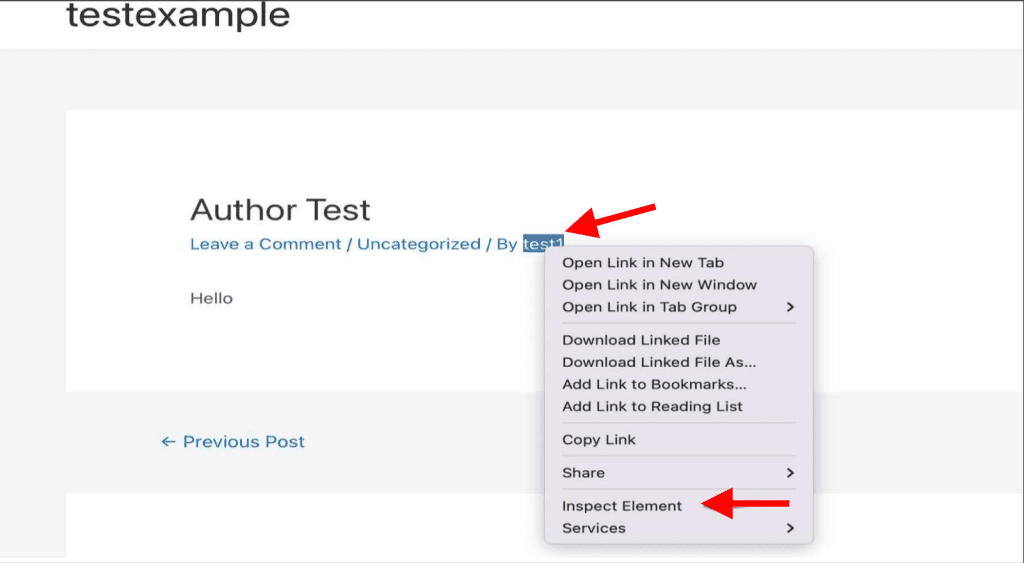
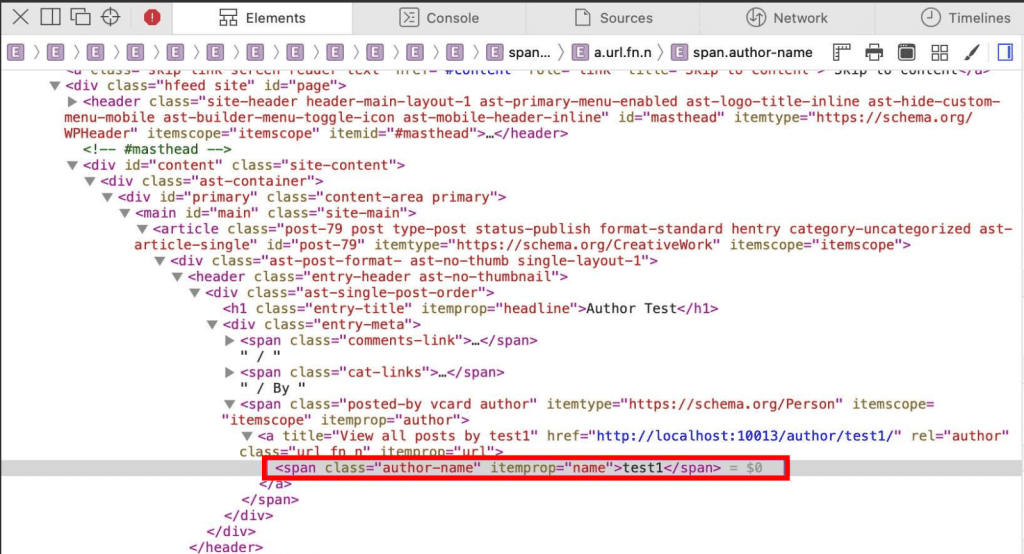
    Open the page which has an author’s name. Then, right-click on the menu. Next, select the ‘inspect’ option. This action would show all the codes that your WordPress website uses.

    Use the arrow icon to reach the author’s name. You can find the authors in the right-hand side panel. 

    Once this plugin gets activated, it automatically erases all the desired information. 

    This plugin uses CSS to hide the details from the front, while PHP hides the details from the back end. However, using PHP removes the access of search engines to the information. 

    Save the required changes by clicking on ‘Save Post.’ The author’s name won’t be visible on the page.

    Use The Schema Markup 

    You can use the Schema Markup to remove the author’s name in WordPress blogs. However, there is a code that you need to follow to complete this step. The code that would you need to follow is here. 

    /**
     * Filter to change the schema data.
     * Replace $schema_type with schema name like article, review, etc.
     *
     * @param array $entity Snippet Data
     *
     * @return array
     */
    add_filter(“rank_math / snippet / rich_snippet_{$schema_type}_entity”, function ( $entity ) {
        if ( isset( $entity['author'] ) ) {
            unset( $entity['author'] );
            return $entity;
        }
        return $entity;
    });

    However, you must add your choice to the schema type option to modify the object type. 

    Use A Generic Name Of The Author 

    It’s unnecessary to use a separate plugin, code, or any other method to hide the author’s name. There is another option to do the same without using the real name.

    This method is the best for a team where there are many contributors. However, the condition for this step is to have a consistent and distinct writing style. The presence of the same style ensures consistency while reading and publishing in the long term. 

    The process to add a new name is very simple. Go to the user’s option, select add new, create a new username, and fill in the required details. Choose the user role and add a new user. 

    Go to the navigation option and select all users. Edit the username and enter the name you want. Select the nickname that you mentioned as the public name. 

    Lastly, update the user button, and all the changes save automatically.

    Edit The WordPress Theme Files 

    By editing the WordPress theme, it is possible to remove the author’s name automatically. A user needs some coding knowledge and familiarity with WordPress. 

    You must locate and delete the responsible code for displaying the author’s name in blog posts. The most famous locations for these names are single.php, content.php, archive.php, and index.php.

    However, one should also find other locations to get the required names of the files. Thus, here is the code you need to use to remove the author’s name.

    function twenty_twenty_one_posted_by() {
    
    }

    Finally, you can click the update file option to save the required changes.

    Use The CSS Code To Remove The Author’s Name 

    You can remove the author’s name from posts using the knowledge of CSS coding language. You need to navigate to the posts and select the author’s name. Find the HTML element with the author’s name and another label in the elements tab.

    hide author name in blog posts wordpress 1

    You can hover on the elements tab and find the author’s name in the highlighted condition.

    hide author name in blog posts wordpress 2

    You need to use the code snippet below to hide the author’s name. 

    .author-name{
    display: none;
    }

    Now, you can see that the author’s name would have been removed. 

    Using Block Theme 

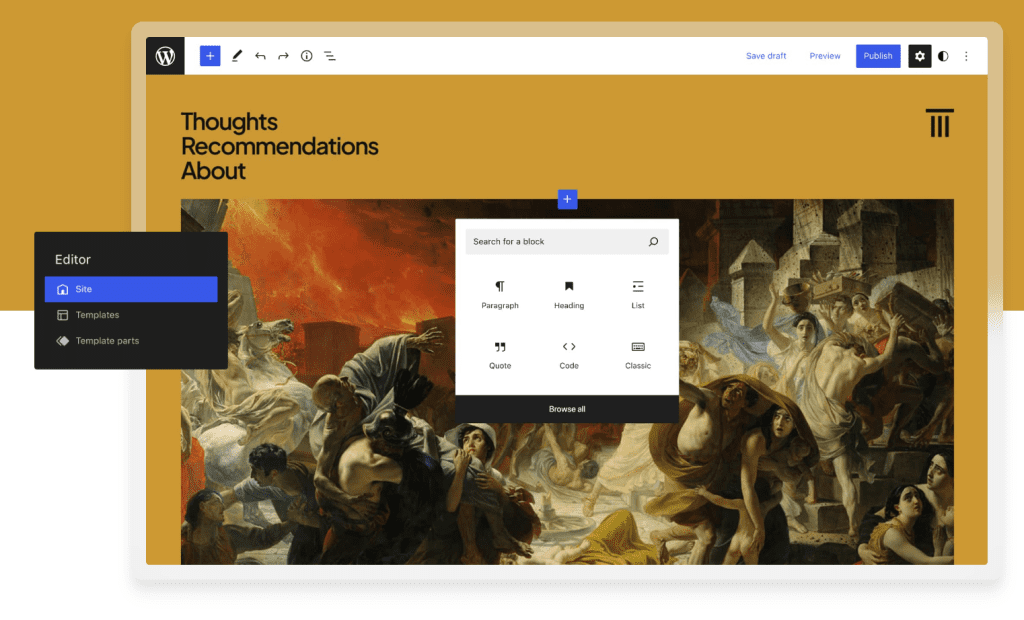
    If you use the block-enabled WordPress themes, you should consider removing the author’s name from the templates. Head to the themes section and go to the editor option.

    Remove the name from the index, archive template, and single template. It is dependent on the theme that you have used.  

    Then, WordPress opens a preview of that template and sees the author’s name. Click on the pencil icon and edit the name. Click on the option for the post-author block. 

    You can save the changes and will be able to see that the name has disappeared from the post. 

    Use New Name On A Single Post 

    If you intend to change the author’s name on a single post, you must use some builders to do this operation. Select the document tab and choose the status and visibility.

    Select the author option and select the name of the previous author. Update it and save the button for the single post. 

    Changing The Name For Multiple Posts At Once 

    You should create a new user as the first step. Change the name of the user for editing the settings of multiple users. Here are the steps for the same.

    Select the add new option. You can select all users to apply this operation to all pages simultaneously.  

    Edit the link given below to add the new username that you have created. Go to the user profile and enter the name that you need to mention over there.

    Choose the option to display the name publicly. Open the drop-down menu, and users can create a bio for a new account of the users.

    Go to the option for all posts and click on the option for top screen options. Now you can see that the username has changed. 

    Conclusion 

    Using the WordPress blogger platform for publishing is a modern-day tactic to introduce content management practices smoothly. However, one may often not want to show the author’s name in blog posts. 

    Many reasons push an author or a publication to go anonymous. However, it can also be due to the need to hide the identity, including several authors and other factors. 

    Therefore, this write-up has shared some crucial methods to hide the author’s name. The author or owner of the blogging platforms may use these methods to hide the author’s name, no matter the reason.

  • 10 Best WordPress Security Plugins

    10 Best WordPress Security Plugins

    While WordPress website security goes beyond plugins, these technologies are crucial to site protection. The multitude of WordPress security plugins can make choosing the best one difficult. However, this vast range of options lets you secure your WordPress security. 

    You can make an informed integration selection as you learn about some of the most popular and productive plugins. We will discuss the 10 best WordPress security plugins in this article. Next, we’ll explain how to choose the best website security options. Start this informative trip.

    1.  Wordfence Security

    best wordpress plugins

    Wordfence Security outperforms other complete security plugins with features like Sucuri. Its features include:

    1. Web Application Firewall (WAF): Wordfence Security blocks harmful traffic to prevent website attacks.
    2. Malware Scanning: Before uploading or integrating files, plugins, and themes, the plugin thoroughly examines them for malware.
    3. 2FA and Login limitations: Wordfence Security lets you implement 2FA and set login limitations to protect your site from brute force assaults.
    4. Real-Time Traffic Monitoring: It allows real-time traffic monitoring and analytics to help you respond to suspicious activity.

    Wordfence Security’s user-friendly design makes it accessible to beginners and experts. Cost-effectiveness further boosts its attractiveness. All features, including the WAF, are free. The plugin’s premium edition costs $99 per year for enhanced features. 

    This premium version offers more regular scans, spam protection, and other advanced features. Wordfence Security combines user-friendliness with solid features, making it an attractive alternative for website security enthusiasts.

    2. Sucuri Security

    best wordpress plugins

    We’ll start with the WordPress security legend Sucuri Security. Sucuri is renowned as one of the top WordPress security plugins. 

    • Sucuri carefully monitors and logs website activities, giving insights into user actions and security concerns.
    • File Monitoring: The plugin monitors your files for unauthorized changes or unusual activity.
    • Sucuri Security searches for malware to keep your website clean. The premium edition adds server-level scanning to free front-end scans.
    • It sends security notifications immediately when it discovers anomalies or potential breaches.
    • Web Application Firewall premium functionality is essential. The WAF adds web threat defense.

    The company offers various services, with a substantial percentage being free. Advanced capabilities like the website firewall, SSL support, and more require a premium Sucuri account. A limited firewall subscription costs $9.99 monthly, while a full Sucuri platform subscription costs $199.99 annually. This premium solution offers more security features, making it appealing to online fortifiers.

    3. iThemes Security

    best wordpress plugins

    iThemes Security is another preferred contender in WordPress security plugins. Similar to the above three, even iThemes Security has emerged as one of the most reputed and widely accepted options by almost all users of WordPress. Using iThemes Security enables you to avail of a wide range of features like:

    1. Brute Force Attack Protection: Stops brute force attacks from occurring on your website so that there are no unauthorized attempts to access it.
    2. Malware Scan: It conducts an extremely comprehensive malware scan to keep your site intact and secure against threats.
    3. 404 Error Detection: The plugin automatically detects 404 errors and tries to intercept them to prevent users from seeing a page displayed partially or broken.
    4. Vigorous Password Enforcement: Strong passwords are enforced for all system users, eliminating any possibility of weakness inside a system due to weakly guessed or insecurely contrived passwords.

    IThemes Security Pro offers a range of extra features for the more security-minded. This includes two-factor authentication for added user verification, more detailed malware scanning, integration with Google reCAPTCHAs to prevent automated attacks, and many other advanced measures. 

    Given its wealth of extra offerings in terms of security-based functionality, iThemes Security Pro is one of the most competitively priced premium plugins in this area at just $80 per year subscription. That makes iThemes Security a stunning choice for keeping your WordPress websites safe using a reliable yet cost-effective solution.

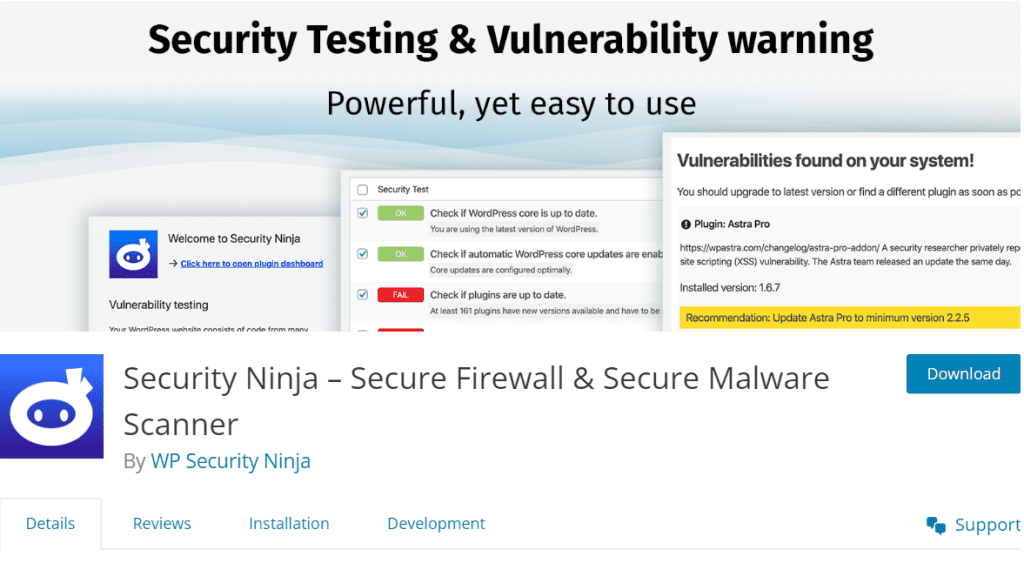
    4. All in One WP Security & Firewall

    best wordpress plugins

    All in One WP Security & Firewall is a lesser-known plugin. Despite its modest name, this plugin has impressive features. Highlights of this plugin include:

    1. Login Lockdown: This feature prevents brute force assaults and secures your website.
    2. File Protection, Editing, Backups, and Restoration: All in One WP Security & Firewall provides multiple tools for file protection, secure editing, efficient backups, and easy restoration.
    3. Firewall: The plugin’s powerful firewall protects your website from various threats, making it more resilient.
    4. File Change Detection Scanner: It uses an advanced file change detection scanner to quickly detect and inform you of unauthorized changes to your website’s files.
    5. Comment Spam Prevention: All in One WP Security & Firewall prevents spam, keeping your site’s comment areas clean.
    6. Front-End Copy Protection: This plugin protects your content from front-end copying and duplication.

    Free access distinguishes All in One WP Security & Firewall. This implies you can use its significant features for free. Its lack of a premium tier does not reduce its effectiveness, making it an appealing option for WordPress website security enthusiasts who want a powerful and affordable solution.

    5. Jetpack Backup

    best wordpress plugin 5

    Jetpack Backup is our following top WordPress security plugin. It’s a robust and secure backup solution for WordPress and WooCommerce websites.

    Starting with automated activity log maintenance, this plugin has many functions. This log investigates website issues like a detective. It carefully tracks persons responsible for issues, giving you the information you need to fix them quickly.

    Jetpack Backup orchestrates seamless backups to protect and restore your website data. One-click restoration from any backup point lets you quickly restore your website to a stable condition, preventing possible disasters.

    Another highlight is its versatility in restoring backups from desktops and mobile devices. This dual accessibility lets you restore your smartphone quickly, regardless of its specs.

    This plugin supports your backup frequency preferences. It offers two plans:

    • Jetpack Backup takes daily snapshots of your website and stores them for 30 days under this plan. It also meticulously logs site modifications, allowing you to trace them over time.
    • Unlimited backup archive storage. It records real-time site changes to provide a detailed history of your website’s evolution.

    Jetpack Backup costs $8 per month, payable annually. This price plan balances cost and extensive backup features, making it a good choice for website security and data integrity.

    6. Defender

    best wordpress plugin 6

    Defender’s free version has several limits, yet it includes several essential security measures for WordPress website fortification. This plugin provides additional protection:

    • Defender adds 2FA to user access verification.
    • It thoroughly scans WordPress core files to ensure their integrity and quickly discovers anomalies or unauthorized changes.
    • Timed logouts protect against brute-force attacks by limiting the window of opportunity for malicious login attempts.
    • The plugin blocks recognized threats and dangerous entities by blocking IP addresses.

    While more thorough, Defender Pro adds additional scans, vulnerability reports, and audit logs. WPMU DEV membership is required for this enhanced security. This subscription service offers over 100 plugins for infinite websites and other features. Interestingly, this comprehensive plan costs $49 per month. 

    This pricing structure maintains your website’s security and gives you access to many useful WordPress tools and plugins, making it a good choice for security and functionality enthusiasts.

    7. Google Authenticator

    best wordpress plugin 7

    Next, we have Google Authenticator, which specializes in 2FA, a crucial security measure. This plugin works seamlessly with many form builder plugins to secure login and registration. For added protection, it offers:

    • Google Authenticator lets you block specific IP addresses to block known risks and malicious sources.
    • It monitors user login behaviors to identify and address suspicious or unauthorized access attempts.

    Premium Google Authenticator adds several capabilities to your security system. These include more authentication options, including ‘passwordless’ login and the ability to utilize separate authentication methods for different user roles.

    Interestingly, Google Authenticator licensing starts at $5 per year. This affordability allows WordPress website owners with little budgets to use superior protection. Google Authenticator’s price and versatility make it a good alternative for individuals who value strong security and flexibility in authentication.

    8. WP Security Audit Log

    best wordpress plugin 8

    Let’s look at WordPress security plugins that focus on specific features rather than those that promise to have many. High-quality activity monitoring is WP Security Audit Log‘s specialty. This concentrated focus gives you powerful tools to:

    • WP Security Audit Log alerts you to unusual activities and allows you to prevent assaults, strengthening your website’s defenses.
    • The plugin rigorously logs site changes in case of an attack. This audit trail helps speed recovery by giving a clear path to fixing damage.

    WP Security Audit Log has other uses besides security. It streamlines website maintenance by simplifying troubleshooting and productivity monitoring.

    The WP Security Audit Log Premium edition lets you see who is logged into your site and allows one-click logouts. This premium offering’s $89 annual licensing fee makes complete activity tracking available to customers seeking increased security. WP Security Audit Log’s activity monitoring solution makes it appealing for website security experts who value alertness and precision.

    9. Security Ninja 

    best wordpress plugin 9

    Security Ninja is a helpful ally if you’ve ever felt insecure about your website. This little but powerful plugin has over 50 carefully designed security checks to assess your site’s security. Security Ninja diligently assists:

    • It assesses your WordPress core, plugins, and themes to ensure they are up-to-date, protecting your website from vulnerabilities.
    • The plugin checks file accessibility to safeguard your site’s files against illegal access, a crucial part of website security.
    • Security Ninja simulates a brute force attack to test users’ passwords, improving account security.
    • General database and JavaScript debug modes can accidentally disclose vulnerabilities. Thus, it checks for them.

    This plugin’s free version informs users about potential vulnerabilities without fixing them. This knowledge lets you fix it by installing another plugin or upgrading to Security Ninja Pro. Malware detection and cloud firewall integration are included in the Pro version. Security Ninja Pro’s annual license is $29, making it an affordable website security and vulnerability monitoring solution.

    10. Block Bad Queries

    best wordpress plugin 10

    The Block Bad Queries plugin is a straightforward and unobtrusive tool designed to thwart malicious attacks on your website proactively. 

    The user-friendly interface makes it accessible to users of all levels of expertise. It effectively safeguards your site by preventing the following:

    • Block Bad Queries thoroughly blocks directory traversal queries, protecting your website from illegal access.
    • It protects your site from SQL injection attacks, a frequent vulnerability exploit.
    • The plugin prevents executable file uploads, protecting your site’s integrity.

    For those seeking more advanced security features, Block Bad Queries Pro offers enhanced scanning capabilities and robust prevention mechanisms against user-ID phishing attempts. Despite its advanced capabilities, this plugin remains highly affordable, with lifetime licenses starting at just $20. 

    This budget-friendly pricing model ensures that users can bolster their website’s security without breaking the bank, making Block Bad Queries an attractive choice for those prioritizing cost-effective yet robust security solutions.

  • How to use WordPress get_option Function?

    How to use WordPress get_option Function?

    In WordPress, the get_option function is a powerful function that can help you fetch values from the options database table.
    This function is used to fetch various settings related to your WordPress site, such as site URL, admin email, default category, and more.
    In this guide, I will you understand deep into the get_option function, providing practical examples and insights to help you harness its full potential. So lets start.

    What is the get_option Function in WordPress?

    The get_option function in WordPress is used to retrieve the value of a specified option from the database. If the option does not exist, it returns a default value, which is set to false by default.

    Syntax and Parameters

    The syntax for the get_option function is straightforward:

    get_option( string $option, mixed $default = false )
    • $option (string) (required): The name of the option you want to retrieve.
    • $default (mixed) (optional): The default value to return if the option does not exist.

    Practical Examples

    Example 1: Retrieving Site URL

    // Retrieve the site URL from the options table.
    $siteurl = get_option('siteurl');
    echo $siteurl;

    This code will output the URL of your WordPress site.

    Example 2: Using Default Value

    // Retrieve a custom option that may not exist.
    $custom_option = get_option('custom_option', 'default_value');
    echo $custom_option;

    In this example, if custom_option does not exist in the options table, it will return 'default_value'.

    The wp_options table in WordPress stores all the settings and configurations for a WordPress site. The options that can be fetched from the wp_options table can vary based on the plugins and themes installed on your WordPress site. Below is a list of some common options that can be fetched from the wp_options table:

    wp options table

    Core Options:

    1. siteurl: The URL of your WordPress site.
    2. home: The URL of the WordPress site home page.
    3. blogname: The title of your blog.
    4. blogdescription: The tagline or description of your blog.
    5. admin_email: The email address of the site administrator.
    6. users_can_register: Whether users can register on your site.
    7. default_role: The default role assigned to new users.
    8. timezone_string: The timezone set for your site.
    9. date_format: The date format used by your site.
    10. time_format: The time format used by your site.
    11. start_of_week: The day that each week starts on.
    12. WPLANG: The language localization setting.
    13. stylesheet: The stylesheet used by the active theme.
    14. template: The template used by the active theme.
    15. current_theme: The current active theme.
    16. active_plugins: The plugins that are currently activated.
    17. recently_edited: The file that was most recently edited by the theme editor.

    Miscellaneous Options:

    1. site_icon: The site icon or favicon.
    2. default_comment_status: The default comment status for new posts.
    3. page_on_front: The page set as the front page.
    4. page_for_posts: The page set for displaying posts.
    5. permalink_structure: The permalink structure setting.

    FAQ

    What is get_option in WordPress?

    get_option is a WordPress function used to retrieve the value of a specified option from the database.

    What type does get_option return?

    get_option returns the value of the option, which can be a string, integer, array, or boolean. If the option does not exist, it returns the specified default value or false.

    What is the difference between get_option and get_site_option?

    get_option retrieves an option for the current site, while get_site_option retrieves an option for the entire network in a multisite installation.

    How do I show options in WordPress?

    You can use the get_option function to retrieve and display the value of any option in WordPress. For example, echo get_option('blogname'); will display the title of your blog.

    Conclusion

    In conclusion, the get_option function is a vital component for any WordPress developer. It allows for the efficient retrieval of option values, enhancing the functionality and flexibility of your WordPress site. By understanding and effectively utilizing get_option, you can ensure your WordPress development tasks are more streamlined and robust.

  • Joomla vs. WordPress: An Unbiased Comparision

    Joomla vs. WordPress: An Unbiased Comparision

    You want a website. You’ve heard of Joomla and WordPress. Both are powerful CMS, but which is right for you?

    WordPress is everywhere. About 40% of websites use it. Joomla? Less common, around 2.6%. But numbers don’t tell the whole story.

    You need a CMS. I’ll give you the facts. Pick what’s right for you.

    I will give you straight facts. No CMS is favored. Choose wisely for your website.

    2012-2023 CMS Trends

    From 2004 onward, using Google Trends as a reference, Joomla either led or was on par with WordPress in popularity until 2010. However, after 2010, WordPress surged ahead, establishing itself as the dominant CMS, while Joomla’s popularity faded.

    The following chart shows WordPress in red and Joomla in blue. Both had their times, but things changed differently over the years.

    joomla vs wordpress google trends
    Google Trends

    Now lets first understand Joomla

    What’s Joomla?

    Joomla is founded in the year August, 2005. It’s a strong, open-source CMS for building websites. It’s easy to use, handles articles, users, images, and even eCommerce.

    Now, let’s talk Joomla’s pros and cons.

    Pros of Joomla

    Joomla’s StrengthsDescription
    User-Friendly InterfaceDesigned for simplicity, making it accessible even for website design novices.
    FlexibilityHighly customizable to cater to diverse needs, ensuring a tailored experience for users.
    Robust Content ManagementExcels in managing vast article archives and intricate content structures. Tools like SP Page Builder facilitate easy content creation with a drag-and-drop feature.
    Vibrant Community SupportThe Joomla Forum is bustling with active users and developers. Offers a wealth of support, resources, and extensions to enhance website functionality.

    joomla backend interfaceBackend Administrator of Joomla 4.3.3

    Cons of Joomla

    DrawbacksDescription
    Steeper Learning CurveJoomla requires more time to grasp, especially for CMS newcomers. Its backend, while user-friendly, can confuse new users due to its many options.
    Limited Extensions and TemplatesJoomla has a range of extensions (Modules, plugins, and components) and templates, but not as many as WordPress. This can make finding specific functionalities or designs harder.
    Not as Beginner-Friendly as WordPressThe platform’s advanced features and customization options can be daunting for novices, making it less approachable than WordPress for beginners.
    joomla backend options

    Joomla Usage Statistics

    Joomla powers approximately 2.6% of all websites with known content management systems, which accounts for 1.8% of all websites globally.

    From the data, it’s evident that Joomla maintains a notable presence in the CMS world. Its influence on 1.8% of global websites underscores its continued relevance and the trust it commands among web developers and site owners.

    Joomla Extensions Directory (JED) Overview

    jed joomla extensions directory

    FeatureDescription
    What it OffersA vast repository of extensions, including plugins, modules, and components.
    PurposeTo improve the functionality and look of Joomla websites.
    User ExperienceUsers can navigate various categories, read reviews, and select extensions fitting their needs.
    Current Statistics (August 2023)The Joomla Extensions Directory boasts a total of 5,748 extensions.

    We’ve delved into Joomla, examining both its strengths and weaknesses. Now, let’s shift our focus to WordPress and explore its features and potential challenges.

    Understanding WordPress

    What is WordPress?

    WordPress, originating in May, 2003 as a blogging tool, has transformed into the world’s leading CMS, driving countless websites. Its adaptability, especially with plugins like WooCommerce, makes it a top choice for constructing online stores.

    Pros of WordPress

    WordPress is versatile. It’s easy but deep. Good for both newbies and pros.

    StrengthDescription
    Easy InterfaceWordPress is simple. Good for beginners. No tech skills needed.
    Many Plugins and ThemesHuge library. Add features. Change looks. Easy.
    Good SupportLots of guides. Big community. Answers ready.
    For All UsersFits everyone. Use drag-and-drop tools like Elementor, Divi, Visual Composer, Beaver, or Gutenberg.
    wordpress backend

    Cons of WordPress

    WordPress is big and flexible, but it has its challenges. Know them, prepare for them.

    ConcernDescription
    Security IssuesTop CMS means top target. Hackers notice. Keep it safe: update plugins, themes.
    Needs More for Big SitesBigger sites need more. Might need advanced caching or better hosting.
    Limits for ProsMany custom options, but not endless. Pros might hit walls with unique designs.

    WordPress Usage Statistics

    WordPress is use by approximately 63.1% of all websites with known content management systems, accounting for 43.1% of all websites globally.

    WordPress leads the CMS world, running 43.1% of global websites. Small
    shops to big companies pick it.

    Big names like The New Yorker, BBC America, Sony Music, and Microsoft News use it.

    WordPress Plugin Directory

    Dive into the WordPress Plugin Directory. Expand your site easily.

    FeatureDescription
    SizeHuge. Both free and premium plugins.
    PurposeAdd features. No need for code.
    SearchFind by category, popularity, or function.

    Comparing Joomla vs WordPress

    Let’s put Joomla and WordPress side by side. Understand them. Then pick the right one for your site.

    AspectJoomlaWordPress
    Ease of UseUser-friendly but steeper learning curve.Simple, intuitive. Great for beginners.
    CustomizationMore control over layouts, templates, modules.Highly customizable, but some limits for pros.
    Plugin/Theme AvailabilityThemes are “Templates”. Has Plugins, Modules, Components.Bigger collection of plugins and themes.
    DirectoriesJoomla Extensions Directory: plugins, modules, components, templates.WordPress Plugin Directory: vast variety of plugins.
    Community & SupportActive, but smaller than WordPress.Larger, with more resources like forums and tutorials.
    SEO & PerformanceSEO-friendly. Fast with right optimization.Edge in SEO tools. Fast with proper setup.
    SecurityPrioritizes user website protection.More vulnerable due to popularity, but has many security plugins.
    Scalability
    Suited for big, complex sites.Can handle big sites, but might need more resources.
    Developer CommunityActive: core developers, extension developers, volunteers.Bigger community: core developers, plugin and theme developers.
    Recent Security Data (2022)1.9% of infections.96.2% of infections.

    Security

    Both Joomla and WordPress guard sites. WordPress, being popular, gets more hacker attention. Use security plugins to stay safer. Always update CMS, plugins, and themes.

    In 2022, according to Hacked Website Threat Report -2022 over half of CMSs were outdated when hacked. WordPress had 96.2% of those infections. Joomla had 1.9%, and Magento 0.7%. Stay updated, stay safe.

    23 sucuri threat report infected websites platform distribution 2022

     Historical Yearly Trends for CMS

    Since 2012, WordPress’s use grew from 15.8% to 43.1% by 2023. Joomla’s
    dropped from 2.8% to 1.8% in the same period. WordPress rose, Joomla
    fell.

    historical yearly trends cms

    Conclusion

    Pick WordPress or Joomla based on what you need and aim for. Joomla is flexible with strong content tools and a tight community.

    WordPress is easy, packed with plugins, and leads the CMS world. Think about your skills, what you want from your site, and how you want to shape it.

    Both Joomla and WordPress stand ready to help you shine online. They’re backed by big communities and rich resources. Your choice matters. Reflect on your goals, weigh the points from this talk, and decide. Your call.

    Frequently Asked Questions​


    Can I migrate my website from Joomla to WordPress or vice versa?

    Yes, it is possible to migrate your website from Joomla to WordPress or vice versa.
    However, it may require some manual effort and technical expertise, especially if your website has complex functionalities or a large amount of content.
    It is recommended to seek professional assistance or follow comprehensive migration guides to ensure a smooth transition.


    Which popular sites use Joomla?

    Joomla is used by many popular websites across various industries. Some notable examples include Harvard University, The Hill, MTV Greece, and Linux.com. These websites showcase the versatility and capability of Joomla for different types of online platforms.


    How much does Joomla cost?

    Joomla is free to download and use. Costs may arise from premium templates, extensions, or professional development services, but the core software itself is free.


    Which popular sites use WordPress?

    WordPress is widely adopted by many high-traffic and well-known websites. Examples include The New York Times, Forbes, CNN, TechCrunch, and TED. WordPress’s flexibility, scalability, and extensive plugin ecosystem make it a popular choice for content-heavy and dynamic websites.


    What are the advantages of using Joomla for small businesses?

    Joomla offers several advantages for small businesses. Its user-friendly interface allows business owners to manage and update their website content easily. The flexibility of Joomla allows customization to match the branding and design requirements of small businesses. Additionally, Joomla’s powerful content management features enable effective organization and presentation of products, services, and information.


    What are the advantages of using WordPress for small businesses?

    WordPress is highly suitable for small businesses due to its user-friendly nature and extensive plugin ecosystem. Small business owners can easily set up and manage their websites, publish blog posts, and showcase their products or services. WordPress offers a wide range of plugins for e-commerce functionality, SEO optimization, contact forms, and more, enabling small businesses to expand their online presence effectively.


    Which CMS is better for SEO, Joomla, or WordPress?

    While both Joomla and WordPress offer SEO-friendly features, WordPress has gained a reputation for being highly optimized for search engines. The extensive availability of SEO plugins, such as Yoast SEO and All in One SEO Pack, makes WordPress a popular choice for implementing advanced SEO strategies. Joomla, too, can be optimized for SEO with the help of extensions, but WordPress provides a more seamless and comprehensive SEO experience out of the box.

    Looking for WordPress or Joomla Development?

    Enhance your digital presence with our top-notch WordPress and Joomla development services. Our team of experienced professionals specializes in crafting robust and customized solutions tailored to your specific needs.


    Let’s Start